https://github.com/johnseth97/auto-gpt-icalendar
iCalendar support for Auto-GPT
https://github.com/johnseth97/auto-gpt-icalendar
Last synced: 5 days ago
JSON representation
iCalendar support for Auto-GPT
- Host: GitHub
- URL: https://github.com/johnseth97/auto-gpt-icalendar
- Owner: johnseth97
- License: mit
- Created: 2023-04-30T02:40:32.000Z (about 3 years ago)
- Default Branch: master
- Last Pushed: 2023-05-02T01:38:51.000Z (about 3 years ago)
- Last Synced: 2023-08-01T21:07:50.010Z (almost 3 years ago)
- Language: Python
- Size: 18.6 KB
- Stars: 2
- Watchers: 1
- Forks: 0
- Open Issues: 0
-
Metadata Files:
- Readme: README.md
- License: LICENSE
Awesome Lists containing this project
README
# Auto-GPT-iCalendar
### It's about 🕒
## Why a calendar?
When dealing the scheduling of multiple compelx tasks, effective humans offload said tasks onto a calendar, freeing up their working memory and allowing them to better focus on the task at hand.
## Why iCalendar?
Contrary to what the name might make you think, iCal, or .ics files, are not just for Apple devices. iCal is an industry standard calendar format allowing for the creation of synchronizzed calendars between users accepted by all modern calendar a
## Roadmap
✅Read and write from a .ics file
❌Develop a system that allows Auto-GPT to wait for a calendar notification or a user prompt(such as an email), instead of the do_nothing command
❌Ability to share calendars with the user, able to get updates on events that the user sets
### Plugin Installation Steps
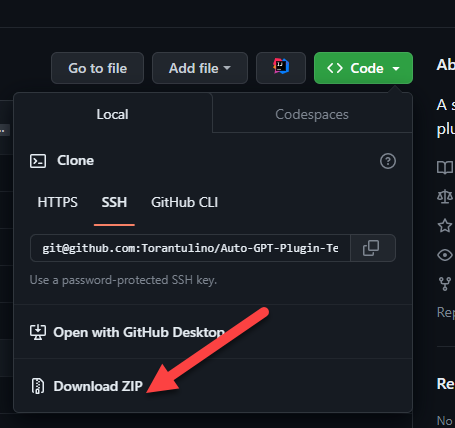
1. **Clone or download the plugin repository:**
Clone the plugin repository, or download the repository as a zip file.
2. **Install the plugin's dependencies (if any):**
Navigate to the plugin's folder in your terminal, and run the following command to install any required dependencies:
``` shell
pip install -r requirements.txt
```
3. **Package the plugin as a Zip file:**
If you cloned the repository, compress the plugin folder as a Zip file.
4. **Copy the plugin's Zip file:**
Place the plugin's Zip file in the `plugins` folder of the Auto-GPT repository.
5. **Allowlist the plugin (optional):**
Add the plugin's class name to the `ALLOWLISTED_PLUGINS` in the `.env` file to avoid being prompted with a warning when loading the plugin:
``` shell
ALLOWLISTED_PLUGINS=example-plugin1,example-plugin2,example-plugin3
```
If the plugin is not allowlisted, you will be warned before it's loaded.