https://github.com/jpakkane/msicreator
Python script to generate MSI installers
https://github.com/jpakkane/msicreator
Last synced: 11 months ago
JSON representation
Python script to generate MSI installers
- Host: GitHub
- URL: https://github.com/jpakkane/msicreator
- Owner: jpakkane
- License: apache-2.0
- Created: 2018-06-11T21:52:40.000Z (about 8 years ago)
- Default Branch: master
- Last Pushed: 2024-03-12T19:16:48.000Z (over 2 years ago)
- Last Synced: 2025-08-04T17:16:04.973Z (12 months ago)
- Language: Python
- Size: 182 KB
- Stars: 109
- Watchers: 6
- Forks: 21
- Open Issues: 4
-
Metadata Files:
- Readme: readme.md
- License: COPYING
Awesome Lists containing this project
- awesome-python-standalone - GitHub - 50% open · ⏱️ 12.03.2024): (Miscellaneous)
README
# MSI creator
This script generates MSI packages from a JSON description file and
one or more staging directories.
## Quick usage
This script creates MSI installer packages. It supports both
[WiX](http://wixtoolset.org/) and
[msitools](https://wiki.gnome.org/msitools). The installers may have
one or more parts. Understanding the installer is perhaps best learned
through an example.
Suppose that once installed your application looks like this:
```
c:\Program Files\MyProg\program.exe
c:\Program Files\MyProg\resources\image.png
```
In order to achieve this you'd need to create two things. The first is
a _staging directory_ that consists of the files below `MyProg` in the
layout they will exist in the final result. People familiar with the
way Unix works can consider this as roughly the result of doing an
install with `DESTDIR` pointing to the staging directory. In addition
you need a JSON file describing all metadata required to create the
install, let's call this `myprog.json` and a license file
`License.rtf`.
To get the installer started you'd need to create a file and directory
layout like this in a directory of your choice:
```
myprog.json
License.rtf
staging\program.exe
staging\resources\image.png
```
As you can tell, eventually the contents of `staging` subdir will be
installed in `c:\Program Files\MyProg`. The contents of `myprog.json`
would look like this:
```json
{
"upgrade_guid": "YOUR-GUID-HERE",
"version": "1.0.0",
"product_name": "Product name here",
"manufacturer": "Your organization's name here",
"name": "Name of product here",
"name_base": "myprog",
"comments": "A comment describing the program",
"installdir": "MyProg",
"license_file": "License.rtf",
"parts": [
{
"id": "MainProgram",
"title": "Program name",
"description": "The MyProg program",
"absent": "disallow",
"staged_dir": "staging"
}
]
}
```
This is all you need. The installer is built by executing this command
in the top level directory:
```
python createmsi.py myprog.json
```
Once the script finishes the installer will be written into
`myprog-1.0.0-64.msi` (when run on a 64 bit machine).
## Adding multiple parts to the installer
Each entry in the `parts` array defines a subpart in the installer
that the user can choose whether to install. Each of these entries
points to a separate staging directory with the contents of that
part. Thus if you have a project that ships a DLL for using as well as
an optional development package with an import library and a header,
you'd need to split your files in two directories like this:
```
staging_main\foo.dll
staging_deve\foo.lib
staging_deve\foo.h
```
Then you'd have two entries in the `parts` array, one pointing to
`staging_main` and the other pointing to `staging_deve`. Set the value
of `absent` to `disallow` for components that are mandatory, the user
won't be able to deselect them so they will always be installed.. If
the user intalls both components, the final result would look like
this:
```
c:\program files\foo\foo.dll
c:\program files\foo\foo.lib
c:\program files\foo\foo.h
```
Note how the files end up in the same directory.
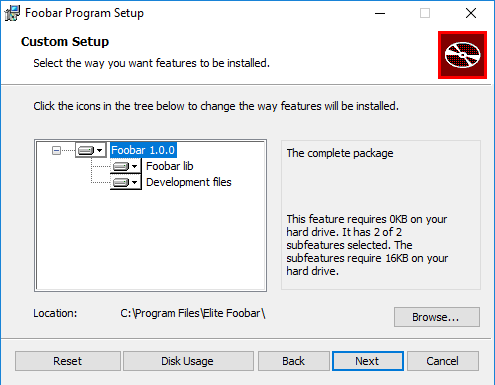
## Screenshot