https://github.com/jpfleury/gedit-markdown
Markdown support for the gedit text editor, with live preview and export tools
https://github.com/jpfleury/gedit-markdown
gedit gedit-plugin gtk html markdown markdown-editor markdown-preview markdown-viewer python shell text-editor webkit2
Last synced: 6 months ago
JSON representation
Markdown support for the gedit text editor, with live preview and export tools
- Host: GitHub
- URL: https://github.com/jpfleury/gedit-markdown
- Owner: jpfleury
- License: gpl-3.0
- Created: 2014-09-23T02:57:09.000Z (almost 12 years ago)
- Default Branch: master
- Last Pushed: 2025-05-19T19:58:39.000Z (about 1 year ago)
- Last Synced: 2025-08-11T00:38:55.819Z (11 months ago)
- Topics: gedit, gedit-plugin, gtk, html, markdown, markdown-editor, markdown-preview, markdown-viewer, python, shell, text-editor, webkit2
- Language: Python
- Homepage:
- Size: 4.05 MB
- Stars: 131
- Watchers: 12
- Forks: 29
- Open Issues: 2
-
Metadata Files:
- Readme: README.md
- License: COPYING
Awesome Lists containing this project
README
**Versions:**
* For gedit 2 and gedit 3.0 to 3.6, see the [gedit-markdown v1 documentation](https://github.com/jpfleury/gedit-markdown/tree/v1#readme).
* For gedit 3.8 to 3.12, see the [gedit-markdown v2 documentation](https://github.com/jpfleury/gedit-markdown/tree/v2#readme).
* For gedit 3.28 to 3.38, see the [gedit-markdown v3 documentation](https://github.com/jpfleury/gedit-markdown/tree/v3#readme).
* For gedit 41 and later, see the documentation below (gedit-markdown v4).
## Overview
gedit-markdown adds Markdown support to gedit, the default GNOME text editor.
It provides:
* Markdown *snippets*
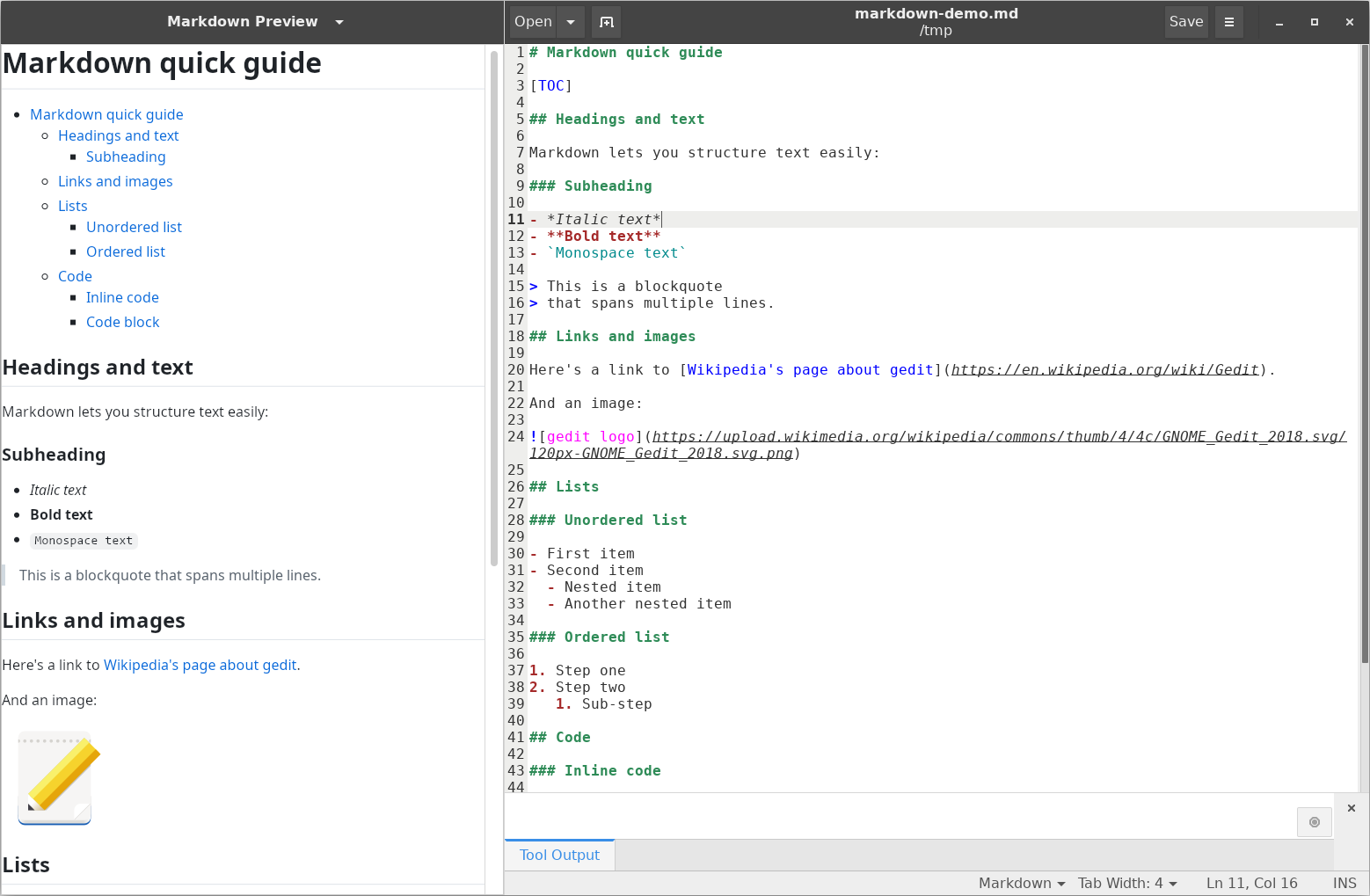
* A *Markdown Preview* plugin for gedit, shown in the side or bottom panel, that renders the current document or selection in HTML
* An *external tool* for exporting the current document or selection to HTML or PDF
## Requirements
* gedit-markdown v4 supports gedit 41 and later, and comes with an installer for GNU/Linux.
* The *Markdown Preview* plugin requires the packages `python3-markdown` and `gir1.2-webkit2-4.0`.
## Installation (or update)
* [Download the gedit-markdown v4 archive.](https://github.com/jpfleury/gedit-markdown/archive/master.zip)
* Extract the archive.
* Open a terminal in the extracted folder.
* Run the installer:
./gedit-markdown.sh install
Markdown support will be installed for the current user (no root privileges needed). You can delete the extracted folder after installation.
## Uninstallation
* Open a terminal in the extracted folder.
* Run the uninstaller:
./gedit-markdown.sh uninstall
## Usage
First, restart gedit if it's already running.
### Syntax highlighting
Syntax highlighting should be automatically activated for files recognized as Markdown (extensions `.markdown`, `.md`, or `.mkd`). Otherwise, activate it manually via *View > Highlight Mode > Markup* and select *Markdown*.
### Plugin *Markdown Preview*
To enable this plugin, go to *Edit > Preferences > Plugins* and check *Markdown Preview*.
Two items are added to the gedit *Tools* menu:
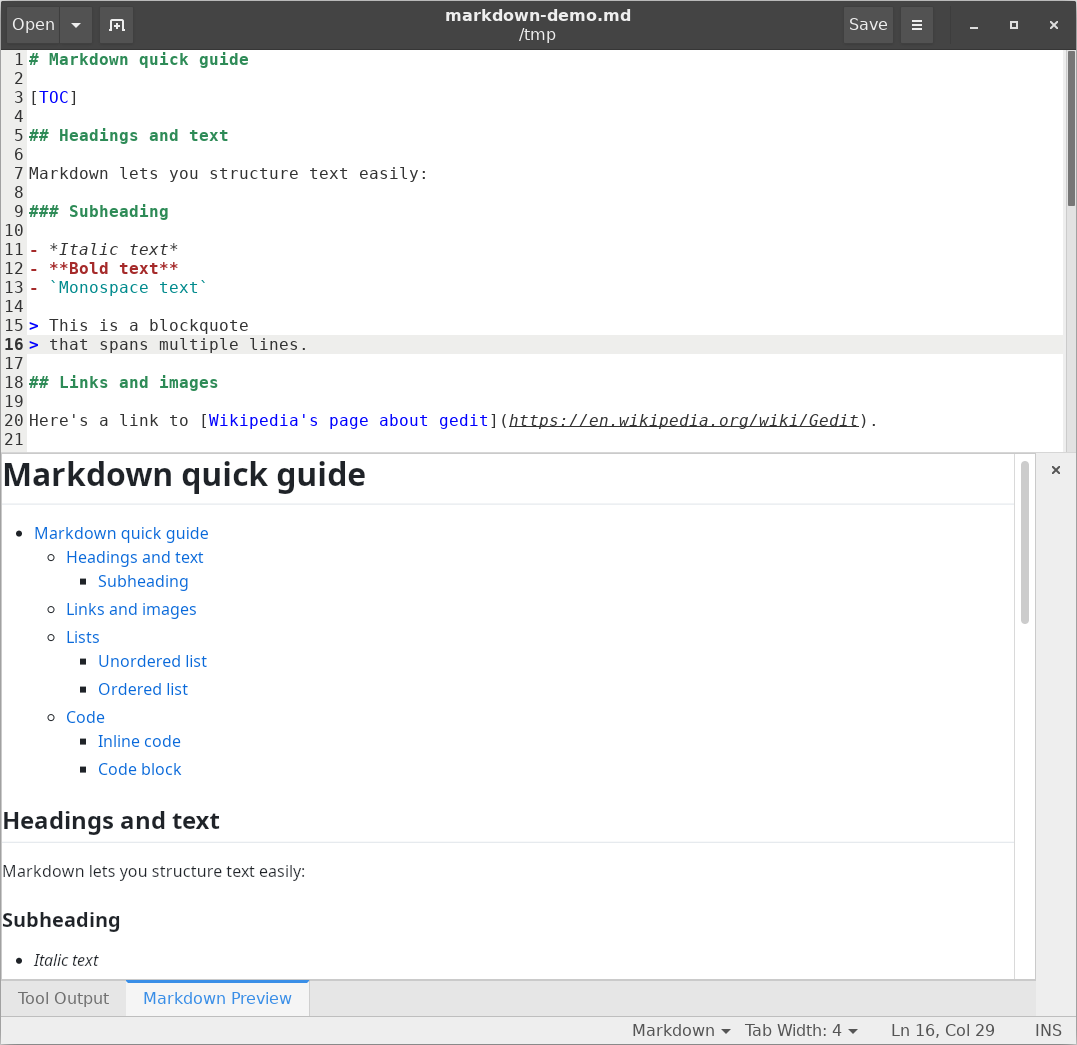
* *Update Markdown Preview*: displays a preview of the current document or selection in the side panel or bottom panel.
Note: There are two other ways to update the preview:
- Using the keyboard shortcut *Ctrl+Alt+m* (can be changed in the configuration file)
- Right-clicking in the preview area (side or bottom panel) and selecting *Update Preview*
* *Toggle Markdown Preview visibility*: toggles the Markdown Preview panel tab.
Note: The keyboard shortcut *Ctrl+Alt+v* (configurable) does the same.
When right-clicking in the preview area, a context menu appears with several options. Besides the default ones (previous page, next page, copy, etc.), it includes:
* *Update Preview*: reloads the preview of the current document or selection in the side or bottom panel.
Local files will be opened in the preview area, while external files will be opened in your default web browser.
Here's a screenshot of the plugin in the bottom panel:
### Table of contents
When the `toc` Markdown extension is enabled (see *Configuration file*; enabled by default), add `[TOC]` to your Markdown source to generate a clickable table of contents.
### Snippets
To use Markdown snippets, activate the *Snippets* plugin via *Edit > Preferences > Plugins*. Then go to *Tools > Manage Snippets...* to explore the options.
### Converters (external tools)
The following tools are included:
* Export to HTML
* Export to PDF
To use an external tool, activate the *External Tools* plugin via *Edit > Preferences > Plugins*. Then go to *Tools > External Tools > Export to HTML* to run it. The shortcut *Ctrl+Alt+h* does the same. The content of the current Markdown file or selection will be converted to HTML or PDF, and the result opened in a new document.
To edit the tool, go to *Tools > Manage External Tools...*.
### Configuration file
The configuration file is located at:
$XDG_CONFIG_HOME/gedit/gedit-markdown.ini
This usually corresponds to:
$HOME/.config/gedit/gedit-markdown.ini
The `[markdown-preview]` section contains several properties:
* `panel`: position of the preview. Possible values: `bottom` (default) or `side`.
* `shortcut`: shortcut to refresh the preview. Default: `m`.
* `extensions`: a list separated by spaces of [Markdown extensions](https://python-markdown.github.io/extensions/#officially-supported-extensions). Default: `extra toc`.
* `visibility`: whether to show the Markdown Preview panel tab at startup. Values: `0` (hidden) or `1` (shown; default).
* `visibilityShortcut`: shortcut to toggle visibility. Default: `v`.
* `autoIdle`: idle time before updating the preview (ms). Values: `0` (immediate), `250` (default), or any positive float.
* `autoReloadActivate`: reload preview when plugin is activated. `0` (off) or `1` (on; default).
* `autoReloadOpen`: reload preview when document is opened. `0` (off) or `1` (on; default).
* `autoReloadSave`: reload preview on save. `0` (off) or `1` (on; default).
* `autoReloadTabs`: reload preview on tab switch. `0` (off) or `1` (on; default).
* `autoReloadEdit`: reload preview on edit. `0` (off) or `1` (on; default).
* `autoReloadSelection`: reload preview on selection change. `0` (off; default) or `1` (on).
If the file or any property is missing, default values will be generated on startup.
### Markdown demo
* [Demo 1](doc/demo-markdown.md)
* [Demo 2](doc/demo-markdown-extra.md)
## Details and limitations
* Syntax highlighting and snippets for standard Markdown were officially added in GtkSourceView and gedit > 3.1.1.
* Older versions of gedit-markdown also added a custom Markdown MIME type and support for the `.mdtxt` extension. Since Markdown support was added to `shared-mime-info` ([see the bug report](https://bugs.freedesktop.org/show_bug.cgi?id=27441)), gedit-markdown no longer provides its own MIME type. For compliance, `.mdtxt` is no longer supported.
* Since HTML code can be embedded in Markdown, HTML highlighting was added. However, Markdown inside HTML blocks (e.g., `
`) or Markdown Extra inside HTML blocks without the `markdown="1"` attribute is not processed, even if highlighted.
* Inline code spans are wrapped in backticks. Markdown allows using any number of matching backticks as long as the same number isn't inside the text. Examples:
`lorem lorem lorem lorem`
`lorem lorem `` lorem lorem`
`lorem lorem ````` lorem lorem`
``lorem lorem lorem lorem``
``lorem lorem ` lorem lorem``
``lorem lorem ````` lorem lorem``
Syntax highlighting in gedit supports up to two backticks.
* Blockquotes can contain both inline and block elements, but only inline ones (e.g., emphasis, links) are highlighted.
* Full context analysis is not possible (regex can't span multiple lines). As a result:
* Multiple paragraphs in a list item must be indented. For example:
- Item A (paragraph 1).
Item A (paragraph 2).
Item A (paragraph 3).
- Item B.
There's a conflict between indented list content and indented code blocks. The choice was made to only highlight code blocks from two indentation levels.
* Only the underline of Setext-style headers is matched, so it may not truly indicate a title.
* Some Markdown Extra elements are highlighted even if the context is incorrect: Setext header IDs, colons in definition lists, and table separators.
## Development
Git is used for version control. [Browse or clone the repository here.](https://github.com/jpfleury/gedit-markdown)
### Localization
The *Markdown Preview* plugin is localizable. Strings are in `plugins/markdown-preview/locale/markdown-preview.pot`.
## License
Maintainer: Jean-Philippe Fleury
Copyright © 2009-2014, 2025 Jean-Philippe Fleury
Copyright © 2018, 2020 darkdragon-001
Copyright © 2005, 2006 Michele Campeotto
This program is free software: you can redistribute it and/or modify
it under the terms of the GNU General Public License as published by
the Free Software Foundation, either version 3 of the License, or
(at your option) any later version.
This program is distributed in the hope that it will be useful,
but WITHOUT ANY WARRANTY; without even the implied warranty of
MERCHANTABILITY or FITNESS FOR A PARTICULAR PURPOSE. See the
GNU General Public License for more details.
You should have received a copy of the GNU General Public License
along with this program. If not, see .