https://github.com/jsnjack/maildam
Make a desktop application from any website
https://github.com/jsnjack/maildam
desktop-application electron gnome vue webapp
Last synced: 3 months ago
JSON representation
Make a desktop application from any website
- Host: GitHub
- URL: https://github.com/jsnjack/maildam
- Owner: jsnjack
- Created: 2018-05-22T22:23:16.000Z (about 8 years ago)
- Default Branch: master
- Last Pushed: 2018-08-10T12:08:24.000Z (almost 8 years ago)
- Last Synced: 2025-10-04T01:38:17.982Z (9 months ago)
- Topics: desktop-application, electron, gnome, vue, webapp
- Language: JavaScript
- Homepage:
- Size: 938 KB
- Stars: 0
- Watchers: 2
- Forks: 0
- Open Issues: 0
-
Metadata Files:
- Readme: README.md
Awesome Lists containing this project
README
maildam
=====
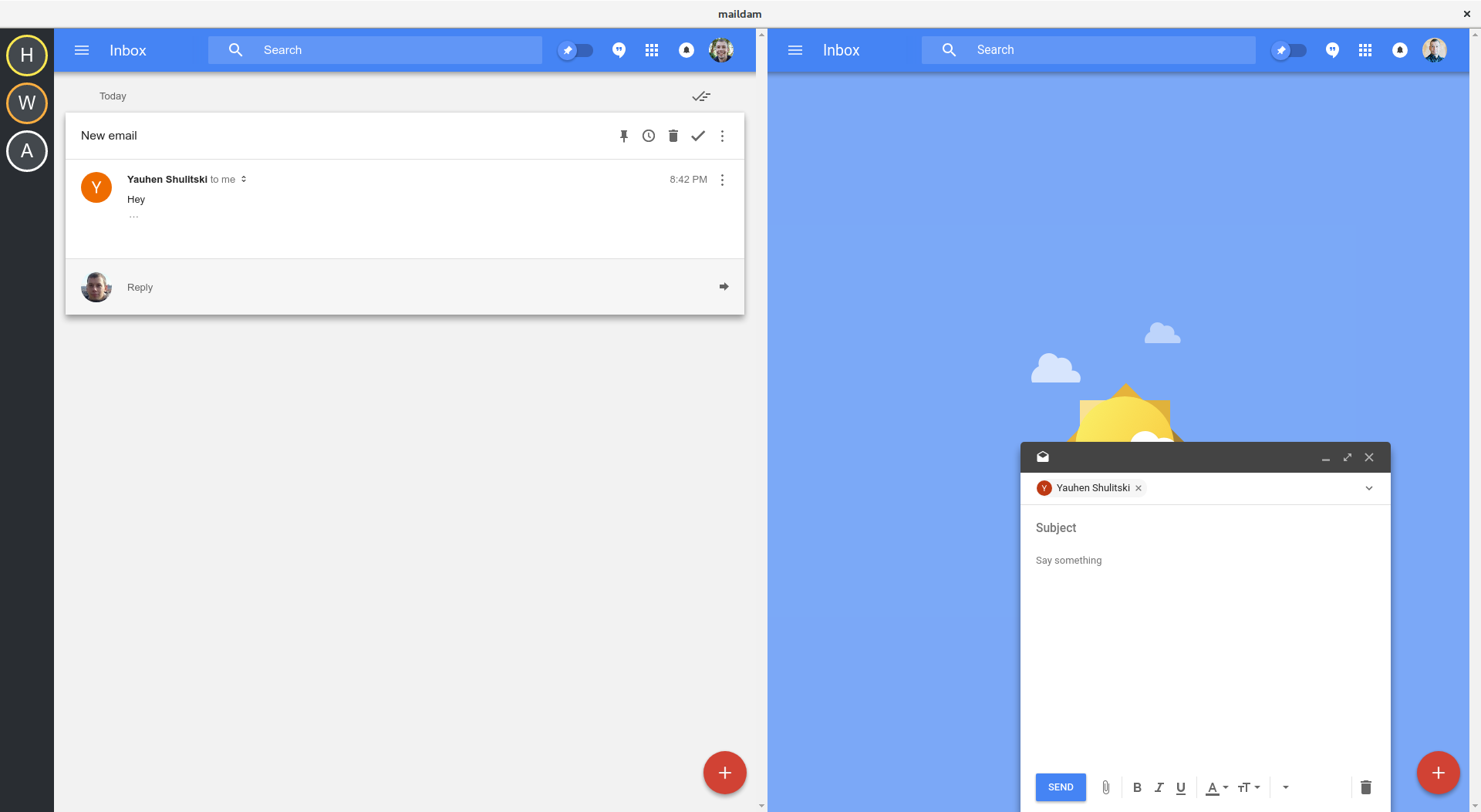
Make a desktop application from any website
## How to use
maildam loads configuration in JSON format from `~/.config/maildam/config.json` (Linux)
### Example 1: Side-by-side 2 Google Inbox accounts
1. Create `~/.config/maildam/config.json` file with the following content:
```json
{
"tabs": [
{
"name": "Home",
"url": "https://inbox.google.com/u/0/",
"isActive": true
},
{
"name": "Work",
"url": "https://inbox.google.com/u/1/",
"isActive": false
}
],
"scaledrone_channel_id": "x123",
"pusher_api_key": "y123",
}
```
2. If `scaledrone_channel_id` is provided, maildam subscribes to the channel and expects a notification to be a valid JSON object with `title` and `body` fields, like:
```json
{
"title": "New email",
"body": "from Yauhen ",
}
```
3. If `pusher_api_key` is provided, maildam subscribes to the channel `mail` and expects a notification to be a valid JSON object with `title` and `body` fields, like:
```json
{
"title": "New email",
"body": "from Yauhen ",
}
```
### Example 2: HipChat as a desktop application
By default maildam looks for `config.json` file in `~/.config/maildam/` directory. It is possible to set up different working directory (profile)
1. Create `~/.config/maildam-hipchat/config.json` file:
```json
{
"tabs": [
{
"name": "Hipchat",
"url": "https://surfly.hipchat.com/chat",
"isActive": true
}
]
}
```
2. It is already possible to start using HipChat with the following command
```shell
maildam --profile hipchat --name=hipchat
```
The command starts new maildam instance with `maildam-hipchat` profile and `WM_CLASS = hipchat, hipchat` window class (Stops GNOME from combining windows from different profiles)
3. Integrate HipChat with GNOME. Create `/home/jsn/.local/share/applications/hipchatdam.desktop` file:
```
[Desktop Entry]
Name=HipChat
Comment=Hipchat with maildam
GenericName=hipchat
Exec=maildam --profile hipchat --name=hipchat
Icon=hipchat
Type=Application
StartupWMClass=hipchat
```
You will need to create an icon manually.
## Building from source
1. Clone repository and run to install dependencies
```
yarn install
```
2. Run `yarn run dev` to start in development mode
3. Run `yarn run build` to build and package into RPM