https://github.com/jtpio/jupyterlab-iframe-bridge-example
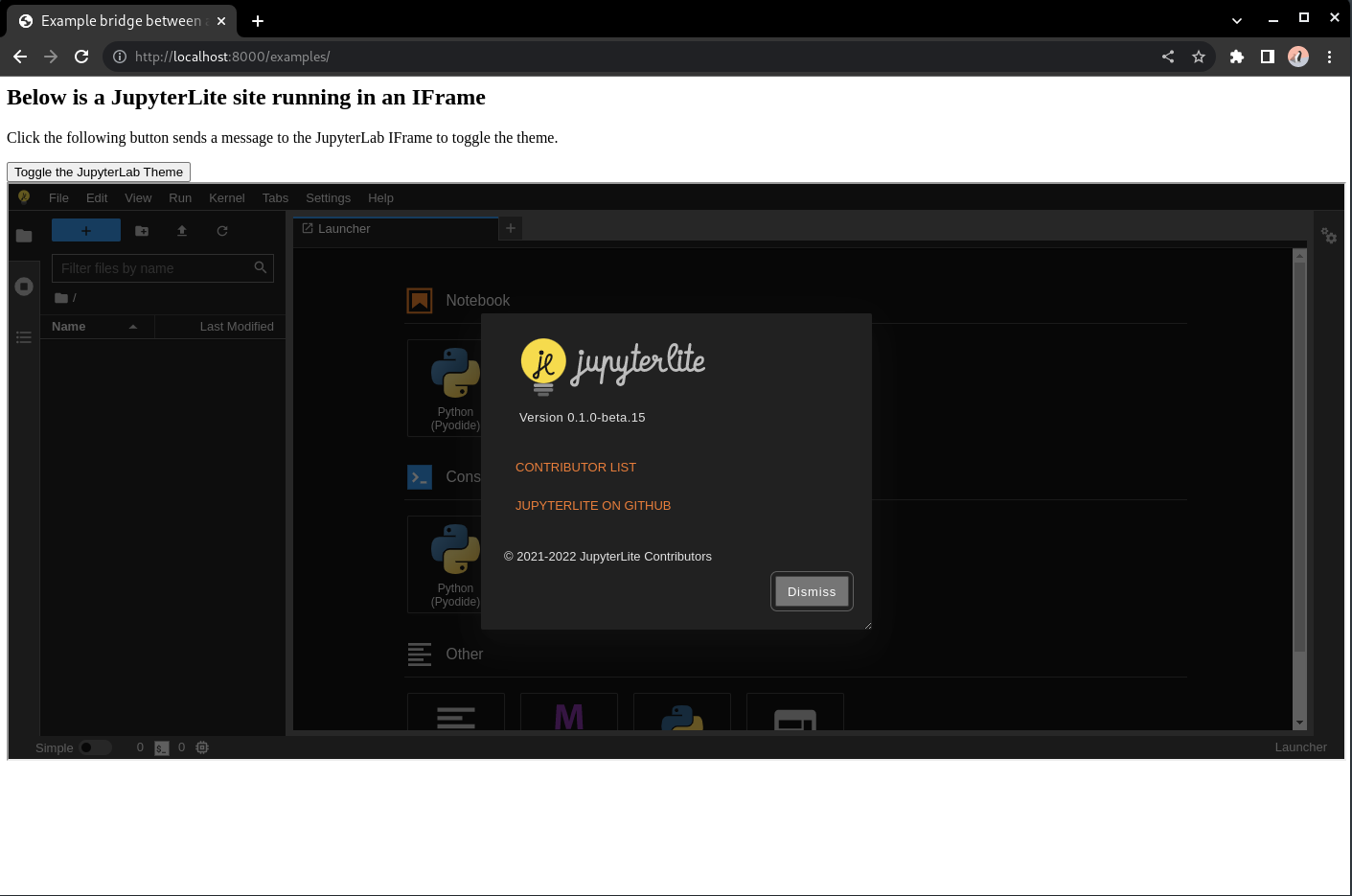
An example bridge extension to demo passing messages between a host page and JupyterLab running in an IFrame.
https://github.com/jtpio/jupyterlab-iframe-bridge-example
Last synced: over 1 year ago
JSON representation
An example bridge extension to demo passing messages between a host page and JupyterLab running in an IFrame.
- Host: GitHub
- URL: https://github.com/jtpio/jupyterlab-iframe-bridge-example
- Owner: jtpio
- License: bsd-3-clause
- Created: 2022-12-17T21:05:34.000Z (over 3 years ago)
- Default Branch: main
- Last Pushed: 2022-12-17T21:16:46.000Z (over 3 years ago)
- Last Synced: 2025-02-14T16:50:31.454Z (over 1 year ago)
- Language: JavaScript
- Homepage: https://jtpio.github.io/jupyterlab-iframe-bridge-example/
- Size: 126 KB
- Stars: 2
- Watchers: 2
- Forks: 0
- Open Issues: 0
-
Metadata Files:
- Readme: README.md
- Changelog: CHANGELOG.md
- License: LICENSE
Awesome Lists containing this project
README
# jupyterlab-iframe-bridge-example
[](https://github.com/jtpio/jupyterlab-iframe-bridge-example/actions/workflows/build.yml)
An example bridge extension to demo passing messages between a host page and JupyterLab running in an IFrame.
⚠️ This is an example extension for demo purposes only.
## Requirements
- JupyterLab >= 3.0
## Development install
Note: You will need NodeJS to build the extension package.
The `jlpm` command is JupyterLab's pinned version of
[yarn](https://yarnpkg.com/) that is installed with JupyterLab. You may use
`yarn` or `npm` in lieu of `jlpm` below.
```bash
# Clone the repo to your local environment
# Install package in development mode
pip install -e .
# Link your development version of the extension with JupyterLab
jupyter labextension develop . --overwrite
# Rebuild extension Typescript source after making changes
jlpm build
```
You can watch the source directory and run JupyterLab at the same time in different terminals to watch for changes in the extension's source and automatically rebuild the extension.
```bash
jlpm watch
```
### Usage
Build a new JupyterLite site:
```bash
cd examples
jupyter lite build --output-dir lite
# start a local server
python -m http.server
```
Then go to http://localhost:8000/examples.
## Development uninstall
```bash
pip uninstall jupyterlab_iframe_bridge_example
```
In development mode, you will also need to remove the symlink created by `jupyter labextension develop`
command. To find its location, you can run `jupyter labextension list` to figure out where the `labextensions`
folder is located. Then you can remove the symlink named `jupyterlab-iframe-bridge-example` within that folder.