https://github.com/junobuild/workshop
Workshop material to discover Juno
https://github.com/junobuild/workshop
Last synced: about 1 year ago
JSON representation
Workshop material to discover Juno
- Host: GitHub
- URL: https://github.com/junobuild/workshop
- Owner: junobuild
- Created: 2023-07-14T07:45:51.000Z (about 3 years ago)
- Default Branch: main
- Last Pushed: 2024-08-17T07:29:25.000Z (almost 2 years ago)
- Last Synced: 2025-04-02T13:48:42.290Z (over 1 year ago)
- Language: JavaScript
- Homepage:
- Size: 510 KB
- Stars: 14
- Watchers: 1
- Forks: 4
- Open Issues: 3
-
Metadata Files:
- Readme: README.md
Awesome Lists containing this project
README
# Juno: Workshop
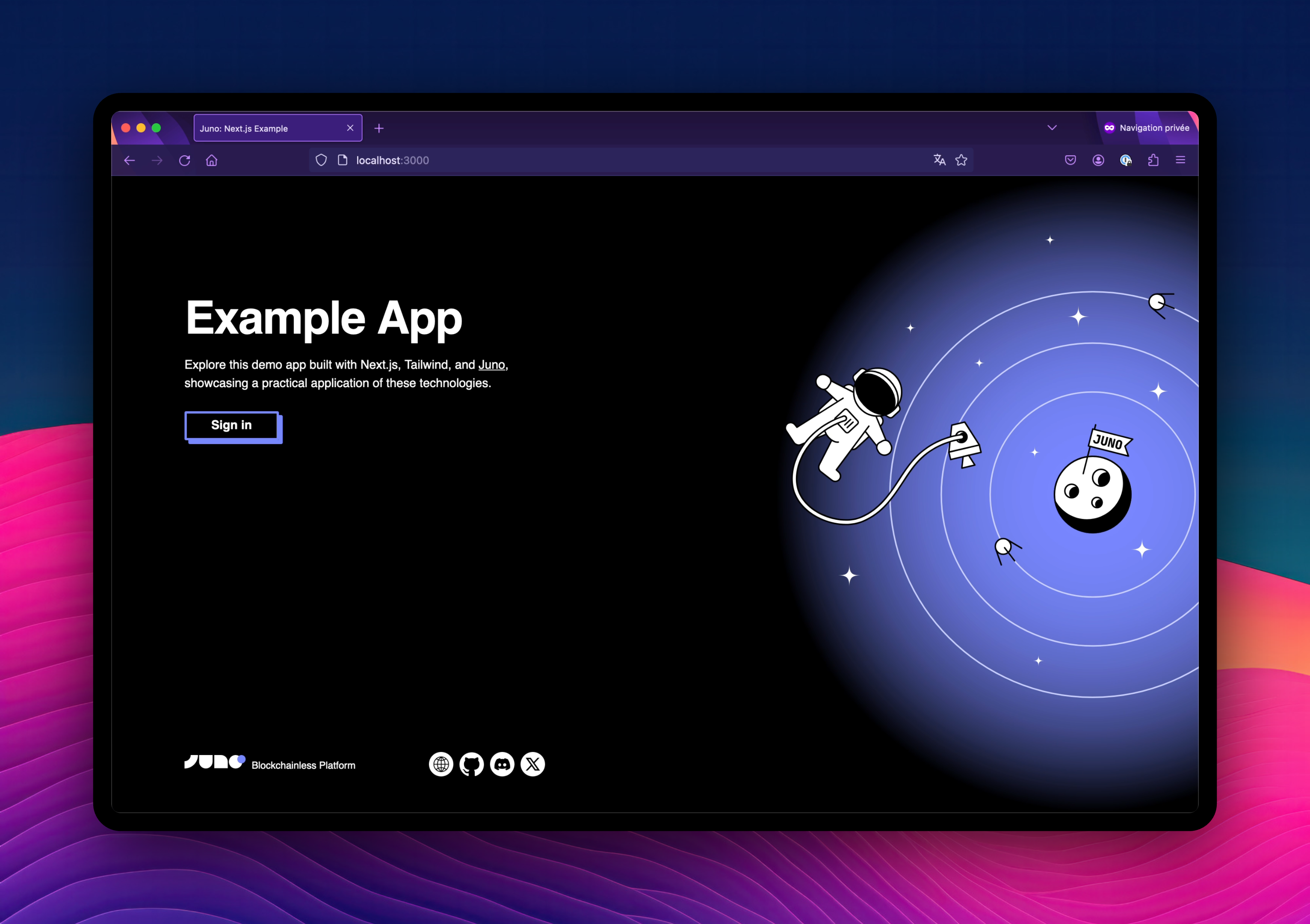
This repository provides code samples and instructions to guide attendees in discovering Juno during a workshop.
## Getting Started
Clone the repository and install the dependencies:
```bash
git clone https://github.com/junobuild/workshop
cd workshop
npm ci
```
## Workshop
We are developing a note-taking app, and the core functionality is already in place. However, we still need to integrate Juno, which we plan to implement during the workshop.
By following the steps below and replacing the provided snippet, we will be able to implement the app and learn about building on Web3 simultaneously.
---
### Table of contents
1. [Initialization](#initialization)
2. [Authentication](#authentication)
3. [Storing Document](#storing-documents)
4. [Listing Document](#listing-documents)
5. [Uploading Files](#uploading-files)
6. [Deployment](#deployment)
---
### Initialization
Before we can integrate Juno into the app, we’ll need to create a satellite. This process is explained in detail in the [documentation](https://juno.build/docs/add-juno-to-an-app/create-a-satellite).
> New developers will also need to sign in to Juno's [console](https://console.juno.build) and may even need to create an Internet Identity.
Once the satellite is created, we can initialize Juno with its ID.
First, configure the satellite ID in the `juno.config.mjs` file.
> TODO: find and replace STEP_1_CONFIGURATION
```javascript
import { defineConfig } from "@junobuild/config";
/** @type {import('@junobuild/config').JunoConfig} */
export default defineConfig({
satellite: {
// TODO: STEP_1_CONFIGURATION
id: "replace-satellite-id",
source: "dist",
},
});
```
Then, enable the initialization of the library within the application.
> TODO: find and replace STEP_2_INITIALIZATION
```javascript
await initSatellite();
```
---
### Authentication
To securely identify users anonymously, they will need to sign in.
> TODO: find and replace STEP_3_AUTH_SIGN_IN
```javascript
import { signIn } from "@junobuild/core";
await signIn();
```
To get to know the user’s state, Juno provides an observable function called `authSubscribe()`. We can use it as many times as required, but I find it convenient to subscribe to it at the top of an app.
> TODO: find and replace STEP_4_AUTH_SUBSCRIBE
```typescript
import { authSubscribe, type User } from "@junobuild/core";
const sub = authSubscribe((user: User | null) => console.log(user));
```
Users should obviously also be able to sign out.
> TODO: find and replace STEP_5_AUTH_SIGN_OUT
```javascript
import { signOut } from "@junobuild/core";
await signOut();
```
---
### Storing Documents
Storing data on the blockchain with Juno is done through a feature called “Datastore”. Follow the instructions in the documentation to create a collection, which can be named accordingly (“notes”).
Once our collection is created, we can persist data on the blockchain using the `setDoc` function.
> TODO: find and replace STEP_6_SET_DOC
```javascript
await setDoc({
collection: "notes",
doc: {
key,
data: {
text: inputText,
},
},
});
```
---
### Listing Documents
To fetch the list of documents saved on the blockchain, we can use the `listDocs` function.
> TODO: find and replace STEP_7_LIST_DOCS
```javascript
const { items } = await listDocs({
collection: "notes",
});
```
---
### Uploading Files
As for the documents, to upload assets we will need first to create a collection in the “Storage”. We can be name it “images”.
Once our collection is set, we can upload a file on chain using the `uploadFile` function.
> TODO: find and replace STEP_8_UPLOAD_FILE
```javascript
const { downloadUrl } = await uploadFile({
collection: "images",
data: file,
filename,
});
```
In this particular workshop, we also want to save a reference within the document to its related asset.
> TODO: find and replace STEP_9_ADD_REFERENCE
```javascript
await setDoc({
collection: "notes",
doc: {
key,
data: {
text: inputText,
...(url !== undefined && { url }), // <--- We add this reference
},
},
});
```
---
### Deployment
After we have developed and built our application, we can launch it.
We recommend using [GitHub Actions](https://juno.build/docs/guides/github-actions) to continuously deploy real applications, but for the sake of this workshop, we will do this manually. That means we need to install the Juno CLI.
```bash
npm i -g @junobuild/cli
```
Once the installation is complete, we log in to grant access from our terminal to our satellite.
```bash
juno login
```
Finally, we deploy our project.
```bash
juno deploy
```
Congratulations! Your dApp has been launched on chain 🎉.