https://github.com/kangwonlee/nmisp
Numerical Methods in SciPy
https://github.com/kangwonlee/nmisp
jupyter-notebook linear-algebra numerical-integration numerical-methods ordinary-differential-equations pandas pylab python root-finding scipy-stack tutorial
Last synced: 6 months ago
JSON representation
Numerical Methods in SciPy
- Host: GitHub
- URL: https://github.com/kangwonlee/nmisp
- Owner: kangwonlee
- License: other
- Created: 2018-07-04T03:14:07.000Z (about 8 years ago)
- Default Branch: main
- Last Pushed: 2025-06-16T01:11:14.000Z (about 1 year ago)
- Last Synced: 2025-06-16T02:23:52.313Z (about 1 year ago)
- Topics: jupyter-notebook, linear-algebra, numerical-integration, numerical-methods, ordinary-differential-equations, pandas, pylab, python, root-finding, scipy-stack, tutorial
- Language: Jupyter Notebook
- Homepage:
- Size: 4.85 MB
- Stars: 12
- Watchers: 1
- Forks: 66
- Open Issues: 160
-
Metadata Files:
- Readme: README.md
- License: LICENSE
Awesome Lists containing this project
README
[](https://github.com/kangwonlee/nmisp/actions/workflows/conda_env_test.yml)
# 사이파이 수치 해석
Numerical Methods in SciPy
## 소개
Introduction
[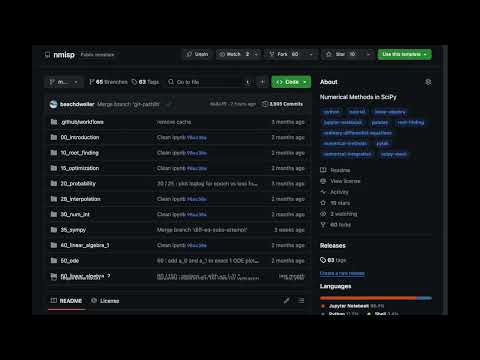](https://youtu.be/_GN74MRLYcI)
이 소프트웨어는 다양한 수치 해법을 [`Python`](https://ko.wikipedia.org/wiki/%ED%8C%8C%EC%9D%B4%EC%8D%AC) 언어와 그 확장 기능인 `SciPy` 를 이용하여 설명하고자 함.
This software aims to describe various numerical methods in [`Python`](https://en.wikipedia.org/wiki/Python_%28programming_language%29) programming language and its extesion `SciPy`.
## How to Open in [Google Colab](https://colab.research.google.com)
[구글 코랩](https://colab.research.google.com)에서 읽는 법
1. Open an `ipynb` file of [this repository](https://github.com/kangwonlee/nmisp)
이 [저장소](https://github.com/kangwonlee/nmisp)의 `ipynb` 파일을 엶
1. Click on 
 클릭
1. Try `Run all` of `Runtime`
`런타임` 아래 `모두 실행` 시도
## How to commit changes on [Google Colab](https://colab.research.google.com) to Github
[구글 코랩](https://colab.research.google.com)의 변경 사항을 Github 에 반영하는 법
1. [Fork](https://github.com/kangwonlee/nmisp/fork) the repository
저장소의 [분기](https://github.com/kangwonlee/nmisp/fork) 사본을 만듦
1. Open the ipynb file from the forked repository
분기된 저장소에서 ipynb 파일을 엶
1. Click on 
 클릭
1. Make changes
파일을 수정
1. Choose `Save a copy in GitHub` under `File` menu
`파일` 메뉴 아래 `Github 에 사본 저장`
1. Adjust permissions and/or retry if necessary
필요시 권한 조정 후 재시도
## 설치 항목
Software to install
### 깃 버전 관리 소프트웨어 : 명령행 실행 환경
Git Version Control Software : Commadline interface
* 우분투 리눅스의 경우 다음과 같이 설치
For Ubuntu Linux, install as follows
``` sh
apt-get install git
```
* Windows 의 경우 아래 링크에서 다운로드 가능
Download for Windows available at the following link : [Git for Windows](https://git-scm.com/download/win)
##### 간단한 추천 사항
A few simple recommendations
* 명령행에서 사용 Command line interface
* 실습실 환경에서는 credential manager 설치 삼가
Credential manager may not be a best choice for a computer lab
* 아래 IDE 가운데 Microsoft Visual Studio Code 선택시 다음과 같이 생각해 볼 수 있음
To use Microsoft Visual Studio Code among IDEs below, an administrator may consider followings
| 항목
Key | 값
Value |
|:-------:|:-------:|
| git 기본 편집기
Default editor for Git | MS VS Code |
| 경로 환경 조정
Adjusting Path environment | Use Git from the Windows Command Prompt |
| 터미널 에뮬레이터
Terminal emulator | Use Windows' default console window |
| 자격 인증 관리자 활성화
Enable Git Credential Manager | 전산 실습 환경의 경우, 선택 해제
If computer lab, unselect |
이후 MS vscode 에서도 한두가지 추가 설정을 실시하면 내장 터미널로 `git-bash` 를 사용할 수 있음
With a few additional configurations in MS vscode, one could use `git-bash` as the integrated terminal.
### 파이썬 프로그래밍 언어
Python Programming Language
#### [Miniconda](https://docs.conda.io/en/latest/miniconda.html)
* Python 3.7 이후
Python 3.7 or latter
* 64bit 판 추천
Recommend 64 bit versions
* 리눅스 명령어 환경에서 다음 실행
Run following commands in a Linux shell
``` sh
# Download & install miniconda
wget https://repo.continuum.io/miniconda/Miniconda3-latest-Linux-x86_64.sh
chmod +x Miniconda3-latest-Linux-x86_64.sh
./Miniconda3-latest-Linux-x86_64.sh
source ~/.bashrc
# Install python modules
git clone https://github.com/kangwonlee/nmisp
pushd nmisp
# You may choose a different environment configuration under ./tests/ folder
conda env create -n nmisp -f ./tests/environment.2020.07.yml
# Start the jupyter notebook
conda activate nmisp
jupyter notebook &
# please do not close the shell
# to run tests
pytest -n auto tests/
```
#### [Anaconda](https://www.anaconda.com/distribution/)
* Python 3.7.x 이후
Python 3.7.x or latter
* 2019.07판 이후
Latter or equal to 2019.07
* 명령행에서 실행해야 할 경우, 경로에 추가하도록 설정
To run from a command line, configure to add python to the PATH
* 경로 이름에 한글을 사용할 수 없음
Use ASCII characters for path name
* In addition, some of the following modules may be needed
아래 모듈 중 일부 추가 설치가 필요할 수 있음
``` sh
conda install conda-forge::tensorflow
conda install pytorch::pytorch
conda install pytorch::torchvision
```
### 깃 버전 관리 소프트웨어 : 그래픽 실행 환경
Git Version Control Software : Graphic user interface
아래 가운데 택일
Choose one from below
* [SourceTree](https://www.sourcetreeapp.com/download/)
* [Github Desktop](https://desktop.github.com/)
### 통합 개발 환경
Integrated Development Environment
* iPython 노트북 (`.ipynb`) 파일 사용시는 반드시 필요하지 않을 수 있음
May not need one for iPython notebook (`.ipynb`) files
* 아래 가운데 택일
Choose one from below
#### Spyder
* Anaconda 와 함께 설치될 수 있음.
Anaconda may include spyder.
#### [PyCharm Community](https://www.jetbrains.com/pycharm/download/)
* PyCharm 을 실행시키기 위해 [Java Development Kit](http://www.oracle.com/technetwork/java/javase/downloads/index.html) 를 설치해야 할 수 있음 (2016 09)
PyCharm may need [Java Development Kit](http://www.oracle.com/technetwork/java/javase/downloads/index.html) to run.
#### [Microsoft Visual Studio Code](https://code.visualstudio.com/download)
* Anaconda 설치 후 설치 선택 가능
Installation [button](https://blogs.msdn.microsoft.com/pythonengineering/2018/02/15/visual-studio-code-is-now-shipping-with-anaconda/) available at the end of Anaconda installation
* [다운로드](https://code.visualstudio.com/download) 받아서 설치도 가능
Possible to [download](https://code.visualstudio.com/download) and install from the website
[Setup Overview](https://code.visualstudio.com/docs/setup/setup-overview) /
[Python Configuration Instruction](https://code.visualstudio.com/docs/python/python-tutorial)
* Windows 에서 `git-bash`를 내장 터미널로 사용하려면 다음과 같은 추가 설정이 필요함.\[[참고](https://code.visualstudio.com/docs/editor/integrated-terminal)\]
In Windows, to use `git-bash` as the integrated terminal, following additional settings would eable it.\[[Ref](https://code.visualstudio.com/docs/editor/integrated-terminal)\]
1. File > Preferences > Settings [[참고 Ref](https://code.visualstudio.com/docs/getstarted/settings)\]
2.
```json
"terminal.integrated.shell.windows": **path to bash.exe here**
```
### 설치 동영상
Installation video
[](https://www.youtube.com/embed/videoseries?list=PLA6B0Lmr9oJNVqYMpfpbXxQCZxNrS1Xuo)
## `jupyter` 노트북
`jupyter` notebook
* 이 저장소 는 주로 [`jupyter` 노트북](http://blog.ncsoft.com/?p=21870)으로 만들어져 있음.
This repository is mostly written in [`jupyter` notebook](http://arogozhnikov.github.io/2016/09/10/jupyter-features.html).
* `jupyter` 노트북은 웹브라우저를 통해 프로그램 코드를 수정 실행하고 LaTex 수식을 포함한 문서 작성이 가능함.
Through a web browser, `jupyter` notebook enables editing & running program codes and writing documents including LaTex equations.
## `jupyter` 노트북 실행시키는 법
How to start the `jupyter` notebook
* 적당한 folder 를 만듦
Make an appropriate folder
* Git 또는 SourceTree 를 이용하여 위 folder 아래 이 원격 저장소를 `git clone`
Using the Git or SourceTree, `git clone` this repository under the folder
* `cmd` 또는 `git bash` 실행한 후 `cd` 명령으로 `clone` 된 지역 저장소 folder로 이동
Start `cmd` or `git bash` and using the `cd` command change working folder to the cloned folder
* `cmd` 또는 `git bash` 에서 각각 `cd` 또는 `pwd` 로 `clone` 된 folder 인지 확인
Check location using `cd` or `pwd` in `cmd` or `git bash`
* `jupyter notebook` 실행
Run `jupyter notebook`
* 필요에 따라 `~/.bashrc` 파일에 다음 내용을 추가
As necessary, add following lines to `~/.bashrc` file
``` sh
alias log='git log --oneline --graph --all --decorate'
alias nb='jupyter notebook --no-browser &'
```
### 실행 동영상 (`git bash`)
Instruction video (`git bash`)
[](https://www.youtube.com/embed/videoseries?list=PLA6B0Lmr9oJO4x4NWWedfHnCOfelU3L39)
## 알림
Acknowledgement
* This software was initially supported by the Korea Ministry of Land, Infrastructure, and Transportation. It was also supported by the Korean Agency for Infrastructure Technology Advancement. (18TLRP-B117133-03)
이 소프트웨어는 대한민국 국토교통부 건설교통과학기술진흥원 교통물류연구사업의 지원을 받아 시작되었음. (18TLRP-B117133-03)
* Also, this software got help from generative artificial intelligence : Google Gemini Advance in improving the text and source code quality.
또한, 이 소프트웨어는 문장과 코드 품질 향상을 위해 생성형 인공지능 구글 제미니 어드밴스의 도움을 받았음.