https://github.com/kavindujayarathne/dotfiles
My dotfiles 👨🏻💻
https://github.com/kavindujayarathne/dotfiles
bash dev-environment dotfiles macos nvim scripting tmux zsh
Last synced: 3 months ago
JSON representation
My dotfiles 👨🏻💻
- Host: GitHub
- URL: https://github.com/kavindujayarathne/dotfiles
- Owner: kavindujayarathne
- License: mit
- Created: 2024-11-22T17:16:51.000Z (over 1 year ago)
- Default Branch: main
- Last Pushed: 2025-03-06T19:09:49.000Z (over 1 year ago)
- Last Synced: 2025-03-06T20:23:06.027Z (over 1 year ago)
- Topics: bash, dev-environment, dotfiles, macos, nvim, scripting, tmux, zsh
- Language: Shell
- Homepage:
- Size: 2.93 MB
- Stars: 0
- Watchers: 1
- Forks: 0
- Open Issues: 0
-
Metadata Files:
- Readme: README.md
- License: LICENSE
Awesome Lists containing this project
README
# Dev Environment
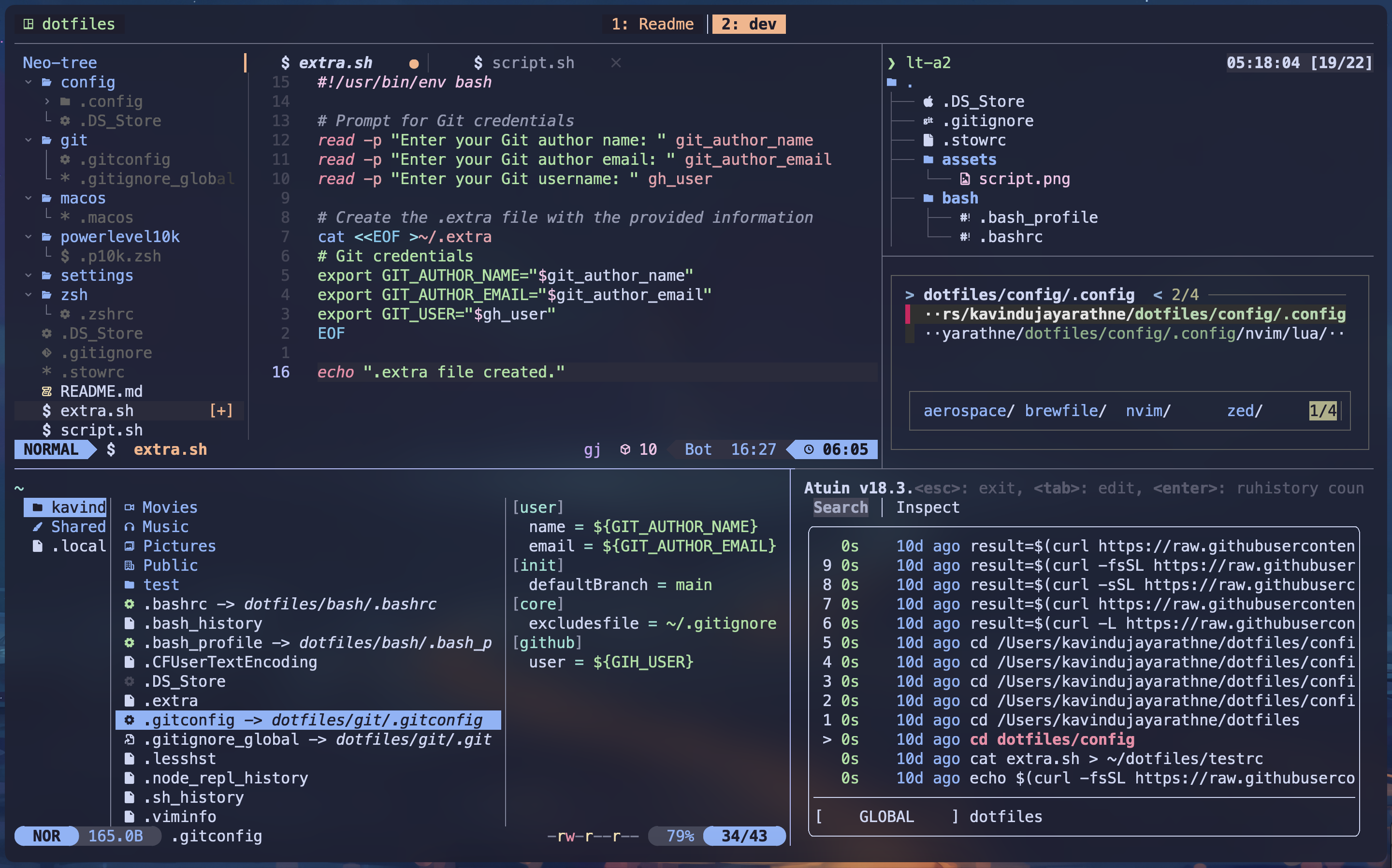
This dotfiles are designed for a macOS environment to provide a streamlined workflow and consistent developer experience across different machines.
> [!WARNING]
> I do not blindly use any of the configurations or tools here, and I encourage you to review them before trying them out.
## `Installation and Setup`
Ensure the following tools are installed before clone the repository.
- Xcode command line tools
If you use macOS like me, xcode command line tool is necessary for compiling and running various packages.
```bash
xcode-select --install
```
- Homebrew (This is the package manager that I use for macOS)
```bash
/bin/bash -c "$(curl -fsSL https://raw.githubusercontent.com/Homebrew/install/HEAD/install.sh)"
```
- Git
Since you have already installed xcode command line tools, git has been installed to your system by default with xcode command line tools.
If you want to use the latest version of git, you can install git using Homebrew.
```bash
brew install git
```
- GNU Stow
I use GNU Stow to manage my dotfiles.
```bash
brew install stow
```
- Nerd Font
For terminal visuals, especially if your prompt and themes use specific glyphs, you need to install a Nerd Font.
I use `Meslo LG Nerd Font` in my dev environment. You can use your preferred Nerd Font.
```bash
brew install --cask font-meslo-lg-nerd-font
```
### Cloning the Repository and Installing tools
Clone the repository using Git:
```bash
git clone https://github.com/kavindujayarathne/dotfiles.git ~/dotfiles/
cd ~/dotfiles
```
Or, if you'd like to install these dotfiles without using Git, you can use the following command:
```bash
mkdir -p ~/dotfiles
cd ~/dotfiles
curl -#L https://github.com/kavindujayarathne/dotfiles/tarball/main | tar -xzv --strip-components 1
```
**Optional:** If you want to exclude certain files such as README.md, you can modify the command like this:
```bash
mkdir -p ~/dotfiles
cd ~/dotfiles
# Exclude a single file
curl -#L https://github.com/kavindujayarathne/dotfiles/tarball/main | tar -xzv --strip-components 1 --exclude=README.md
# Exclude multiple files
curl -#L https://github.com/kavindujayarathne/dotfiles/tarball/main | tar -xzv --strip-components 1 --exclude={README.md, assets}
```
You can install my complete Homebrew setup including all the formulas, casks (macOS applications), vscode extensions and taps (additional repositories) by running below command;
```bash
brew bundle install --file $HOME/dotfiles/config/.config/brewfile/Brewfile
```
Or you can skip things on my Brewfile by using following environment variables.
- HOMEBREW_BUNDLE_BREW_SKIP
- HOMEBREW_BUNDLE_CASK_SKIP
- HOMEBREW_BUNDLE_TAP_SKIP
Use these environment variables with **space-separated** values by executing them on the existing terminal session and then run `brew bundle install` command.
```bash
# To skip the installation of formulas
export HOMEBREW_BUNDLE_BREW_SKIP="formula1 formula2 ..."
# To skip the installation of casks
export HOMEBREW_BUNDLE_CASK_SKIP="cask1 cask2 ..."
# To skip the installation of taps
export HOMEBREW_BUNDLE_TAP_SKIP="tap1 tap2 ..."
```
If you don't want to install vscode extensions, you can modify the **Brewfile** removing lines relevant to vscode and then run the `brew bundle install` command with specifying the **Brewfile** location.
### Setting up dotfiles
After installing all the dependencies, the next step would be to setting up all the dotfiles into your home directory.
I use GNU Stow to manage my dotfiles. You can follow one of below methods to setup dotfiles.
```bash
cd ~/dotfiles
stow zsh # Only symlinks zsh configuration
stow bash # Only symlinks bash configuration
stow git # Only symlinks git configuration
# Or you can include all the packages into a single command
stow zsh bash git ..
```
> [!TIP]
> I have written a script named [dotfiles.sh](./scripts/dotfiles.sh) to automate this process. You can use that script if needed.
> [!NOTE]
> This script uses `fzf`. You should have installed `fzf` before run this script.
```bash
brew install fzf
```
```bash
cd ~/dotfiles/scripts
./dotfiles.sh
```
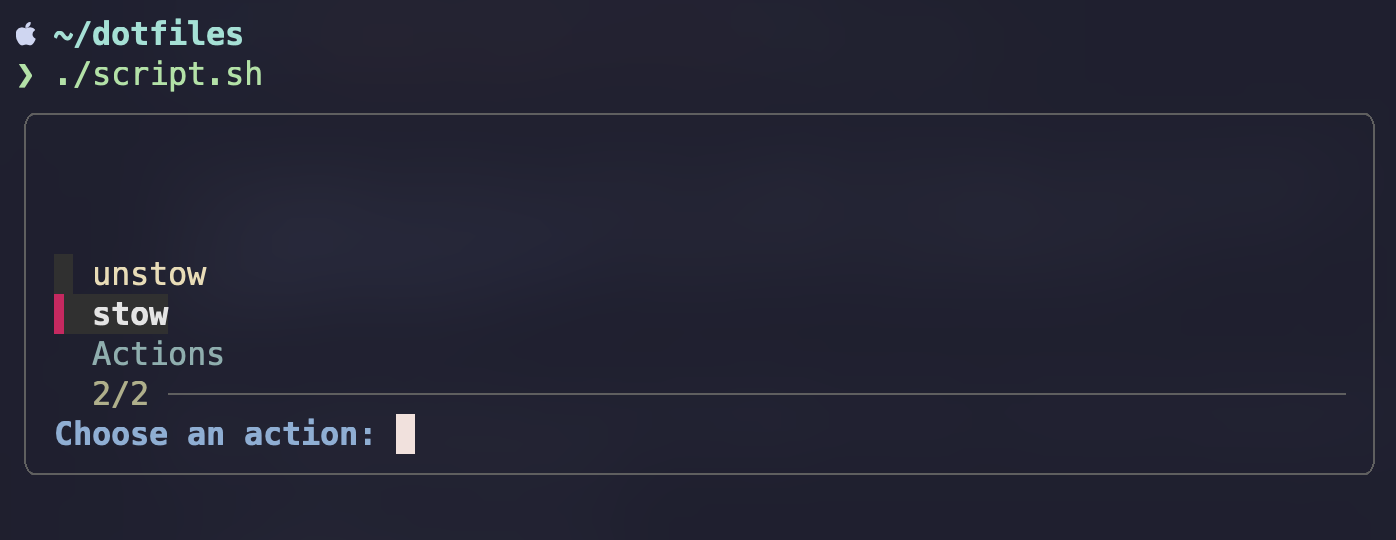
This script will symlinks all the dotfiles at their respective locations under home directory.
### Setting Up Sensitive Information
I use a separate file called `.gitconfig_local` outside of the dotfiles repository to store the sensitive information, like git user credentials which I don't want visible inside `.gitconfig`.
You can use this script to dynamically generate the `.gitconfig_local` file.
> [!NOTE]
> Make sure that path to the `.gitconfig_local` file is correctly added under the include section in your main `.gitconfig` file.
#### Script Overview
```bash
#!/usr/bin/env bash
# Prompt for Git credentials
read -p "Enter your Git author name: " git_author_name
read -p "Enter your Git author email: " git_author_email
read -p "Enter your Git username: " gh_user
# Create the .gitconfig_local file with the provided information
cat <~/.gitconfig_local
# Git credentials
[user]
name = $git_author_name
email = $git_author_email
[github]
user = $gh_user
EOF
echo ".gitconfig_local file created."
```
#### Usage
```bash
cd ~/dotfiles/scripts
./gitconfig_local.sh
```
## `Configuration Details`
### Terminal Setup
**Terminal Emulator:** Alacritty
- Theme: [Catppuccin Mocha.](https://github.com/catppuccin/alacritty) For setup instructions, follow the guidance provided in the repository.
```bash
curl -LO --output-dir ~/.config/alacritty/themes https://github.com/catppuccin/alacritty/raw/main/catppuccin-mocha.toml
```
- Configuration: [alacritty.toml](./config/.config/alacritty/alacritty.toml)
- Explore more themes: [Alacritty Themes.](https://github.com/alacritty/alacritty-theme)
**Nerd Font:** For enhanced visual and icon support, I use `Meslo LG Nerd Font`. This is essential for rendering special glyphs and icons in prompts and tools.
```bash
brew install --cask font-meslo-lg-nerd-font
```
**Shell:** Zsh (primary) and Bash (secondary)
- Zsh Configuration: [.zshrc](./zsh/.zshrc)
- Bash Configuration:
- [.bash_profile](./bash/.bash_profile)
- [.bashrc](./bash/.bashrc)
- Prompt: [starship](https://starship.rs/) - fast, customizable prompt for any shell.
- Configuration: [starship.toml](./config/.config/starship/starship.toml)
**Tools:**
- [fzf](https://github.com/junegunn/fzf) - Command-line fuzzy finder
- [ripgrep](https://github.com/BurntSushi/ripgrep) - Faster alternative to grep for recursive regex serach
- [tree](https://oldmanprogrammer.net/source.php?dir=projects/tree) - Display directory structure in a tree format
- [gh](https://cli.github.com/) - GitHub CLI for interacting with repositories
- [bat](https://github.com/sharkdp/bat) - Enhanced `cat` clone with syntax highlighting and Git integration.
- Theme: [catppuccin-mocha](./config/.config/bat/themes/catppuccin-mocha.tmTheme)
- [More info on setting up catppuccin themes](https://github.com/catppuccin/bat)
- [eza](https://github.com/eza-community/eza) - Modern replacement for `ls` with extra features
- [zoxide](https://github.com/ajeetdsouza/zoxide) - Smarter `cd` command for faster directory navigation
- [yazi](https://github.com/sxyazi/yazi) - Blazing fast terminal file manager written in Rust
- [Configuration files](./config/.config/yazi)
- Theme: [catppuccin-mocha-blue](./config/.config/yazi/theme.toml)
- [More info on setting up catppuccin themes](https://github.com/catppuccin/yazi)
- [htop](https://htop.dev/) / [btop](https://github.com/aristocratos/btop) - System monitoring tools.
- [glow](https://github.com/charmbracelet/glow) - Render markdown on the CLI
- [Atuin](https://github.com/atuinsh/atuin) - Improved shell history for zsh, bash, fish and nushell
- [Configuration files](./config/.config/atuin)
- [fd](https://github.com/sharkdp/fd) - Better alternative to `find` command
- [rar](https://www.rarlab.com/) - Archive manager for data compression and backups
- [git](https://git-scm.com) - Distributed revision control system
### Tmux Setup (Terminal Multiplexer)
**Configuration files:**
- Main file - [tmux.conf](./config/.config/tmux/tmux.conf)
- Bindings - [tmux.bindings.conf](./config/.config/tmux/tmux.bindings.conf)
- Themes - [themes](./config/.config/tmux/themes)
**Tmux plugin manager:**
I have included a logic inside the [tmux.conf](./config/.config/tmux/tmux.conf), to automatically install TPM along with the necessary plugins specified in `tmux.conf`, if they are not already installed in the expected location. No need for manual cloning!
```bash
# Bootstrap tpm
if-shell '[ ! -d ~/.config/tmux/plugins/tpm ]' \
'run-shell "git clone https://github.com/tmux-plugins/tpm ~/.config/tmux/plugins/tpm && ~/.config/tmux/plugins/tpm/bindings/install_plugins"'
```
Usage of plugin manager:
- Install plugins - `prefix + I`
- Update plugins - `prefix + U`
- Remove/Uninstall plugins - `prefix + O`
**Tmux custom keybindings:**
Prefix key
- `C-a`: prefix
Move between tmux windows:
- `prefix + C-h`: Previous window
- `prefix + C-l`: Next window
Source the config file:
- `prefix + r`: Source the config`
Resize tmux panes:
- `prefix + H`: Resize pane left
- `prefix + J`: Resize pane down
- `prefix + K`: Resize pane up
- `prefix + L`: Resize pane right
Zoom out the current pane:
- `prefix + m`: Zoom out the pane
Focus panes:
- `prefix + h`: Focus left
- `prefix + j`: Focus down
- `prefix + k`: Focus up
- `prefix + l`: Focus right
### Aerospace Tiling Window Manager Setup
**Configuration:** [aerospace.toml](./config/.config/aerospace/aerospace.toml)
**Usage:**
Keybindings for Focus and Movement:
- `Alt + h/j/k/l`: Navigate between windows (left/down/up/right)
- `Alt + Shift + h/j/k/l`: Move windows between panes (left/down/up/right)
- `Alt + f`: Toggle fullscreen mode
Custom Keybindings I Use for Workspaces:
- `Alt + y/u/i/o/p`: Switch to workspace 1/2/3/4/5
- `Alt + Shift + y/u/i/o/p`: Move windows to workspace 1/2/3/4/5 and switch to that workspace
Other Commands:
- `Alt + /`: Switch between horizontal and vertical tiling layouts
- `Alt + ,`: Switch between horizontal and vertical accordion layouts
- `Alt + Shift + Semicolon`: Enter service mode
- `Alt + Tab`: Switch between the current and previous workspaces
### Neovim Setup
I use the `LazyVim` starter template, for my Neovim configuration, which provides a partially built setup without having to build everything from scratch.
- Clone the starter template:
```bash
git clone https://github.com/LazyVim/starter ~/.config/nvim
```
- For further details, refer to the [LazyVim documentation](http://www.lazyvim.org/).
**Configurations:**
- [nvim](./config/.config/nvim)
## `Contributing`
Feel free to fork this repository and make it work for your setup. Pull requests for improvements and bug fixes are welcome, but please note that I may not accept changes that don't align with my personal preferences.
## `Licensing`
This repository is licensed under the MIT License. See the [LICENSE](./LICENSE) file for more details.
## `Thanks to`
Thanks to the contributors and developers of the tools and open-source projects referenced in this repository, and generally to everyone who open-sources their dotfiles.
### Inspiration and Resources
Special thanks to the individuals below for inspiring and providing useful ideas for this project:
- **[Mathias Bynens](https://github.com/mathiasbynens)** for his [sensible hacker defaults for macOS](https://github.com/mathiasbynens/dotfiles/blob/main/.macos)