https://github.com/keithweaver/python-aws-s3
Demo of AWS S3 Walkthrough using Python
https://github.com/keithweaver/python-aws-s3
amazon-web-services aws python s3 walkthrough
Last synced: 6 months ago
JSON representation
Demo of AWS S3 Walkthrough using Python
- Host: GitHub
- URL: https://github.com/keithweaver/python-aws-s3
- Owner: keithweaver
- Created: 2017-03-02T21:53:19.000Z (over 9 years ago)
- Default Branch: master
- Last Pushed: 2017-10-02T13:01:36.000Z (almost 9 years ago)
- Last Synced: 2024-11-27T04:30:33.998Z (over 1 year ago)
- Topics: amazon-web-services, aws, python, s3, walkthrough
- Language: Python
- Homepage:
- Size: 11.4 MB
- Stars: 190
- Watchers: 14
- Forks: 108
- Open Issues: 1
-
Metadata Files:
- Readme: README.md
Awesome Lists containing this project
README
# python-aws-s3
## About
This is a demo of setting up an Amazon Web Service (AWS) S3 bucket and uploading a file with Python.
## Setting Up Bucket
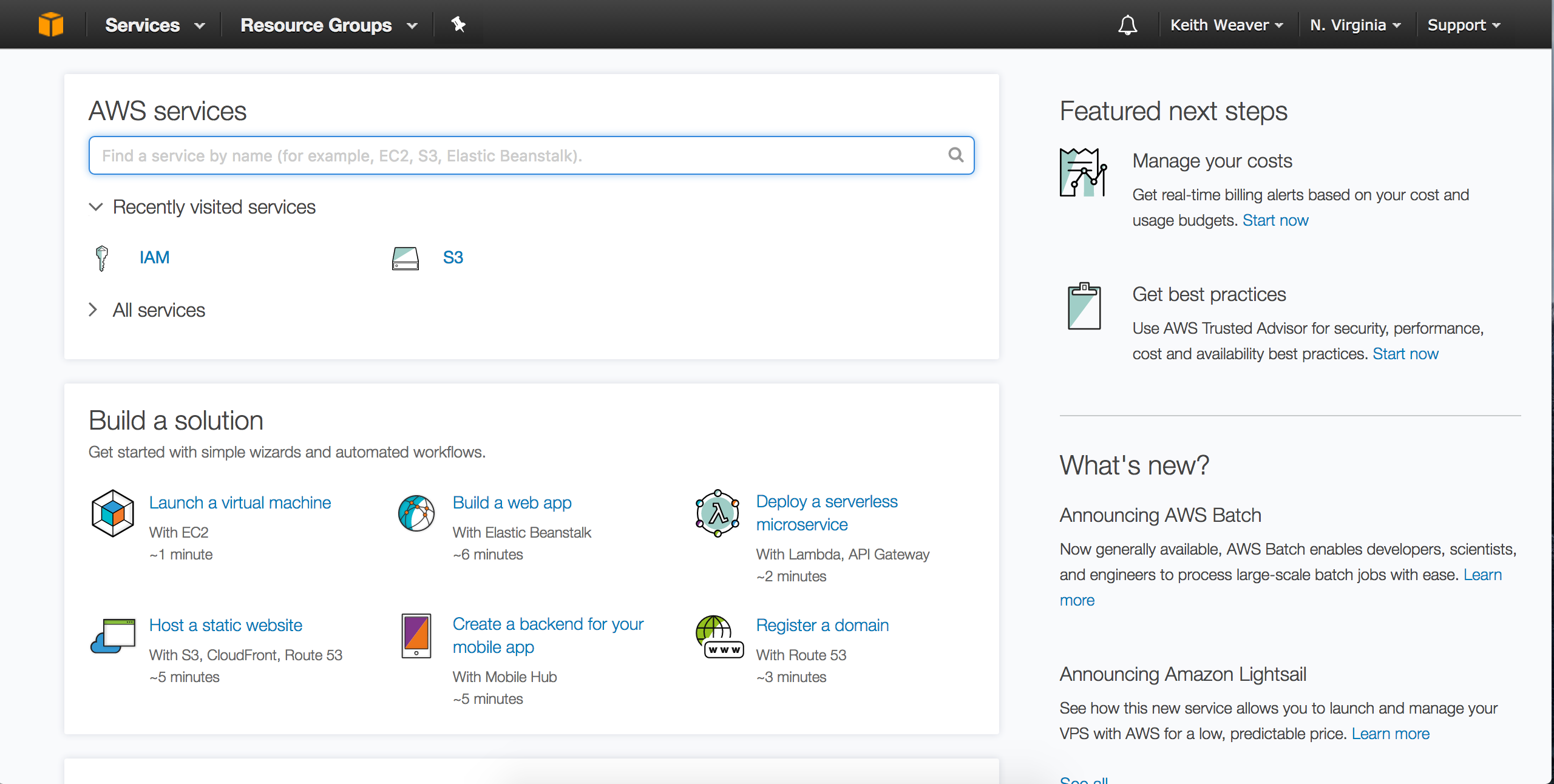
Open [AWS Console](https://aws.amazon.com/console/) and log in.
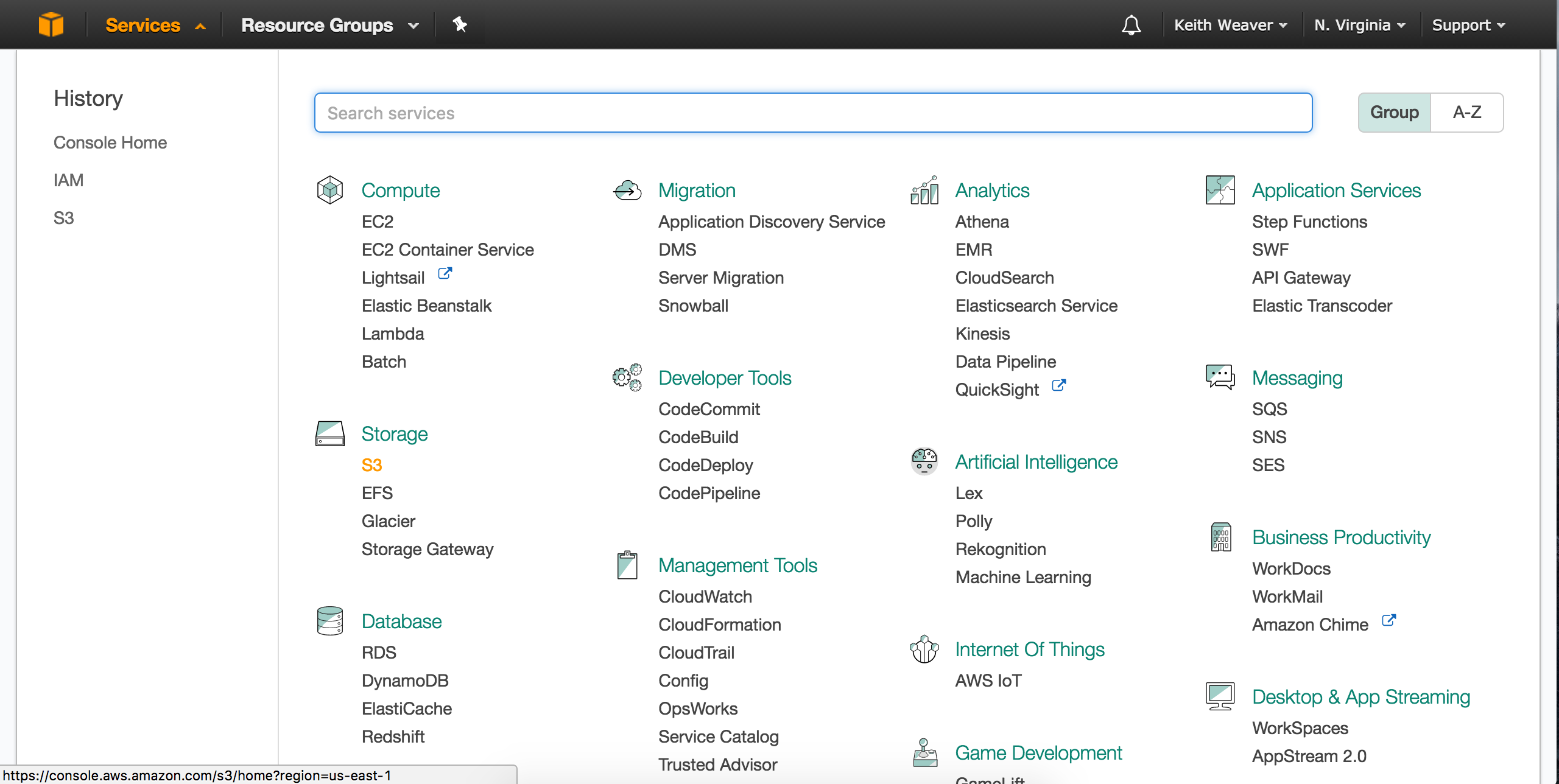
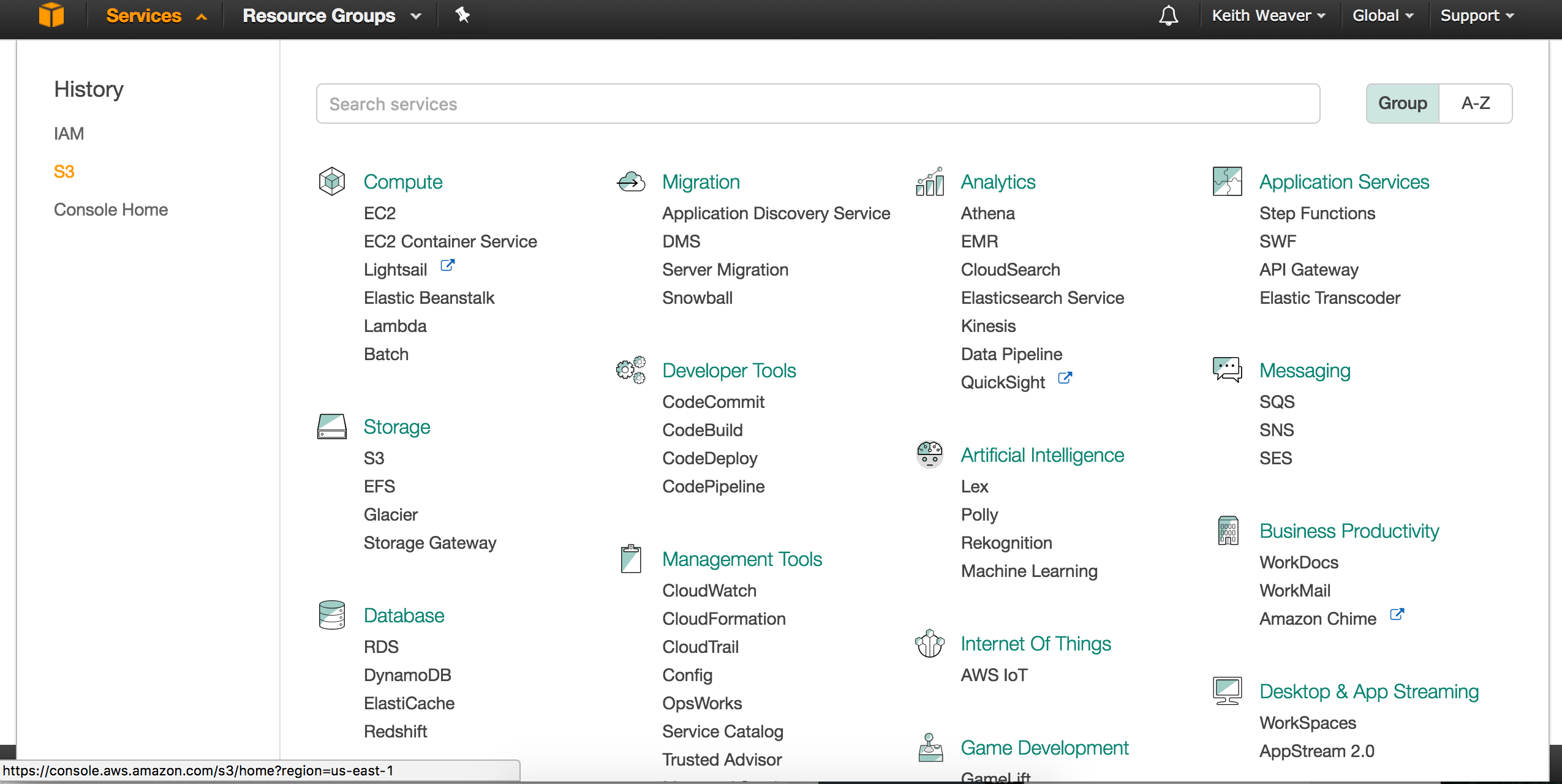
Click the `Services` dropdown and select the `S3` service.
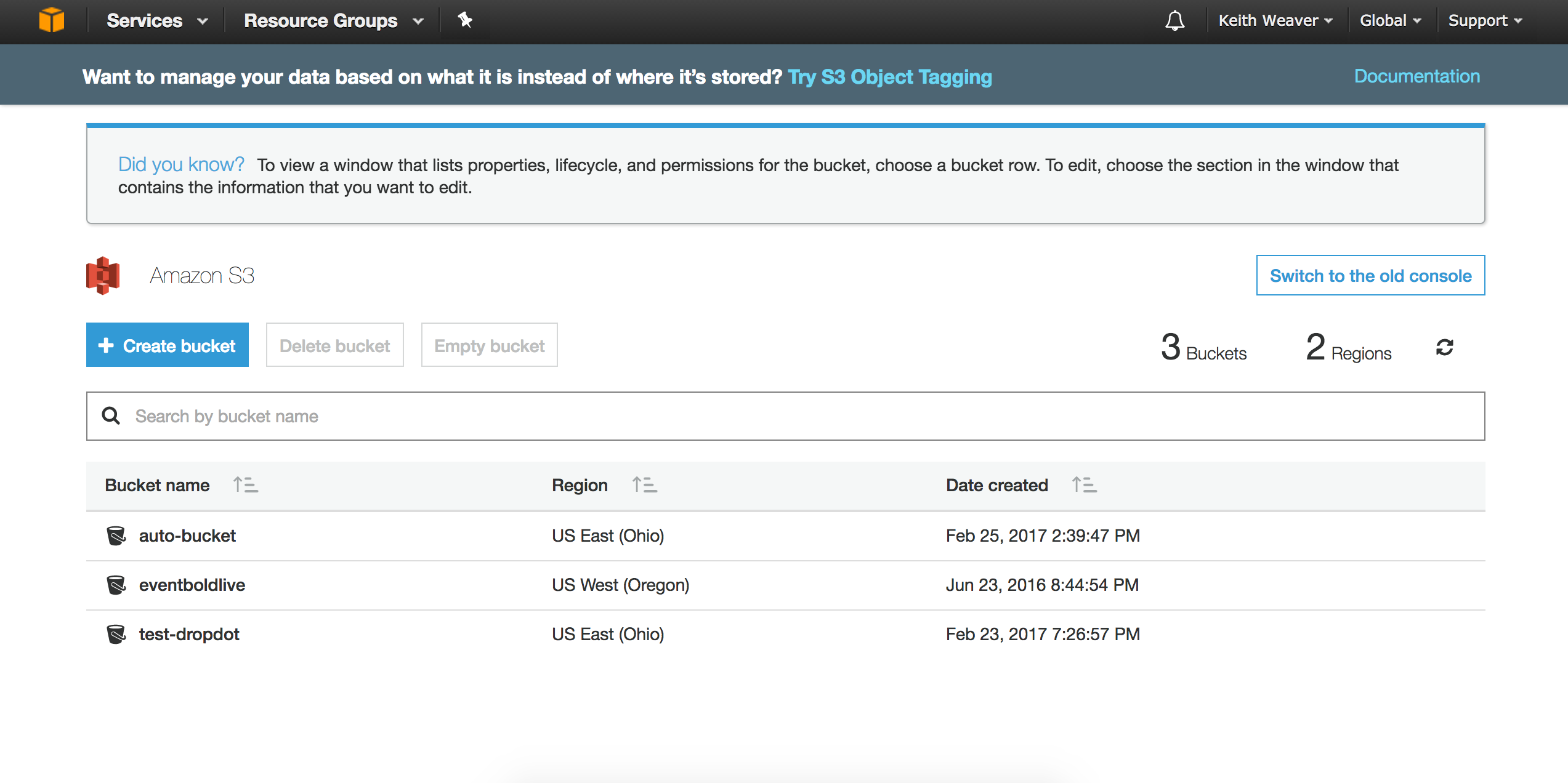
Click `Create Bucket`. Give it a name, region then hit next through each step.
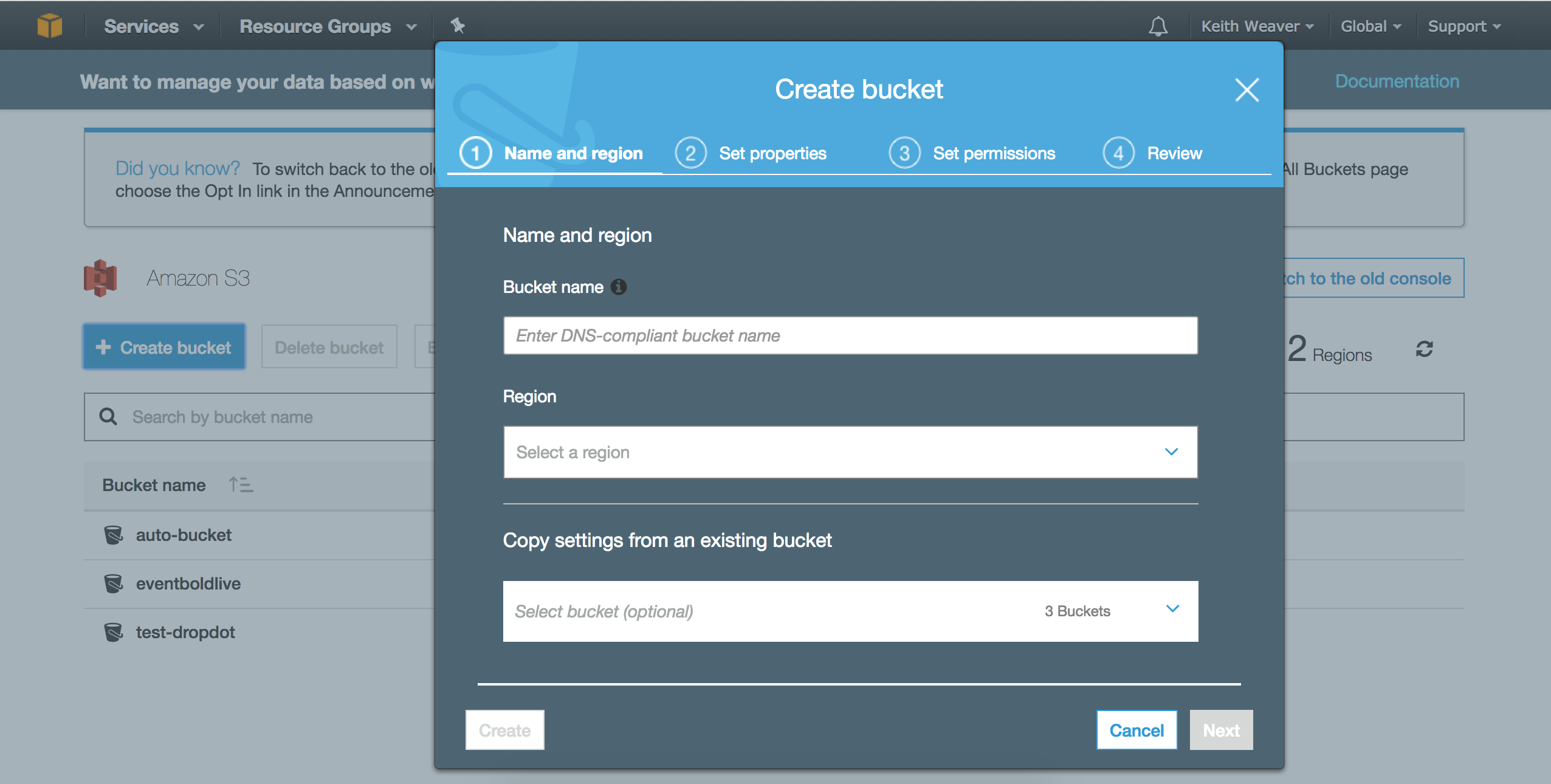
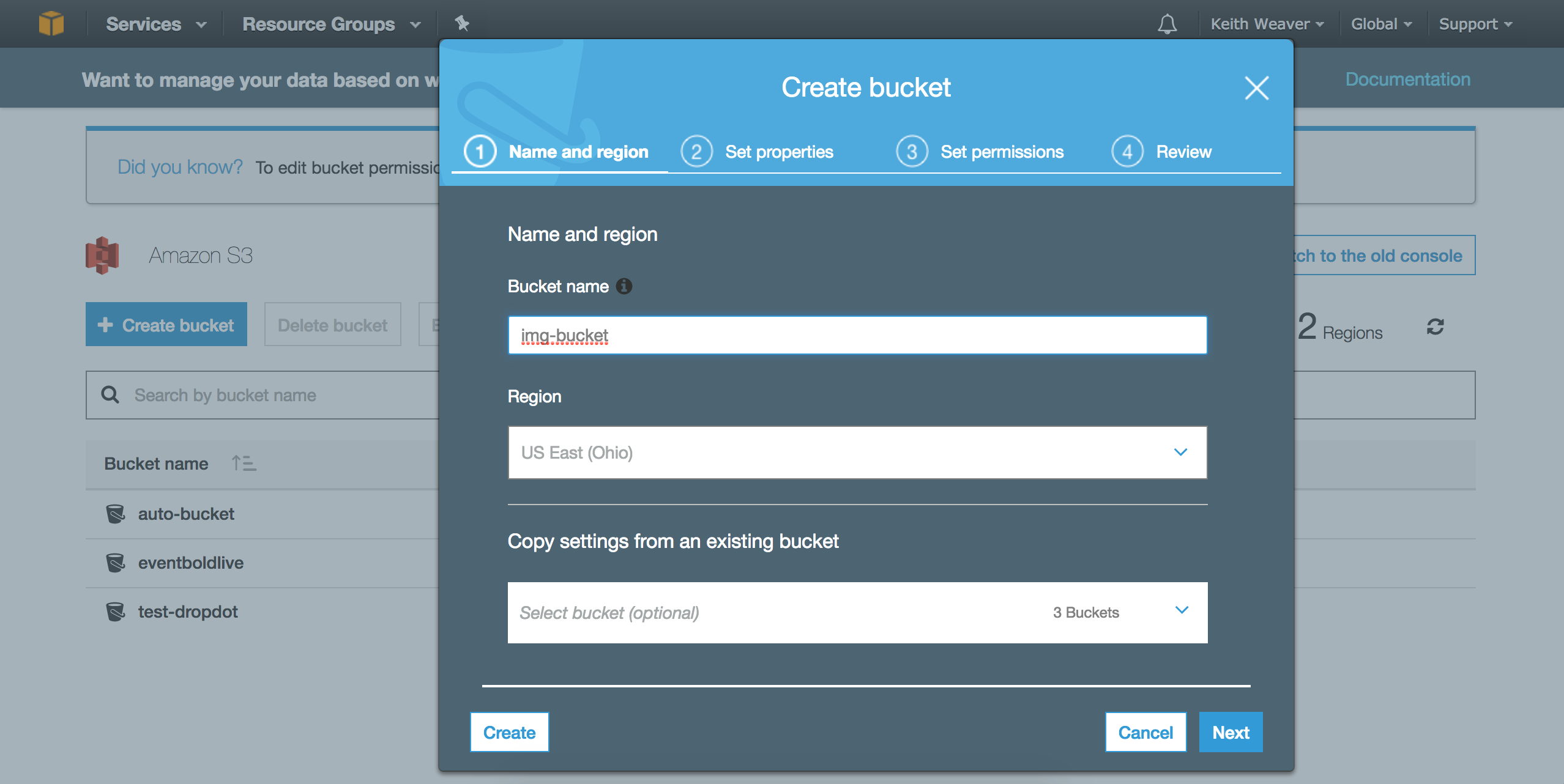
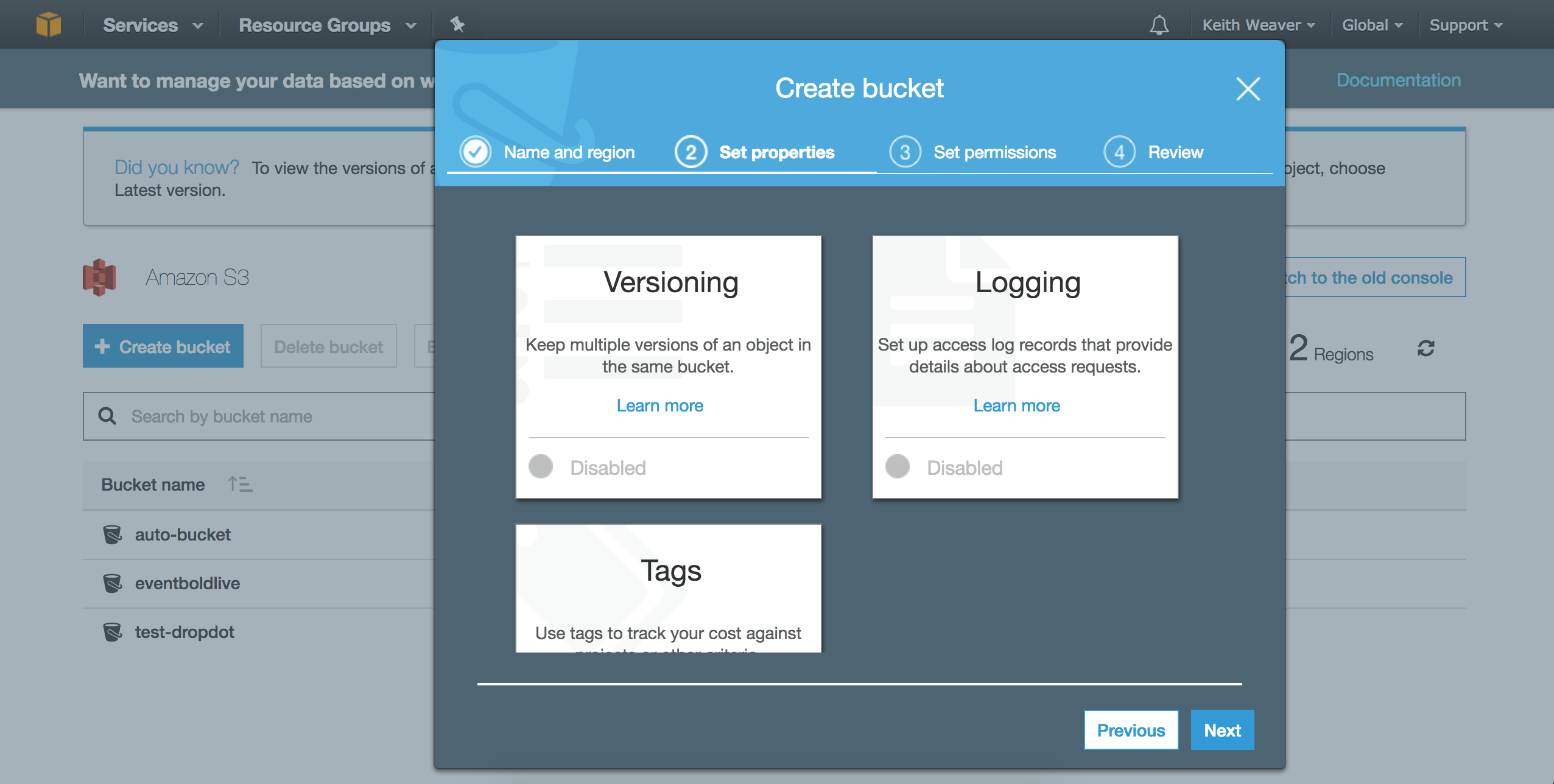
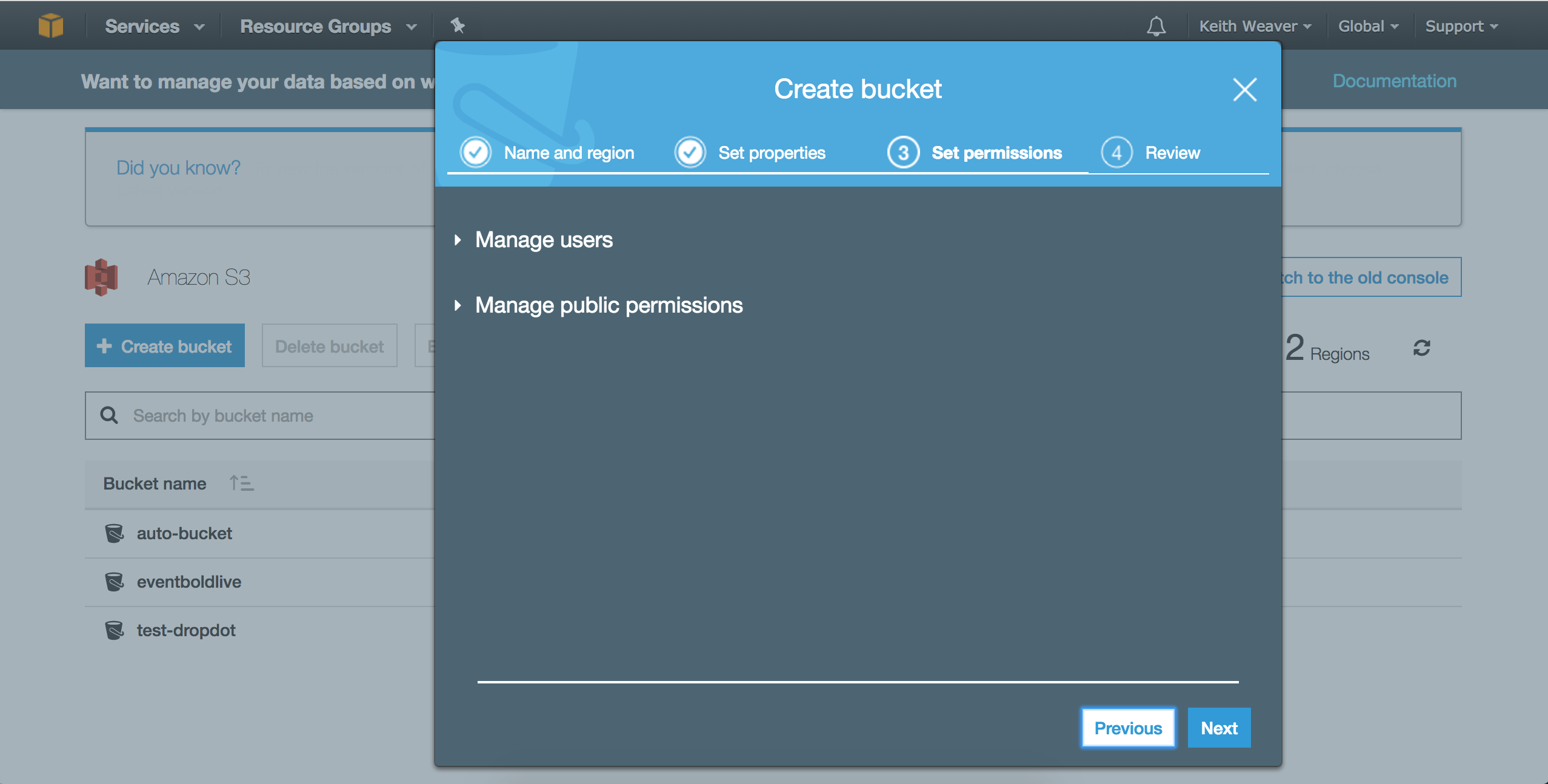
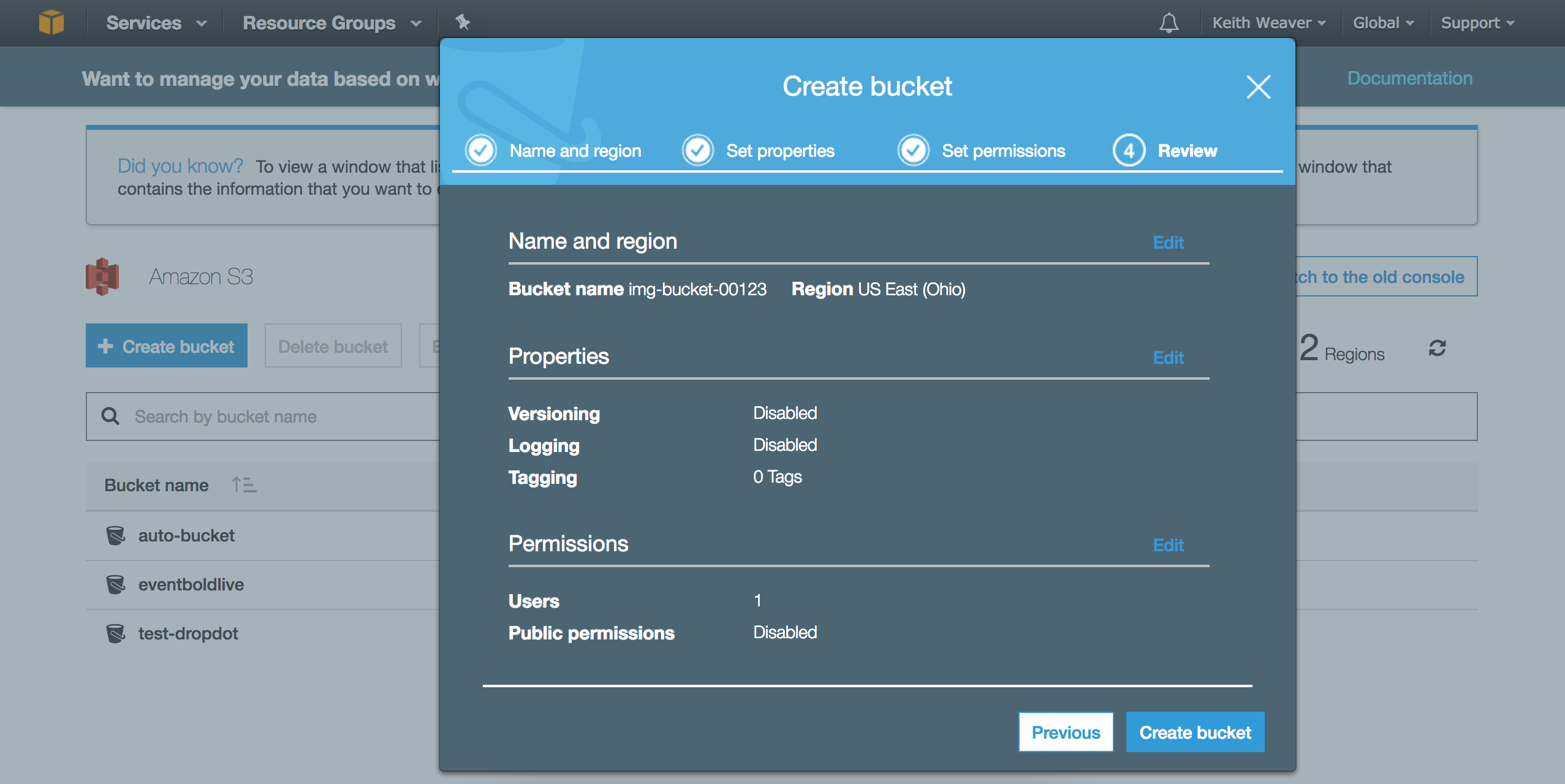
Now click your new bucket
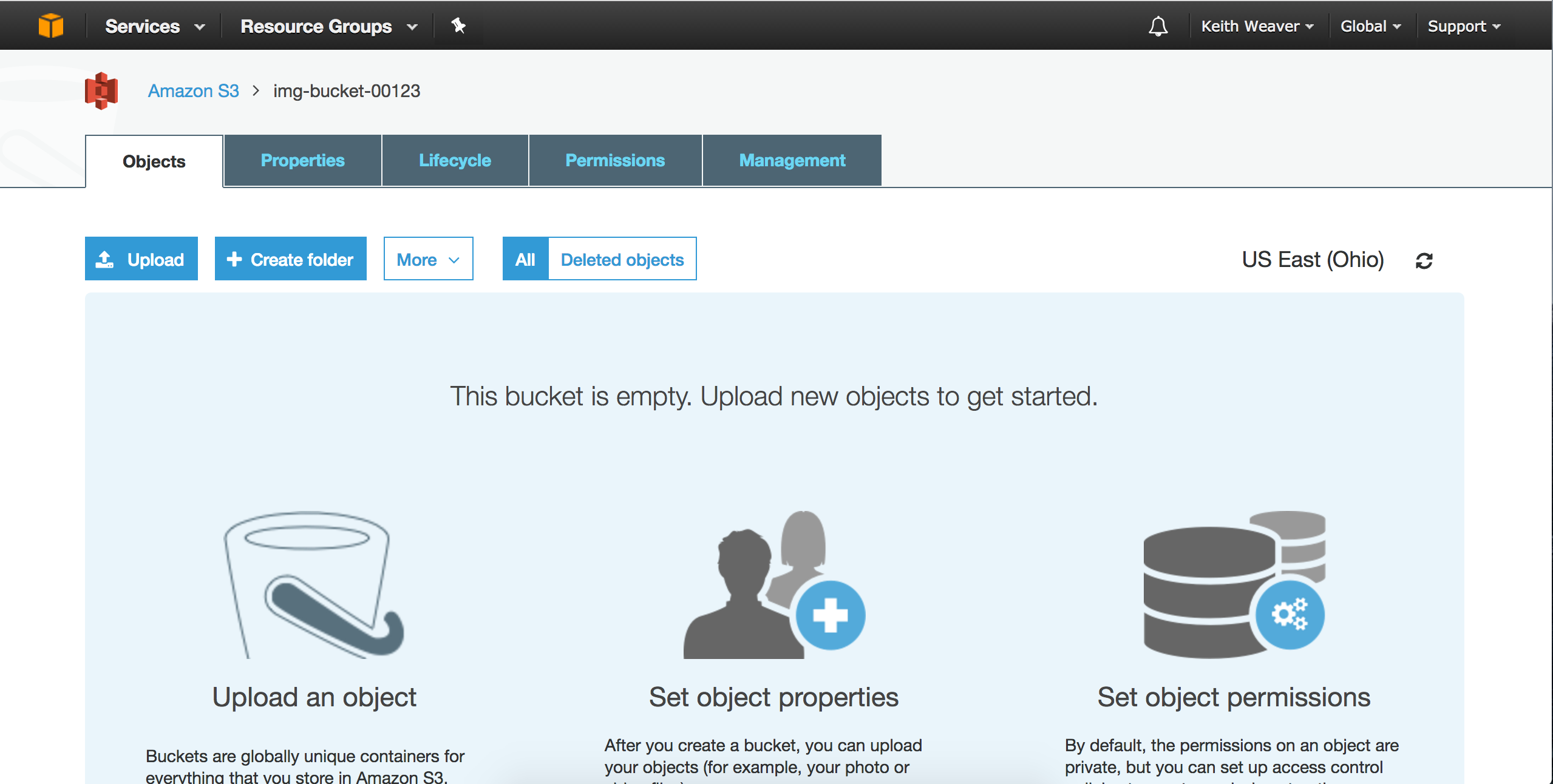
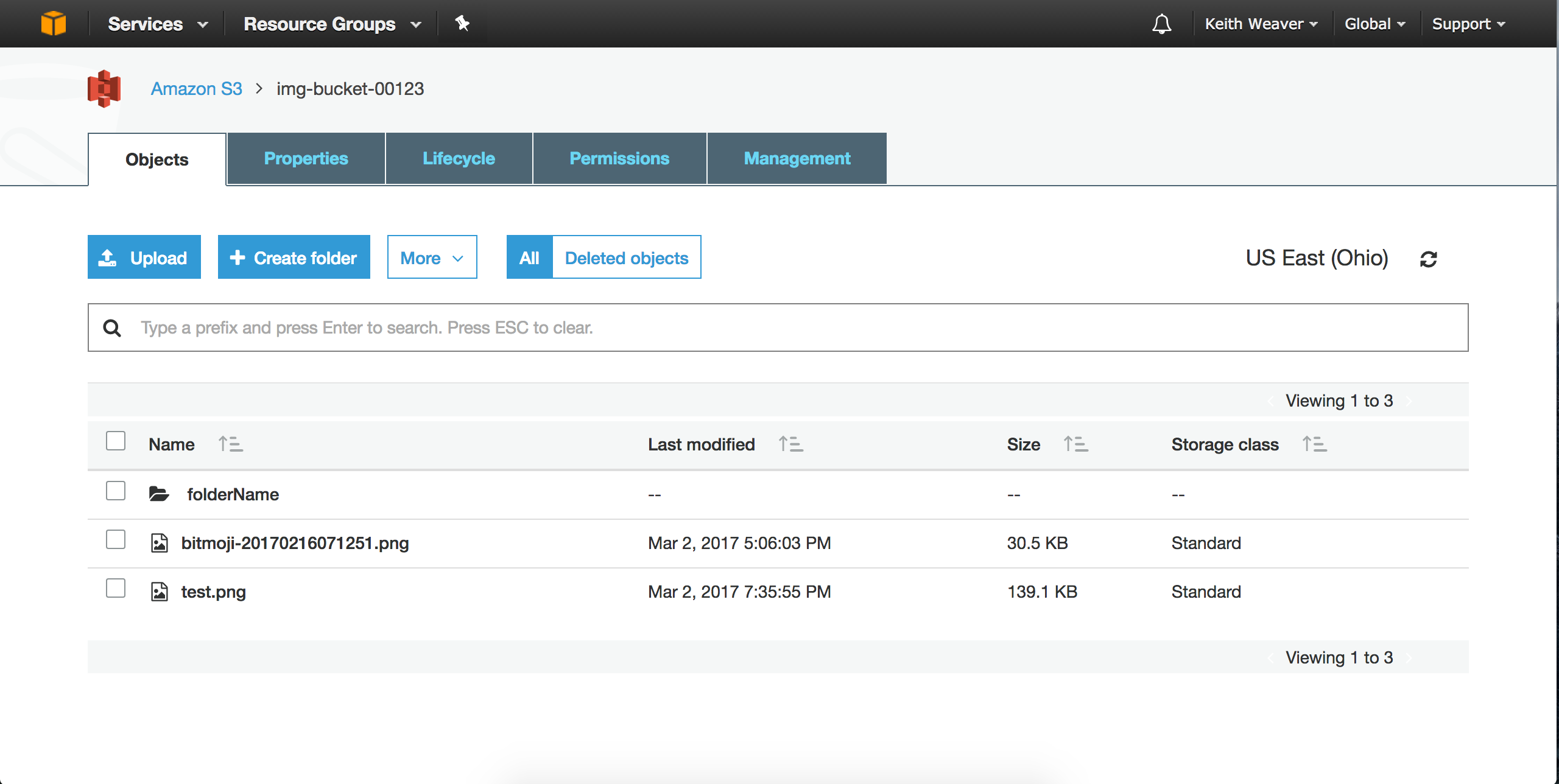
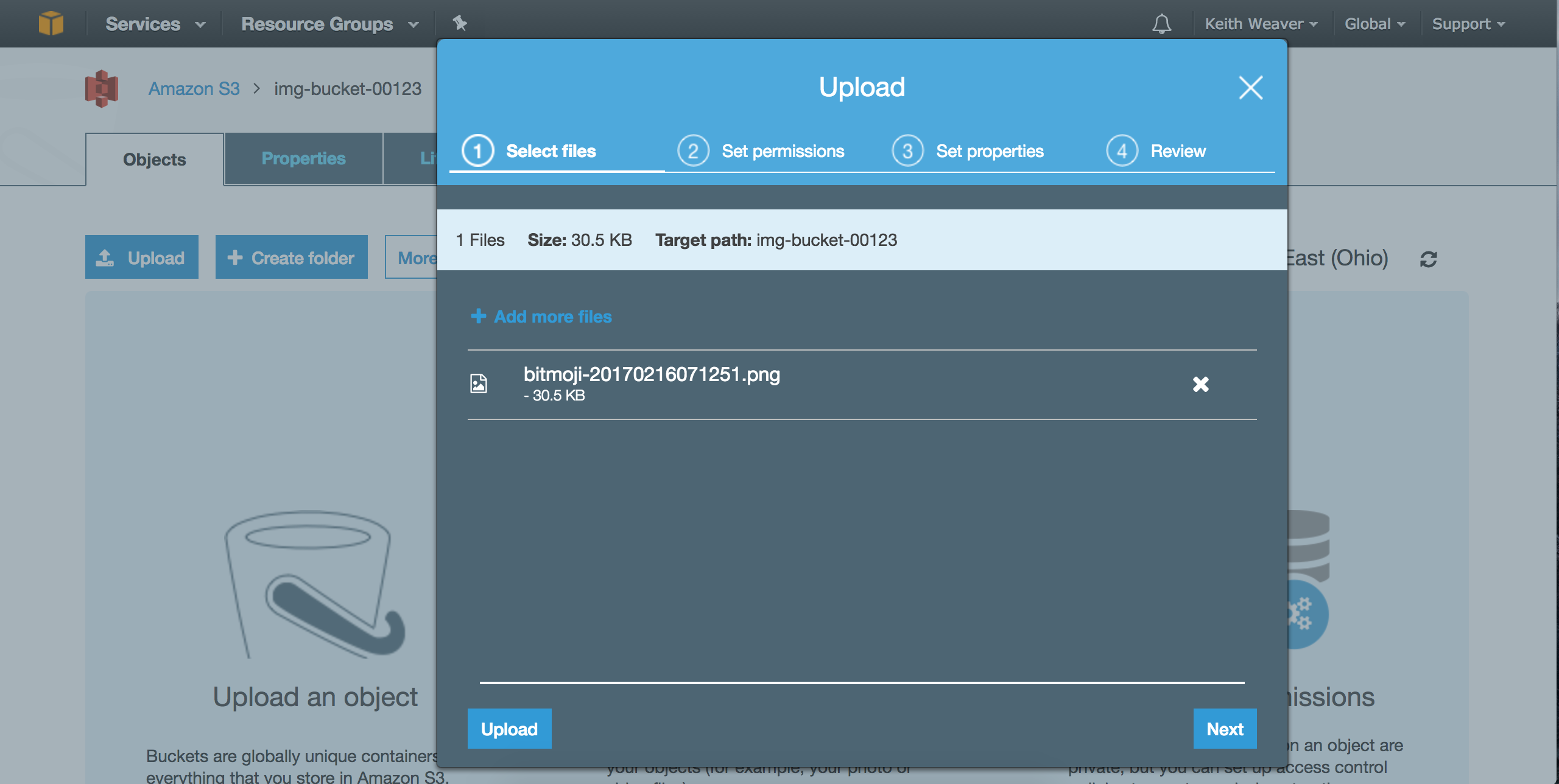
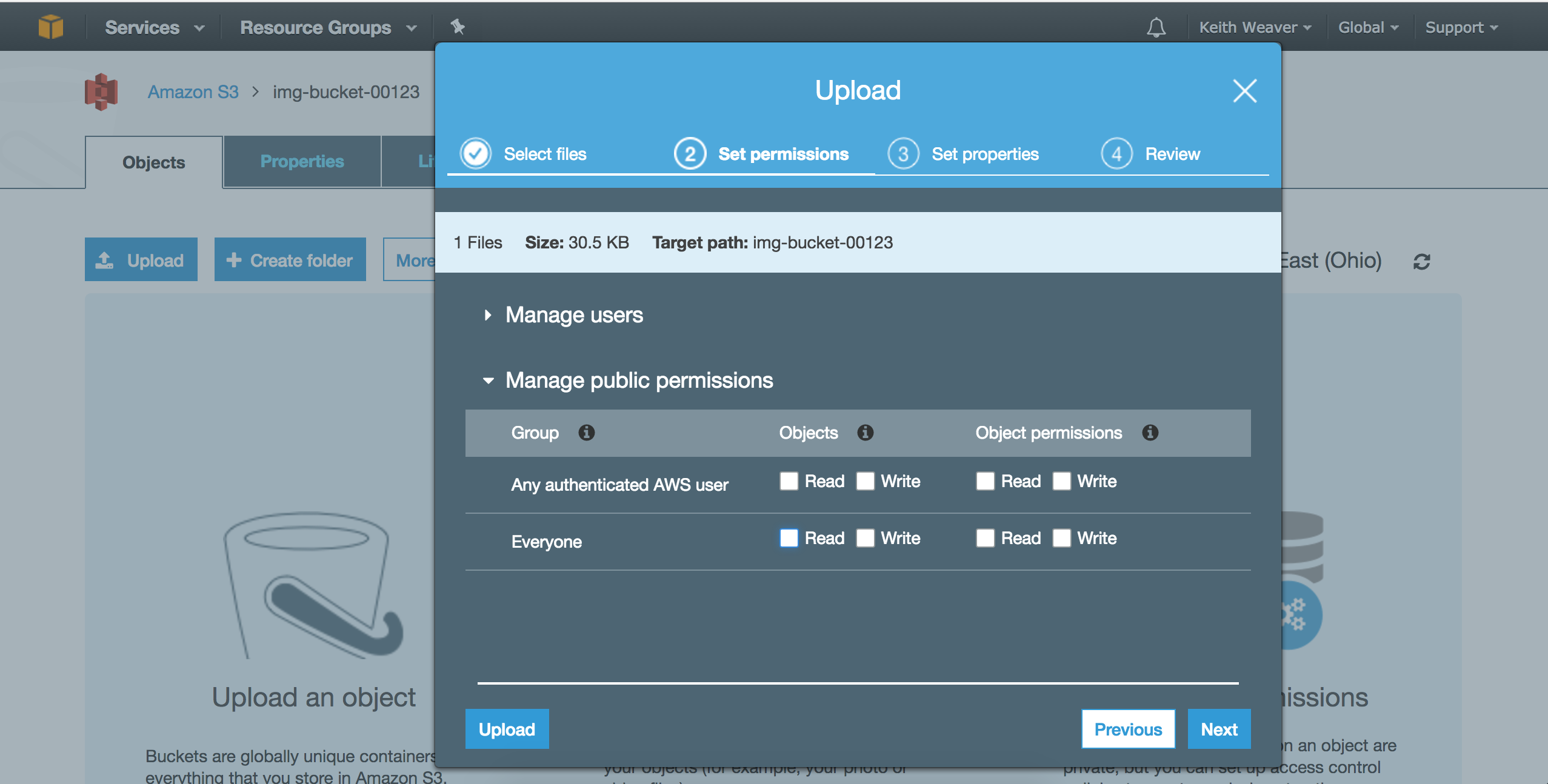
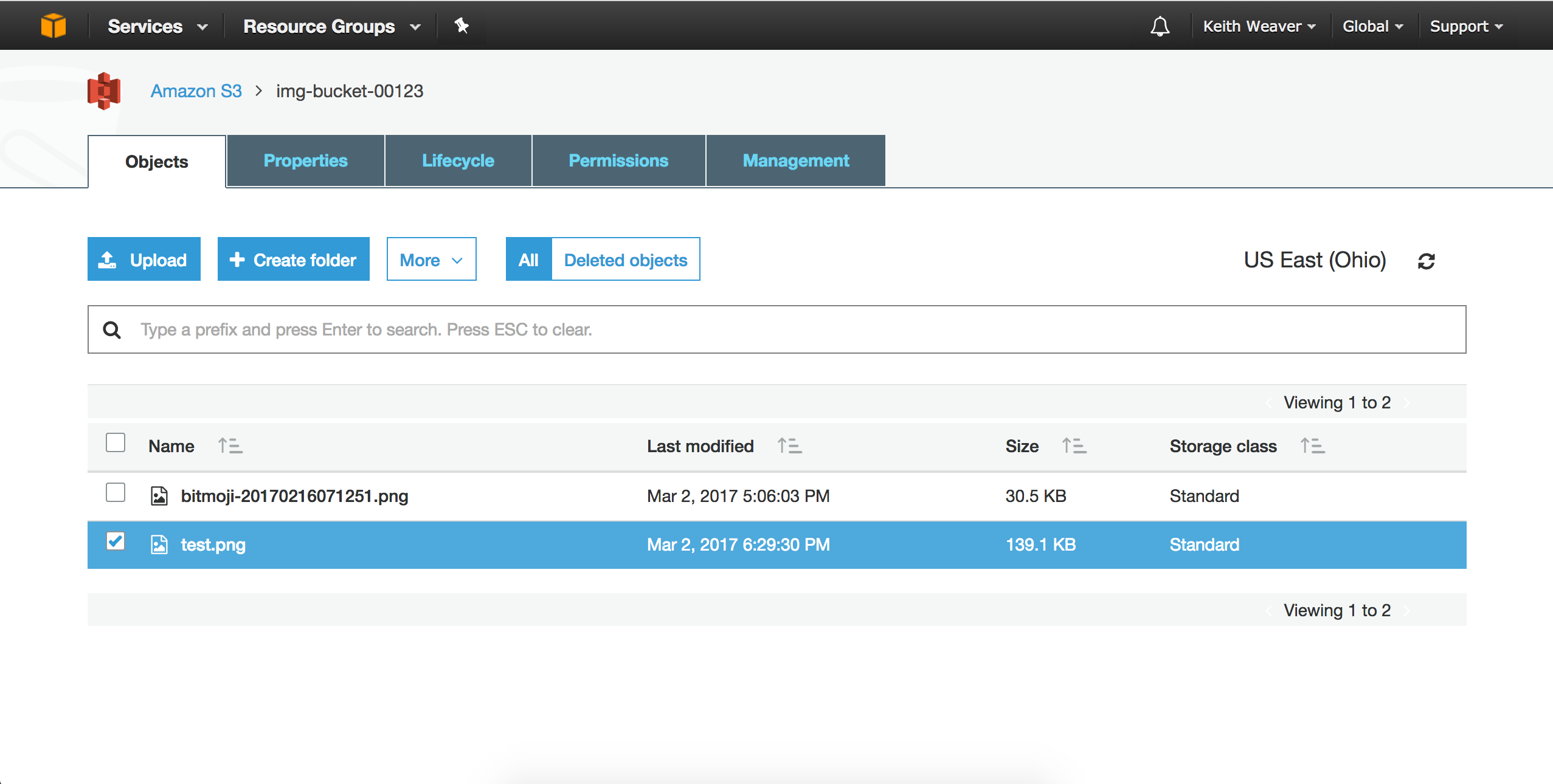
Upload a test image to your bucket
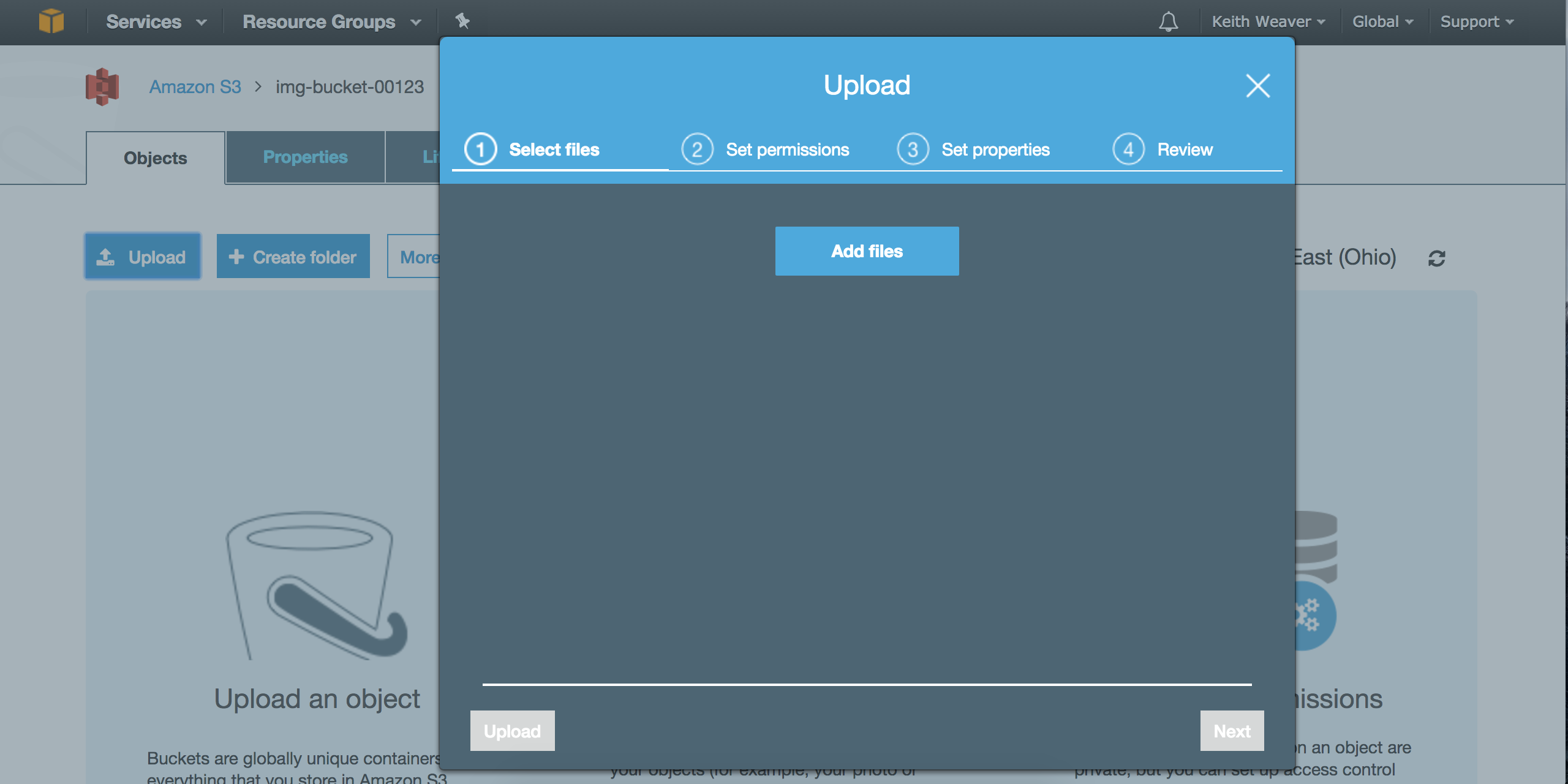
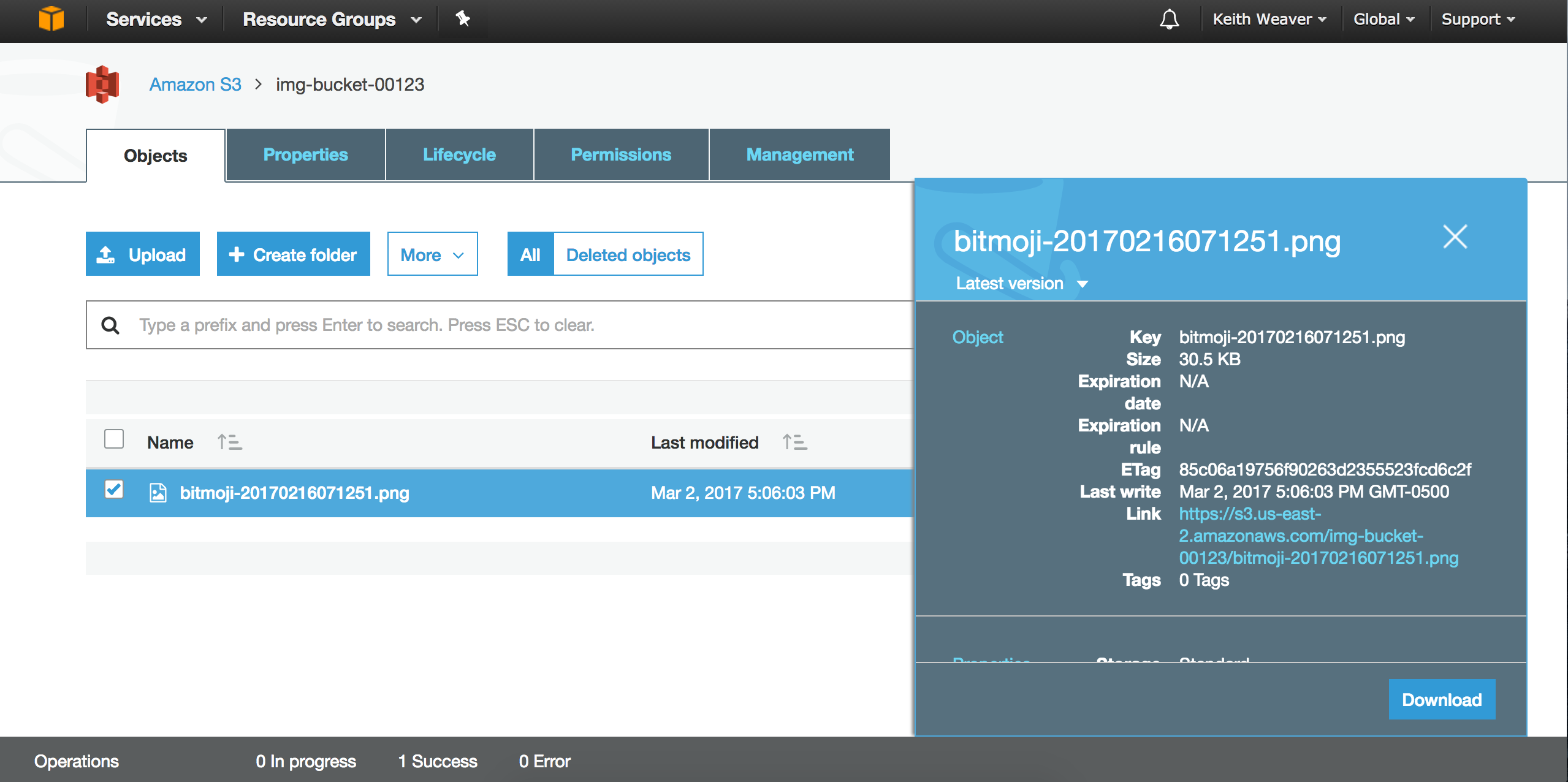
You can find your new file. If you click it, you should see a link. Open the link in a new tab.
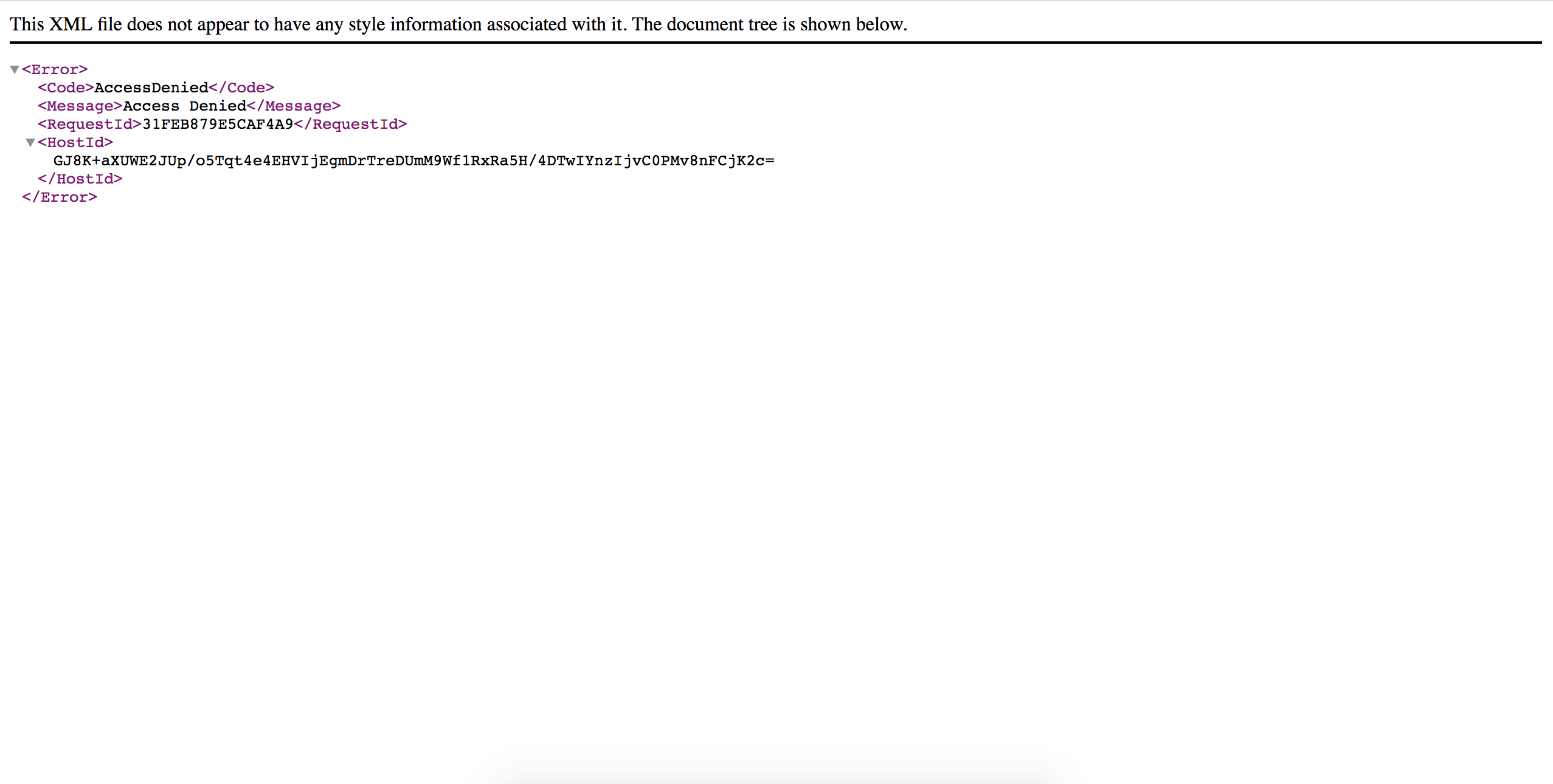
As you can see, you'll get "Access Denied".
Click the file, and under "more" press make public. Refresh the link.
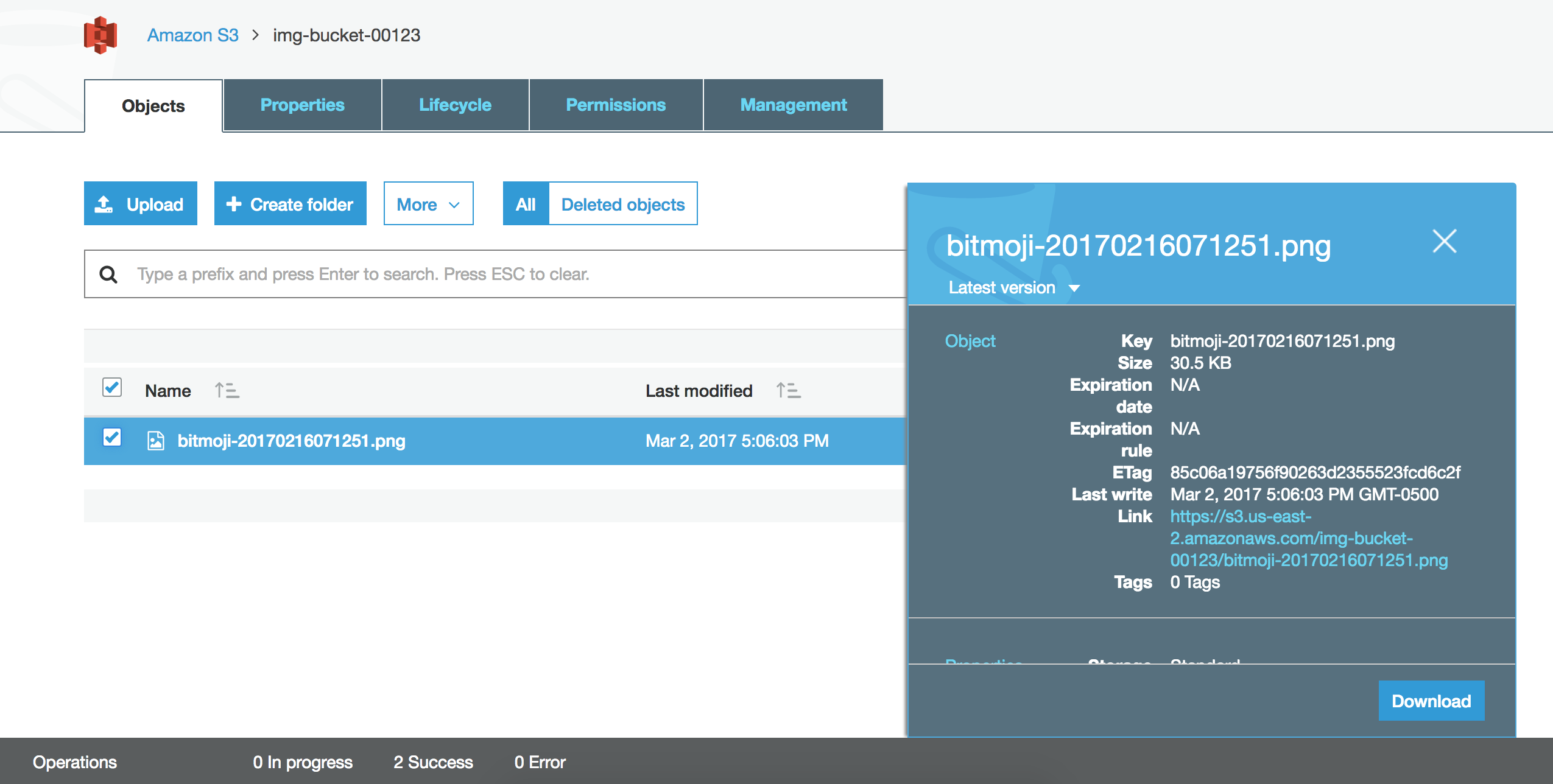
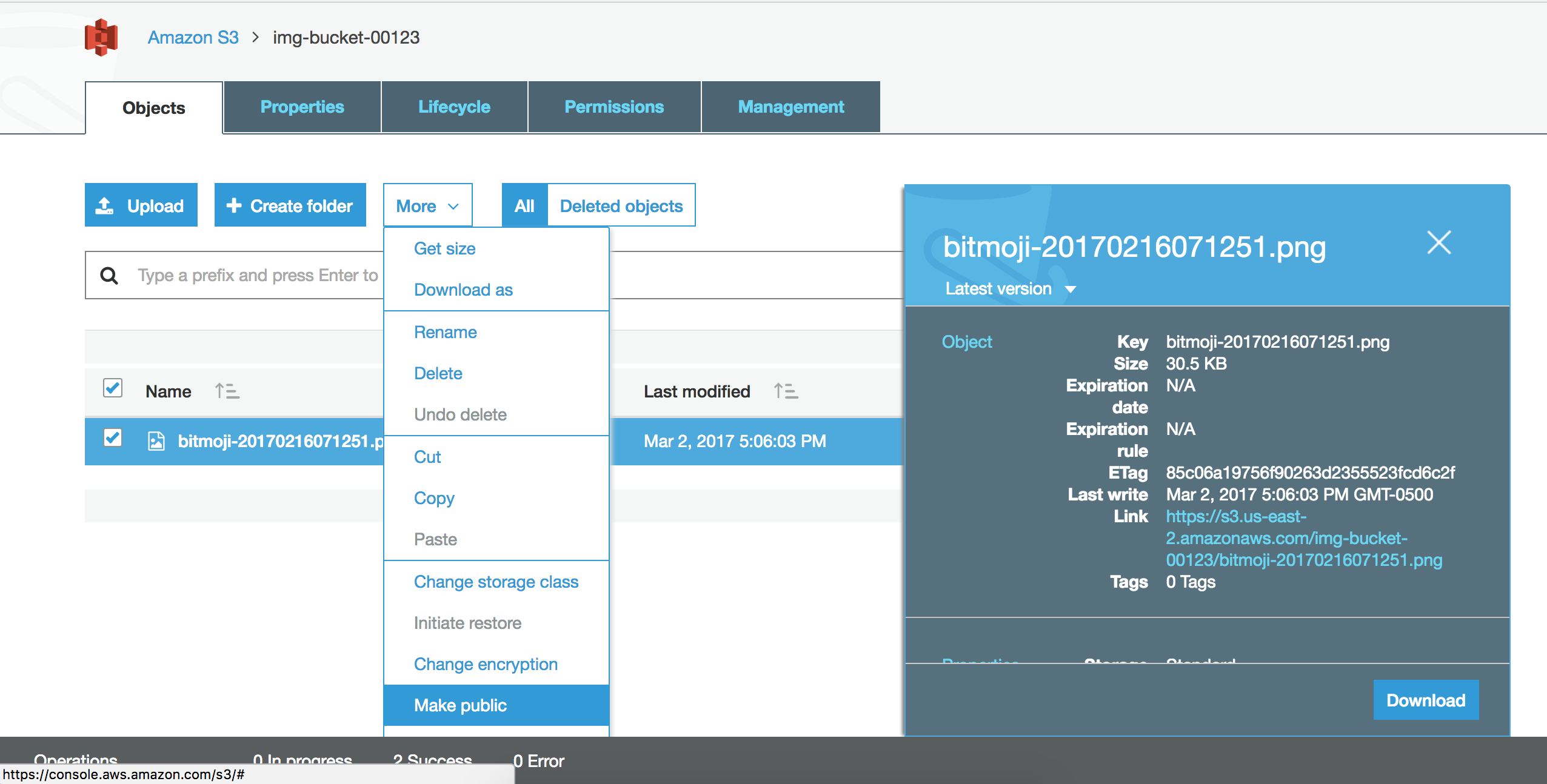

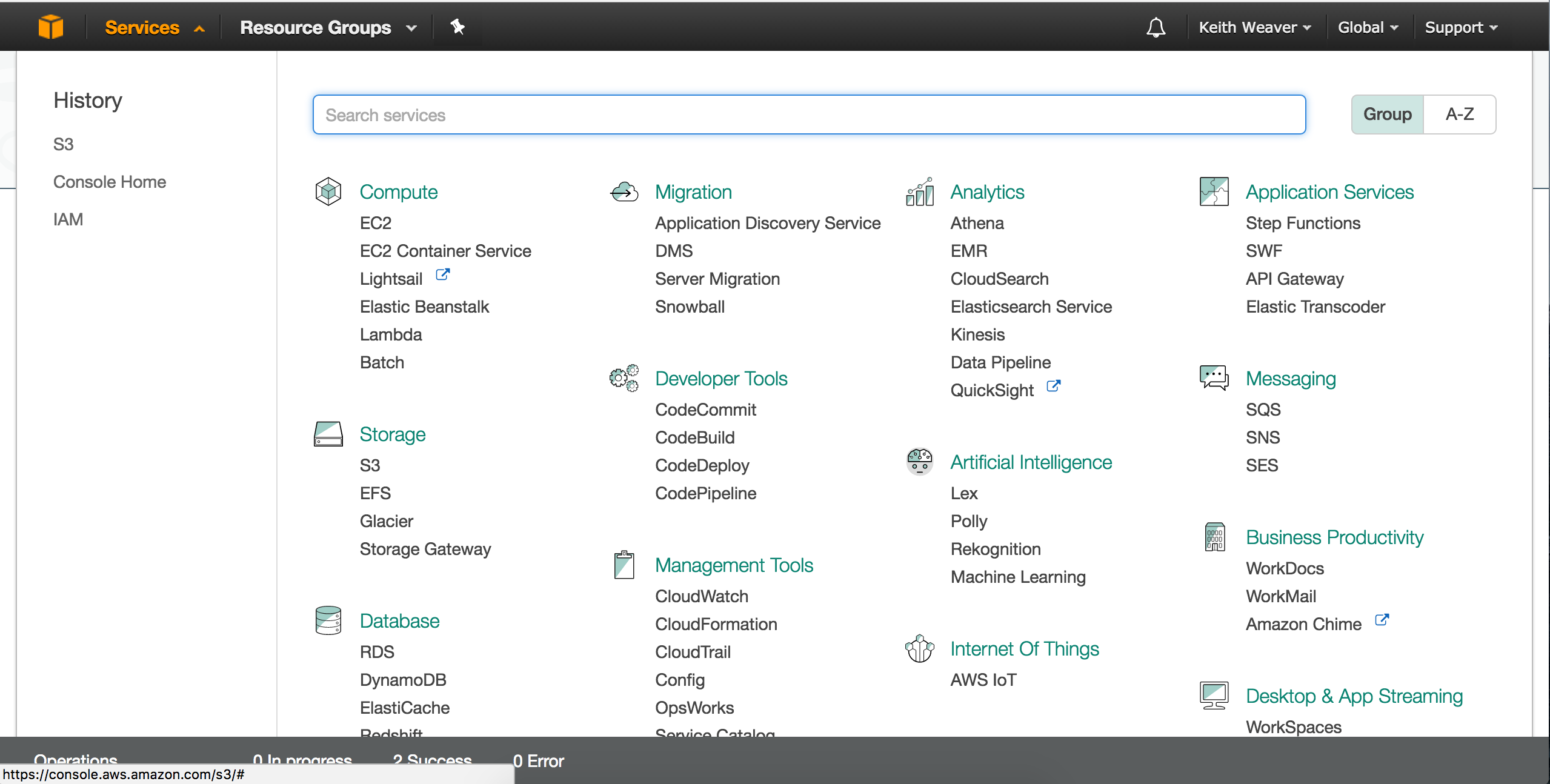
Now click `Services` then go to `IAM` dashboard.
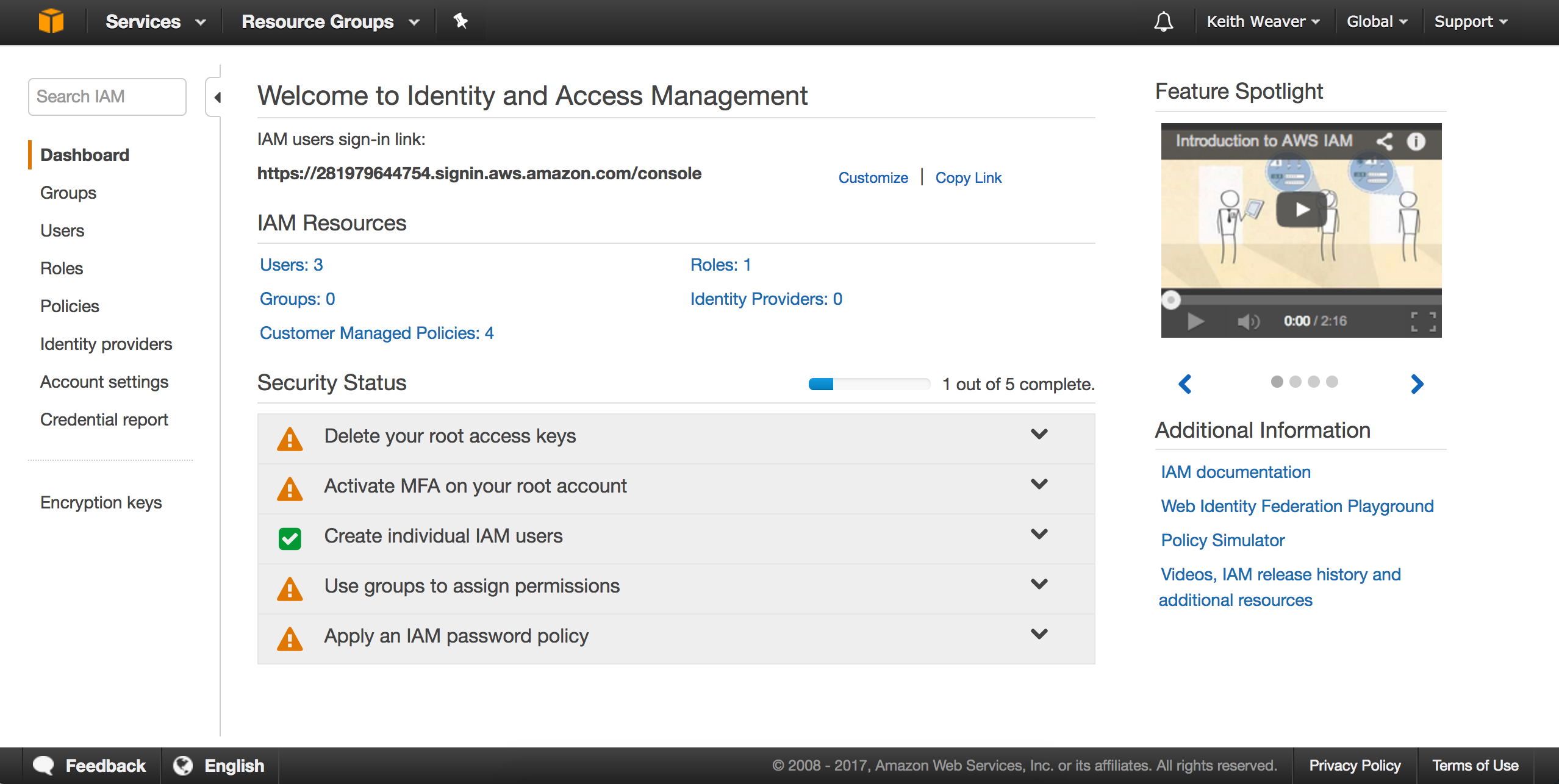
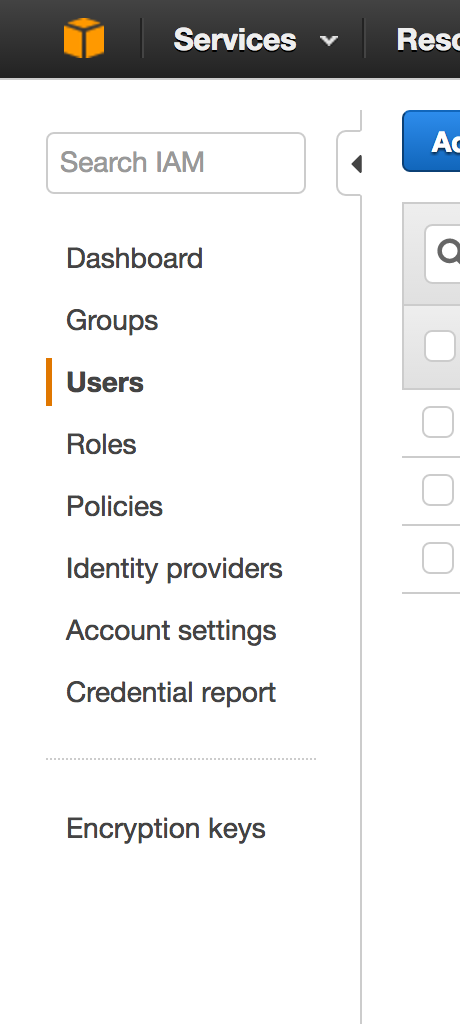
You should see your `IAM` dashboard. On the left menu, you can click `Users`.
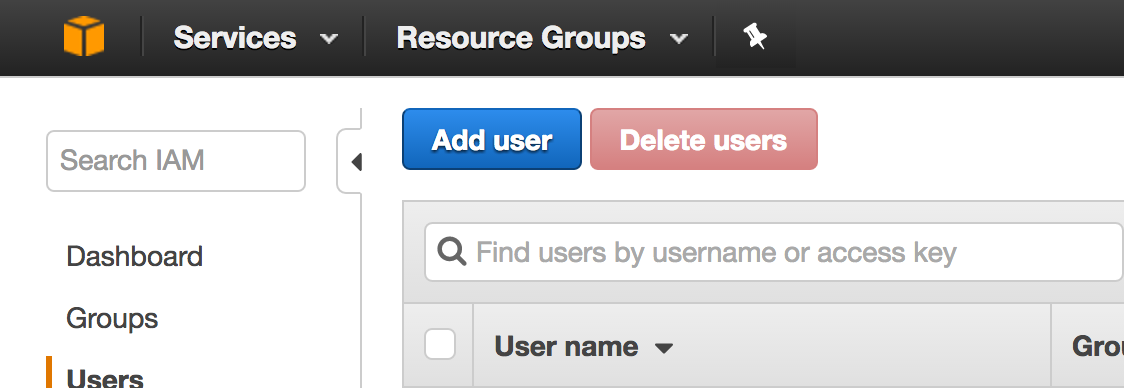
Click the `Add User`.
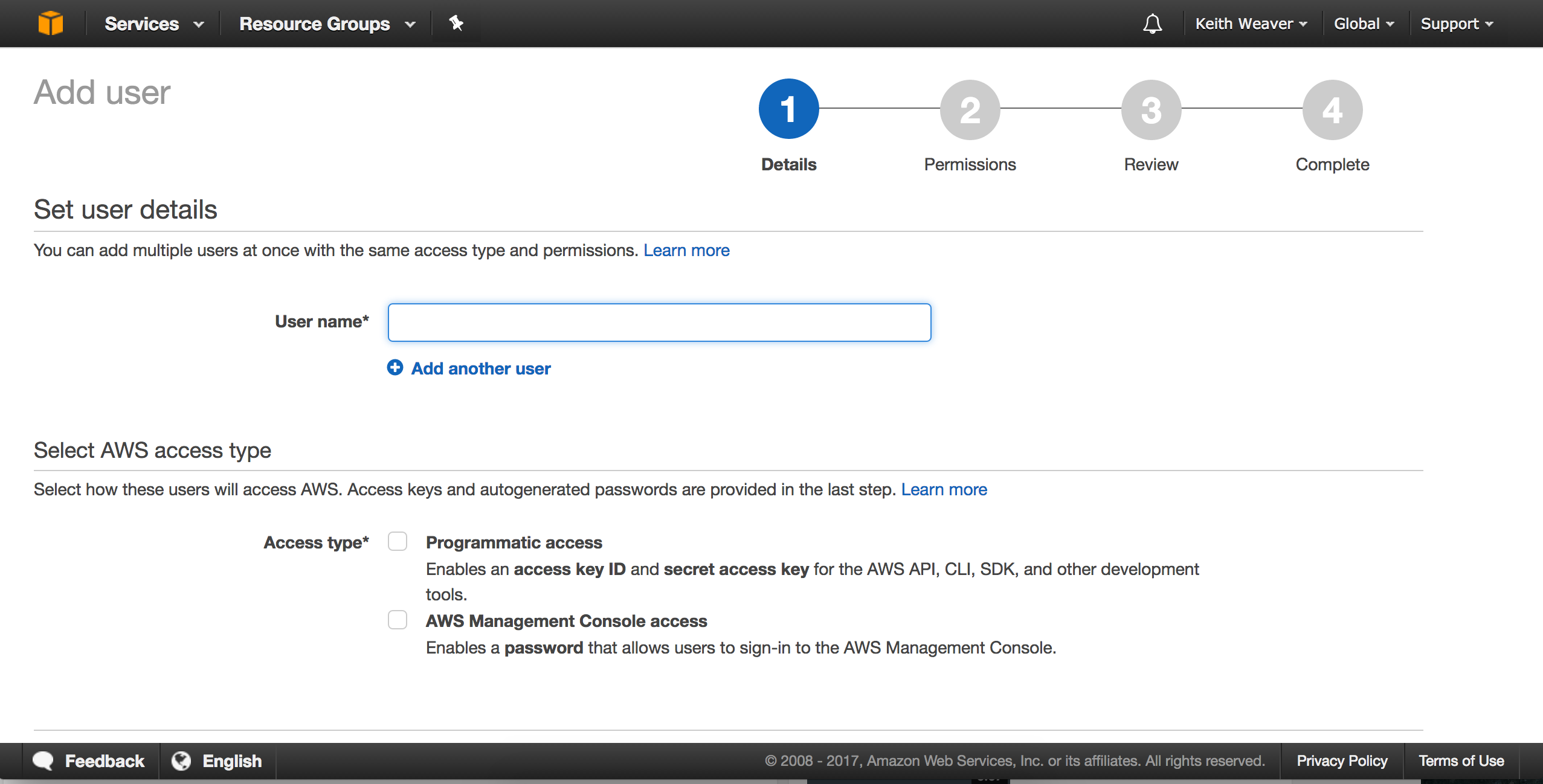
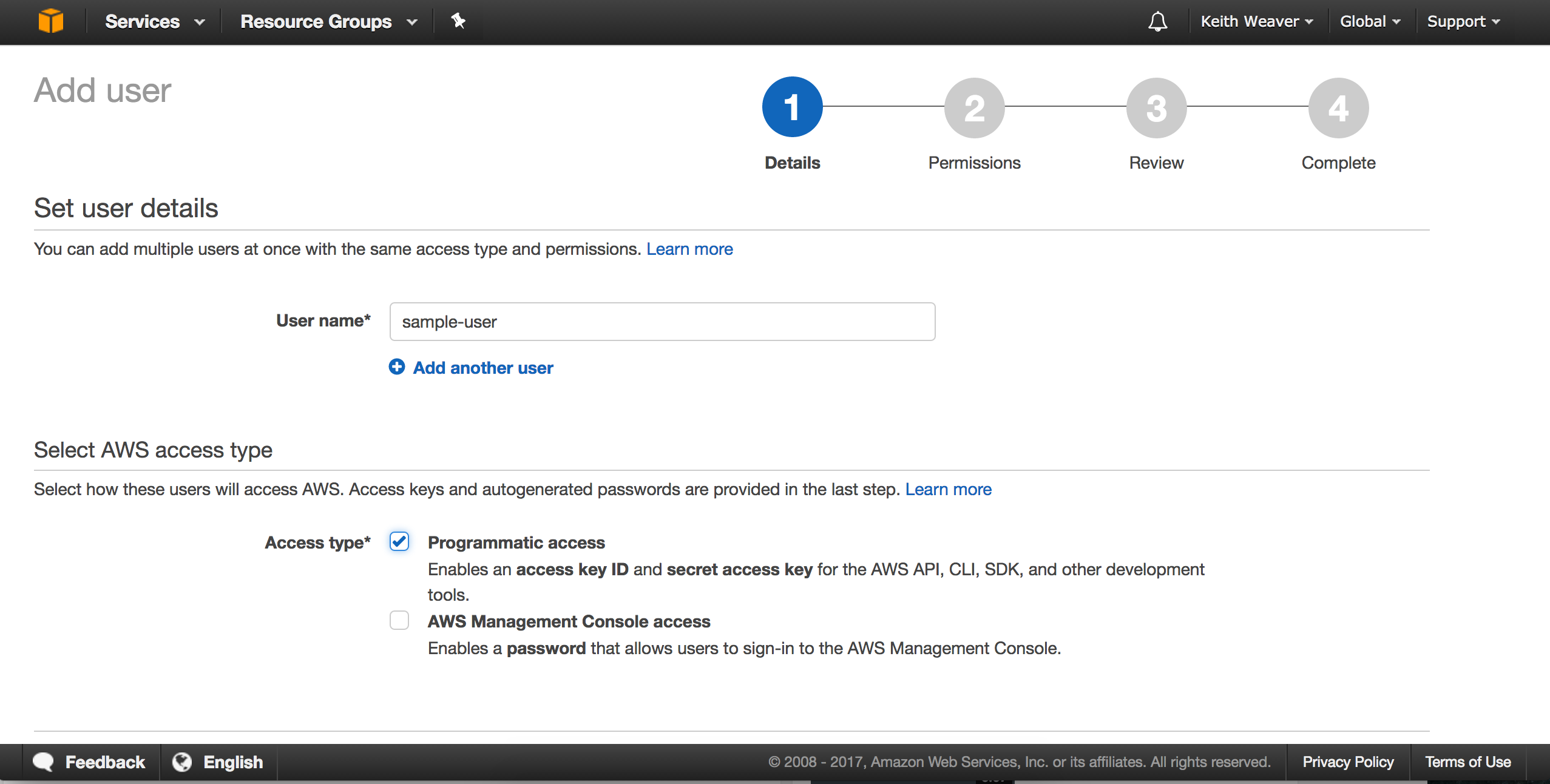
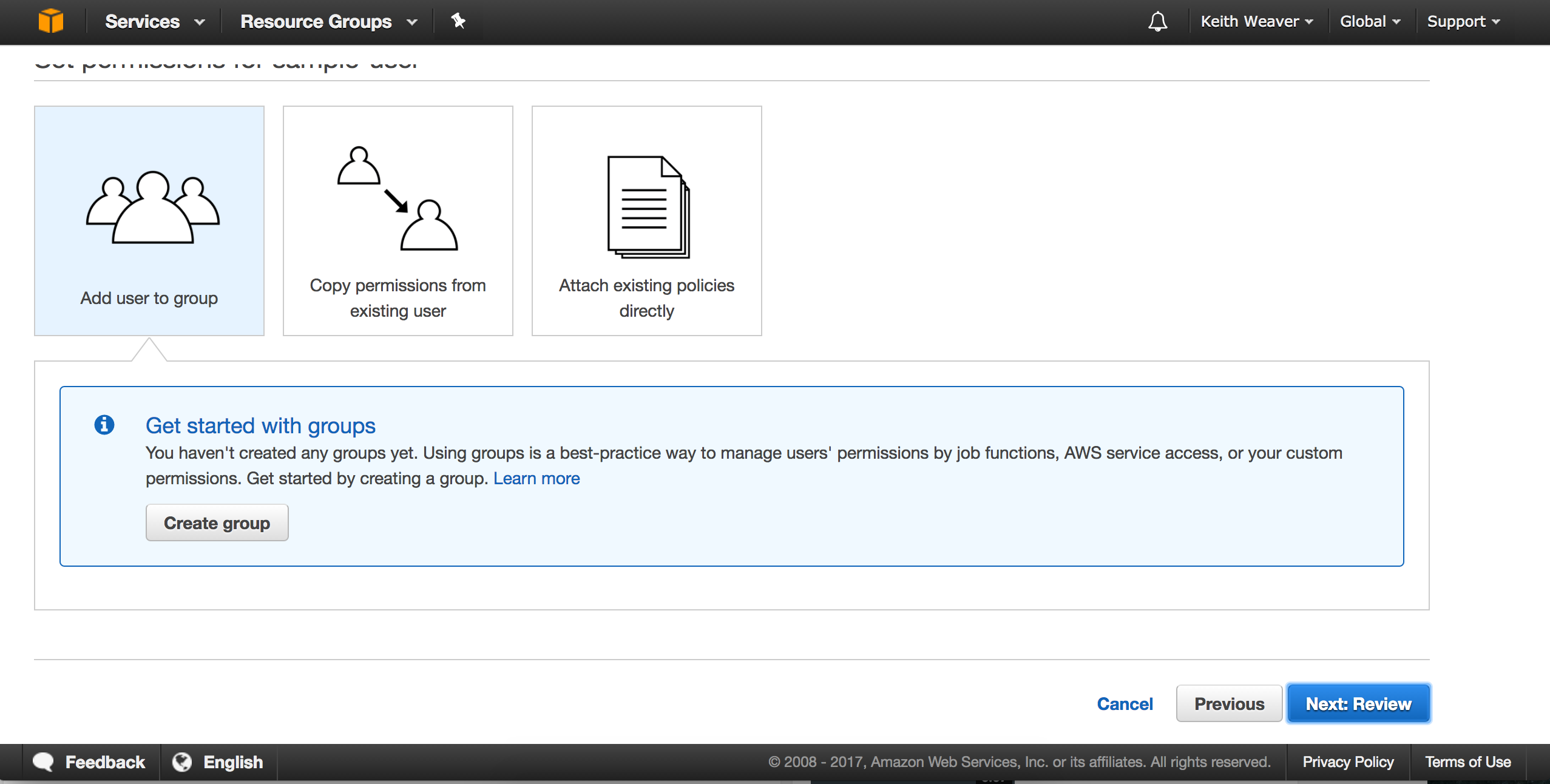
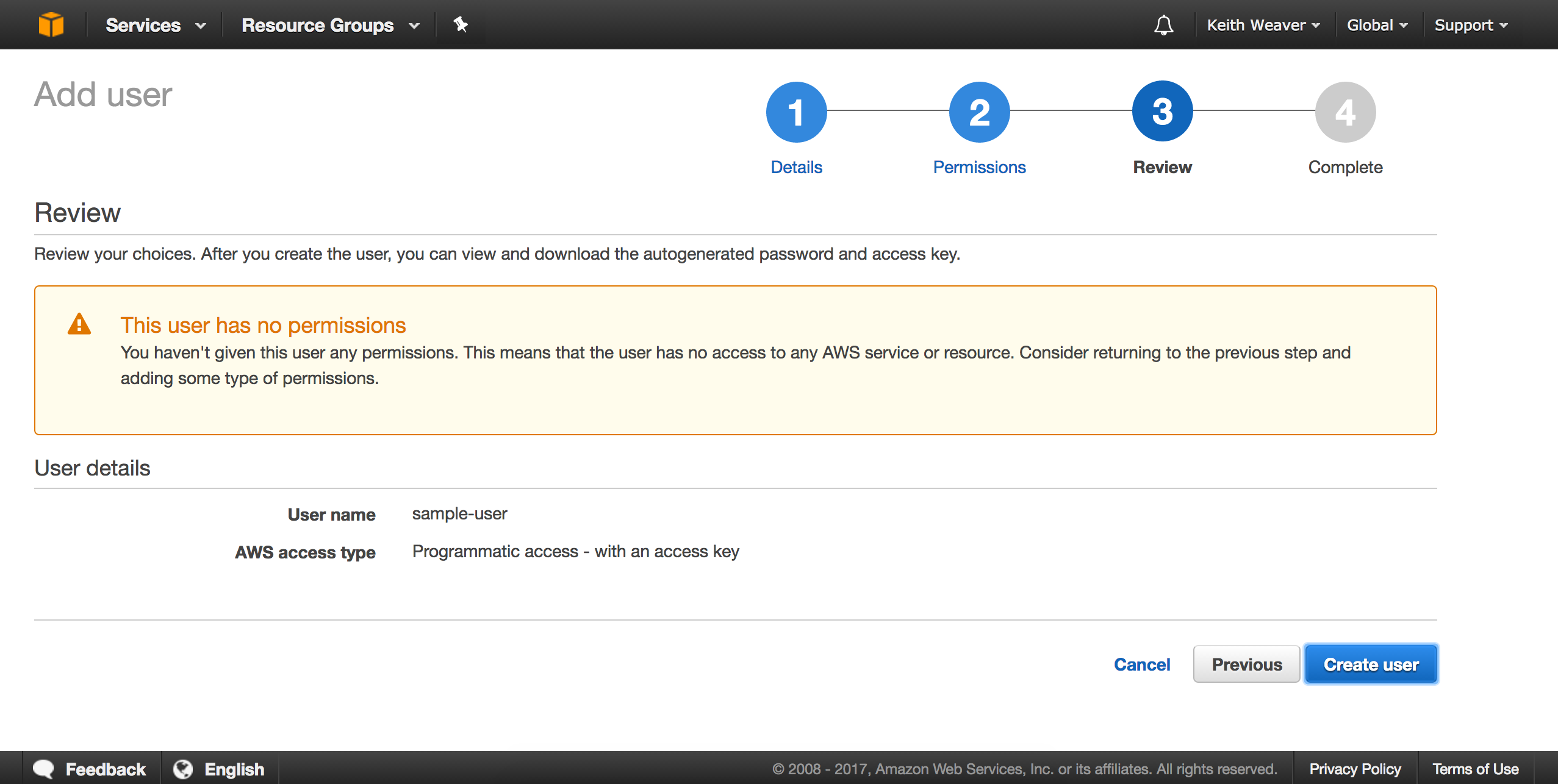
Now click your new user from the list of users.
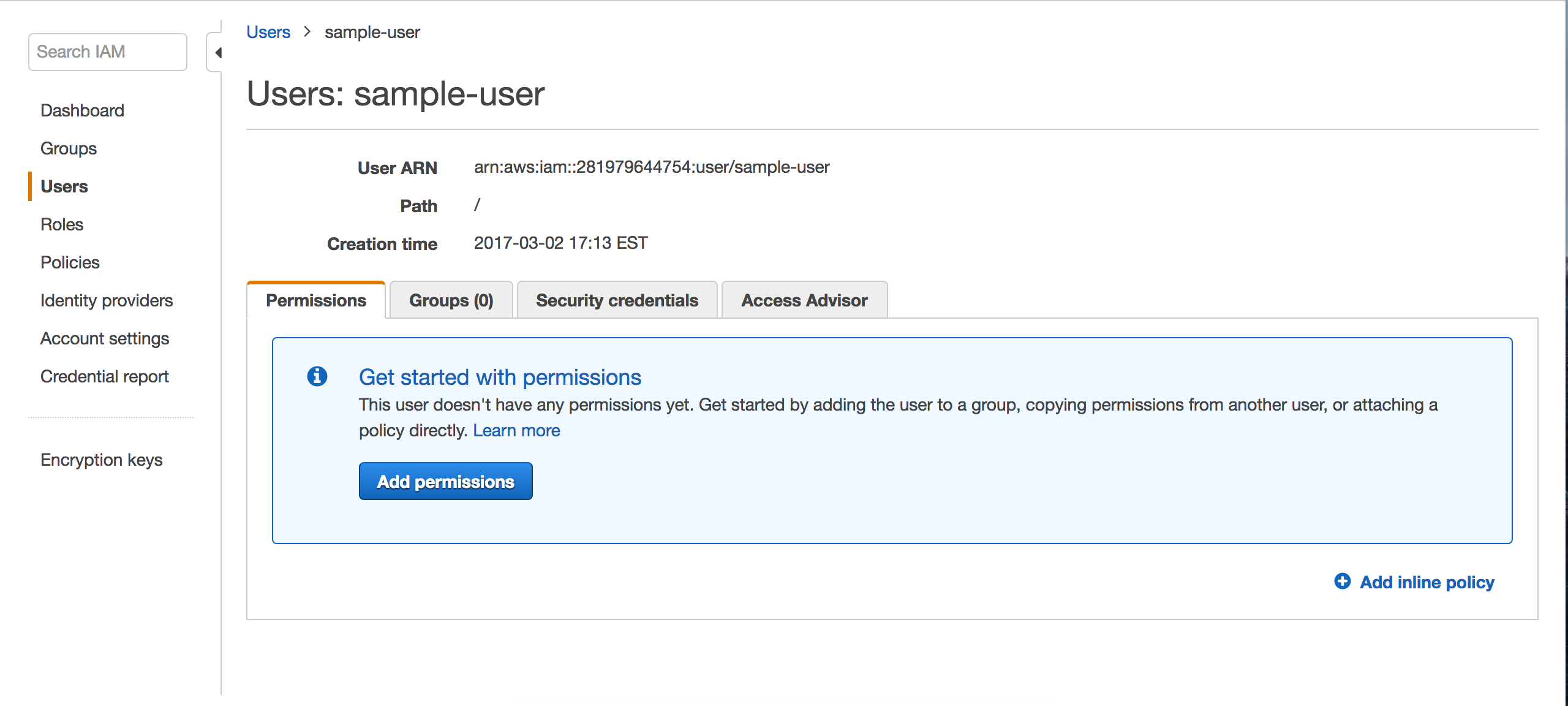
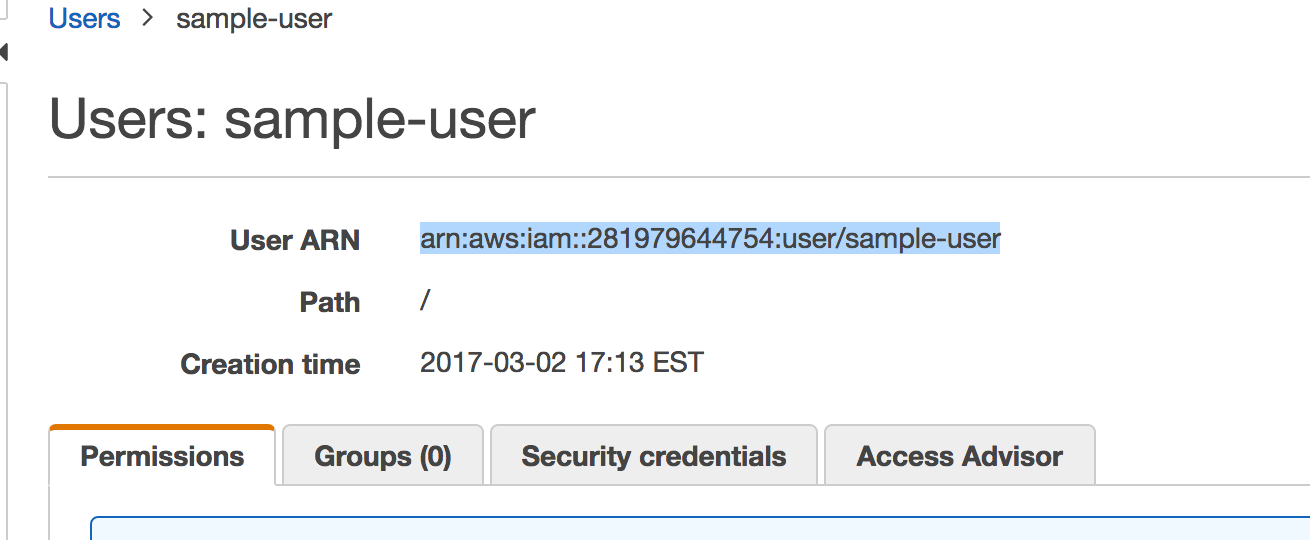
Copy the User ARN
Reopen the S3 dashboard
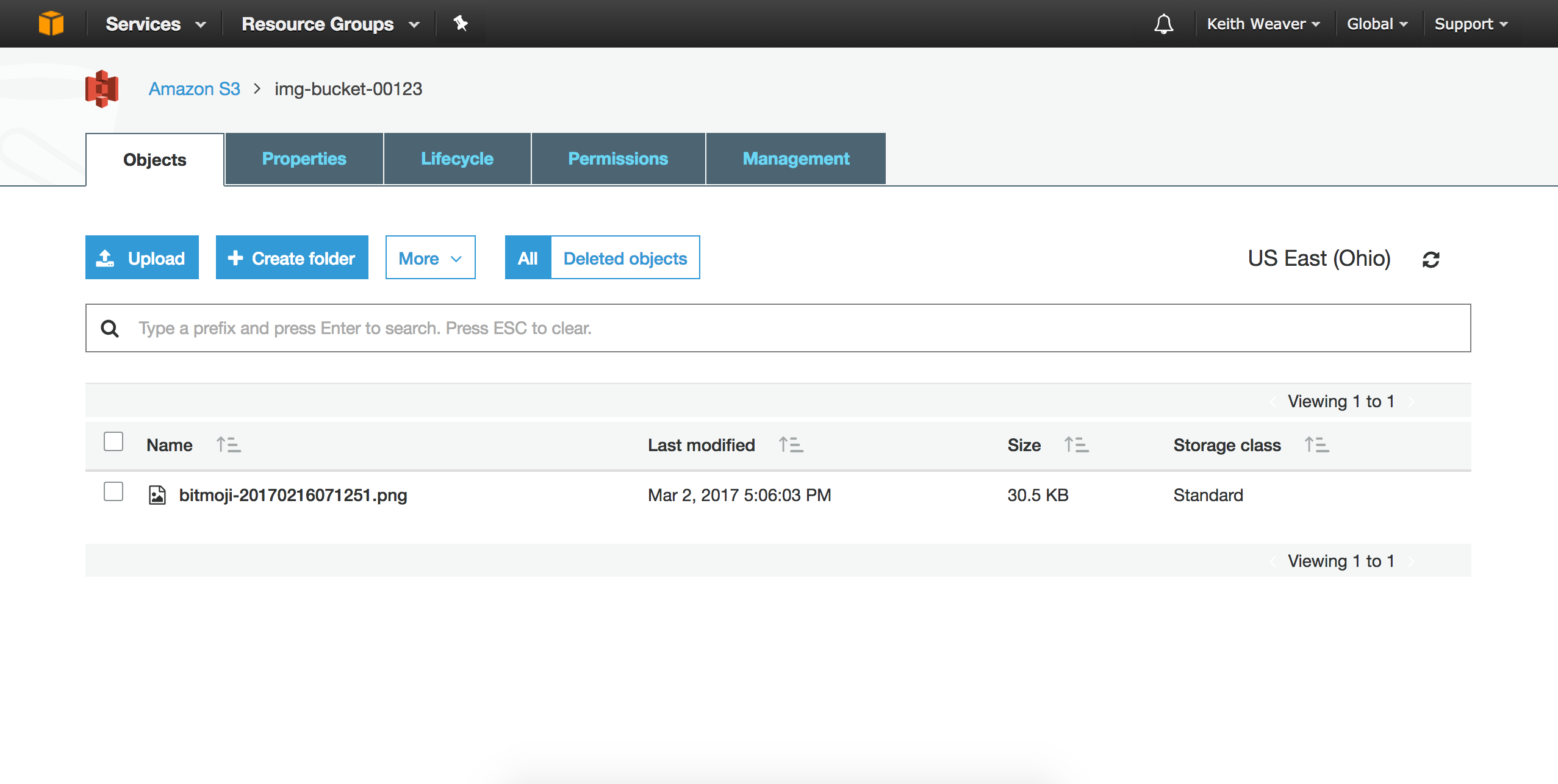
Now click the permissions tab.
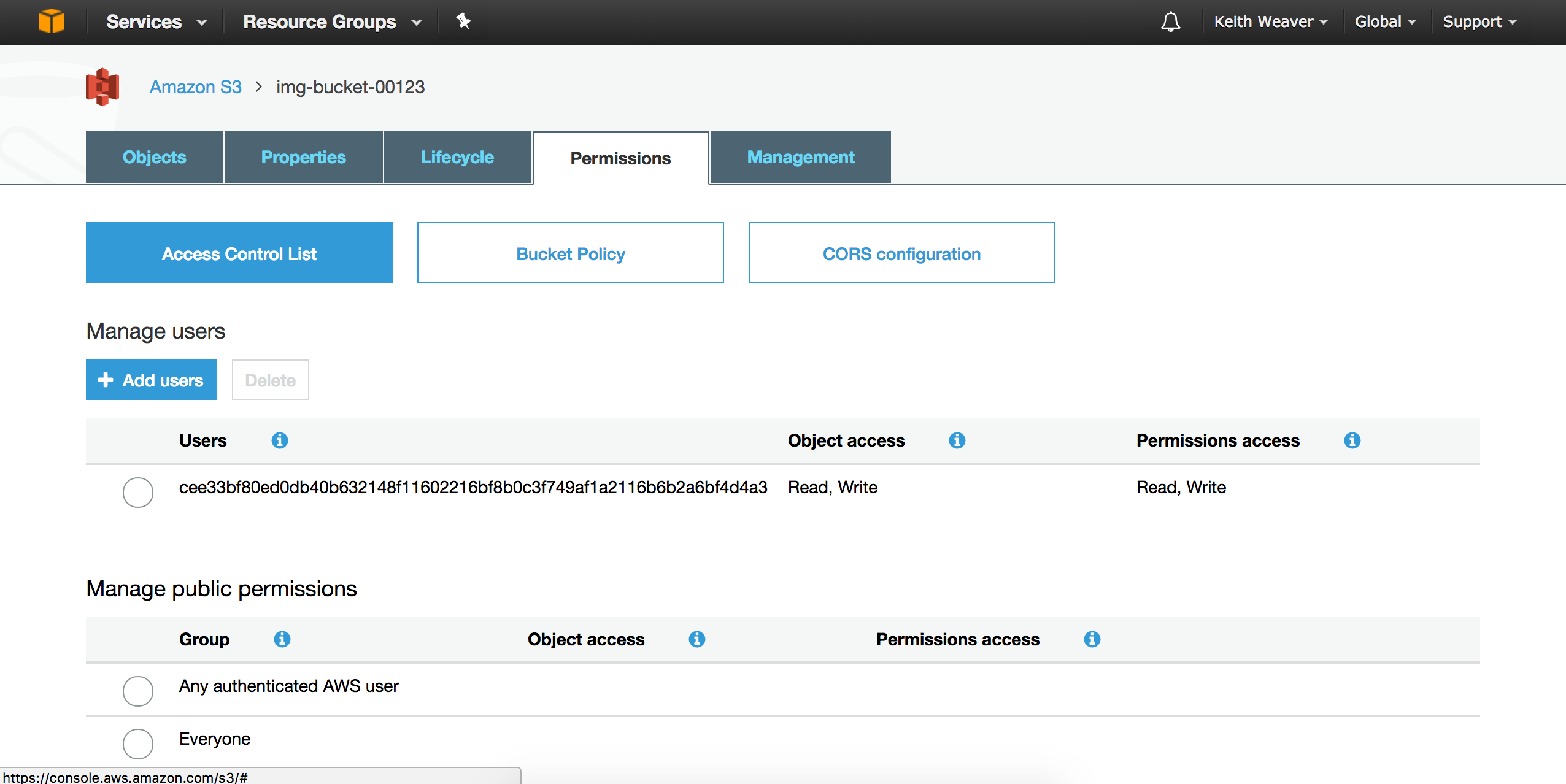
Then click Bucket Policy.
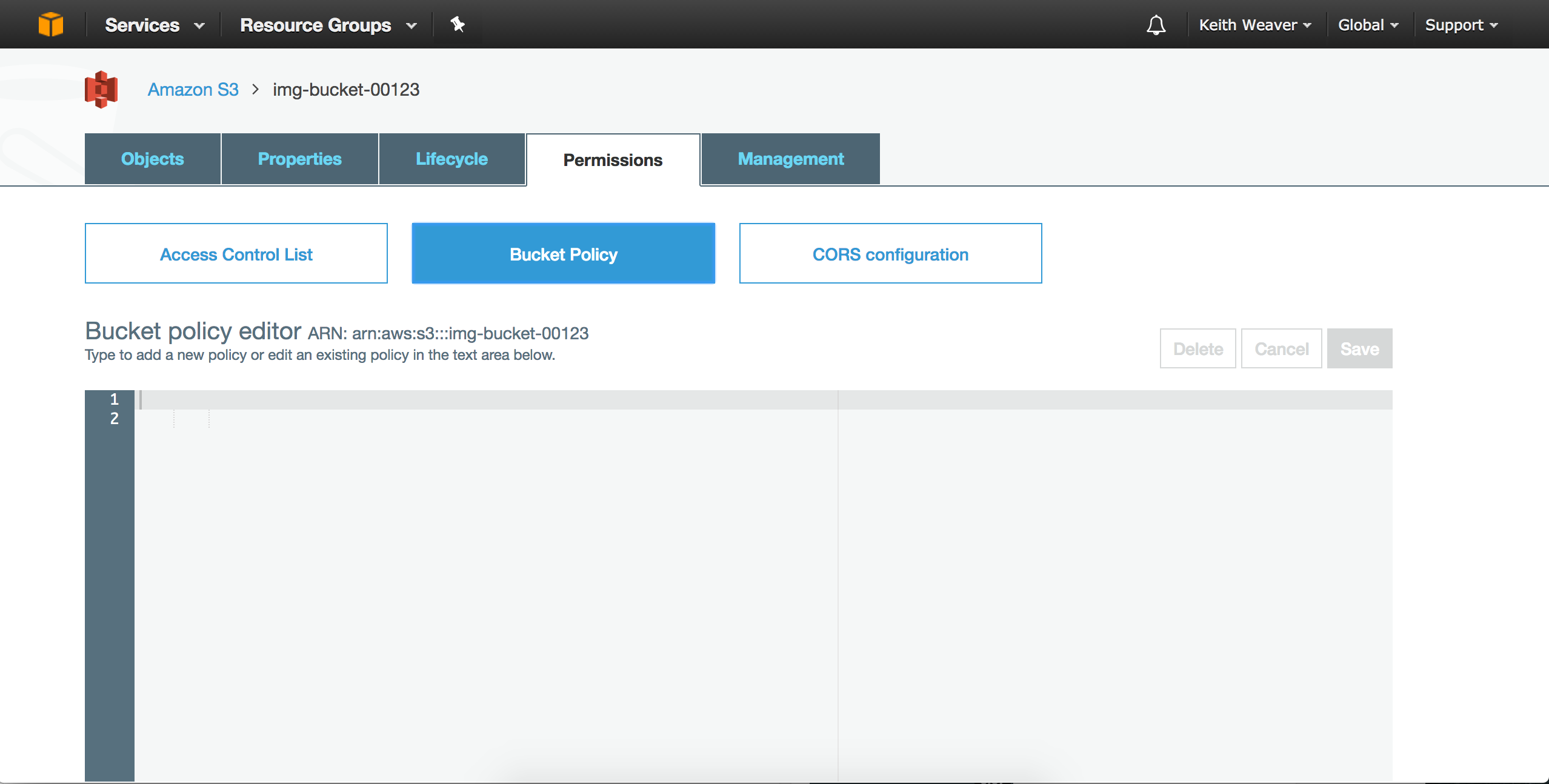
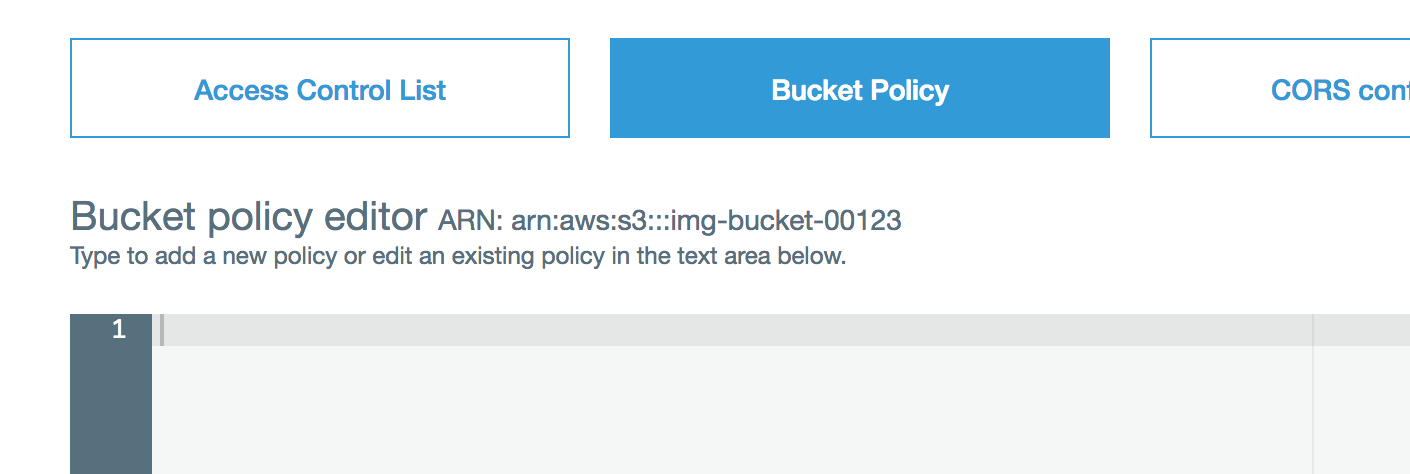
Set your Bucket Policy to be the same as below. Change `arn:aws:iam::281979644754:user/sample-user` to be your User ARN. Also change `arn:aws:s3:::img-bucket-00123` to your Bucket ARN. The bucket ARN is above the textarea.
```
{
"Version": "2012-10-17",
"Id": "Policy1488494182833",
"Statement": [
{
"Sid": "Stmt1488493308547",
"Effect": "Allow",
"Principal": {
"AWS": "arn:aws:iam::281979644754:user/sample-user"
},
"Action": [
"s3:ListBucket",
"s3:ListBucketVersions",
"s3:GetBucketLocation",
"s3:Get*",
"s3:Put*"
],
"Resource": "arn:aws:s3:::img-bucket-00123"
}
]
}
```
Click CORS configuration and add the following policy:
```
*
GET
POST
PUT
3000
Authorization
```
Reopen the `IAM` dashboard.
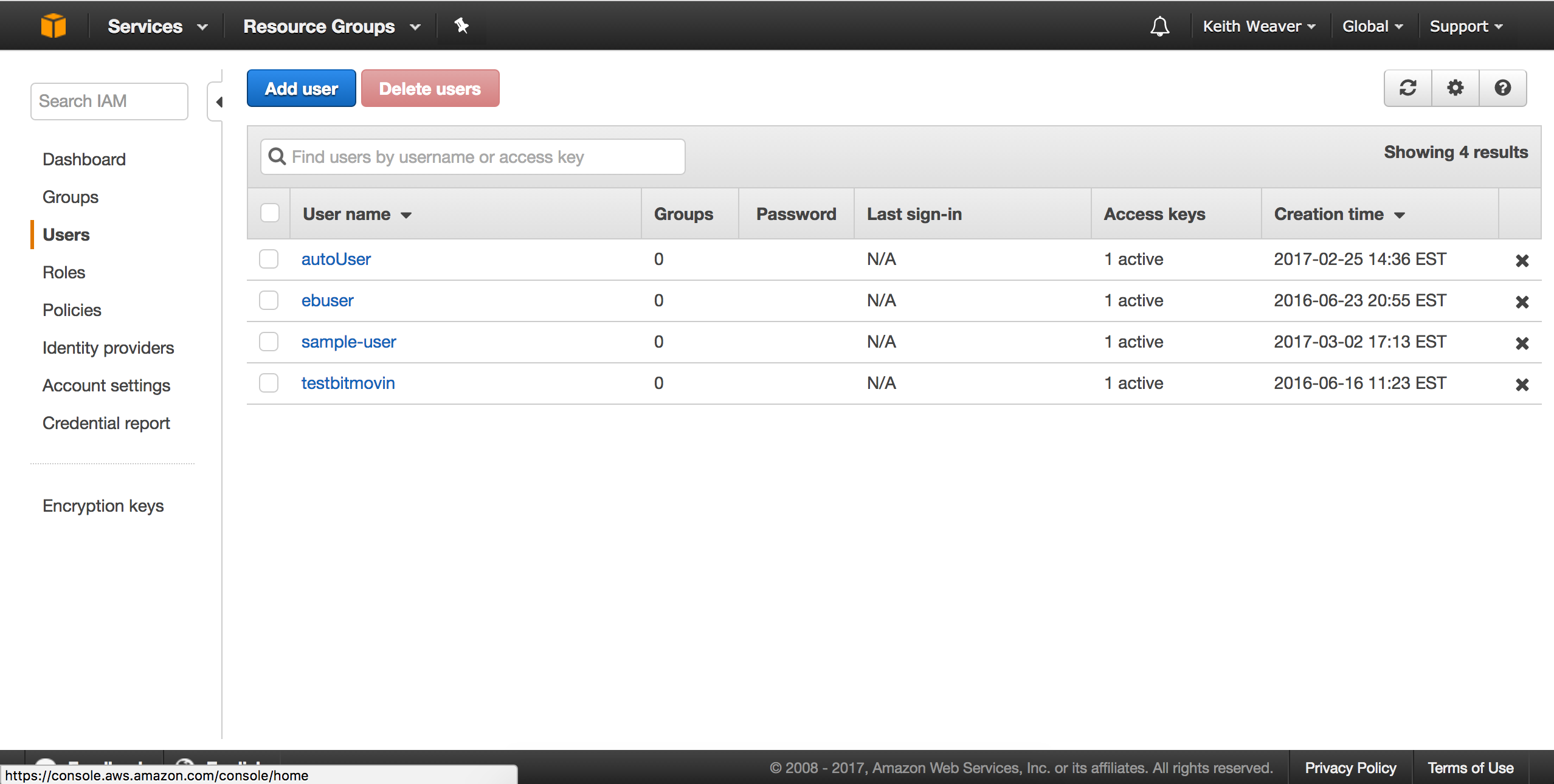
Open your new user.
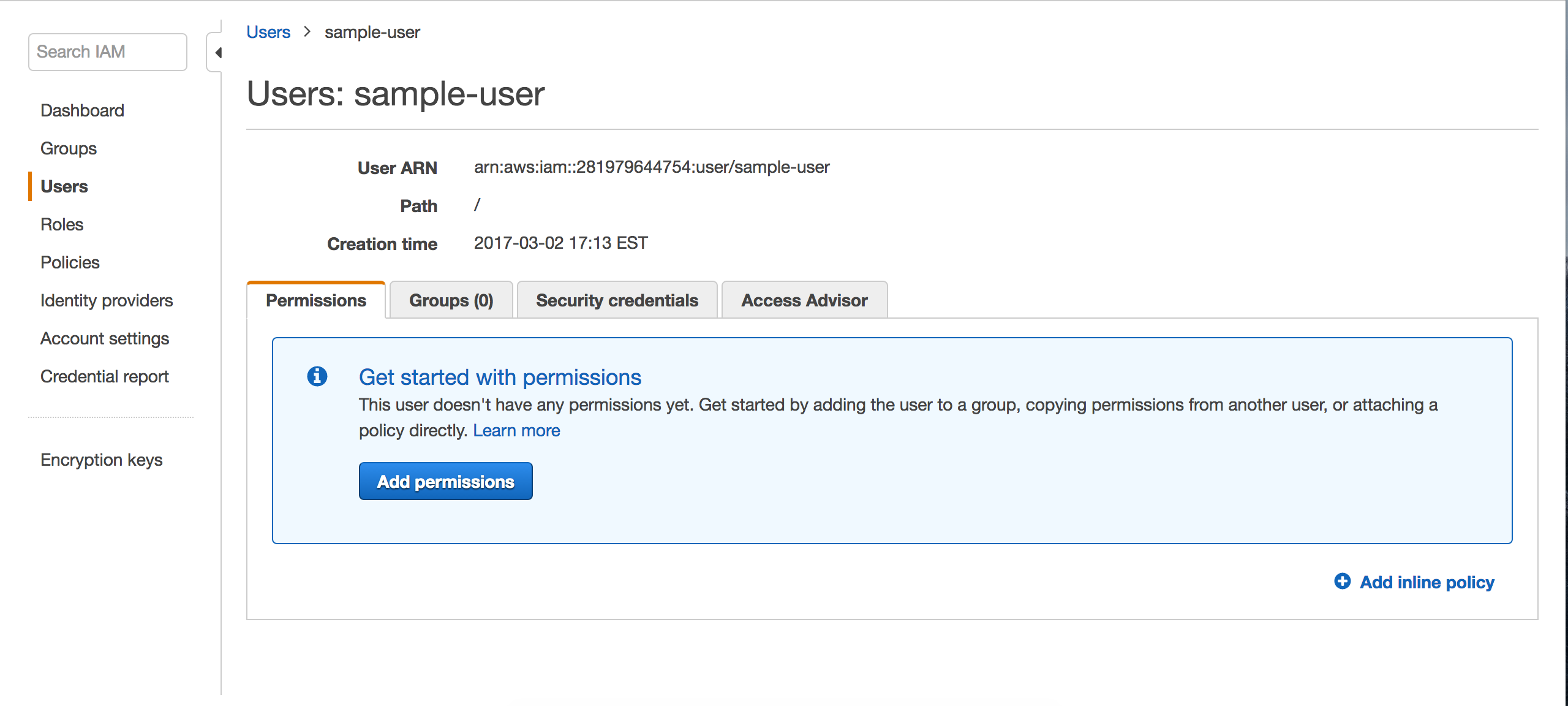
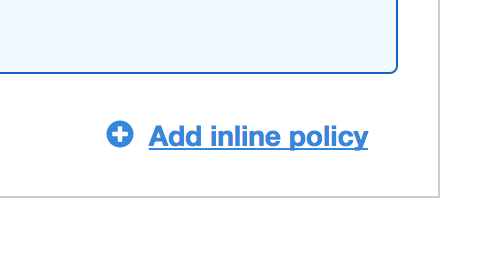
Click on the `New inline policy`
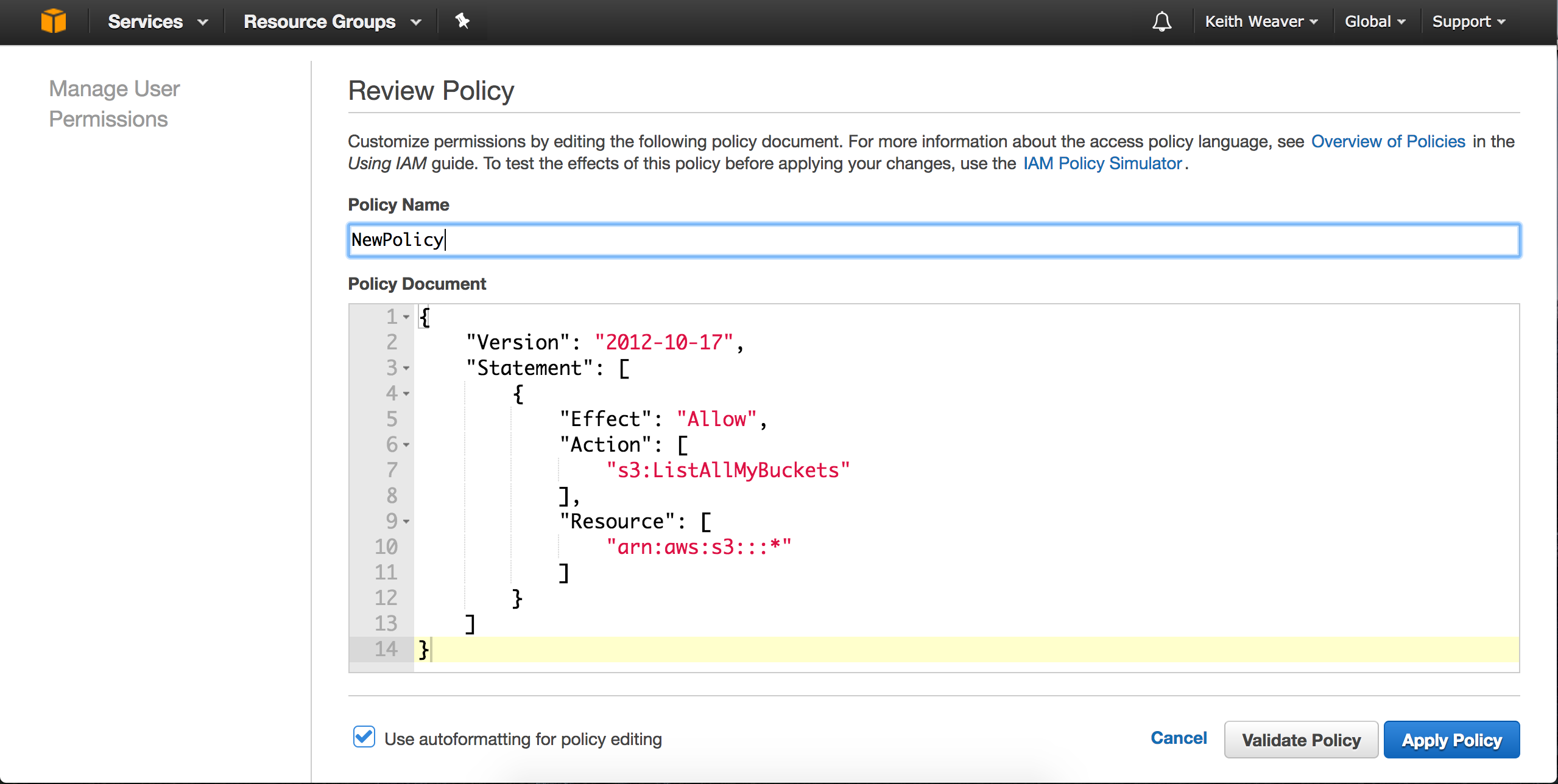
Update the policy to be as follows:
```
{
"Version": "2012-10-17",
"Statement": [
{
"Effect": "Allow",
"Action": [
"s3:ListAllMyBuckets",
"s3:PutObject",
"s3:GetObject"
],
"Resource": [
"arn:aws:s3:::*"
]
}
]
}
```
```
git clone https://github.com/keithweaver/python-aws-s3.git
cd python-aws-s3
python example.py
```
```
python example-w-folder-create.py
```