https://github.com/ken-okabe/vscode-markdown-note
A WYSIWYG Markdown Editor that supports the Markdown features used on GitHub site and beyond
https://github.com/ken-okabe/vscode-markdown-note
editor github markdown productivity vscode-extension wysiwyg
Last synced: 12 months ago
JSON representation
A WYSIWYG Markdown Editor that supports the Markdown features used on GitHub site and beyond
- Host: GitHub
- URL: https://github.com/ken-okabe/vscode-markdown-note
- Owner: ken-okabe
- License: mit
- Created: 2023-07-16T23:50:32.000Z (almost 3 years ago)
- Default Branch: main
- Last Pushed: 2024-04-19T12:18:48.000Z (about 2 years ago)
- Last Synced: 2024-04-19T13:36:30.681Z (about 2 years ago)
- Topics: editor, github, markdown, productivity, vscode-extension, wysiwyg
- Language: TypeScript
- Homepage: https://marketplace.visualstudio.com/items?itemName=KenOkabe.markdownnote
- Size: 83.2 MB
- Stars: 5
- Watchers: 1
- Forks: 1
- Open Issues: 3
-
Metadata Files:
- Readme: README.md
- License: LICENSE
Awesome Lists containing this project
README
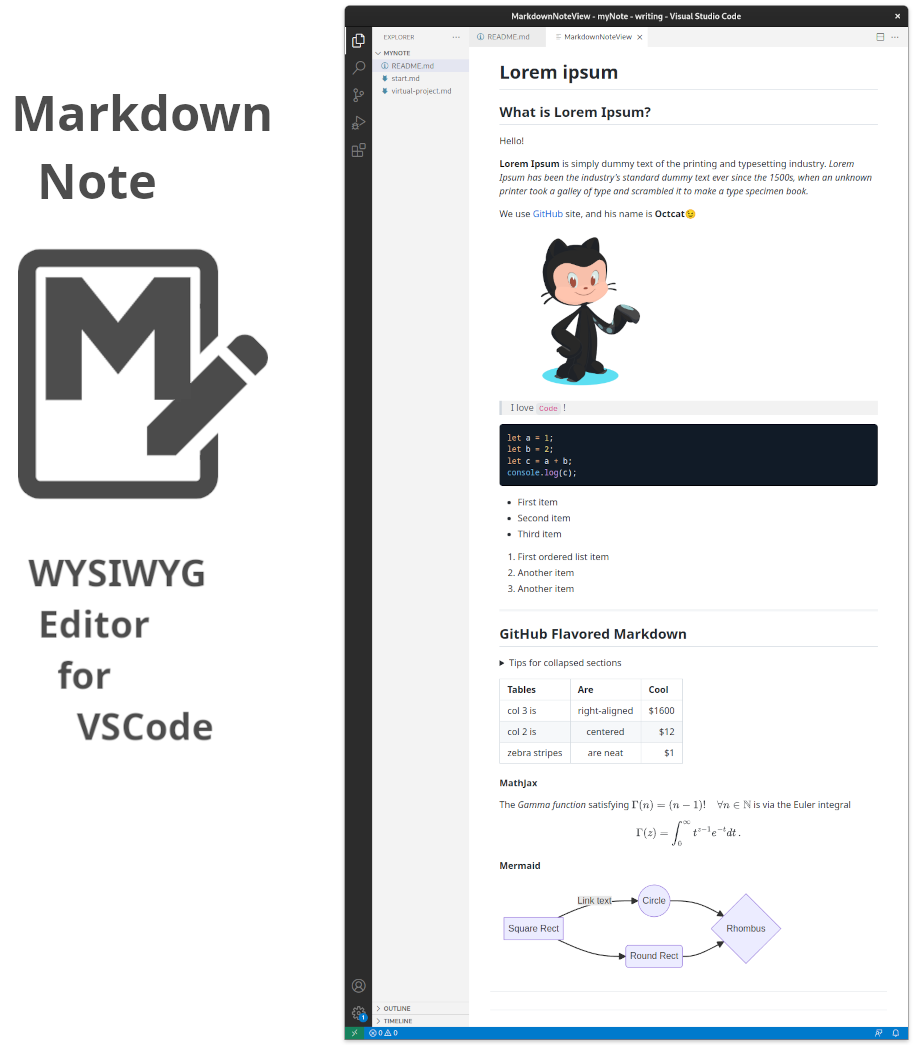
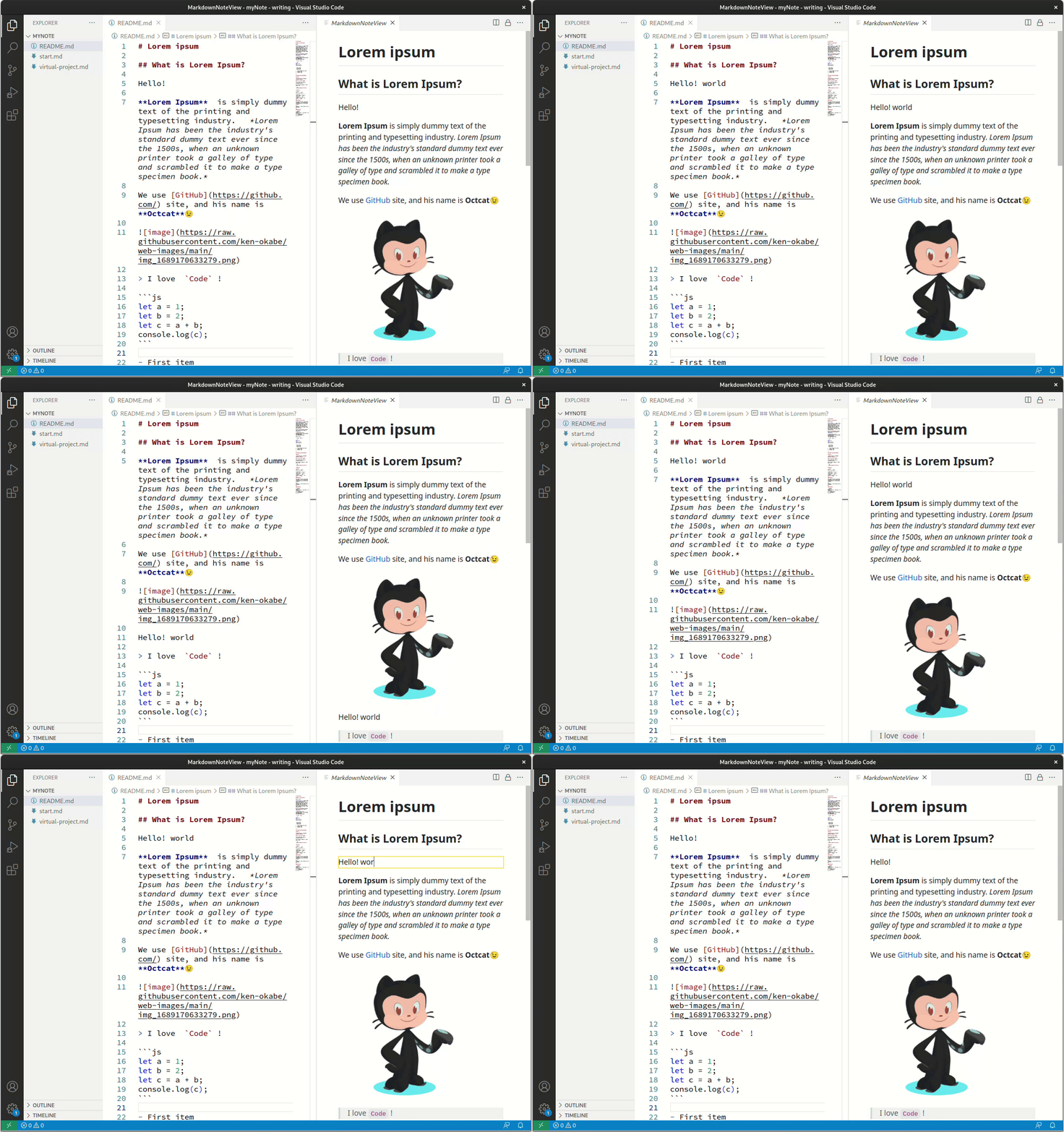
## is also the ultimate note & memo App built on VSCode
## VSCode + Markdown + WYSIWYG = Productivity
---
# 🔷 Seamless
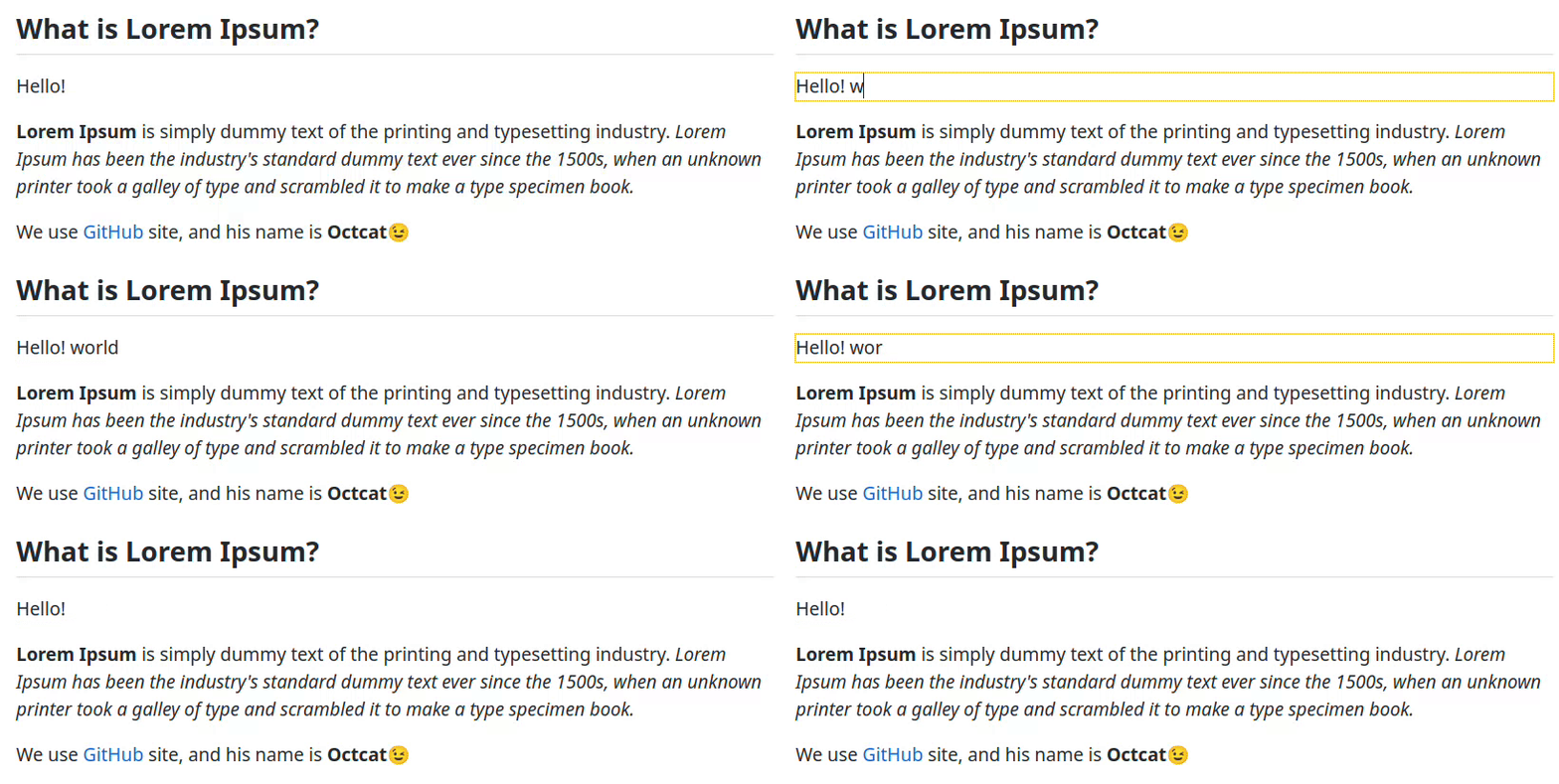
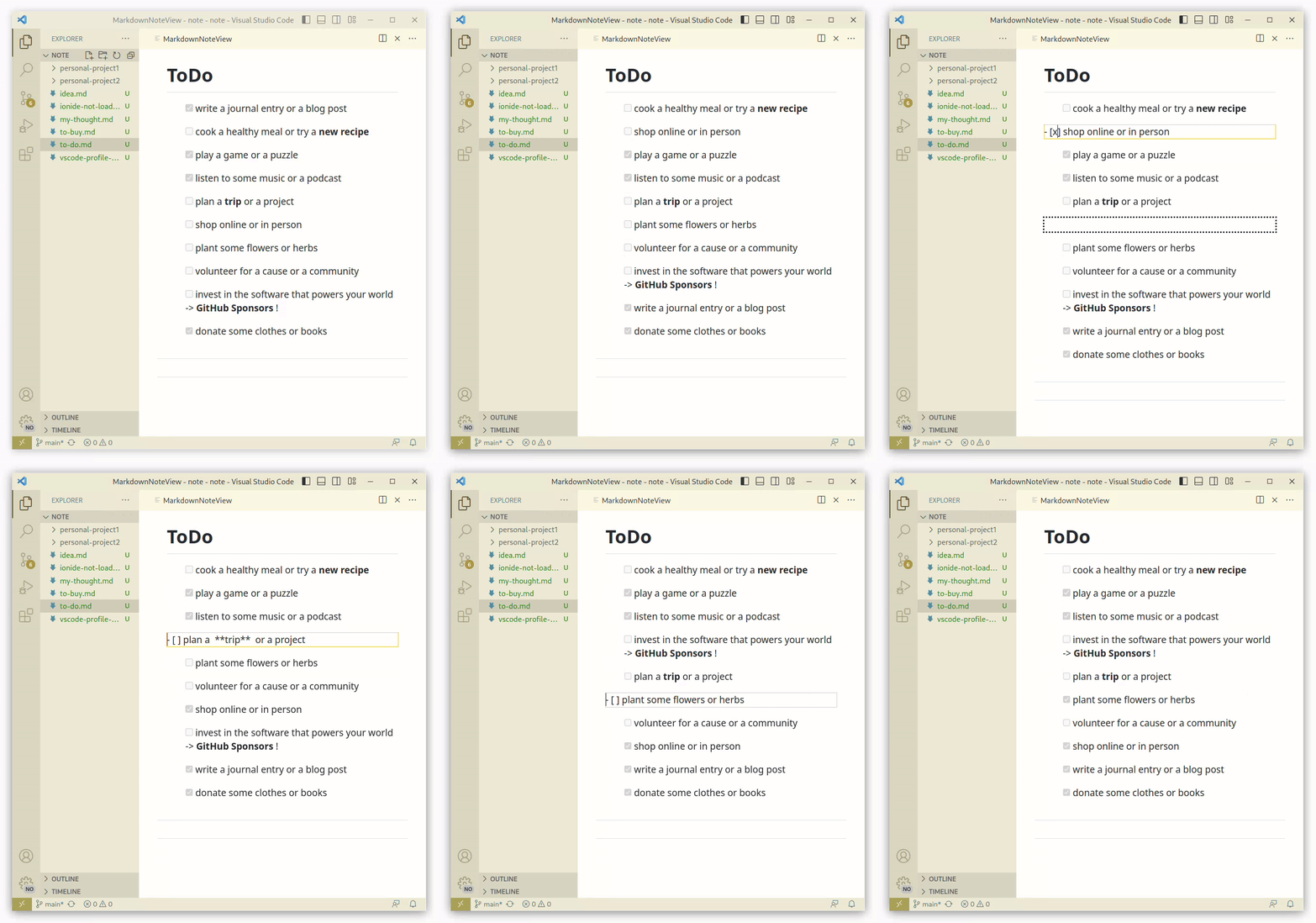
**Click** on what you want to edit to enter input mode.
Once you finish editing, press the `ESC` key.
Press the `ESC` key again to return to input mode.
---
# 🔷 Cell Editing
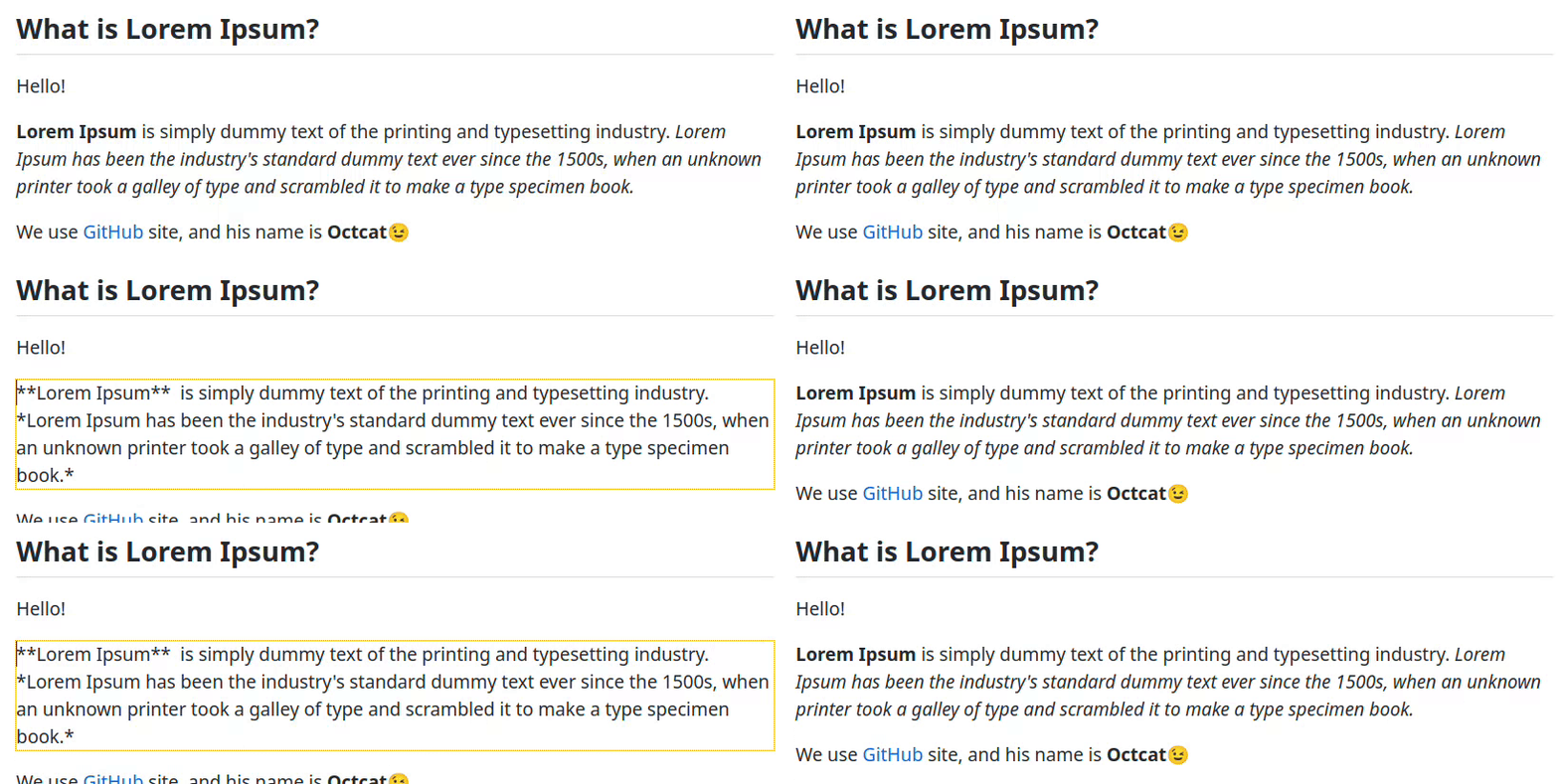
**Cell** is familiar to Jupyter Notebook users.
Every **Cell** has its **own isolated editing history** , so **undo&redo** works uniquely.
---
# 🔷 Headers
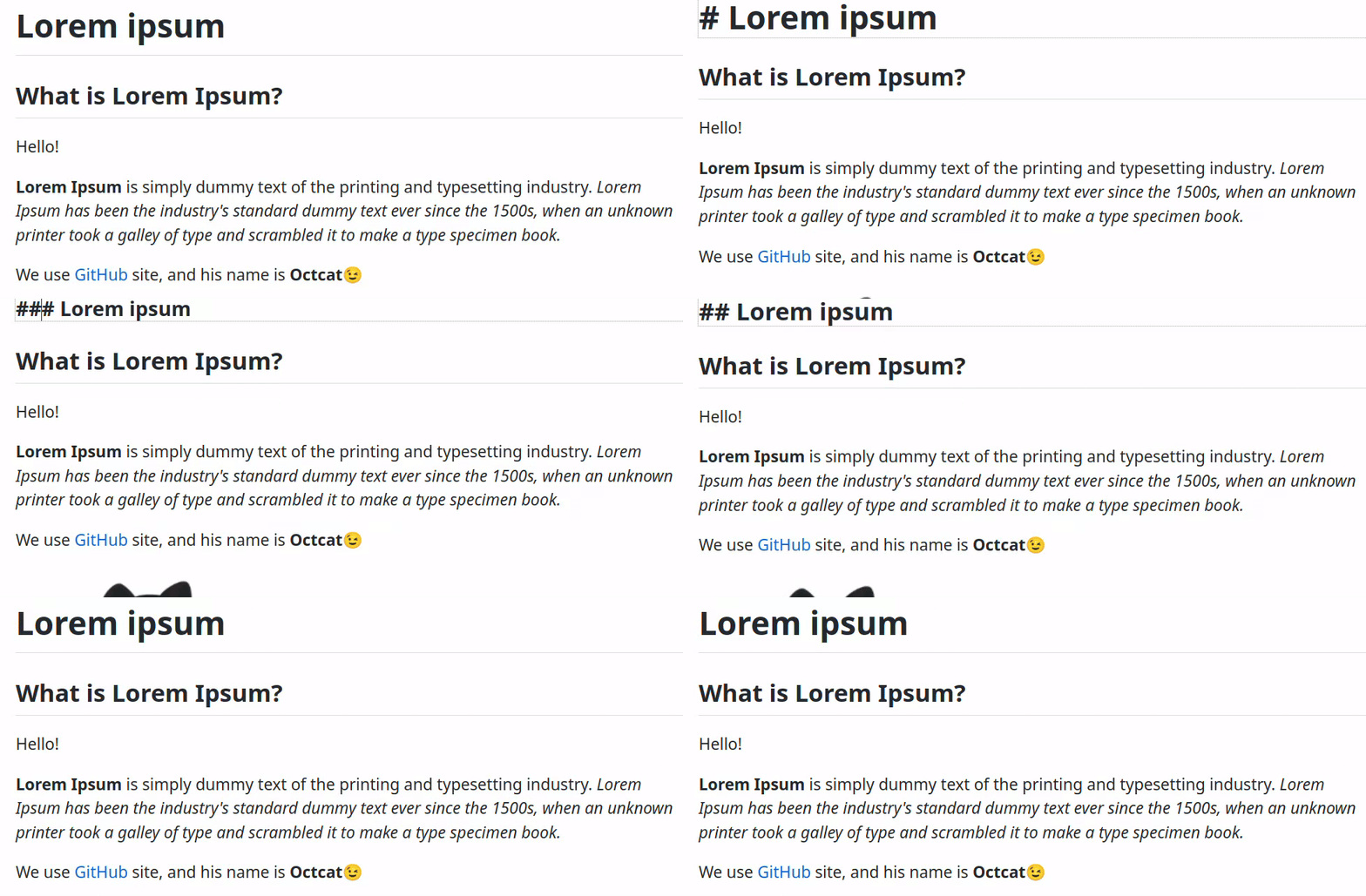
You can see the exact header size based on the current CSS **before converting to HTML** by entering `#` .
---
# 🔷 Paste URL & ImageURL from Clipboard
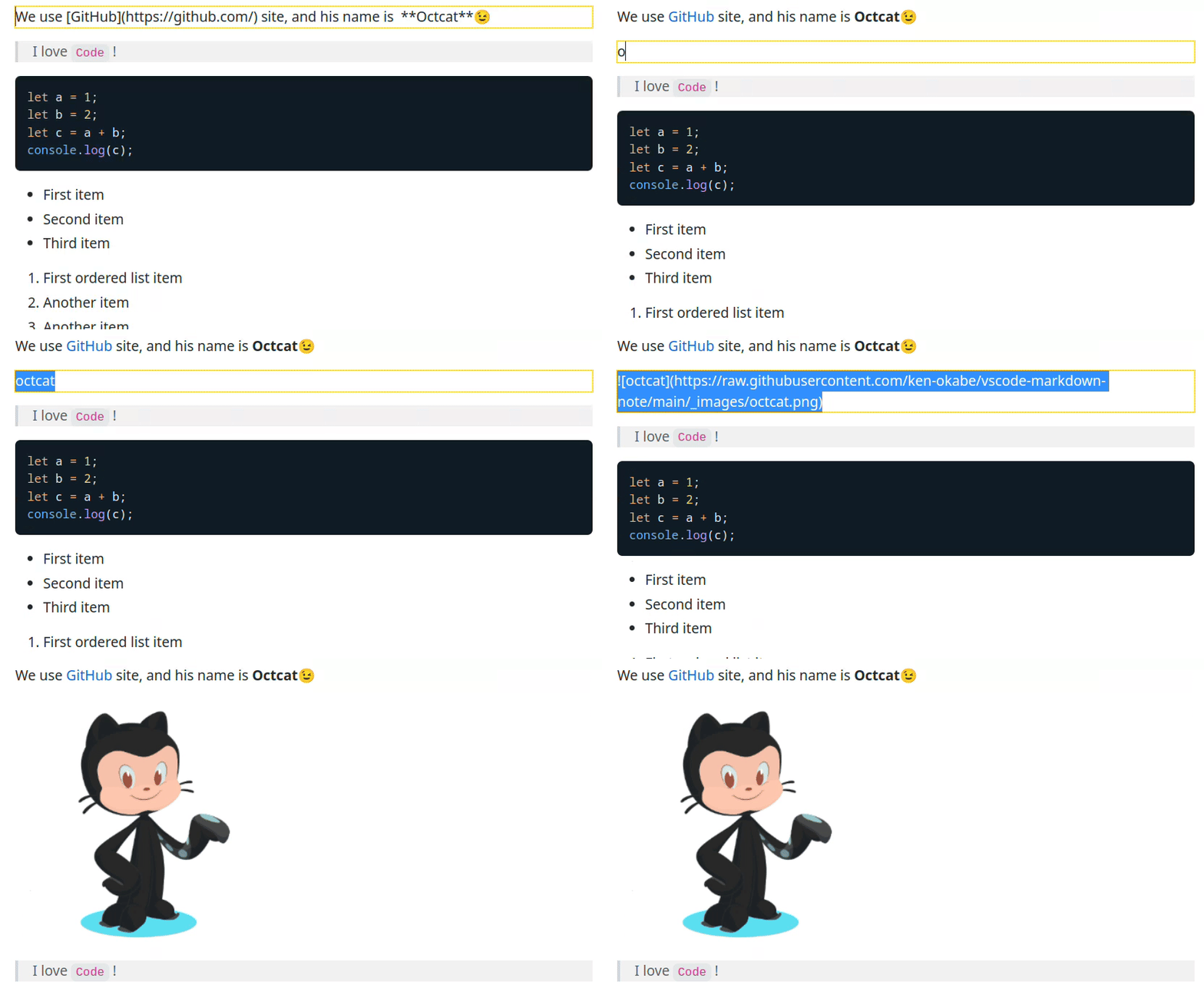
You can use a shortcut key (`Ctrl+L` for URLs, `Ctrl+P` for images by default Key Bindings) to paste **URLs** or **imageURLs** from the clipboard as Markdown on *selected text* .
Here is how it goes:
0. Your clipboard has an imageURL: [https://raw.githubusercontent.com/ken-okabe/vscode-markdown-note-images/main/octcat.png](https://raw.githubusercontent.com/ken-okabe/vscode-markdown-note-images/main/octcat.png)
1. Type any image name in the Cell (**octcat**)
2. Select all, then paste the **imageURL** (`Ctrl+A,P`)
3. Exit the Cell (`Esc`)
**Alternatively, you can skip typing the image name and just**
1. Paste the **imageURL** (`Ctrl+P`)
2. Exit the Cell (`Esc`)
**and it will work just fine 😎**
For **imageURLs**, `image` is used as the default name.
For **URLs**, the pasted URL itself is used as the default link text. So when you just paste `https://github.com/` with `Ctrl+L`, the result will be [https://github.com/](https://github.com/).

---
# 🔷 Drag&Drop Cells
---
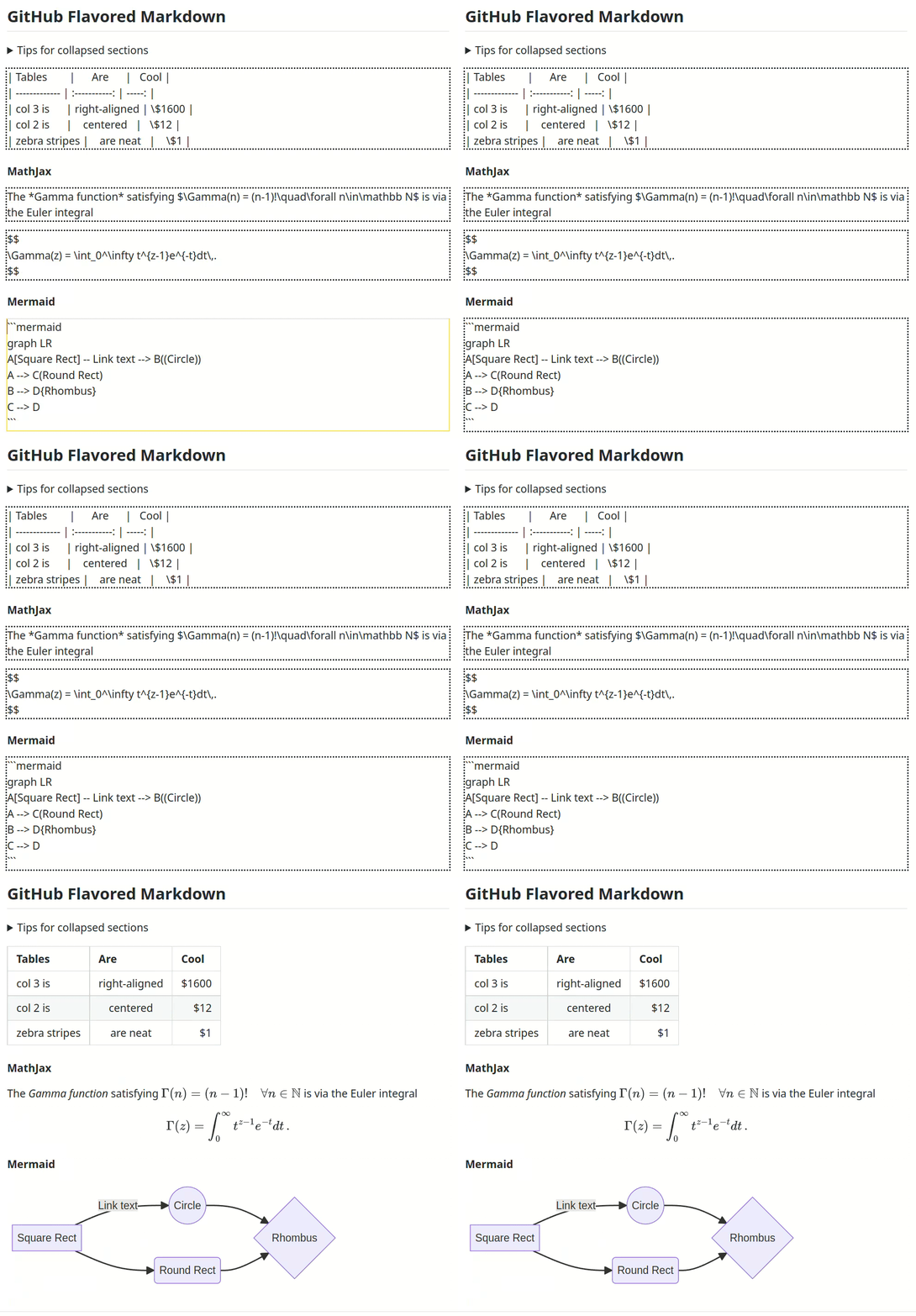
# 🔷 GFM & features supported by GitHub
---
# 🔷 Paste Code & Mathematics(LaTeX) from Clipboard
In **Markdown Note**, you can add **Code & Mathematics(LaTeX)** in the same way as **Paste URL & ImageURL from Clipboard**.
- We usually copy&paste **URLs** & **ImageURLs** from the clipboard.
- We usually copy&paste **Code** & **Mathematics(LaTeX)** from the clipboard.
---
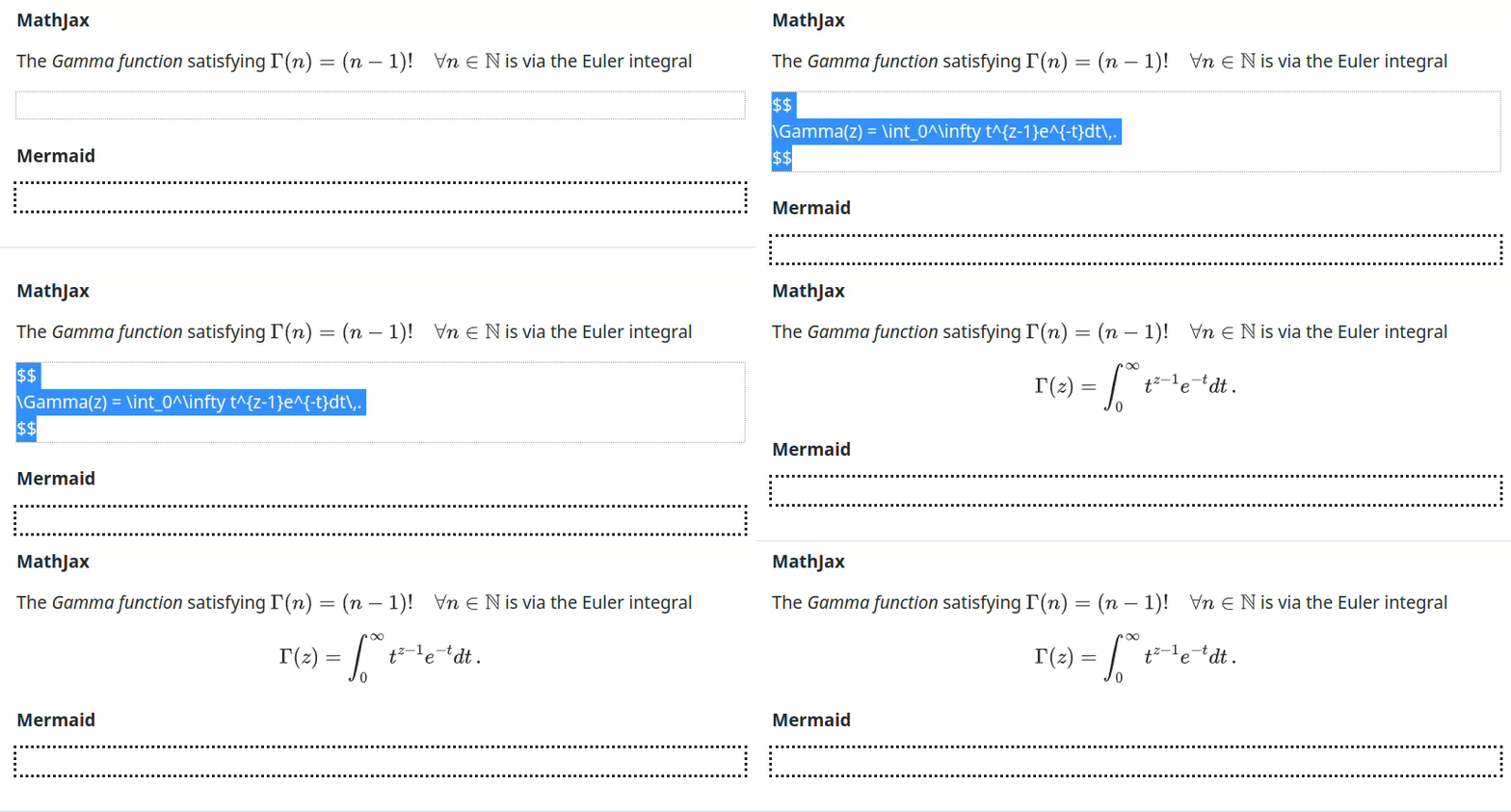
$Mathematics(LaTeX)$
0. Your clipboard has:
`\Gamma(z) = \int_0^\infty t^{z-1}e^{-t}dt\,.`
1. Paste the **Math** (`Ctrl+M`)
2. Exit the Cell (`Esc`)
---
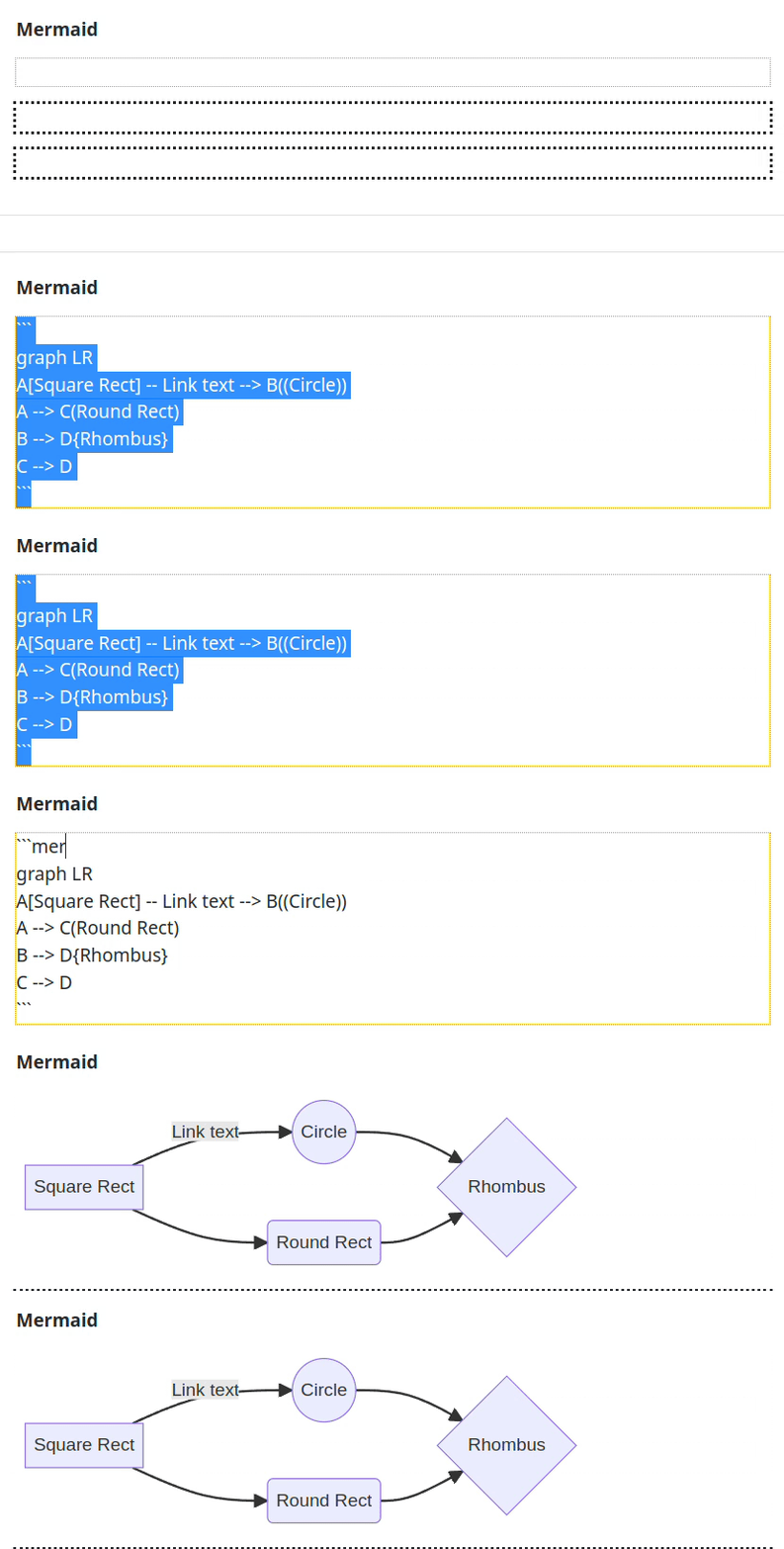
$Code (including Mermaid)$
0. Your clipboard has:
```
graph LR
A[Square Rect] -- Link text --> B((Circle))
A --> C(Round Rect)
B --> D{Rhombus}
C --> D
```
1. Paste the **Code** (`Ctrl+K`)
2. Exit the Cell (`Esc`)
---
$Inline$
To insert **inlineCode** & **inlineMath**, you can use the same operation as for (inline) **Bold** or (inline) **Italic**, that is, select the *target strings* , then press the **ShortcutKey**: `Ctrl+?`.
---
# 🔷 ReadOnly & Writable Mode
By default, **Markdown Note** works in **Writable Mode** , but some web elements need user's click action even in Markdown documents.
For example, **Markdown used in GitHub** ( *not GitHub Flavored Markdown Spec* ) supports `` and `` html tags.
To test the native behavior, you can switch to **ReadOnly Mode** temporarily with `Ctrl+Esc`.
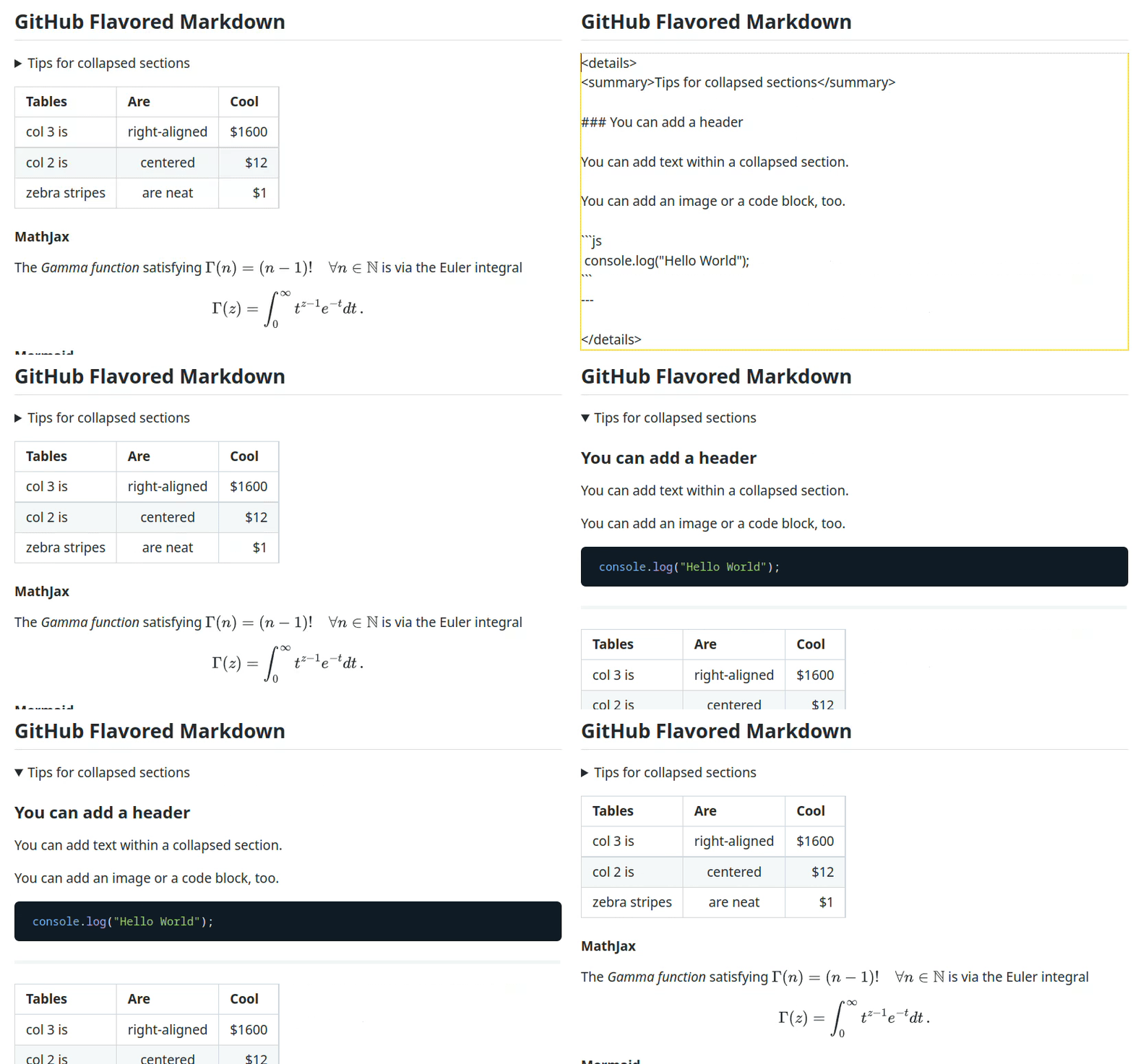
In **ReadOnly Mode** , the default behavior of **Markdown Note** is paused and you can click the element in the standard manner.
This way, you can see how `` and `` html tags work.
Pressing `Ctrl+Esc` again will return to the default **Writable Mode**.
---
# 🔷 Unidirectional Data Flow
Bidirectional data flow might look cool, but it often causes confusion for both humans and software architectures.
**The conventional Markdown Preview** has a unidirectional data flow :
- Markdown source code -> The read-only preview.
**Markdown Note** also uses the same simple unidirectional design, but *in the opposite direction* :
- WYSIWYG Editor -> Markdown source code.
---
# 🔷 Reload to Side or Overlay
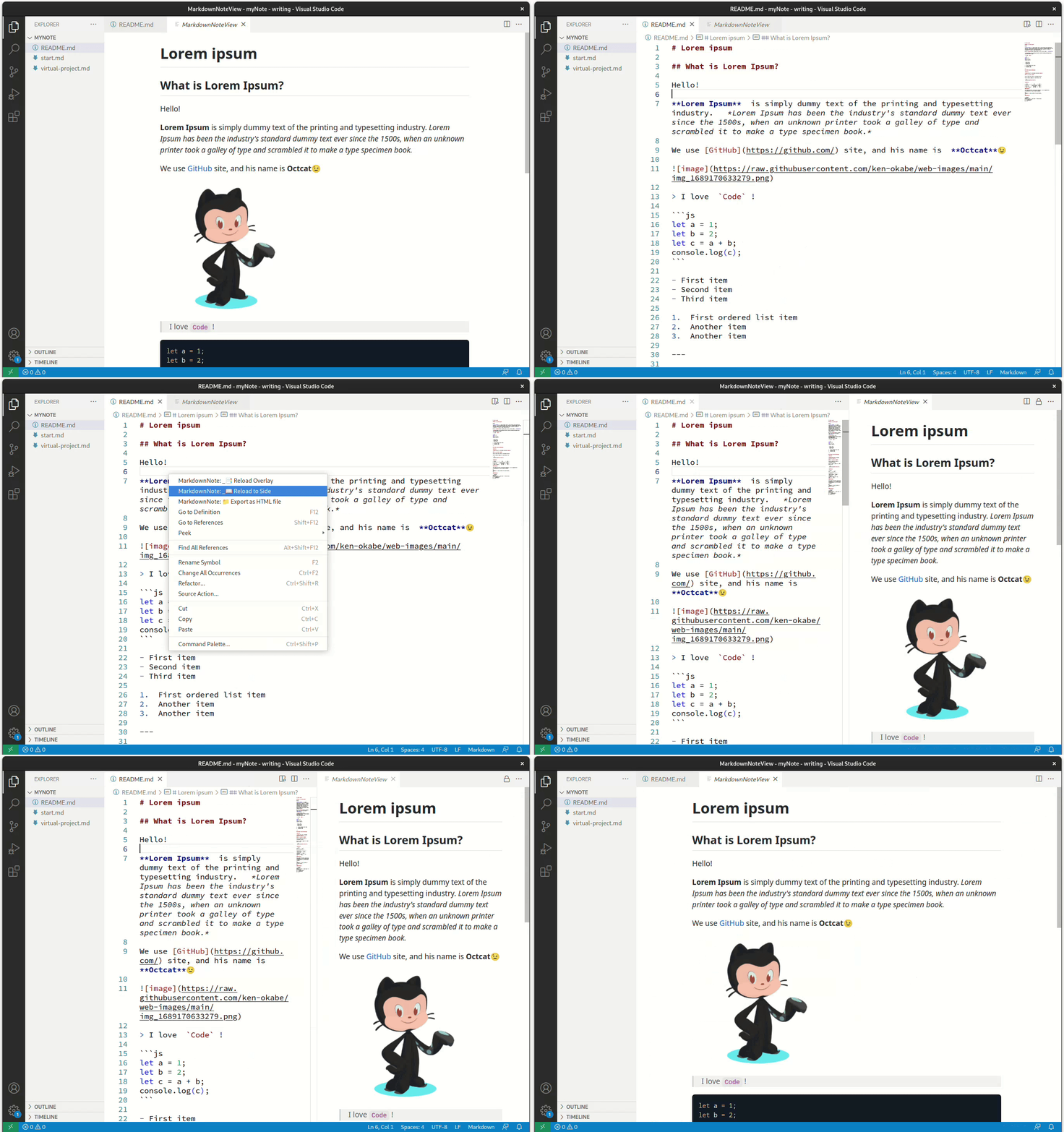
The user needs to **reload the contents explicitly after editing the Markdown source code in the standard VSCode editor, since the data flow is unidirectional** .
The user can choose which panel to reload:
- **to Side**
- **Overlay**
The reload action helps to **reconstruct the entire markdown Cells with integrity** after a full modification of the document by native editing.
---
# 🔷 Key Bindings (Extension Keyboard Shortcuts)
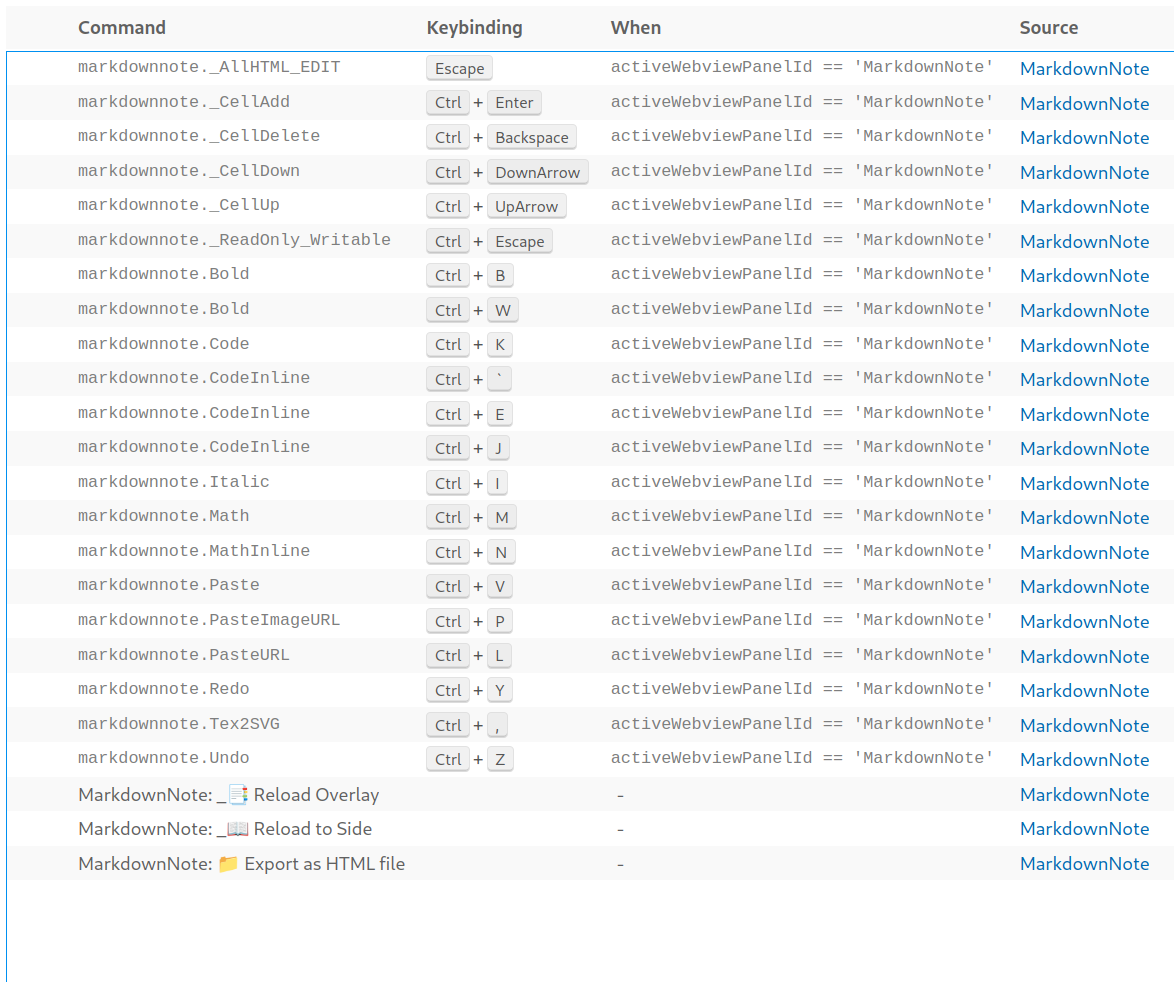
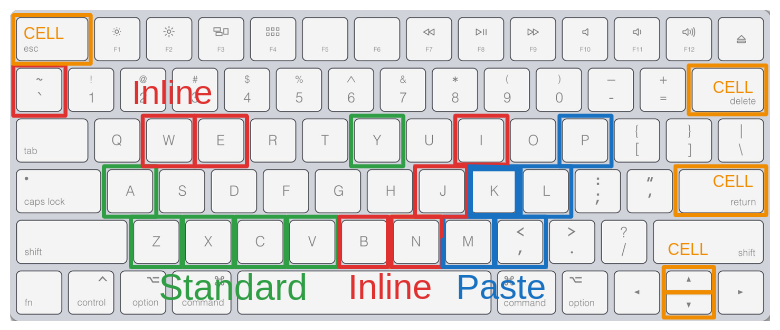
You can use Key Bindings for everything except drag and drop; you can also customize them.
---
# 🔷 Paste Images with one Keystroke
The general key binding `Ctrl+V` for **pasting** works for **both text and images** .
With one Keystroke, this feature allows you to **upload the clipboard image** to *your own image-only repository on GitHub* and automatically insert its URL in the Cell to display it.
You need to create *a dedicated image repository* and *an access token on GitHub* to use this feature. **This feature does not work with secret repositories, and your images will be public.**
You can also use *a secret Gist* to store your images, but there is no API for that yet.
You can still display images by using your own URL as before, if you prefer not to use a public repository or a secret Gist.
---
# 🔷 Works with VSCode’s full potential
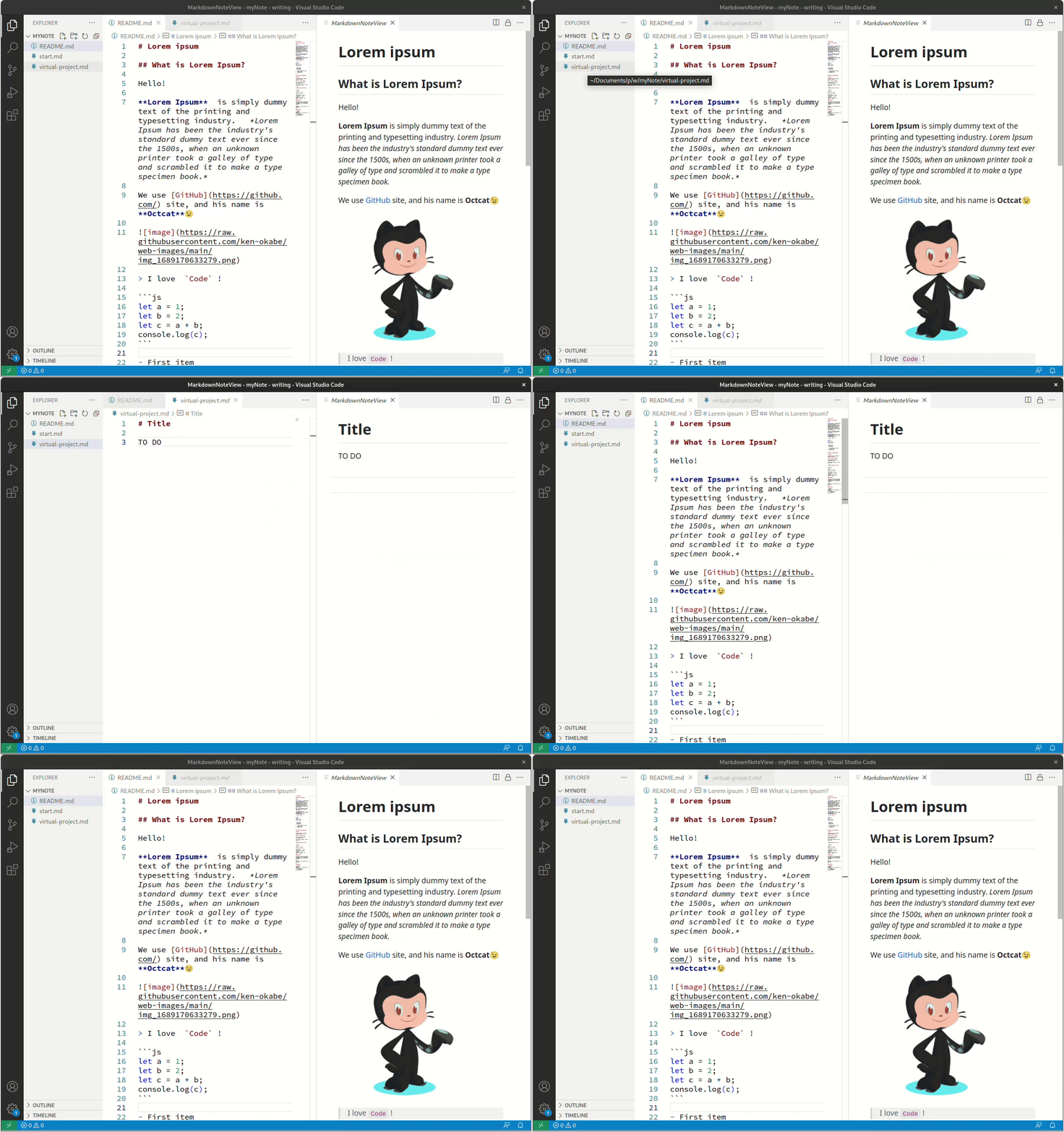
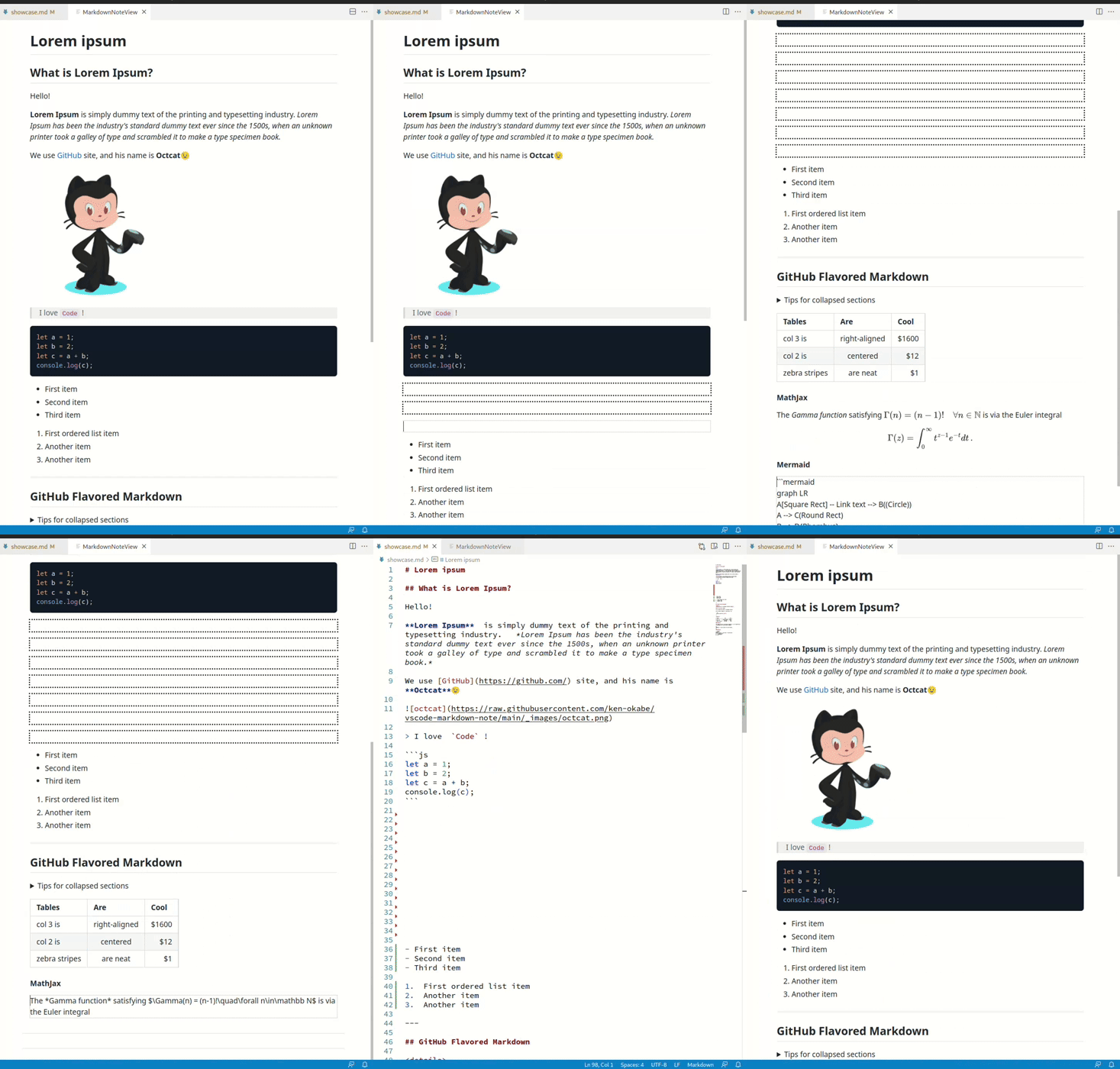
You can use VSCode features, such as **undo/redo/select the whole document** , or **managing files with directories and Git** , for any operations that are not suitable for the Cell editing.
---
# 🔷 Getting Started
## Take advantage of VSCode `Empty Profile`
**To get started quickly and simply, you can take advantage of an empty and isolated VSCode profile to install Markdown Note, or use any VSCode profile you like later.**
---
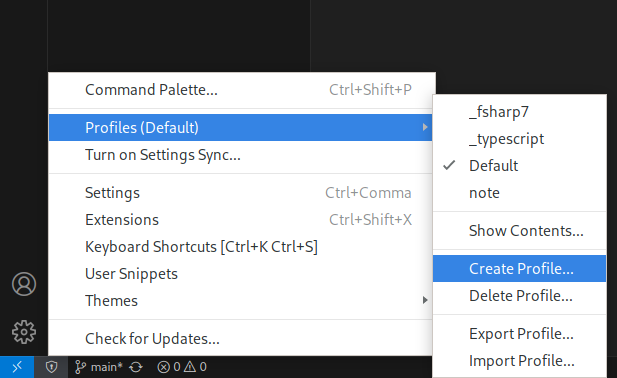
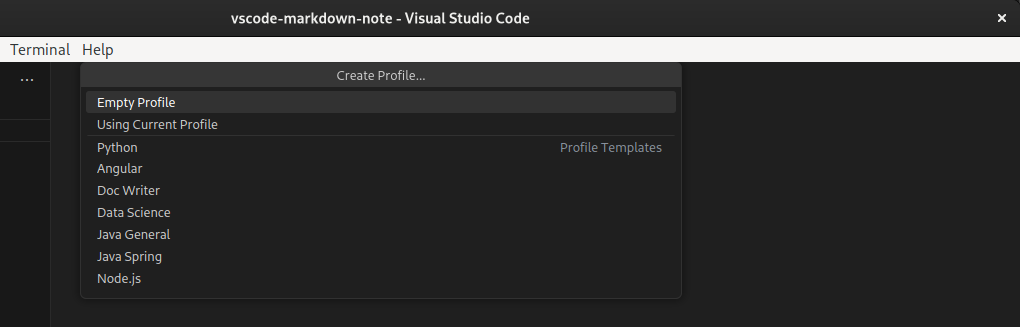
## 0. Create a new VSCode `Empty Profile`, then install Markdown Note
### Click ⚙️ at the left bottom to Create Profile
### Select `Empty Profile`
### Let's name the new profile `writing`

### Now you have the new `Empty Profile`
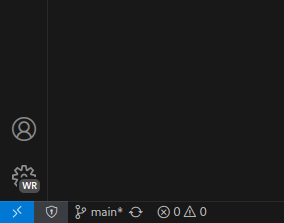
### Finally, please remember to install Markdown Note in the new `Empty Profile` !!😎
---
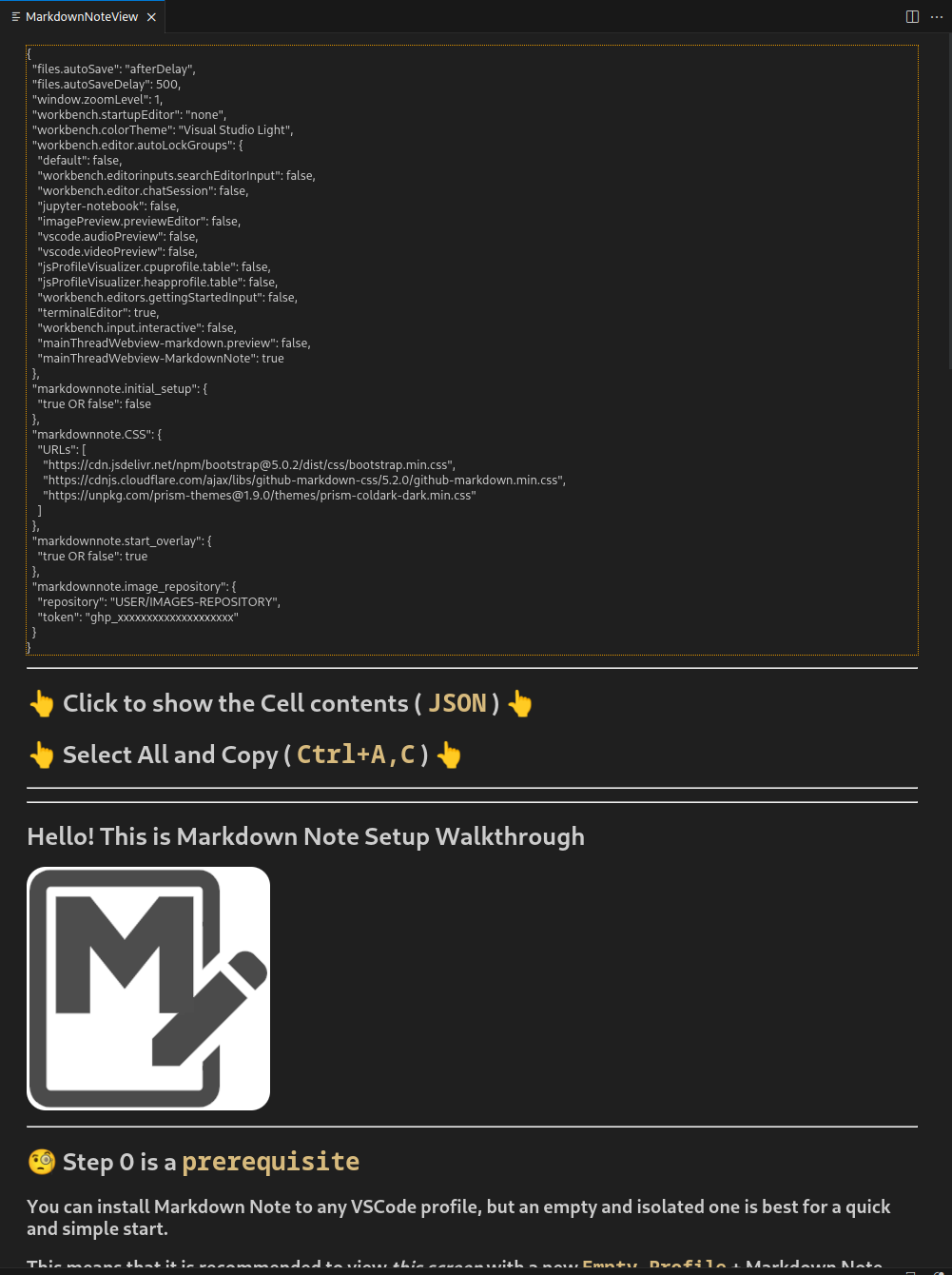
## 1. Copy&Paste the `JSON` *copied at the built-in walkthrough page* into the empty `settings.json` of `Empty Profile`
### After installing Markdown Note, the built-in Setup Walkthrough page will automatically launch.
### Use `Ctrl+A` to select all, then `Ctrl+C` to copy the generated `JSON` on the page.
###
### Paste (`Ctrl+A,P`) into the empty `settings.json` of `Empty Profile`
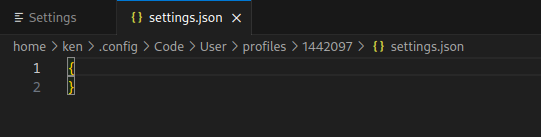
### Save ( `Ctrl+S` ) and Done!
**The built-in Setup Walkthrough page guides you step by step and does not require VSCode reload, so for now just prepare `Empty Profile`.**
---
## Command for VSCode Profiles
**You can use the `--profile` command-line interface option to launch VS Code with a specific profile.**
```sh
code --profile writing my-documents
```
**A new `Empty Profile` with the given name is created if the profile specified does not exist.**
---
# 🔷 Settings & Customizations
## `settings.json` Simplified
Here is a simplified `settings.json` .
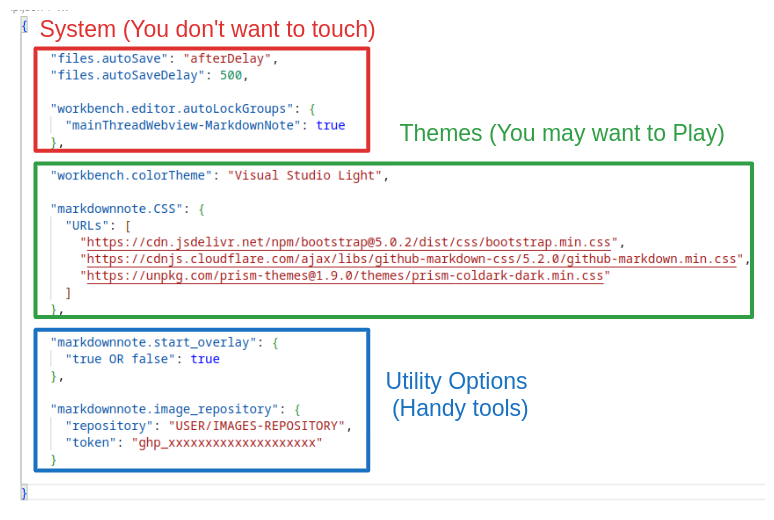
---
### System
```json
"files.autoSave": "afterDelay",
"files.autoSaveDelay": 500,
```
If `autoSave` with a short interval is not enabled, the VSCode standard editor will report an error on saving that is similar to the **Git non-fast-forward error**. This issue has not been thoroughly investigated, but `500` ms seems to be a reliable and stable setting.
---
```json
"workbench.editor.autoLockGroups": {
"mainThreadWebview-MarkdownNote": true
},
```
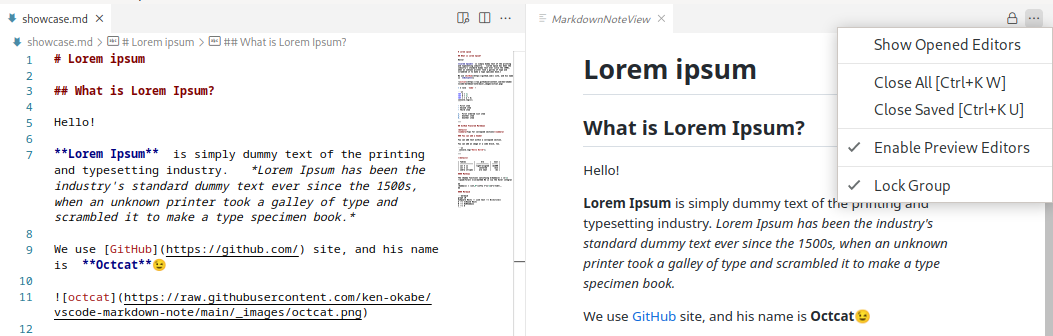
This is `autoLockGroups` feature, which is neccesary for **Side-by-side mode**. `LockGroup` allows you to lock an editor group in VSCode to prevent unintended multi-tab experiences. Without this feature, a user would need to manually lock the group on every occasion.
---
### Themes
```json
"workbench.colorTheme": "Visual Studio Light",
```
In most cases, the theme in VSCode is configured through a GUI.
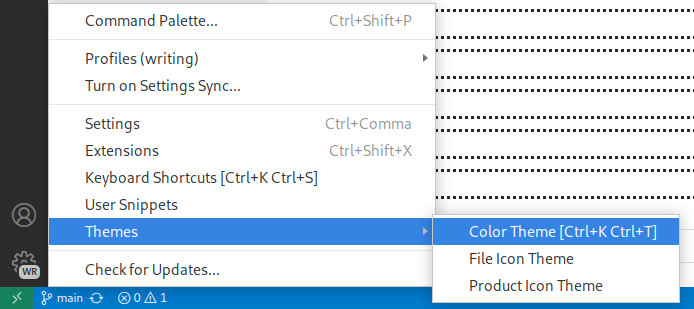
**Some dark themes can make the scroll bar almost invisible in Markdown Note.**
---
```json
"markdownnote.CSS": {
"URLs": [
"https://cdn.jsdelivr.net/npm/bootstrap@5.0.2/dist/css/bootstrap.min.css",
"https://cdnjs.cloudflare.com/ajax/libs/github-markdown-css/5.2.0/github-markdown.min.css",
"https://unpkg.com/prism-themes@1.9.0/themes/prism-coldark-dark.min.css"
]
},
```
[There are CSSs to replicate the GitHub Markdown style](https://github.com/sindresorhus/github-markdown-css):
> https://cdnjs.com/libraries/github-markdown-css
>> https://cdnjs.cloudflare.com/ajax/libs/github-markdown-css/5.2.0/github-markdown-light.css
>> https://cdnjs.cloudflare.com/ajax/libs/github-markdown-css/5.2.0/github-markdown-dark.css
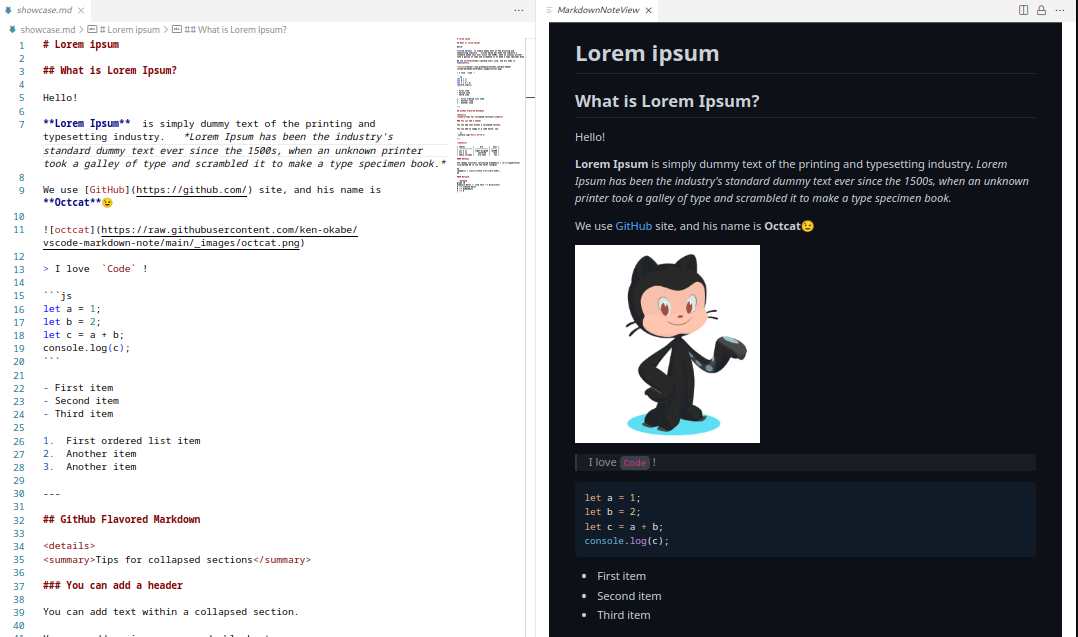
[You can generate by yourself.](https://github.com/sindresorhus/generate-github-markdown-css)
```sh
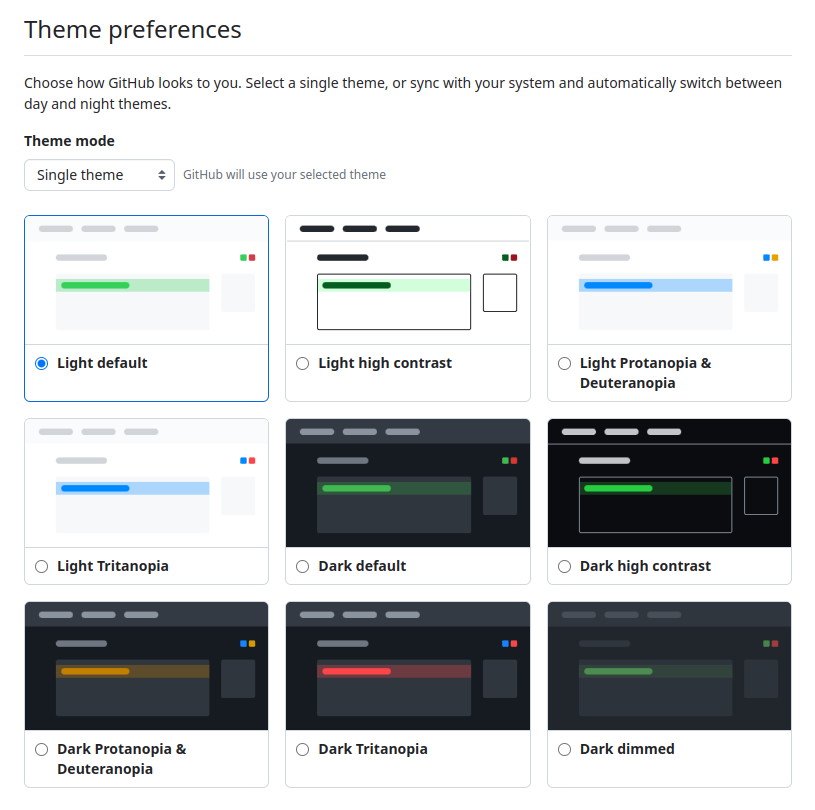
$ github-markdown-css --list
light
dark
dark_dimmed
dark_high_contrast
dark_colorblind
light_colorblind
light_high_contrast
light_tritanopia
dark_tritanopia
```
https://github.com/settings/appearance
**Code highlighting can be styled independently with [Prism](https://prismjs.com/)**
---
### Utility Options
```json
"markdownnote.start_overlay": {
"true OR false": true
},
```
You can select a layout ( **Overlay** or **Side-by-side** ) to start with; **Overlay** is the default.
---
```json
"markdownnote.image_repository": {
"repository": "USER/IMAGES-REPOSITORY",
"token": "ghp_xxxxxxxxxxxxxxxxxxxx"
}
```
The general key binding `Ctrl+V` for **pasting** works for **both text and images** .
With one Keystroke, this feature allows you to **upload the clipboard image** to *your own image-only repository on GitHub* and automatically insert its URL in the Cell to display it.
You need to create *a dedicated image repository* and *an access token on GitHub* to use this feature. **This feature does not work with secret repositories, and your images will be public.**
For more information on managing personal access tokens on GitHub, you can refer to the [official documentation](https://docs.github.com/en/authentication/keeping-your-account-and-data-secure/managing-your-personal-access-tokens).
---
# 🔷 The ultimate note & memo App built on VSCode

VSCode is such a great editor.
The only problem with VSCode is that it’s not suitable for **casual use as a daily note and memo app** .
The reason is that Markdown editing is **not WYSIWYG** .
**Markdown Note transforms VSCode into your daily note and memo app, and it's probably the most powerful one in the world.**
Your notes and memos are now natively managed with **secret repos in GitHub** !
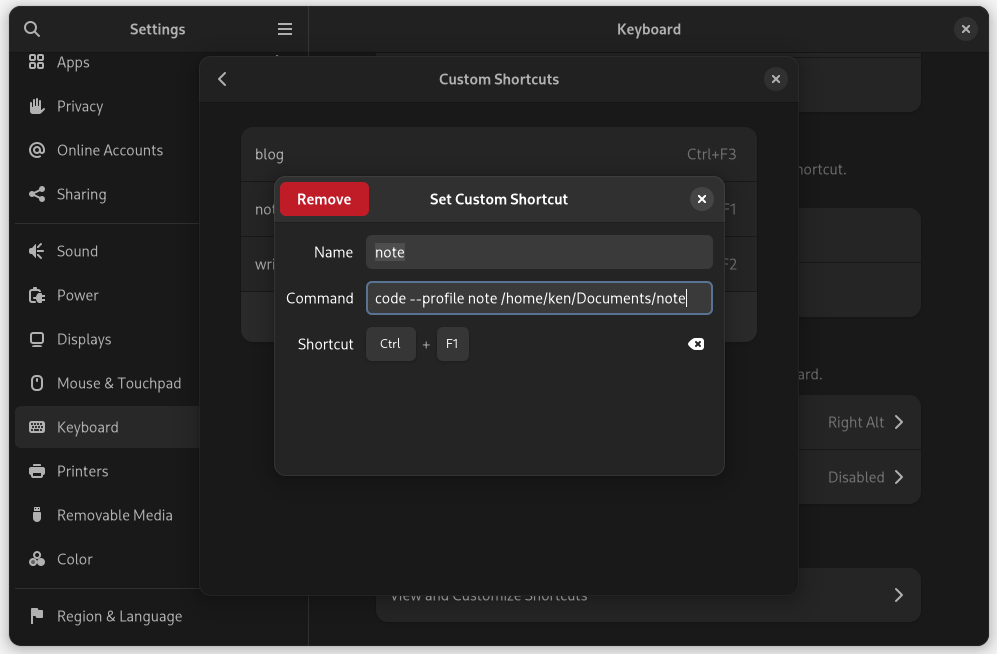
With combinations of VSCode profile and command, you can easily create a shortcut key to launch the app.
This is Linux & Gnome, and the way to create shortcut keys and icons differs depending on the OS.
In this case,
- Profile is `note`
- Directory is `/home/ken/Documents/note`
- Shorcut key is `Ctrl+F1`
```sh
code --profile note /home/ken/Documents/note
```
---
# 🔷 Invest in the software that powers your world!

https://github.com/sponsors

***Markdown Note** is also planning to join GitHub Sponsors in the near future.*
If you like this project, you can join the future of open source by investing today😉