https://github.com/km-saifullah/docker-with-flask-app
In this repository is all about the dockerize a simple python app
https://github.com/km-saifullah/docker-with-flask-app
docker flask flask-application python ubuntu-server
Last synced: 2 months ago
JSON representation
In this repository is all about the dockerize a simple python app
- Host: GitHub
- URL: https://github.com/km-saifullah/docker-with-flask-app
- Owner: km-saifullah
- Created: 2025-06-06T14:36:20.000Z (about 1 year ago)
- Default Branch: main
- Last Pushed: 2025-06-06T16:01:51.000Z (about 1 year ago)
- Last Synced: 2025-06-20T02:04:07.472Z (about 1 year ago)
- Topics: docker, flask, flask-application, python, ubuntu-server
- Language: Python
- Homepage:
- Size: 2.93 KB
- Stars: 0
- Watchers: 0
- Forks: 0
- Open Issues: 0
-
Metadata Files:
- Readme: README.md
Awesome Lists containing this project
README
# Dockerizing a Python Flask Application
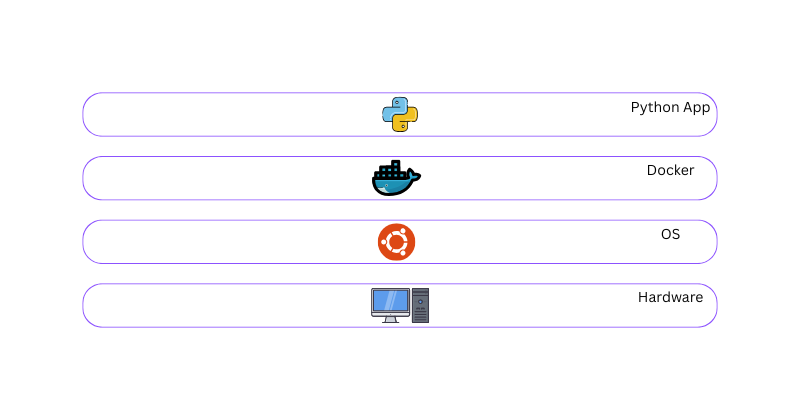
In this project, I will demonstrate how to create a simple Python application using the Flask framework and then containerize it using Docker. You can follow the steps outlined below to achieve the same result.
## Requirements
This project was developed and tested on **Ubuntu Server**, so the setup instructions below are tailored for Ubuntu users.
- **Docker Installed**: To build and run the Dockerized Flask application, you must have Docker installed on your machine.
If you're using **Ubuntu**, follow the official installation guide from Docker:
[Install Docker on Ubuntu – Official Documentation](https://docs.docker.com/engine/install/ubuntu/)
## Step-1: Create the necessary directories and files required to structure and run the Flask application
Create the project’s root directory and initialize all the necessary files required for building and running the Flask application.
```bash
mkdir flask_app
cd flask_app
touch app.py requirements.txt Dockerfile
```
## Step-2: Implement the Python application logic inside the **app.py** file
In this step you will write the application code inside the **app.py** file, which will serve as the main entry point for your Flask application.
```python
from flask import Flask, request, jsonify
app = Flask(__name__)
# In-memory task list
tasks = []
@app.route('/')
def home():
return "Welcome to the Flask Todo App"
@app.route('/tasks', methods=['GET'])
def get_tasks():
return jsonify(tasks)
@app.route('/tasks', methods=['POST'])
def add_task():
data = request.get_json()
task = {'id': len(tasks) + 1, 'title': data.get('title')}
tasks.append(task)
return jsonify(task), 201
@app.route('/tasks/', methods=['DELETE'])
def delete_task(task_id):
global tasks
tasks = [t for t in tasks if t['id'] != task_id]
return '', 204
if __name__ == '__main__':
app.run(debug=True, host='0.0.0.0')
```
## Step-3: Add the necessary dependencies to the **requirements.txt** file
At this stage you should list all required Python packages in the `requirements.txt` file to ensure the application runs correctly.
```bash
flask
```
## Step-4: Write the **Dockerfile** instructions to build the image for this application
In this step you will create a `Dockerfile` that contains all the necessary instructions to build a Docker image for your Flask application. This includes setting up the base image, installing dependencies, copying application files and defining the command to run the app.
```bash
FROM python:3.10-slim
WORKDIR /app
COPY requirements.txt .
RUN pip install -r requirements.txt
COPY app.py .
CMD ["python","app.py"]
```
## Step-5: Build the docker image
In this step you will build the docker image using the `Dockerfile` you created in the previous step. This process packages your Flask application and its dependencies into a portable image that can run consistently across different environments.
```bash
docker build -t flask-app .
```
## Step-6: Run the Docker Container
In this step you will run a Docker container from the image you built. This will start your Flask application in an isolated environment making it accessible via the specified port on your local machine or server.
```bash
docker run -d -p 5000:5000 --name=flask-app-container --restart=always flask-app
```
**Note**: `--restart=always` Ensures the container automatically restarts if it crashes, or when the Docker daemon restarts. Useful for keeping the app running continuously.
## Step-7: Test the application in the browser and CLI
1. Test in the browser: Open your browser and navigate to
```bash
http://localhost:5000
http://your_machine_ip_address:5000
```
2. Test using CLI: You can also test the application from the command line using `curl`
```bash
curl http://localhost:5000
```
## Reach out to me
If you have any questions, feedback or collaboration ideas feel free to connect with me:
- [LinkedIn](https://www.linkedin.com/in/kmsaifullah)
- [GitHub](https://github.com/km-saifullah)
I'm always open to connecting with fellow developers and tech enthusiasts. Let's build something amazing together!
## Conclusion
By following the steps above, you have successfully built and containerized a simple Flask application using Docker. This approach ensures your application runs consistently across different environments and simplifies deployment and scalability.