https://github.com/knowbee/llvd
Linkedin Learning Video Downloader
https://github.com/knowbee/llvd
download-videos downloader downloadervideo linkedin linkedinlearning
Last synced: 6 months ago
JSON representation
Linkedin Learning Video Downloader
- Host: GitHub
- URL: https://github.com/knowbee/llvd
- Owner: knowbee
- License: mit
- Created: 2020-12-23T08:12:16.000Z (over 5 years ago)
- Default Branch: master
- Last Pushed: 2025-08-15T15:51:45.000Z (11 months ago)
- Last Synced: 2025-09-25T08:34:15.256Z (9 months ago)
- Topics: download-videos, downloader, downloadervideo, linkedin, linkedinlearning
- Language: Python
- Homepage: https://pypi.org/project/llvd
- Size: 152 KB
- Stars: 333
- Watchers: 16
- Forks: 86
- Open Issues: 3
-
Metadata Files:
- Readme: README.md
- Funding: .github/FUNDING.yml
- License: LICENSE
Awesome Lists containing this project
README
##### Table of Contents
- [Linkedin Learning Video Downloader (LLVD) download links](#llvd)
- [Features](#features)
- [Prerequisites](#prerequisites)
- [Installation](#installation)
- [Windows Users](#windows)
- [Common questions](#common)
- [How do I find the course slug?](#course-slug)
- [Cookie-based authentication](#setup-cookie-based)
- [Header-based authentication](#setup-header-based)
- [Examples](#examples)
- [Accessing llvd documentation](#llvd-doc)
- [Using cookie-based authentication](#use-cookie-based)
- [Using header-based authentication](#use-header-based)
- [Download a course at a specific resolution](#specific-res)
- [Download a course with subtitles](#with-sub)
- [Download a course path with throttling between 30 to 120 seconds](#course-path)
- [Screenshots](#screenshot)
- [Author](#author)
# Linkedin Learning Video Downloader (LLVD) download links
[](https://pepy.tech/project/llvd)
[](https://github.com/ellerbrock/open-source-badge/)
[](https://github.com/ellerbrock/open-source-badge/)
# Features
| Status | Feature |
| :----- | :-------------------------------------- |
| ✅ | cookie-based authentication |
| ✅ | download by learning path |
| ✅ | download a course and all its exercises |
| ✅ | group videos by chapters |
| ✅ | subtitles |
| ✅ | nice progress bar |
| ✅ | resume failed downloads |
| ✅ | skip already downloaded videos |
| ✅ | set video format (360p, 540p, 720p) |
| ✅ | all platforms |
# Prerequisites
- [Python 3](https://www.python.org/downloads/)
# Installation
```cli
$ pip --no-cache-dir install llvd
```
If you have multiple versions of python installed in your system, use **pip3** instead.
```cli
$ pip3 --no-cache-dir install llvd
```
### Running from local installation
```
llvd --help
llvd -c "course-slug" -r 720
```
### Running from docker container
```
# You will need to either use `docker cp` to get the course or mount it when running.
docker run ghcr.io/knowbee/llvd:master -c "course-slug" -r 720
```
## Windows Users
When you get `'llvd' is not recognized as an internal or external command` after successfully installing `llvd`, run `python3 -m llvd `
# Common Questions
## How do I find the course slug?
1. Click on the desired course
2. Your URl will look something like, `https://www.linkedin.com/learning/l-essentiel-d-asp-dot-net-core-pour-dot-net-5`
- The course slug is: `l-essentiel-d-asp-dot-net-core-pour-dot-net-5`
## How do I setup cookie-based authentication?
1. Click on the options in Google Chrome (top right with 3 vertical dots).
2. Click on `More tools` -> `Developer tools`
- You can also reach here by using the keyboard combination: `ctrl`+`shift`+`I`).
3. Now once you’ve gained access to the developer tools, navigate to the Application tab, and copy the value of two cookies named `li_at` and `JSESSIONID`
4. Create a file named `cookies.txt` and place it in the folder you want to download your courses to
5. Open the `cookies.txt` file and paste in the values of `li_at` and `JSESSIONID`
```sh
li_at=xxxxx
JSESSIONID="ajax:xxxxxx"
```
## How do I setup header-based corporate account access?
If you have a corporate connected account you can fix the download issue (where only frist 2 videos download successfully while others fail with "No video URL found" errors) by using a `headers.txt` as per below.
### Method 1: Using Developer Tools (Recommended)
1. Create a file named `headers.txt` and place it in the folder you want to download your courses to.
2. Open the Developer Tools in your browser:
- **Chrome**: Press `Ctrl+Shift+I` (Windows/Linux) or `Cmd+Option+I` (macOS)
- **Firefox**: Press `F12` or `Ctrl+Shift+I` (Windows/Linux) or `Cmd+Option+I` (macOS)
3. Go to the **Network** tab and refresh the page.
4. Filter requests by typing `linkedin.com/learning-api` in the filter box to find relevant API requests.
5. Click on any of the filtered requests and go to the **Headers** section.
6. In the **Request Headers** section, you can filter headers by typing `x-li-identity` to quickly find the header value.
7. Copy the `x-li-identity` header value.
8. Open the `headers.txt` file and paste in the values of `x-li-identity` and `User-Agent` as shown below:
### Method 2: Using Page Source (Alternative)
1. Create a file named `headers.txt` and place it in the folder you want to download your courses to
2. Right click on the page and select view source
- You can also reach here by using the keyboard combination: `ctrl`+`U`.
3. Search for `enterpriseProfileHash` using `ctrl`+`F`
4. `enterpriseProfileHash":"XXXXXXXXXXXXXXXXXXXXXXXXXXXXXXXXXXXXXXXXXXXXXXXXXXXXXXXXXXXXXX","` copy the code between the double `"`
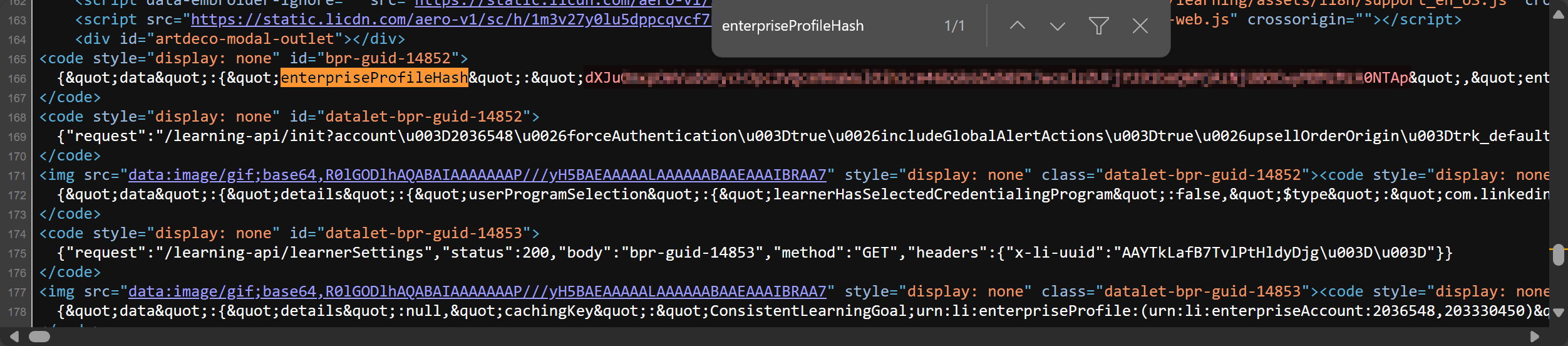
5. Open the `headers.txt` file and paste in the values of `x-li-identity` from the above.
> [!NOTE]
> Page source may show HTML-encoded characters like `=` which should be `=`:
> ```
> ❌ x-li-identity=MTU2NDI0NjQ5LDIxNzM4MTk1Nik=
> ✅ x-li-identity=MTU2NDI0NjQ5LDIxNzM4MTk1Nik=
> ```
### Headers File Format
```sh
x-li-identity=XXXXXXXXXXXXXXXXXXXXXXXXXXXXXXXXXXXXXXXXXXXXXXXXXXXXXXXXXXXXXX
User-Agent=Mozilla/5.0 (Windows NT 10.0; Win64; x64) AppleWebKit/537.36 (KHTML, like Gecko) Chrome/124.0.0.0 Safari/537.36
```
# Examples
### Accessing llvd documentation
```cli
$ llvd --help
```
## Using cookie-based authentication
```cli
$ llvd -c "course-slug" --cookies
```
## Using header-based authentication
Has to use cookies in conjection with headers
```cli
$ llvd -c "course-slug" --cookies --headers
```
## Download a course at a specific resolution
```cli
$ llvd -c "course-slug" -r 720
```
Note: The default is set to 720.
## Download a course with subtitles
```cli
$ llvd -c "course-slug" --caption
```
or
```cli
$ llvd -c "course-slug" -ca
```
## Download a course path with throttling between 10 to 30 seconds
To avoid rate limits because of downloading a lot of videos, use the following:
```cli
$ llvd -p "path-slug" -t 10,30
```
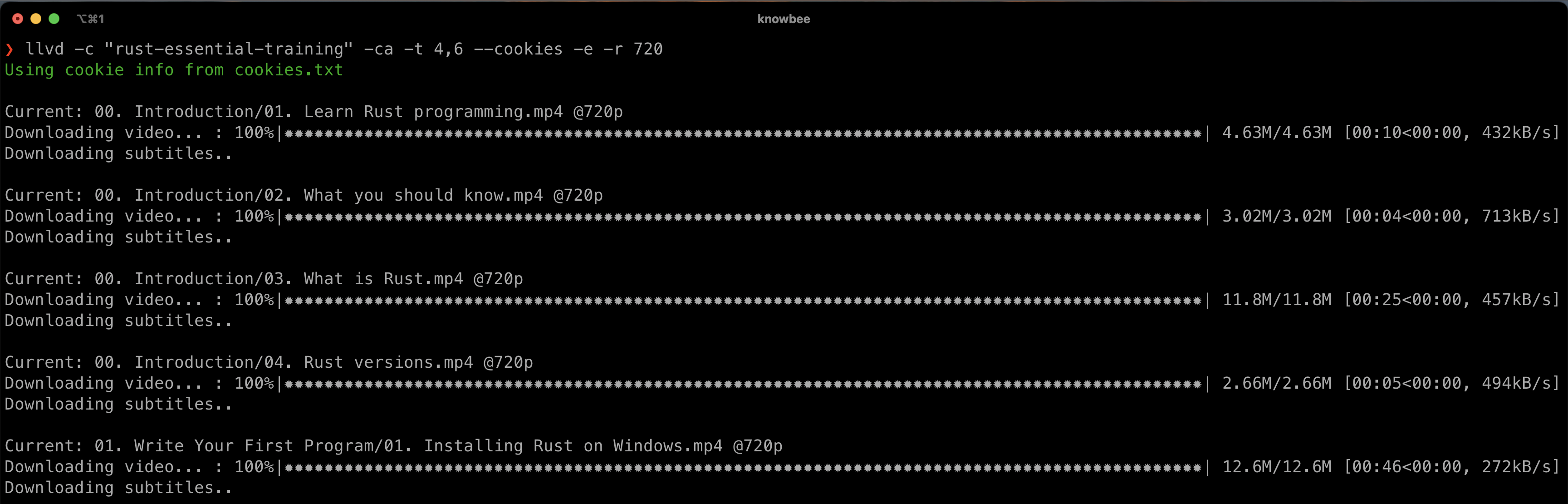
# Screenshots
# Author
Igwaneza Bruce