https://github.com/kraftland/mcctl
Minecraft Server manager
https://github.com/kraftland/mcctl
automated bash easy-to-use geyser minecraft paper paper-plugin papermc script spigot spigot-plugin starter updater
Last synced: 2 months ago
JSON representation
Minecraft Server manager
- Host: GitHub
- URL: https://github.com/kraftland/mcctl
- Owner: Kraftland
- License: gpl-3.0
- Created: 2022-06-09T06:31:58.000Z (about 4 years ago)
- Default Branch: master
- Last Pushed: 2023-11-25T09:25:46.000Z (over 2 years ago)
- Last Synced: 2025-01-30T07:17:28.361Z (over 1 year ago)
- Topics: automated, bash, easy-to-use, geyser, minecraft, paper, paper-plugin, papermc, script, spigot, spigot-plugin, starter, updater
- Language: Shell
- Homepage:
- Size: 2.91 MB
- Stars: 1
- Watchers: 1
- Forks: 0
- Open Issues: 0
-
Metadata Files:
- Readme: readme.md
- License: LICENSE
Awesome Lists containing this project
README
# mcctl
[](https://github.com/trekhleb/state-of-the-art-shitcode)
------
[](https://aur.archlinux.org/packages/mcctl-git)
`mcctl` (aka minecraft-server-control) is a bash script which can automatically run and update your minecraft server.
Warn: Windows and macOS are not supported, use Arch Linux to achieve best experience.
# Usage
First set 2 environment variables: `$version` and `$serverPath`. This will tell mcctl your desired version and path to your server
```bash
[Environment Variables] mcctl --[Options]
```
Examples:
```bash
version=1.19 serverPath=/mnt/main/Cache/Paper bash mcctl --update --autodetect
```
## Install mcctl as a system command (Not required)
Note: If you haven't installed mcctl to your system, just cd to mcctl and replace `mcctl` with `./mcctl`
### Arch Linux
Install the [mcctl-git](https://aur.archlinux.org/packages/mcctl-git) from aur
Examples using yay:
```bash
yay -S mcctl-git
```
### Other Linux
```bash
git clone https://github.com/Kimiblock/mcctl.git && cd mcctl && ./mcctl --install
```
## Uninstall mcctl command
```bash
mcctl --uninstall
```
## Update your Minecraft server and plugins
### Automatically
Tip: Now you can let mcctl automatically detect servers and plugins to install, just type:
```bash
mcctl --update --autodetect
```
### Manually
```bash
mcctl --update --[options]
```
| Options | Effects |
| -------------- | ------------------------------------------------------------ |
| mojang | Update Mojang server. |
| spigot | Update spigot. |
| paper | Update paper. |
| sac | Update SoaromaSAC |
| floodgate | Update floodgate. |
| geyser | Update geyser. |
| --systemupdate | Fully update your system. ( Run with `sudo` when `-unattended` activated! ) |
| --unsafe | Disable default protecting. |
| --newserver | Automatically create server folder. |
| --clean | Clean leftovers. |
| mtvehicles | Update mtvehicles (Unnecessary because you can update plugin by /mtv update) |
| multilogin | Update MultiLogin |
## Snapshots (Expermental)
### Create a snapshot
```bash
mcctl --create-snapshot
```
You can also specify where to store your snapshots by $snapshotPath
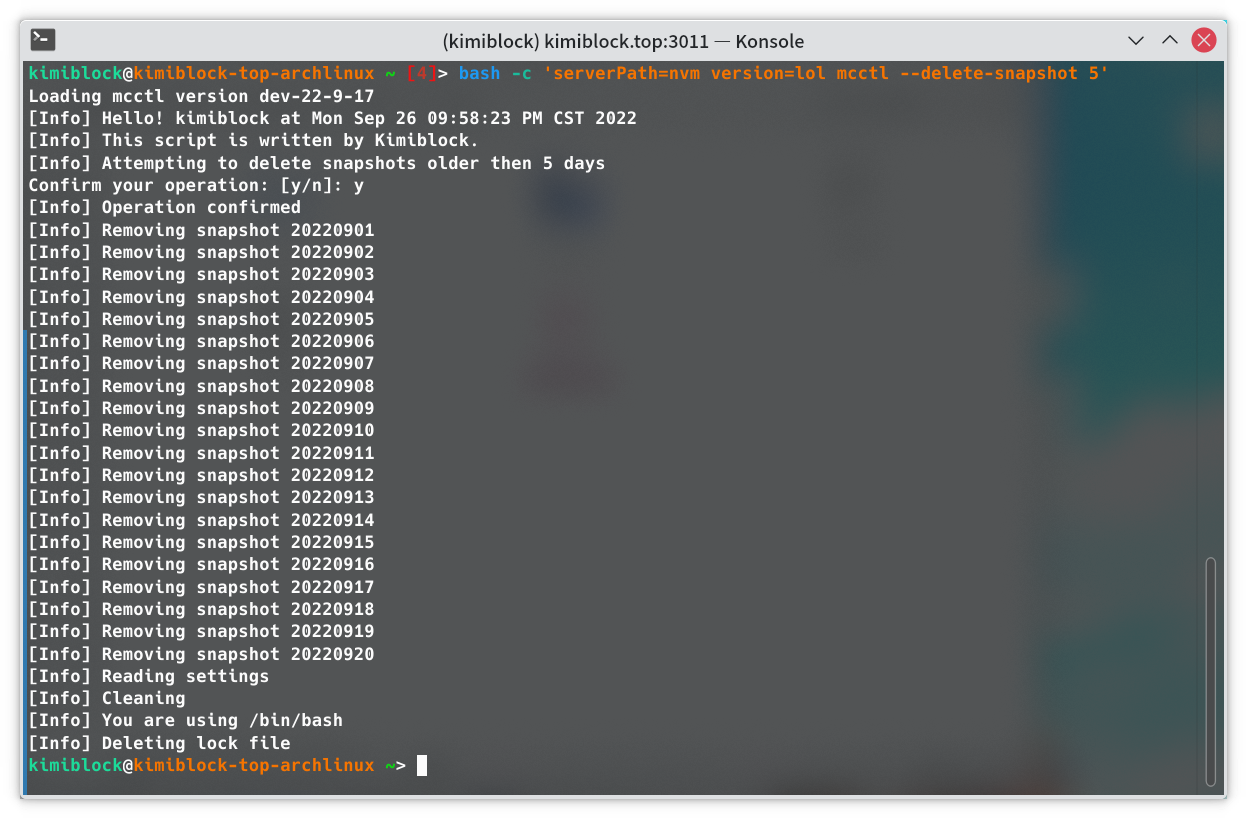
### Remove old snapshots
Remove snapshots older than $2 day(s)
```bash
mcctl --delete-snapshot $2
```
### Restore a snapshot
***Warning! Turn off your Minecraft server or you might break your system.***
Restore snapshot $2 day(s) ago:
```
mcctl --restore-snapshot $2
```
## Load server at startup
```bash
[Environment Variables] mcctl --start [Server name] --d
```
| Server name | Effects |
| ----------- | ------------------- |
| paper | Start PaperMC |
| spigot | Start SpigotMC |
| mojang | Start Mojang server |
Note: Install `screen` if you add -d, you can go back to your server session by `screen -r mc`.
## Save your options and environments
```bash
[Environment Variables] mcctl --save-conf --[Options]
```
Next time you use `mcctl`, just type `mcctl`. Script will automatically remember what you entered last time.
## Automatically send report mails
Tip: Install and setup `ssmtp` first.
```bash
mcctl --mail-report $2 #replace $2 with your mail address
```
## Install requirements (Currently beta, only pacman and apt recive full support)
| Options | Effects |
| --------- | -------------------- |
| --instreq | Install requirements |
# Tips and tricks
Control what will `mcctl` output. Enter options to control
| Options | Effects |
| --------- | --------------- |
| --verbose | Output anything |
| --quiet | Hide outputs |
## Delete BuildTools' cache and script's logs
```bash
mcctl --clean
```
## Avoid confirming anything
```bash
mcctl --unattended
```
## Avoid entering environment variables
### Method 1
Edit `/etc/environment`, add those lines:
```/etc/environment
version=Target Minecraft version
serverPath=Path to server directory
```
Then reboot or re-login
### Method 2
`cd` to your server
```bash
mcctl --currentdirectory --latest [options]
```
This will set server path to your current folder and default to the latest version.
## Update `mcctl` command?
Just type `mcctl install` again, script will download the latest version of itself and perform updates.
## Update server everyday?
Get the `cronie` package and enable `cronie.service`.
Type `crontab -e` and enter those line:
```
0 0 * * * mcctl --[Options]
```
Check if you have environment variables set, either in `/etc/environment` or before `mcctl`
***Warning: you have to manually restart the server, otherwise some plugins WON'T use new features.`/reload` or `/reload confirm`***
## How to create a entirely new server?
Just add a `--newserver` option, script will automatically handle it.
# To-dos
1. ~~Save configurations to `~/.config`.~~
# Known bugs
- Spigot's own build tools may occationally crash, `mcctl --clean` might fix it.
- Do not use `zsh` or any other shell, change your default shell to bash `chsh -s /bin/bash` or run mcctl under bash (If your default shell isn't bash, some non-critical problem will occur)
- Can't download sac due to spigotmc.org's unique protection
# Troubleshoot
## Exit code
### Can not create directory
Make sure you have control of the directory
### Non-64-bit system detected
```bash
[Environment Variables] mcctl --unsafe --[Options]
```
### Environment variables not set
Set 2 environment variables `serverPath` `version`, either before `mcctl` command or in `/etc/environment`.
### System update failed
Check if you have full control of your server.
### `BuildTools` failed to start
```bash
mcctl --currentdirectory --latest
```
### No jar file detected
Check if you have specified correct directory.
### Screen not installed
Install package `screen` or
```bash
mcctl --instreq #Currently unstable
```
### Package manager not supported
mcctl cannot detect which package manager you're using, remove `--systemupdate` and wait for support.
### `Systemd` missing
install package `systemd`, its not supported by `--instreq` by default because mess up your init will cause unexpected issues.
### Network unrechable
Can't reach `github.com`, check your network and proxy settings.
### Permission denied
Run the script as root or remove `--unattended`
### mcctl lock file found, make sure you doesn't run another mcctl process
mcctl generates a lock file `~/.mcctl.lock` to prevent multiple mcctl run at the same time.
Several `mcctl` process may cause problems which might break your server. If you sure that no `mcctl` running (Check with htop btw), just remove `~/.mcctl.lock`
### Exit code from minecraft detected
Your server throws a exit code, check your screen name by `screen -ls` then `screen -r $screenName`
### Internal error
This is an undefined exit code, you can check `~/mcctl_debug.log`