https://github.com/kyzima-spb/docker-gui
The base image for running GUI applications in Docker
https://github.com/kyzima-spb/docker-gui
docker docker-gui s6-overlay
Last synced: 4 months ago
JSON representation
The base image for running GUI applications in Docker
- Host: GitHub
- URL: https://github.com/kyzima-spb/docker-gui
- Owner: kyzima-spb
- Created: 2022-06-24T11:53:21.000Z (almost 4 years ago)
- Default Branch: master
- Last Pushed: 2026-01-25T05:55:11.000Z (5 months ago)
- Last Synced: 2026-01-25T20:32:16.592Z (5 months ago)
- Topics: docker, docker-gui, s6-overlay
- Language: Dockerfile
- Homepage: https://hub.docker.com/repository/docker/kyzimaspb/gui
- Size: 226 KB
- Stars: 1
- Watchers: 1
- Forks: 1
- Open Issues: 1
-
Metadata Files:
- Readme: README.md
Awesome Lists containing this project
README
# docker-gui
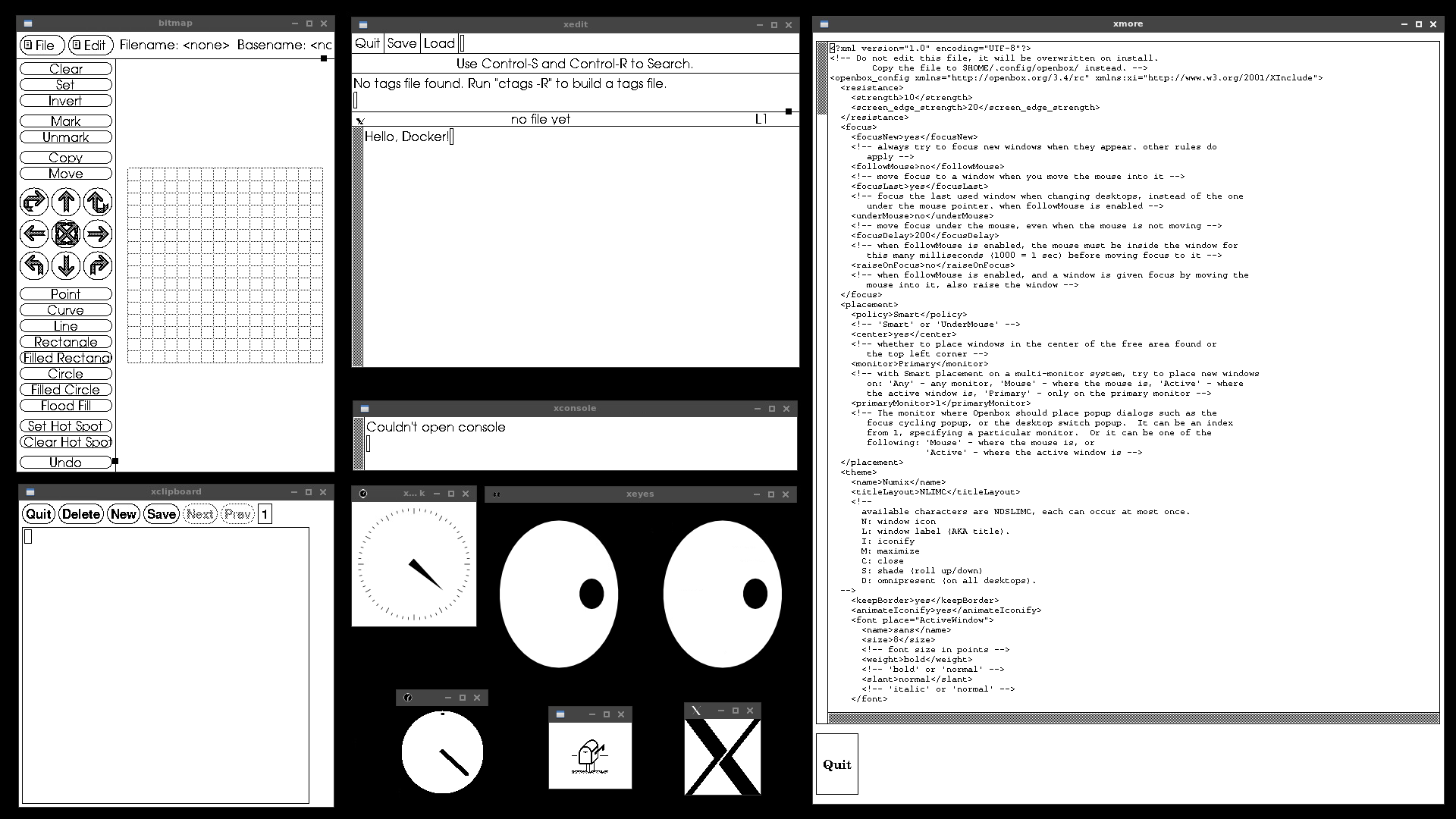
**docker-gui** - is the base image for running GUI applications in Docker.
---
**NOTE**
It's a crazy idea to run GUI applications in Docker containers,
but sometimes there is no other way to run the application on the server
or on the current OS.
---
- [How to create a new image?](#how-to-create-a-new-image)
- [Create image directory](#create-image-directory)
- [Create service](#create-service)
- [Dockerfile](#dockerfile)
- [Build](#build)
- [Run in daemon mode](#run-in-daemon-mode)
- [Environment Variables](#environment-variables)
- [Autostart with a password](#autostart-with-a-password)
- [How to change user or group ID?](#how-to-change-user-or-group-id)
- [Build Arguments](#build-arguments)
- [How to change Debian distribution release?](#how-to-change-debian-distribution-release)
- [How to change s6-overlay version?](#how-to-change-s6-overlay-version)
- [How to change s6-overlay architecture?](#how-to-change-s6-overlay-architecture)
## How to create a new image?
Let's look at an example of creating a new image to run the Chromium browser in Docker.
### Create image directory
Create a new directory for the image files anywhere and go to it:
```shell
$ mkdir ~/docker-chromium
$ cd ~/docker-chromium
```
Next, create a directory and file structure as shown below:
```
.
├── Dockerfile
└── root
└── etc
└── s6-overlay
└── s6-rc.d
├── chromium
│ ├── dependencies
│ ├── run
│ └── type
└── user
└── contents.d
└── chromium
```
The image uses the [s6-overlay][1] service manager.
Therefore, to understand why each directory or file is needed,
it is better to refer to the official documentation.
### Create service
The file `./root/etc/s6-overlay/s6-rc.d/chromium/run`
contains the code to start the service (in the example browser).
It is recommended to use the [execline][2] language:
```shell
#!/command/execlineb -P
with-contenv
backtick -E HOME { homeof user }
s6-env HOME="$HOME"
redirfd -w 2 /dev/null
s6-setuidgid user chromium --no-sandbox --start-maximized
```
In the `./root/etc/s6-overlay/s6-rc.d/chromium/type` file,
specify the type of service: `longrun` - starts at startup, if the service crashes,
it will be restarted (the browser cannot be closed =)
```
longrun
```
In the `./root/etc/s6-overlay/s6-rc.d/chromium/dependencies` file,
specify the dependencies on other services (who should be started first),
one dependency per line:
```
openbox
```
The file `./root/etc/s6-overlay/s6-rc.d/user/contents.d/chromium` is empty,
it is a link indicating that this service is enabled and should be started.
### Dockerfile
Create a new Dockerfile and install the application
with all required dependencies, for example:
```dockerfile
FROM kyzimaspb/gui
RUN --mount=type=cache,target=/var/cache/apt,sharing=locked \
--mount=type=cache,target=/var/lib/apt,sharing=locked \
rm -f /etc/apt/apt.conf.d/docker-clean; \
echo 'Binary::apt::APT::Keep-Downloaded-Packages "true";' > /etc/apt/apt.conf.d/keep-cache \
&& apt update && apt install -yq --no-install-recommends \
chromium
COPY ./ /
```
### Build
Build an image file named `chromium`:
```shell
$ docker build -t chromium -f Dockerfile ./root
```
### Run in daemon mode
Run the container named `chromium_1` in daemon mode
and forward the specified ports
to the specified ports of the host machine:
```shell
$ docker run -d --name chromium_1 \
-p 5900:5900 \
--shm-size 2g \
chromium
```
Forwarded ports:
* `5900` - TCP port for connecting VNC clients;
Stop a running container:
```shell
$ docker stop chromium_1
```
## Environment Variables
* `XVFB_RESOLUTION` - screen resolution of the virtual X server, by default `1280x720`
* `VNC_SERVER_PASSWORD` - password for the VNC server, by default not set
* `VNC_SERVER_PASSWORD_FILE` - password for the VNC server, by default not set
* `USER_UID` - user ID, by default is `1000`
* `USER_GID` - user's group ID, by default is `1000`
### Autostart with a password
Automatically start the container at system startup
with the password `qwe123` to connect to the VNC server:
```shell
$ docker run -d --name chromium_1 \
-p 5900:5900 \
--shm-size 2g \
-e VNC_SERVER_PASSWORD=qwe123 \
--restart unless-stopped \
chromium
```
Example with secrets in Docker Compose:
```yml
secrets:
vnc_password:
file: ./secrets/vnc_password
services:
chromium:
build:
context: ./root
dockerfile: ../Dockerfile
secrets:
- vnc_password
ports:
- "5900:5900"
environment:
VNC_SERVER_PASSWORD_FILE: /run/secrets/vnc_password
restart: unless-stopped
```
Building the project and running:
```shell
$ docker compose --project-directory ./examples/chromium build
$ docker compose --project-directory ./examples/chromium up
```
### How to change user or group ID?
```shell
$ docker run -d --name chromium_1 \
-p 5900:5900 \
--shm-size 2g \
-e USER_UID=1001 \
-e USER_GID=1001 \
--restart unless-stopped \
chromium
```
The source code for the example is available in the `examples/chromium` directory.
## Build Arguments
* `RELEASE` - The release name of the Debian distribution.
Available values are `bookworm-slim`, `bookworm`, `bullseye-slim`, `bullseye`,
`buster-slim`, `buster`.
The default is `bookworm-slim`.
* `S6_DOWNLOAD_URL` - Download URL for [s6-overlay][1].
The default is `https://github.com/just-containers/s6-overlay/releases/download`.
* `S6_OVERLAY_VERSION` - [s6-overlay][1] version.
By default, the latest version.
* `S6_ARCH` - [s6-overlay][1] architecture.
The default is `x86_64`.
### How to change Debian distribution release?
The `RELEASE` build argument allows you to specify the release of the Debian distribution:
```shell
$ git clone https://github.com/kyzima-spb/docker-gui.git
$ cd docker-gui/docker
$ docker build -t gui \
--build-arg RELEASE=bullseye \
-f Dockerfile ./root
```
### How to change s6-overlay version?
```shell
$ git clone https://github.com/kyzima-spb/docker-gui.git
$ cd docker-gui/docker
$ docker build -t gui \
--build-arg S6_OVERLAY_VERSION=3.1.2.0 \
-f Dockerfile ./root
```
### How to change s6-overlay architecture?
We clone the sources of the base image,
specify the architecture in the `S6_ARCH` argument
and optionally the version in the `S6_OVERLAY_VERSION` argument.
The available values for the selected version can be found on the [downloads page][3].
Build an image, for example, for Orange Pi:
```shell
$ git clone https://github.com/kyzima-spb/docker-gui.git
$ cd docker-gui/docker
$ docker build -t gui \
--build-arg S6_ARCH=armhf .
-f Dockerfile ./root
```
[1]: "s6-overlay"
[2]: "execline"
[3]: "releases"