https://github.com/linkdd/manyssh
One command line to control multiple SSH connections.
https://github.com/linkdd/manyssh
Last synced: about 1 year ago
JSON representation
One command line to control multiple SSH connections.
- Host: GitHub
- URL: https://github.com/linkdd/manyssh
- Owner: linkdd
- License: mit
- Created: 2015-02-08T22:44:23.000Z (over 11 years ago)
- Default Branch: master
- Last Pushed: 2015-11-05T09:15:19.000Z (over 10 years ago)
- Last Synced: 2025-02-14T17:57:48.758Z (over 1 year ago)
- Language: Python
- Size: 230 KB
- Stars: 3
- Watchers: 3
- Forks: 0
- Open Issues: 4
-
Metadata Files:
- Readme: README.md
- License: LICENSE.txt
Awesome Lists containing this project
README
# ManySSH

One command line to control multiple SSH connections.
## Installation
# apt-get install gir1.2-gtk-3.0 gir1.2-vte-2.90 python-gi python-gobject python-gobject-2 python-gobject-dev
$ git clone https://github.com/linkdd/manyssh.git
$ cd manyssh
$ pip install -r requirements.txt
$ python setup.py install
## Usage
*ManySSH* reads the following configuration files, if found:
* /etc/xdg/manyssh/clusters.conf
* ~/.config/manyssh/clusters.conf
* ./clusters.conf
The ``clusters.conf`` file contains clusters definition as JSON:
{
"mycluster0": [
"root@myhost0",
"root@myhost1",
"root@myhost2"
],
"mycluster1": [
"user@myhost0",
"user@myhost1",
"user@myhost2"
],
"mytunnel0": [
"root@myhost0 -L8001:localhost:8000",
"root@myhost1 -L8002:localhost:8000",
"root@myhost2 -L8003:localhost:8000"
]
}
You're now able to open your cluster with:
$ manyssh mycluster0
## User Interface
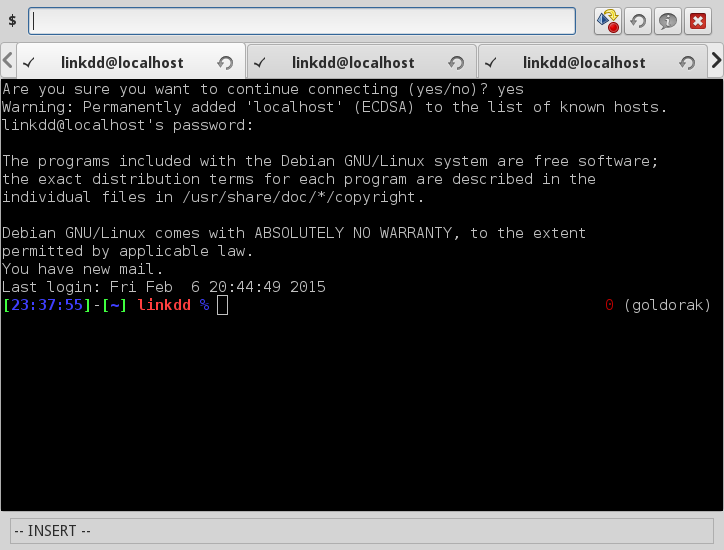
Here, your in **INSERT** mode, everything you type will be sent through all activated connections.
Using ``+Escape``, you will switch to the **COMMAND** mode, allowing you to type commands (instead of clicking).
Use ``+Insert`` to switch back to the **INSERT** mode.
A connection can be activated or disabled via:
* the checkbox in its tab ;
* the command ``t``.
You can also toggle the state of all connections with:
* the *convert* button (first one of the toolbar) ;
* the command ``ta``.
A connection can be refreshed, it will eventually kill the current process and start a new one.
You an do this via:
* the refresh button in its tab ;
* the command ``r`` ;
* the refresh button in the toolbar, to refresh all ;
* the command ``ra``, to refresh all.
You have two more commands, to navigate into tabs:
* ``p`` : go to previous page ;
* ``n`` : go to last page.