https://github.com/livehelperchat/fbmessenger
Integration with Facebook messenger API. You will be able to chat with Facebook page users directly in lhc back office.
https://github.com/livehelperchat/fbmessenger
Last synced: 12 months ago
JSON representation
Integration with Facebook messenger API. You will be able to chat with Facebook page users directly in lhc back office.
- Host: GitHub
- URL: https://github.com/livehelperchat/fbmessenger
- Owner: LiveHelperChat
- Created: 2017-05-24T22:34:36.000Z (about 9 years ago)
- Default Branch: master
- Last Pushed: 2025-06-19T08:57:19.000Z (12 months ago)
- Last Synced: 2025-07-03T10:23:15.784Z (12 months ago)
- Language: PHP
- Size: 1.17 MB
- Stars: 29
- Watchers: 14
- Forks: 22
- Open Issues: 0
-
Metadata Files:
- Readme: README.md
- Funding: .github/FUNDING.yml
- Security: .github/SECURITY.md
Awesome Lists containing this project
README
# Features
* Instagram
* WhatsApp
* Facebook Messenger
* Message delivery status indication
* Reactions
* Bot support
# Demo
Just ask anything on our [Facebook page](https://www.facebook.com/LiveHelperChat/) ask messenger :)
# Requirements
* Min 4.46 Live Helper Chat version. 1.8v
* Webhooks has to be enabled - https://github.com/LiveHelperChat/livehelperchat/blob/master/lhc_web/settings/settings.ini.default.php#L86
Changes
* All messenger workflow will be handled by lhc core, so less bugs.
* Instagram support added
* Required scopes are defined in the settings file.
To manage instagram and whatsapp they both has to be matched to you page
# Permissions we request from facebook during login
Default scopes. You can change those in settings/settings.ini.php file
```
'email','pages_show_list','pages_messaging','instagram_manage_messages',
'instagram_basic','pages_manage_metadata','pages_read_engagement',
'whatsapp_business_management','whatsapp_business_messaging','business_management'
```
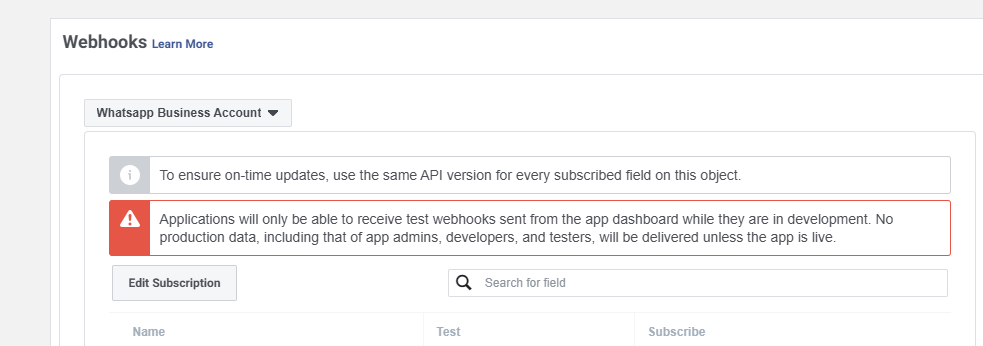
# Webhook configuration and subscription fields
Webhooks configuration place
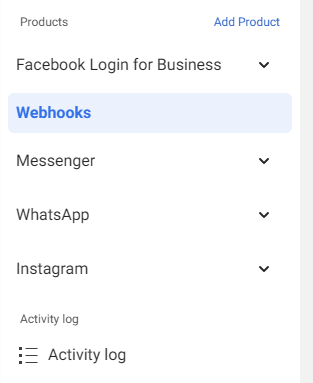
Products you should have
### Facebook messenger
In webhooks page you have to choose `Page` and subscribe to those fields
Subscribed fields - `message_deliveries,message_echoes,message_edits,message_reactions,message_reads,messages,messaging_postbacks`
* Messages `new` - supported and working
* Messages `unsend` - not supported by webhooks. Meta limitation.
* Messages `reply` - supported and working.
* Messages `edits` - are not sent by webhooks. Meta limitation. Perhaps I'm missing something there, because there is a webhook subscription, but it does not send anything.
### Instagram
In webhooks page you have to choose `Instagram` and subscribe to those fields
Subscribed fields - `messages,messages,messaging_postbacks,messaging_seen`
* Messages `new` - supported and working.
* Messages `edits` - are not sent by webhooks. Meta limitation.
* Messages `unsend` - supported and fully working.
* Messages `repy` - supported and fully working.
### WhatsApp
In webhooks page you have to choose `Whatsapp Business Account` and subscribe to those fields
Subscribed fields - `messages`
* Messages `new` - supported and working.
* Messages `unsend` - not supported by WhatsApp. Meta limitation.
* Messages `reply` - supported and working.
* Messages `edits` - not supported by WhatsApp. Meta limitation.
## Most common URL
### URL if you are using Facebook Login flow WITHOUT automated hosting environment
This is the most common installation method and you choose what page you managed during login flow.
Webhook URL's. Use same URL for webhook verification calls.
* Facebook Messenger - `https://example.com/fbmessenger/callbackgeneral`
* WhatsApp - `https://example.com/fbmessenger/callbackwhatsapp`
* Instagram - `https://example.com/fbmessenger/callbackinstagram`
Valid OAuth Redirect URIs
* `https://example.com/site_admin/fbmessenger/fbcallback`
Quick settings
* `app_id` https://github.com/LiveHelperChat/fbmessenger/blob/master/settings/settings.ini.default.php#L29 | App ID
* `app_secret` https://github.com/LiveHelperChat/fbmessenger/blob/master/settings/settings.ini.default.php#L29 | App Secret
* `verify_token` you have to put in https://github.com/LiveHelperChat/fbmessenger/blob/master/settings/settings.ini.default.php#L31 file. | Facebook Messenger
* `whatsapp_verify_token` https://github.com/LiveHelperChat/fbmessenger/blob/master/settings/settings.ini.default.php#L32C10-L32C31 file. | WhatsApp
* `instagram_verify_token` https://github.com/LiveHelperChat/fbmessenger/blob/master/settings/settings.ini.default.php#L33 file. | Instagram
### Webhook URL for facebook messenger if you define independent page
You create a facebook app and add pages manually to lhc back office without login flow.
* Facebook Messenger - `https://example.com/fbmessenger/callback/`
* Verify token you enter manually in back office in that case
* You can register manually multiple pages and just keep the same webhook. https://www.youtube.com/watch?v=nIExwuWeb3E (You still most likely will have callback URL like `https://example.com/fbmessenger/callback/1`, but it will work for consecutive pages also.)
### URL if you are using Facebook Login flow WITH automated hosting environment
Valid OAuth Redirect URIs. `master.example.com` in this scenario is our manager address
* `https://master.example.com/site_admin/fbmessenger/fbcallbackstandalone`
Webhook URL's. Use same URL for webhook verification calls.
* Facebook Messenger - `https://master.example.com/fbmessenger/callbackstandalone`
* WhatsApp - `https://master.example.com/fbmessenger/callbackstandalonewhatsapp`
* Instagram - `https://master.example.com/fbmessenger/callbackstandaloneinstagram`
Quick settings
* `app_id` https://github.com/LiveHelperChat/fbmessenger/blob/master/settings/settings.ini.default.php#L29 | App ID
* `app_secret` https://github.com/LiveHelperChat/fbmessenger/blob/master/settings/settings.ini.default.php#L29 | App Secret
* `verify_token` you have to put in https://github.com/LiveHelperChat/fbmessenger/blob/master/settings/settings.ini.default.php#L31 file. | Facebook Messenger
* `whatsapp_verify_token` https://github.com/LiveHelperChat/fbmessenger/blob/master/settings/settings.ini.default.php#L32C10-L32C31 file. | WhatsApp
* `instagram_verify_token` https://github.com/LiveHelperChat/fbmessenger/blob/master/settings/settings.ini.default.php#L33 file. | Instagram
* Put any random string there https://github.com/LiveHelperChat/fbmessenger/blob/master/settings/settings.ini.default.php#L25
* Set `enabled` to true https://github.com/LiveHelperChat/fbmessenger/blob/master/settings/settings.ini.default.php#L24 file.
# Facebook messenger extension
Integration with Facebook messenger API. You will be able to chat with Facebook page users directly in lhc back office.
* Bot support. [New] https://www.youtube.com/watch?v=_rLPJAdn4Us Supported bot elements
* Text messages including Quick Replies - `Send Text`
* Typing - `Send typing`
* Carrousel - `Send Carrousel`
* Buttons - `Button list`
* All other triggers including internal operations also will work.
* To listed for "Get Started" button action just listen for text message with content "GET_STARTED" also see demo bot in official demo.
* Support multiple pages without creating new app for each page.
* Supports multiple pages at once.
* Each page chat can be assigned to custom department.
# Update instructions
* Make sure you have most recent Live Helper Chat version.
* Update database via `php cron.php -s site_admin -e fbmessenger -c cron/update_structure` command
* `Modules -> Facebook chat -> Save and Activate WhatsApp` configuration. Click it if you are using WhatsApp integration.
# Installation in your LHC server
* Upload the files to your `lhc_web/extension/fbmessenger` folder
* Install database either by executing `doc/install.sql` file or executing this command `php cron.php -s site_admin -e fbmessenger -c cron/update_structure`
* Install dependencies using composer
* Make sure your composer.json file looks like https://github.com/LiveHelperChat/livehelperchat/blob/master/lhc_web/composer.json 4.41v
* Just for newbies if your web hosting does not have composer see https://www.vultr.com/docs/install-composer-on-centos-7
* don't run composer as root, login in your ssh as your hosting normal user.
* Activate extension in main settings file `lhc_web/settings/settings.ini.php` extension section `fbmessenger` by Adding lines:
```
'extensions' => array ( 'fbmessenger', ),
```
* If you don't see this in Module, check your `lhc_web/settings/settings.ini.php` and also click `Clean Cache` from back office
* copy `extension/fbmessenger/settings/settings.ini.default.php` to `extension/fbmessenger/settings/settings.ini.php`
# WhatsApp configuration WITHOUT facebook login
Notice - WhatsApp campaigns etc are supported only for statically defined WhatsApp accounts. Login based WhatsApp phone numbers for campaigns will be added later.
Webhook URL you will find once you click `Save and Activate WhatsApp configuration` it will be in a field `Callback URL for Facebook WhatsApp integration`.
This configuration option is available with [Permanent Access Token](https://developers.facebook.com/docs/whatsapp/business-management-api/get-started#1--acquire-an-).
In facebook Extension settings you have to enter
* Permanent WhatsApp access token - [Permanent Access Token](https://developers.facebook.com/docs/whatsapp/business-management-api/get-started#1--acquire-an-).
* WhatsApp Business Account ID - You will find it in `WhatsApp-> Getting` Started section of the facebook app
* WhatsApp `Verify Token` - just put any random string.
* Click `Save and Activate WhatsApp configuration` it will install and configure all the required webhooks etc.
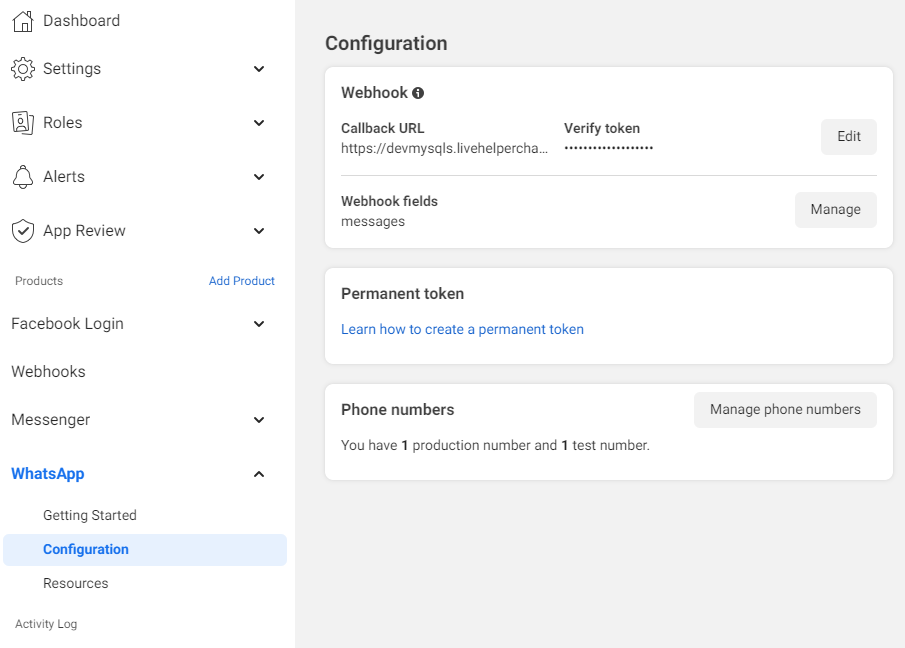
* Go to Facebook App `WhatsApp-> Configuration` section and set Callback URL while entering `Verify Token` you have put in settings page.
* Subscribe to messages field.
* Bot sample what is supported can be found [here](https://raw.githubusercontent.com/LiveHelperChat/fbmessenger/master/doc/whatsapp/bot-sample.json)
* If you change WhatsApp Access Token or updating click `Save And Remove WhatsApp configuration` and `Save and Activate WhatsApp configuration`. You might need to setup webhook again.
* If you are using PHPResque extension make sure you set correct domain
* https://github.com/LiveHelperChat/livehelperchat/blob/master/lhc_web/settings/settings.ini.default.php#L30
* https://github.com/LiveHelperChat/lhc-php-resque/blob/master/lhcphpresque/settings/settings.ini.default.php
* Sample commands you can use in the bot while sending text message. To get exact command for specific template just send a test message and at the top you will see command.
Few documentation links in Meta platform
* Create Business Account - https://www.facebook.com/business/help/1710077379203657?id=180505742745347
* Create WhatsApp Business platform account - https://www.facebook.com/business/help/2087193751603668
* Create an app In Developer Mode - https://developers.facebook.com/apps/
* Add WhatsApp Product to Your Meta App
* Create a permanent access token https://developers.facebook.com/docs/whatsapp/business-management-api/get-started#1--acquire-an-access-token-using-a-system-user-or-facebook-login/
```
!fbtemplate {"template_name":"hello_world","template_lang":"en_us","args":{}}
!fbtemplate {"template_name":"quick_reply","template_lang":"en","args":{"field_1":"name","field_header_1":"header"}}
```
From WhatsApp perspective we support `images`, `text`, `video`, `audio`, `contact`, `location`, `sticker`, `document` messages types
To send campaign of template messages this cronjob has to be setup.
## Why there is two places I can put my WhatsApp account details?
* If you have only one WhatsApp account number/account put it in options `fbmessenger/options`
* Any consecutive should be added by creating new business account in lhc. `fbwhatsapp/account`
## How to listen for quick reply actions from templates you send?
Each quick reply button send from lhc get's payload constructed as.
> `$item->template.'-quick_reply_'.$indexButton,` => `quick_reply-quick_reply_0`
This is needed because we don't have chat upfront and can't set payload upfront.
So just listen for `Custom text matching` with that keyword. This sample is provided [in bot sample](https://raw.githubusercontent.com/LiveHelperChat/fbmessenger/master/doc/whatsapp/bot-sample.json)
## I have bot for default department, but I want chat go directly to pending state if I send a template?
You have few options
* Setup `quick reply` button in your template and listen for those events in your bot
* While sending a message template choose a department without a bot.
* We will look for message template without a chat and assign new chat to selected department.
Important
* In all those scenarios Visitor should NOT have any active chat, otherwise his message will go to active chat and the above rules won't be applied.
* In incoming webhook configuration `FacebookWhatsApp` in `Chat options` choose `If previous chat is found and it is closed we should => Create a new chat`
## Gotchas
* While app is in testing mode received callback phone number and received callback numbers can be different. E.g
* 3706111111 received from callback
* To send this number back you have to set 370**8**6111111. Notice 8
* After you activate extension to handle this problem you might need to edit incoming webhook rule
* This rule depends on phone number you have
* `Chat ID field replace rule` set to `/^370/is`
* `Chat ID field replace value` set to `3708`
## Cronjobs
This cronjob sends scheduled campaign messages and regular mass messages
Should be run every minute or more frequent.
```shell
php cron.php -s site_admin -e fbmessenger -c cron/masssending
```
Collects campaign recipients and puts them in the main mass messages queue.
Should be run every minute or more frequent.
```shell
php cron.php -s site_admin -e fbmessenger -c cron/whatsapp_campaign
```
# Multiple pages one app installation workflow
This method is usefull if you are planning to use this extension by creating separate apps for each page you manage.
* Now you can create facebook page in `Modules -> Facebook chat -> Facebook pages -> Register new page` (later you will have this info from facebook developer section)
* While creating facebook page check `Application was verified by facebook` otherwise we will not send request to facebook. Save page.
* Once page is created you will see what callback url you have to put in facebook webhook. URL is presented in list. HTTPS is must!
* Facebook APP has to use 8.0v or newer
* https://www.youtube.com/watch?v=nIExwuWeb3E watch youtube video how to set up it in Live Helper Chat hosting https://livehelperchat.com/order/now same steps applies for local installation :)
* You still most likely will have callback URL like `https://example.com/fbmessenger/callback/1`, but it will work for consecutive pages also.
## Can I have multiple pages in one app?
Yes you can. Define all variables as first page except `Page token`. You can choose different department for easier differentiation :)
## Actions to do in developers.facebook.com and Live Helper Chat back office
* `APP secret` - Copy App Secret from `Settings -> Basic`
* `Verify token` - put any random string without spaces.
* `Page token` - follow steps bellow
* Click `Products +` in facebook back office and choose `Messenger` as product you want to add to your APP
* Click `Messenger -> Settings` your app page
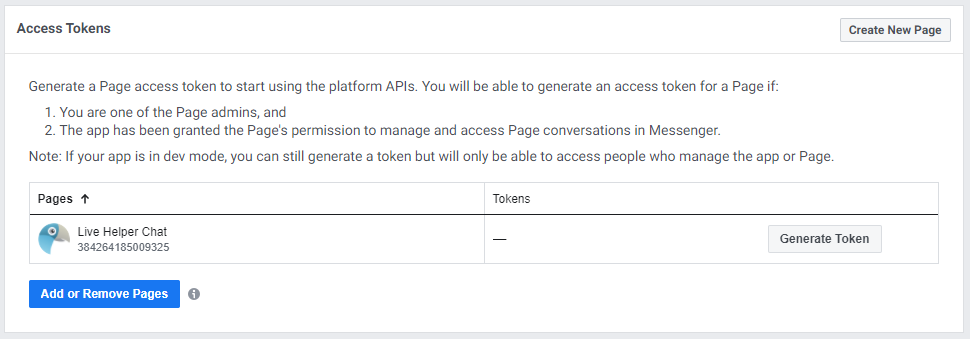
* In `Access Tokens` section click `Add or Removes pages` there you will get `Token` which you have to put in `Page token` field.
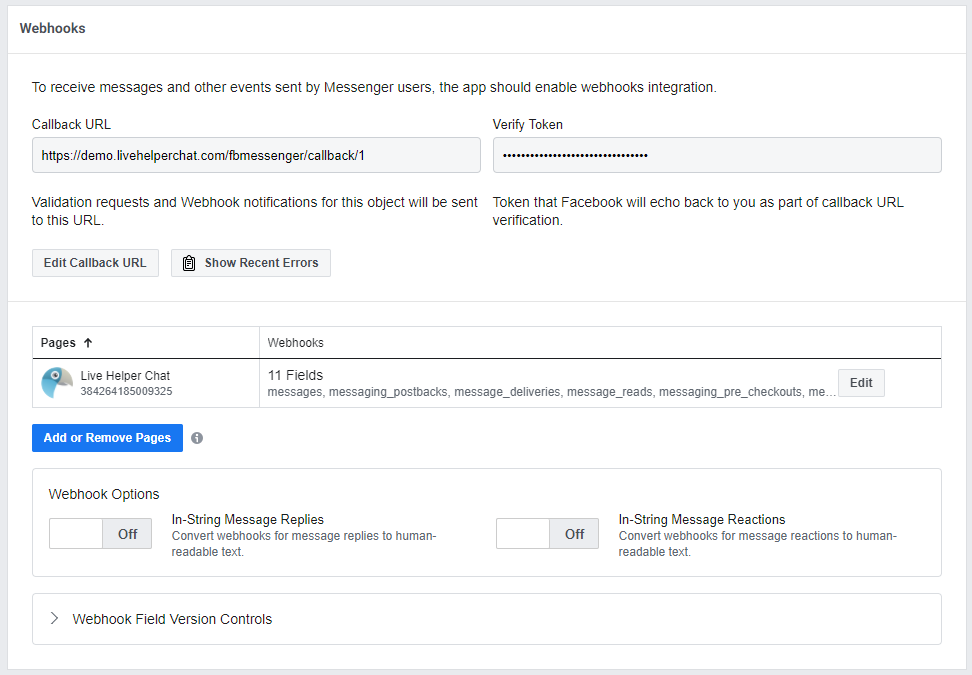
* Now in `Webhooks` section of `Messenger -> Settings` page `Edit Callback URL`. Facebook to verify callback URL will ask you to enter `Verify token` and callback url. Callback URL you will see in pages list.
* In same `Webhooks` add Page from which you want to receive messages. As subscription fields choose `messages, messaging_postbacks, message_deliveries, message_reads, messaging_pre_checkouts, messaging_checkout_updates, messaging_referrals, message_echoes, standby, messaging_handovers, message_reactions`
So at the end everything should look like
# One app multiple servers installation
This scenario is usefull in case you have multiple clients and each client has it's own server or address. You can have one master instance which will act as Master and will forward all incoming request from facebook to correct URL of child server.
To activate that option you have to edit `extension/fbmessenger/settings/settings.ini.php` and set options similar to below
```
'standalone' => array (
'enabled' => true,
'disable_manual_whatsapp' => false,
'secret_hash' => 'random_string_to_out',
'address' => 'https://master.example.com' // Master instance address
),
```
In facebook `Valid OAuth Redirect URIs` has to be changed to E.g
```
https://master.example.com/site_admin/fbmessenger/fbcallbackstandalone
```
`Messenger -> Settings` Webhooks `Callback URL` has to be set to
```
https://master.example.com/fbmessenger/callbackstandalone
```
## Then Submit to facebook to validate your app
* Before facebook validates your application keep settings `verified` false (in your LHC facebook page configuration)*
* After facebook has reviewed your application set "verified" to *YES*. So you will be able to send a messages. During testing, if you add some developer, you can set it to true to see how it works.
## Finally, Make your app public.
* After facebook has reviewed your application you need to make your app live and available
# How it works
Once visitor writes a message in facebook page. You will receive a chat with visitor.
# How to debug
* in `extension/fbmessenger/settings/settings.ini.php` change setting to `'enable_debug' => true` if you have verified site. Check `cache/default.log` for more detailed error.
* Messages aren't received being sent from Live Helper Chat back office. In `System configuration > Rest API Calls` find related item and edit it. Check `Log all request and their responses as system messages.` or `Log all request and their responses in audit log.`
* Messages were not received by Live Helper Chat. In `System configuration > Incoming webhooks` find related item and edit it. Check `Log request. All request will be logged`
# How to grant permission to other facebook user to your page so he can subscribe to messenger
* Make sure messenger button is activated on your page
* Switch to your page profile
* Navigate to https://facebook.com/settings/?tab=profile_access
* Add a user to your page. It should **NOT** be `People with task access`

* This facebook user does not need to have full control over your page

# How to install extensions using DigitalOcean?
Execute these commands
```
/opt/livehelperchat/lhc_upgrade.sh
cd /var/www/git
git clone https://github.com/LiveHelperChat/fbmessenger.git
cd /var/www/git/fbmessenger
php -r "copy('https://getcomposer.org/installer', 'composer-setup.php');"
php composer-setup.php
php -r "unlink('composer-setup.php');"
./composer.phar install
cd /var/www/html/extension
ln -s /var/www/git/fbmessenger
cp /var/www/html/extension/fbmessenger/settings/settings.ini.default.php /var/www/html/extension/fbmessenger/settings/settings.ini.php
php cron.php -s site_admin -e fbmessenger -c cron/update_structure
```
If you are using instance as standalone copy all content from master instance `/var/www/html/extension/fbmessenger/settings/settings.ini.php`
Activate extension by editing
```
vi /var/www/html/settings/settings.ini.php
```
And make `extensions` section look like
```
'extensions' =>
array (
0 => 'nodejshelper',
1 => 'lhcphpresque',
2 => 'fbmessenger',
),
```
Setup cronjob to renew SSL automatically
```
crontab -e
```
And add this line
```
0 */12 * * * /usr/bin/certbot renew --post-hook "systemctl reload nginx" >> /var/log/le-renew.log
```
# Todo
* Add support for typing indicator
* Add support for messenger notifications campaigns
# Caveats
* Facebook story replies are a chat messages. There is no way to ignore them.