https://github.com/lrusso/followmyvoice
Free and Open Source App for quadriplegic people
https://github.com/lrusso/followmyvoice
Last synced: 8 months ago
JSON representation
Free and Open Source App for quadriplegic people
- Host: GitHub
- URL: https://github.com/lrusso/followmyvoice
- Owner: lrusso
- License: gpl-3.0
- Created: 2019-06-30T10:23:08.000Z (almost 7 years ago)
- Default Branch: master
- Last Pushed: 2019-08-15T02:10:37.000Z (almost 7 years ago)
- Last Synced: 2025-03-06T08:38:54.108Z (about 1 year ago)
- Language: Java
- Homepage:
- Size: 7.35 MB
- Stars: 3
- Watchers: 3
- Forks: 1
- Open Issues: 0
-
Metadata Files:
- Readme: README.md
- License: license.txt
Awesome Lists containing this project
README
# Follow My Voice
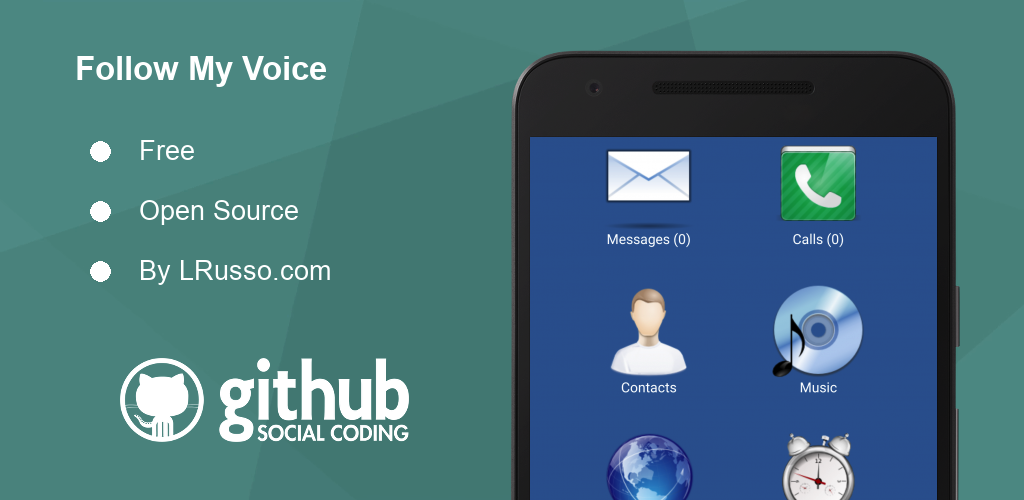
OpenSource launcher for the quadriplegic people for using smartphones and tablets. The launcher has a voice-guide that tells the user everything that it's happening in the device (screen off/on, rotation, incoming call, etc.).
## Video demo
- https://www.youtube.com/watch?v=mDbojARTmg8
## Download App
- https://lrusso.github.io/FollowMyVoice/FollowMyVoice.htm
## The app allows the user to
- Listen to music
- Send and receive SMS
- Receive and make calls
- Create and delete alarms
- Create and delete contacts
- Browse the web with Google engine as an a starting point
## How to use it
- Say "Menu Up" or "Menu Down" to browse the menus
- Say "Menu Right" to select an option
## How to type a message? There are two ways available
- Use the voice recognition system with up to 10 possible interpretations to select from (may require Internet).
- Use the touchscreen and say Menu Up and Down through characters and symbols and say Menu Right to input the selected character.
## How to manage a call
- Say "Answer Call" to answer the call
- Say "Reject Call" to end the call
## How to turn on the screen
- Say "Screen On" to turn on the screen
## TO UNINSTALL
- Go to Settings/System Settings/Applications/Follow My Voice/Uninstall
## IMPORTANT NOTE 1
If you have a device with Android 5.0 (Lollipop), Android 6.0 (Marshmallow) or Android 7.0 (Nougat), you have to set the way you want to answer a call by going to Settings/Accessibility/Answering/ending calls. In Android 8.0 (Oreo) and higher you can answer a call by saying "Answer Call" without inconveniences.
## IMPORTANT NOTE 2
If you have a device with Android 4.4 (KitKat) or higher, you must set Follow My Voice as your App for messages. To do so, you must go to Settings/Default applications/Messages and then select Follow My Voice from the list.
## IMPORTANT NOTE 3
You will need a TTS software installed in your device in order to this App to work. You can install, for example, Google TTS, that is available for free at Play Store.