https://github.com/luthfyhakim/typehere
A textbox with vim support to write and edit notes.
https://github.com/luthfyhakim/typehere
typescript vim
Last synced: 2 months ago
JSON representation
A textbox with vim support to write and edit notes.
- Host: GitHub
- URL: https://github.com/luthfyhakim/typehere
- Owner: luthfyhakim
- Created: 2025-05-04T08:48:51.000Z (about 1 year ago)
- Default Branch: main
- Last Pushed: 2025-05-04T08:59:20.000Z (about 1 year ago)
- Last Synced: 2025-06-13T04:39:41.878Z (about 1 year ago)
- Topics: typescript, vim
- Language: TypeScript
- Homepage:
- Size: 762 KB
- Stars: 0
- Watchers: 1
- Forks: 0
- Open Issues: 1
-
Metadata Files:
- Readme: README.md
Awesome Lists containing this project
README
# Type Here: A Powerful Textarea
A textarea (with vim)
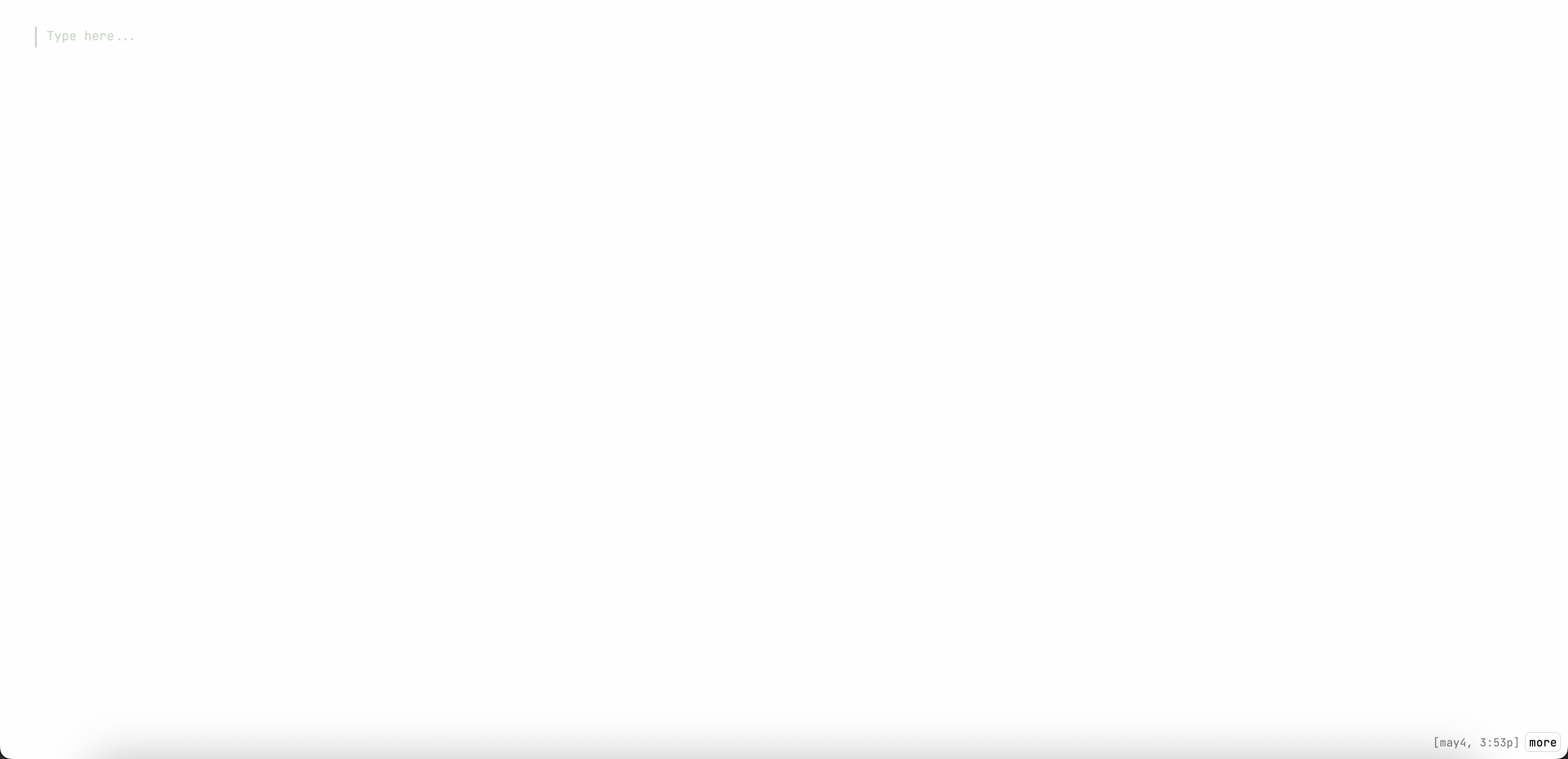
## How To Use
- Most things are in the ctrl/cmd-K menu. I will call it cmd-K for this guide.
- Cmd-K uses fuzzy search. There are two types of things that cmd-K has: notes and commands.
- Notes are the notes you've created, commands are things like theme toggle, vim toggle, show/hide scrollbar, import/export, etc.
- Navigate in the Cmd-K menu by up/down arrows.
- Create a new note by typing the note title and run the create note command.
- Or you could do cmd+shift+enter.
- Enter a note or run a command by pressing "Enter" or clicking on it.
- Workspaces is the way to separate notes into different "groups" under cmd-K.
- You can create a workspace by doing cmd-K, type in a workspace name, and "Create workspace". This creates a workspace with an empty note.
- You can switch between workspaces in cmd-K by doing left/right arrow keys.
- You can also switch between workspace by just typing in the workspace name you want to go to and run the command.
- You can select a note you want (arrow up/down), and cmd + left/right arrow to move it between workspace.
- If there are no notes in a workspace, the workspace is automatically deleted. Under the hood, each note has a workspace string, and all workspace is just a set of all the notes workspaces.
- For vim/keyboard-only users (like me)
- Toggle vim by doing cmd-K, toggle vim.
- Arrow up/down keys work the same as cmd+J/K inside the cmd-K menu.
- Cmd+B to open a note. This means to switch between the top two notes, hold cmd, and press K-J-B.
- Cmd+U/I to switch between workspaces.
- Cmd+E to toggle narrow screen view.
- Cmd+G to pin a note to all workspaces. this means the note will be displayed no matter which workspace you're in.
- Cmd+H to hide a note. In order to access hidden notes, you need to type the first 5 characters of the title right in the cmd-K menu.
## Other Features
- Offline mode
- Everything client-side, all in `localStorage`
- Periodically backed up to `indexedDB` (also in your browser)
- Import/export notes
- Desktop app (build on own machine)