https://github.com/mProjectsCode/obsidian-shiki-plugin
https://github.com/mProjectsCode/obsidian-shiki-plugin
Last synced: 10 months ago
JSON representation
- Host: GitHub
- URL: https://github.com/mProjectsCode/obsidian-shiki-plugin
- Owner: mProjectsCode
- License: mit
- Created: 2024-03-25T16:49:14.000Z (over 2 years ago)
- Default Branch: master
- Last Pushed: 2025-01-11T15:16:27.000Z (over 1 year ago)
- Last Synced: 2025-01-23T11:59:57.967Z (over 1 year ago)
- Language: TypeScript
- Size: 495 KB
- Stars: 72
- Watchers: 2
- Forks: 9
- Open Issues: 14
-
Metadata Files:
- Readme: README.md
- Funding: .github/FUNDING.yml
- License: LICENSE
Awesome Lists containing this project
README
# Obsidian Shiki Plugin
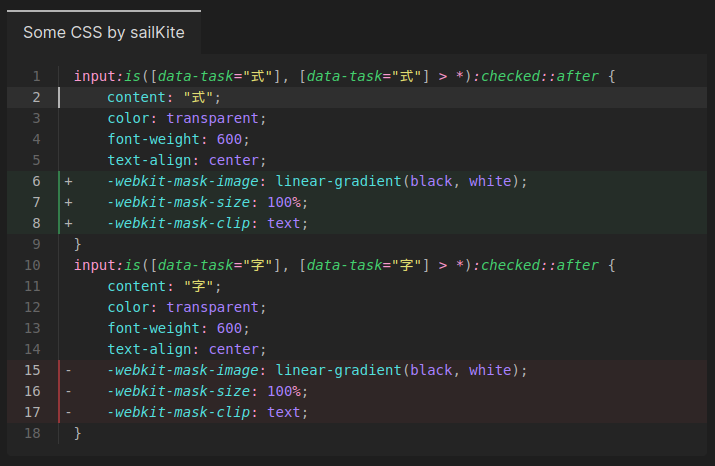
This plugin integrates [shiki](https://shiki.style/) via [Expressive Code](https://expressive-code.com/) into Obsidian, providing better syntax highlighting for over 100 languages.
This plugin works in reading, live preview and edit mode, providing a consistent experience across the app.
Below is an example with line numbers, a custom header, and line highlighting.
## Comparison
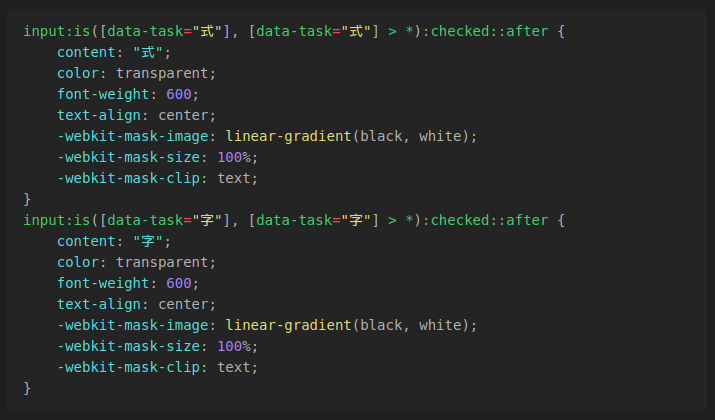
Default Obsidian syntax highlighting:
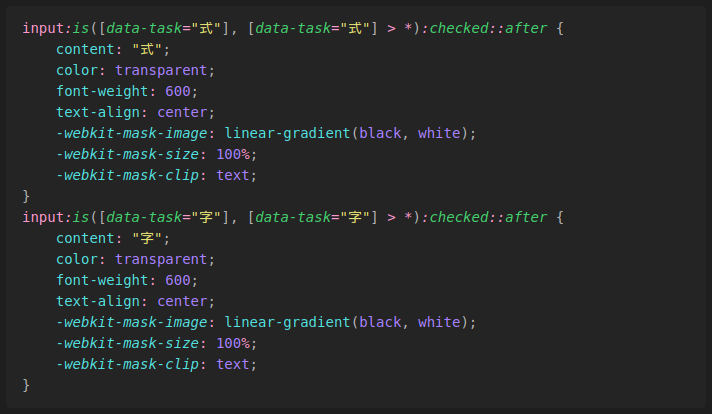
Shiki Plugin syntax highlighting:
## Usage
The plugin will automatically highlight code blocks in your notes.
### Inline Highlighting
This plugin offers inline code block highlighting. The language for inline code blocks is specified via `{lang} code`.
```md
Some inline code `{jsx} `.
```
This feature can be turned off in the settings.
### Custom Themes
This plugin comes bundled with a [wide variety of themes](https://expressive-code.com/guides/themes/#using-bundled-themes). In addition, it supports custom JSON theme files compatible with VS Code. To enable custom themes, create a folder containing your theme files, and specify the folder's path relative to your Vault in the plugin settings. After restarting Obsidian, your custom themes will be available in the Theme dropdown.
## Code Block Configuration
To configure the code block you add the configuration options on the same line as the opening triple backticks.
````md
```language configurationHere
some code ...
```
````
More info on the configuration options can be found on the [Expressive Code homepage](https://expressive-code.com/).
### Line Numbers
Line numbers can be enabled with `showLineNumbers`.
````md
```language showLineNumbers
some code ...
```
````
### Title
A title can be added with `title="Title Here"`.
````md
```language title="Title Here"
some code ...
```
````
### Line Highlighting
Line highlighting can be enabled with `{1, 5-10}`.
Lines can either be single lines or ranges.
````md
```language {1, 5-10}
some code ...
```
````
### Diff Highlighting
Diff highlighting can be enabled with `ins={1}` and `del={5-10}`.
Lines specified in `ins` will be highlighted green, and lines specified in `del` will be highlighted red.
Lines can once again either be single lines or ranges.
````md
```language ins={1} del={5-10}
some code ...
```
````
When the language is set to `diff`, the plugin will automatically enable diff highlighting for lines either prefixed by `+` or `-`.
## License
[MIT](https://github.com/mProjectsCode/obsidian-shiki-plugin/blob/master/LICENSE)
## Installation
### Obsidian Marketplace (Recommended)
1. Open `Settings -> Community Plugins` in your vault
2. Click on the `Browse` button in the `Community plugins` section
3. Search for `Shiki Highlighter`
4. Select `Shiki Highlighter` and click first `Install`, then `Enable`
### BRAT
1. Install and enable the `BRAT` plugin
2. Run the `BRAT: Plugins: Add a beta plugin for testing` command
3. Enter `https://github.com/mProjectsCode/obsidian-shiki-plugin` into the text field
4. Click on `Add Pluign`
## Credits
This plugin uses [shiki](https://shiki.style/), [Expressive Code](https://expressive-code.com/), and parts of the Dracula VSCode theme for syntax highlighting.
Special thanks to:
- Hippo (hippotastic) for their work and support with Expressive Code
- sailKite for CSS help and testing the plugin