https://github.com/magiccube/g3d
Realtime WebGL rendering maps and big data visualizations based on MXFramework and Three.js.
https://github.com/magiccube/g3d
3d-gis blue-3d-glasses gis threejs webgl
Last synced: over 1 year ago
JSON representation
Realtime WebGL rendering maps and big data visualizations based on MXFramework and Three.js.
- Host: GitHub
- URL: https://github.com/magiccube/g3d
- Owner: MagicCube
- Created: 2014-06-16T05:55:16.000Z (about 12 years ago)
- Default Branch: master
- Last Pushed: 2017-06-02T08:50:17.000Z (about 9 years ago)
- Last Synced: 2025-03-24T14:01:41.857Z (over 1 year ago)
- Topics: 3d-gis, blue-3d-glasses, gis, threejs, webgl
- Language: JavaScript
- Homepage: http://magiccube.github.io/g3d/
- Size: 4.01 MB
- Stars: 55
- Watchers: 4
- Forks: 28
- Open Issues: 2
-
Metadata Files:
- Readme: README.md
Awesome Lists containing this project
README
# VIDEO DEMOS
https://www.youtube.com/watch?v=fFMc5P8F7SY
https://www.youtube.com/watch?v=9rUGYhHJJ6E
https://www.youtube.com/watch?v=PQuNo-mrLKU
https://www.youtube.com/watch?v=DNW6VwIxl4w
# MagicCube g3d Framework
MagicCube g3D Framework is a web GIS library for 3D visualization using WebGL technology. In this early version, it supports
* Designed for geo-based big data visualization
* Powered by [MagicCube MXFramework](https://github.com/MagicCube/mxframework-core)
* High-performance real-time 3D rendering and animations based on Three.js and WebGL
* [Open Street Map](http://www.openstreetmap.org/) / [MapBox](http://www.mapbox.com) / [Google Map](https://maps.google.com/) / [Nokia HERE Map](http://here.com/) / [Baidu Map](http://map.baidu.com/) / [AutoNavi](http://www.autonavi.com/) supported
* Multi-layer supported
* Basic 2D/3D geometries and features supported
* GeoJSON supported
* Cache tile images using HTML5 LocalStorage
* Build-in ToolBar and Compass
* Anaglyph Effect (Red/Blue 3D Glasses are needed)
## [Live Demo](http://magiccube.github.io/g3d/)
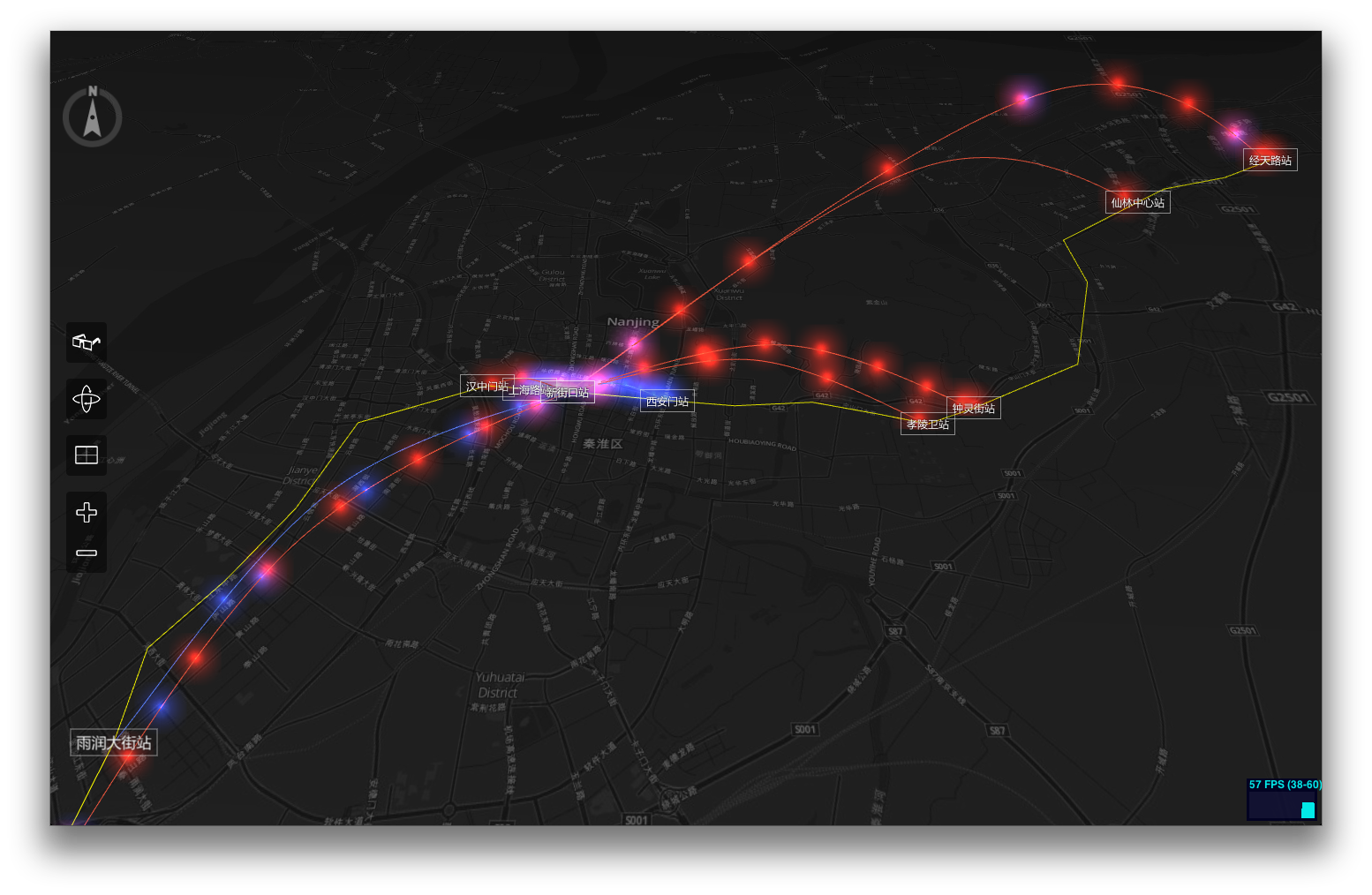
Open the [live demo page](http://magiccube.github.io/g3d/) with Chrome, Safari or any other Webkit-based modern browser.
How to Use
* Drag with left button to pan.
* Drag with right button to rotate.
* Scroll to zoom in and out.
If you have a multi-finger touchable device, you can
* Touch with one finger to pan.
* Touch with two fingers to rotate.
* Pinch with two fingers to zoom in and out.
If you have a Red/Blue 3D Glasses
* Click the glasses button of the toolbar on the left side to switch between 2D and 3D mode.
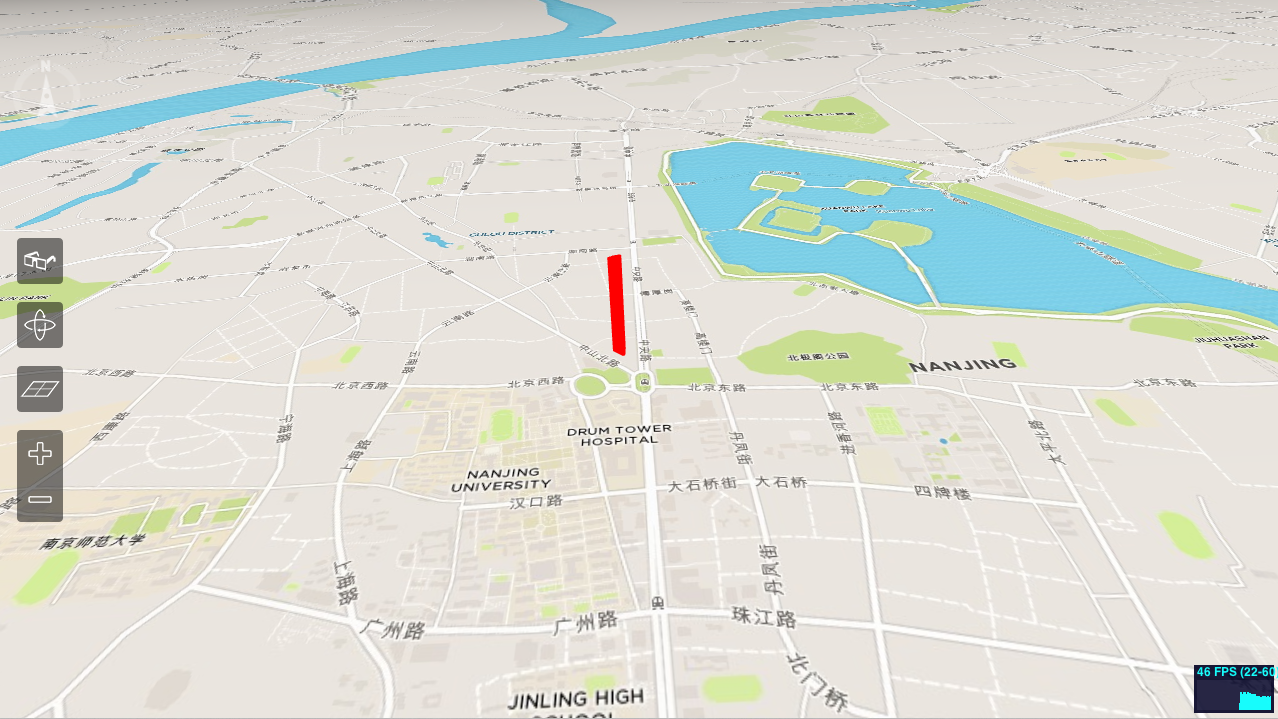
## Screenshots
## Dependencies
The g3d Framework is built on top of [MagicCube MXFramework](https://github.com/MagicCube/mxframework-core), [Three.js](threejs.org/), [Tween.js](https://github.com/sole/tween.js), [jQuery](http://jquery.com) and [jquery.transit](https://github.com/rstacruz/jquery.transit).
## Usage
Create a new 3D map view with an OSM-based layer.
```javascript
$import("g3d.view.MapScene3DView");
var mapView = null;
mx.whenReady(function()
{
// Create a new MapProvider using MapBox tiles.
var mapProvider = new g3d.map.MapProvider({
urlFormat: "http://{s}.tiles.mapbox.com/v3/nicki.uxdh1tt9/{z}/{x}/{y}.png32",
tileSize: 256, // Normally the tile size is always 256 in OSM and Google
});
// Create an instance of MapScene3DView
mapView = new g3d.view.MapScene3DView({
$element: $("#map"),
mapProvider: mapProvider,
centerLocation: [118.778845, 32.04386],
zoom: 12, // The same 'zoom level' rules as Google Map.
statsVisible: true, // Whether display the WebGL status bar.
displayCompass: true, // Whether the compass should be displayed.
displayToolBar: true, // Whether the tool bar should be displayed.
onzooming: function(e)
{
console.log("Zooming from %d to %d.", e.zoomFrom, e.zoomTo);
},
onzoomed: function(e)
{
console.log("Zoom level is now set to %d.", e.zoomTo);
}
});
// Add a OSM-based tile layer.
var tileLayer = new g3d.layer.TileLayer3D({
useLocalStorage: true // Use HTML5 Local Storage to cache the tiles.
});
mapView.addLayer(tileLayer);
// Start animation, so the user can interactive with the map.
mapView.startAnimation();
});
```
Now let's add a polygon mesh to display 'Zifeng Tower'.
Please refer to http://www.openstreetmap.org/way/140809508
```javascript
// Add a feature layer to diaplay buildings.
var buildingLayer = new g3d.layer.FeatureLayer3D();
mapView.addLayer(buildingLayer);
buildingLayer.addPolygon(
[
[ 118.7781014, 32.062422 ],
[ 118.7777385, 32.0627166 ],
[ 118.7777183, 32.0627721 ],
[ 118.7779384, 32.0628862 ],
[ 118.7782096, 32.0629544 ],
[ 118.7782587, 32.0629002 ],
[ 118.7782337, 32.0624534 ],
[ 118.7781786, 32.0624179 ]
],
200, // Height of the polygon mesh in pixels.
{
color : 0xff0000,
opacity : 0.8
} // Alternatively you can use any THREE.Material instead
);
```