https://github.com/malaskowski/aet-docker
Docker support for AET - easy to set up local/developer environment with example Docker Swarm configuration.
https://github.com/malaskowski/aet-docker
aet aet-browsermob aet-client aet-karaf aet-report docker docker-swarm-cluster hacktoberfest
Last synced: 5 months ago
JSON representation
Docker support for AET - easy to set up local/developer environment with example Docker Swarm configuration.
- Host: GitHub
- URL: https://github.com/malaskowski/aet-docker
- Owner: malaskowski
- License: apache-2.0
- Created: 2018-08-03T10:17:53.000Z (almost 8 years ago)
- Default Branch: master
- Last Pushed: 2023-03-13T21:53:21.000Z (over 3 years ago)
- Last Synced: 2025-10-30T04:42:22.470Z (9 months ago)
- Topics: aet, aet-browsermob, aet-client, aet-karaf, aet-report, docker, docker-swarm-cluster, hacktoberfest
- Language: Dockerfile
- Homepage:
- Size: 64.9 MB
- Stars: 8
- Watchers: 2
- Forks: 9
- Open Issues: 2
-
Metadata Files:
- Readme: README.md
- Changelog: CHANGELOG.md
- Funding: .github/FUNDING.yml
- License: LICENSE
Awesome Lists containing this project
README
# AET Docker
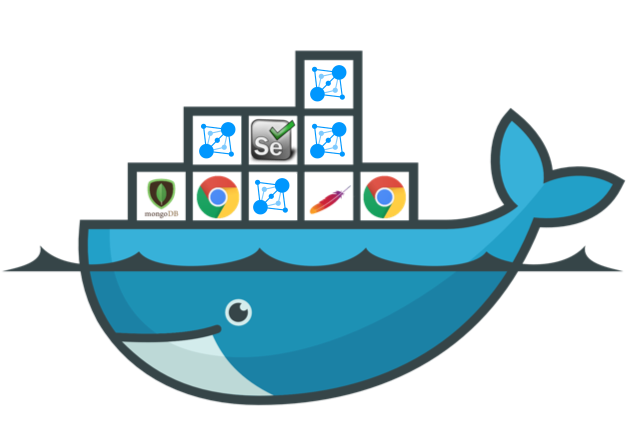
This repository contains Dockerfiles of AET images and example Docker Swarm manifest that enables setting up simple AET instance.
You may find released versions of AET Docker images at [Docker Hub](https://cloud.docker.com/u/malaskowski/).
## Try AET
Following section describes how to run AET using Docker Swarm. Alternative to this is installing AET using Helm. See [AET Helm chart](https://github.com/malaskowski/aet-helm) repository for more deails.
### Run local instance using Docker Swarm
Make sure you have running Docker Swarm instance that has at least **`4 vCPU` and `8 GB of memory` available**. Read more in [Prerequisites](#prerequisites).
Follow these instructions to set up local AET instance:
1. Download the latest [`example-aet-swarm.zip`](https://github.com/malaskowski/aet-docker/releases/latest/download/example-aet-swarm.zip) and unzip the files to the folder from where docker stack will be deployed (from now on we will call it `AET_ROOT`).
See details
> You may run following script to automate this step:
> ```bash
> curl -sS `curl -Ls -o /dev/null -w %{url_effective} https://github.com/malaskowski/aet-docker/releases/latest/download/example-aet-swarm.zip` > aet-swarm.zip \
> && unzip -q aet-swarm.zip && mv example-aet-swarm/* . \
> && rm -d example-aet-swarm && rm aet-swarm.zip
> ```
>
> Contents of the `AET_ROOT` directory should look like:
> ```
> ├── aet-swarm.yml
> ├── bundles
> │ └── aet-lighthouse-extension.jar
> ├── configs
> │ ├── com.cognifide.aet.cleaner.CleanerScheduler-main.cfg
> │ ├── com.cognifide.aet.proxy.RestProxyManager.cfg
> │ ├── com.cognifide.aet.queues.DefaultJmsConnection.cfg
> │ ├── com.cognifide.aet.rest.helpers.ReportConfigurationManager.cfg
> │ ├── com.cognifide.aet.runner.MessagesManager.cfg
> │ ├── com.cognifide.aet.runner.RunnerConfiguration.cfg
> │ ├── com.cognifide.aet.vs.mongodb.MongoDBClient.cfg
> │ ├── com.cognifide.aet.worker.drivers.chrome.ChromeWebDriverFactory.cfg
> │ └── com.cognifide.aet.worker.listeners.WorkersListenersService.cfg
> ├── features
> │ └── healthcheck-features.xml
> ├── secrets
> │ └── KARAF_EXAMPLE_SECRET
> └── report
> ```
> - If you are using docker-machine (otherwise ignore this point)
> you should change `aet-swarm.yml` `volumes` section for the `karaf` service to:
> ```yaml
> volumes:
> - /osgi-configs/configs:/aet/configs # when using docker-machine, use mounted folder
> ```
>
> You can find older versions in the [release](https://github.com/malaskowski/aet-docker/releases) section.
2. From the `AET_ROOT` run `docker stack deploy -c aet-swarm.yml aet`.
3. Wait about 1-2 minutes until instance is ready to work.
> Note, that you can always stop the instance by running 'docker stack rm aet' without loosing the data (volumes).
See details
> When it is ready, you should see the `HEALTHY` information in the [Karaf health check](http://localhost:8181/health-check)
>
> You may also check the status of Karaf by executing
>
> ```bash
> docker ps --format "table {{.Image}}\t{{.Status}}" --filter expose=8181/tcp
> ```
>
> When you see status `healthy` it means Karaf is running correctly
>
> ```
> IMAGE STATUS
> malaskowski/aet_karaf:1.0.0 Up 3 minutes (healthy)
> ```
### Run sample suite
Simply run:
```
docker run --rm malaskowski/aet_client
```
You should see similar output:
```
Suite started with correlation id: example-example-example-1611937786395
[16:29:46.578]: COMPARED: [success: 0, total: 0] ::: COLLECTED: [success: 0, total: 1]
Suite processing finished
Report url:
http://localhost/report.html?company=example&project=example&correlationId=example-example-example-1611937786395
```
Open the url which will show your first AET report! Find more about the report in the [AET Docs](https://github.com/wttech/aet/wiki/SuiteReport).
Read more on how to run your custom suite in the [Running AET Suite](#running-aet-suite) section.
**User Documentation**
- [AET Docker](#aet-docker)
- [Try AET](#try-aet)
- [Run local instance using Docker Swarm](#run-local-instance-using-docker-swarm)
- [Run sample suite](#run-sample-suite)
- [Docker Images](#docker-images)
- [AET ActiveMq](#aet-activemq)
- [AET Browsermob](#aet-browsermob)
- [AET Karaf](#aet-karaf)
- [AET Report](#aet-report)
- [AET Docker Client](#aet-docker-client)
- [AET instance with Docker Swarm](#aet-instance-with-docker-swarm)
- [Prerequisites](#prerequisites)
- [Minimum requirements](#minimum-requirements)
- [Configuration](#configuration)
- [OSGi configs](#osgi-configs)
- [Throughput and scaling](#throughput-and-scaling)
- [Docker secrets](#docker-secrets)
- [Updating instance](#updating-instance)
- [Running AET Suite](#running-aet-suite)
- [Docker Client](#docker-client)
- [Other Clients](#other-clients)
- [Best practices](#best-practices)
- [Available consoles](#available-consoles)
- [Troubleshooting](#troubleshooting)
- [Example visualiser](#example-visualiser)
- [Debugging](#debugging)
- [Logs](#logs)
- [Common issues](#common-issues)
- [Error response 500 after sending suite to AET](#error-response-500-after-sending-suite-to-aet)
- [FAQ](#faq)
- [How to use external MongoDB](#how-to-use-external-mongodb)
- [How to use external Selenium Grid](#how-to-use-external-selenium-grid)
- [How to set report domain](#how-to-set-report-domain)
- [How to expose AET Web API](#how-to-expose-aet-web-api)
- [How to enable AET instance to run more tests simultaneously](#how-to-enable-aet-instance-to-run-more-tests-simultaneously)
- [How to use external Selenium Grid nodes](#how-to-use-external-selenium-grid-nodes)
- [Is there other way to run AET than with Docker Swarm cluster](#is-there-other-way-to-run-aet-than-with-docker-swarm-cluster)
- [Building](#building)
- [Prerequisites](#prerequisites-1)
- [Developer environment](#developer-environment)
## Docker Images
### AET ActiveMq
Hosts [Apache ActiveMQ](http://activemq.apache.org/) that is used as the communication bus by the AET components.
### AET Browsermob
Hosts BrowserMob proxy that is used by AET to collect status codes and inject headers to requests.
### AET Karaf
Hosts [Apache Karaf](https://karaf.apache.org/) OSGi applications container.
It contains all AET modules (bundles): Runner, Workers, Web-API, Datastorage, Executor, Cleaner and runs them within OSGi context
with all their dependencies required (no internet access required to provision).
[AET application core](https://github.com/wttech/aet) is located in the `/aet/core` directory.
All custom AET extensions are kept in the `/aet/custom` directory.
Before the start of a Karaf service, Docker secrets are exported to environment variables. Read more in [secrets](#docker-secrets) section.
### AET Report
Runs [Apache Server](https://httpd.apache.org/) that hosts [AET Report](https://github.com/wttech/aet/wiki/SuiteReport).
The [AET report application](https://github.com/wttech/aet/tree/master/report) is placed under `/usr/local/apache2/htdocs`.
Defines very basic `VirtualHost` (see [aet.conf](https://github.com/malaskowski/aet-docker/blob/master/report/aet.conf)).
### AET Docker Client
[AET bash client](https://github.com/wttech/aet/tree/master/client/client-scripts) embedded into Docker image with all its dependencies (`jq`, `curl`, `xmllint`).
## AET instance with Docker Swarm
To see the details of what contains sample AET Docker Swarm instance, read the [example-aet-swarm readme](/blob/master/example-aet-swarm/README.md).
> **Notice - this instruction guides you on how to set up AET instance using single-node swarm cluster.**
> **This setup is not recommended for production use!**
### Prerequisites
- Docker installed on your host (either ["Docker"](https://docs.docker.com/install/) (e.g. Docker for Windows or Docker for Mac)
- Docker swarm initialized.
See this [swarm-tutorial: create swarm](https://docs.docker.com/engine/swarm/swarm-tutorial/create-swarm/) for detailed instructions.
- **TLDR;** run command: `docker swarm init`.
- Make sure your swarm have at least **`4 vCPU` and `8 GB of memory` available**. Read more in [Minimum requirements](#minimum-requirements) section.
#### Minimum requirements
To run example AET instance make sure that machine you run it at has at least enabled:
- `4 vCPU`
- `8 GB of memory`
**How to modify Docker resources**:
- For *Docker for Windows* use [Advanced settings](https://docs.docker.com/docker-for-windows/#advanced) (if you are using Docker with WSL2, manage resources via WSL2 settings)
- For *Docker for Mac* use [Advanced settings](https://docs.docker.com/docker-for-mac/#advanced)
### Configuration
#### OSGi configs
Thanks to the mounted OSGi configs you may now configure instance via `AET_ROOT/configs` configuration files.
**com.cognifide.aet.cleaner.CleanerScheduler-main.cfg**
Read more [here](https://github.com/wttech/aet/wiki/Cleaner).
**com.cognifide.aet.proxy.RestProxyManager.cfg**
Configures Proxy Server address. AET uses proxy for some features such as collecting status codes or modyfing request's header.
Read more [here](https://github.com/wttech/aet/wiki/SuiteStructure#proxy).
**com.cognifide.aet.queues.DefaultJmsConnection.cfg**
Configures [JMS Server](https://github.com/wttech/aet/wiki/SystemComponents#jms-server) connection.
**com.cognifide.aet.rest.helpers.ReportConfigurationManager.cfg**
Configures address for the Reports module. The `reportDomain` property should point to the externall address of the AET Reports service.
**com.cognifide.aet.runner.MessagesManager.cfg**
Configures JMX endpoint of the [JMS Server](https://github.com/wttech/aet/wiki/SystemComponents#jms-server) for managing messages via API.
**com.cognifide.aet.runner.RunnerConfiguration.cfg**
Configures [AET Runner](https://github.com/wttech/aet/wiki/Runner).
**com.cognifide.aet.vs.mongodb.MongoDBClient.cfg**
Configures [Database](https://github.com/wttech/aet/wiki/DatabaseStructure) connection. Additionally, setting `allowAutoCreate` allows creating new databases by AET (no need to create them manually first, including indexes).
**com.cognifide.aet.worker.drivers.chrome.ChromeWebDriverFactory.cfg**
Configures Selenium Grid Hub address. Additionally enables configuring [capabilities](https://chromedriver.chromium.org/capabilities) via `chromeOptions`.
**com.cognifide.aet.worker.listeners.WorkersListenersService.cfg**
Configures number of [AET Workers](https://github.com/wttech/aet/wiki/Worker). Use those properties to scale up and down your AET instance's throughput. Read more below.
#### Throughput and scaling
AET instance speed depends on the direct number of browsers in the system and its configuration.
Let's define a `TOTAL_NUMBER_OF_BROWSERS` which will be the number of selenium grid node instances
multiplied by `NODE_MAX_SESSION` set for each node. For this default configuration, we have `6`
Selenium Nodee replicast with a single instance of browser available on each node:
```yaml
chrome:
...
environment:
...
- NODE_MAX_SESSION=1
...
deploy:
replicas: 6
...
```
So, the `TOTAL_NUMBER_OF_BROWSERS` is `6` (`6 replicas x 1 session`).
That number should be set for following configs:
- `maxMessagesInCollectorQueue` in `com.cognifide.aet.runner.RunnerConfiguration.cfg`
- `collectorInstancesNo` in `com.cognifide.aet.worker.listeners.WorkersListenersService.cfg`
#### Docker secrets
To read secrets from `/run/secrets/` on Karaf startup, configure env `KARAF_SECRETS_ON_STARTUP=true`. This will enable scanning secrets from directory matching `KARAF_*` pattern and export them as environment variable.
See the [Karaf entrypoint](/blob/master/karaf/entrypoint.sh) for details.
E.g.
If the file `/run/secrets/KARAF_MY_SECRET` is found, its content will be exported to `MY_SECRET` environment variable.
### Updating instance
You may update configuration files directly from your host
(unless you use docker-machine, see the workaround below).
Karaf should automatically notice changes in the config files.
To update instance to the newer version
1. Update `aet-swarm.yml` and/or configuration files in the `AET_ROOT`.
2. Simply run `docker stack deploy -c aet-swarm.yml aet`
**docker-machine config changes detection workaround**
> Please notice that when you are using docker-machine and Docker Tools, Karaf does not
detect automatic changes in the config. You will need to restart Karaf service after applying
changes in the configuration files (e.g. by removing `aet_karaf` service and running stack deploy).
### Running AET Suite
There are couple of ways to start AET Suite.
#### Docker Client
You may use an image that embeds AET Bash client together with its dependencies by running:
> `docker run --rm malaskowski/aet_client`
This will run a [sample AET Suite](https://github.com/malaskowski/aet-docker/blob/master/client/example.xml).
You should see the results in less than 30s.
To run your custom suite, let's say `my-suite.xml`, located in the current directory, you need to bind mount it as volume.
> `docker run --rm -v "$(pwd)/my-suite.xml:/aet/suite/my-suite.xml" malaskowski/aet_client http://host.docker.internal:8181 /aet/suite/my-suite.xml`
Read more
> The last 2 argumetns are AET Bash client arguments:
> - `http://host.docker.internal:8181` URL of the AET instance,
> - `/aet/suite/my-suite.xml` path to the suite XML file inside the container.
>
> > Notice that we are using here `host.docker.internal:8181` as the address of AET instance - that works only for Docker for Mac/Win
> > with local AET setup (this is also the default value for this property). In other cases, use the AET server's IP/domain.
>
> One more thing you may want to do is to preserve `redirect.html` and `xUnit.xml` files after the AET Client container's run ends its execution. Simply bind mound another volume e.g.:
>
> `docker run --rm -v "$(pwd)/my-suite.xml:/aet/suite/my-suite.xml" -v "$(pwd)/report:/aet/report" malaskowski/aet_client http://host.docker.internal:8181 /aet/suite/my-suite.xml`
>
> The results will be saved to the `report` directory:
>
> ```
> .
> ├── my-suite.xml
> ├── report
> │ ├── redirect.html
> │ └── xUnit.xml
> ```
#### Other Clients
To run AET Suite simply define `endpointDomain` to AET Karaf IP with `8181` port, e.g.:
> `./aet.sh http://localhost:8181`
or
> ` mvn aet:run -DendpointDomain=http://localhost:8181`
Read more about running AET suite [here](https://github.com/wttech/aet/wiki/RunningSuite).
### Best practices
1. Control changes in `aet-swarm.yml` and config files over time! Use version control system
(e.g. [GIT](https://git-scm.com/)) to keep tracking changes of `AET_ROOT` contents.
2. If you value your data - reports results and history of running suites, remember about
**backing up MongoDB volume**. If you use external MongoDB, also back up its `/data/db` regularly!
3. Provide at least [minimum requirements](#minimum-requirements) machine for your docker cluster.
### Available consoles
- Selenium grid console: http://localhost:4444/grid/console
- ActiveMQ console: http://localhost:8161/admin/queues.jsp (credentials: `admin/admin`)
- Karaf console: http://localhost:8181/system/console/bundles (credentials: `karaf/karaf`)
- AET Report: `http://localhost/report.html?params...`
> Note, that if you are using *Docker Tools* there will be your docker-machine ip instead of `localhost`
### Troubleshooting
#### Example visualiser
If you want to see what's deployed on your instance, you may use `dockersamples/visualizer` by running:
```
docker service create \
--name=viz \
--publish=8090:8080/tcp \
--constraint=node.role==manager \
--mount=type=bind,src=/var/run/docker.sock,dst=/var/run/docker.sock \
dockersamples/visualizer
```
- Visualizer console: `http://localhost:8090`
> Note, that if you are using *Docker Tools* there will be your docker-machine ip instead of `localhost`
#### Debugging
To debug bundles on Karaf set environment vairable `KARAF_DEBUG=true` and expose port `5005` on karaf service.
#### Logs
You may preview AET logs with `docker service logs aet_karaf -f`.
---
## Common issues
### Error response 500 after sending suite to AET
Make sure you have installed all [prerequisites](https://github.com/wttech/aet/tree/master/client/client-scripts#prerequisites) for the script client.
---
## FAQ
### How to use external MongoDB
Set the `mongoURI` property in the `configs/com.cognifide.aet.vs.mongodb.MongoDBClient.cfg` to point your mongodb instance uri.
### How to use external Selenium Grid
After you set up external Selenium Grid, update the `seleniumGridUrl` property in the `configs/com.cognifide.aet.worker.drivers.chrome.ChromeWebDriverFactory.cfg` to Grid address.
### How to set report domain
Set `report-domain` property in the `com.cognifide.aet.rest.helpers.ReportConfigurationManager.cfg` to point the domain.
### How to expose AET Web API
[AET Web API](https://github.com/wttech/aet/wiki/WebAPI) is hosed by the AET Karaf instance.
In order to avoid CORS errors from the Report Application, AET Web API is exposed by the AET Report Apache Server (`ProxyPass`).
By default it is set to work with Docker cluster managers such as Swarm or Kubernetes and points to `http://karaf:8181/api`.
Use `AET_WEB_API` environment variable to change the URL of the AET Web API.
### How to enable AET instance to run more tests simultaneously
> Notice: those changes will impact your machine resources, be sure to extend the number of CPUs and memory
> if you scale up a number of browsers.
1. Spawn more browsers by increasing number of Selenium Grid nodes or adding sessions to existing nodes.
Calculate new [`TOTAL_NUMBER_OF_BROWSERS`](#AET-throughput)
2. Set `maxMessagesInCollectorQueue` in `configs/com.cognifide.aet.runner.RunnerConfiguration.cfg` to new `TOTAL_NUMBER_OF_BROWSERS`.
3. Set `collectorInstancesNo` in `configs/com.cognifide.aet.worker.listeners.WorkersListenersService.cfg` to new `TOTAL_NUMBER_OF_BROWSERS`.
4. Update instance (see [how to do it](#updating-example-instance).
### How to use external Selenium Grid nodes
External Selenium Grid node instance should have:
* [JDK 8](http://www.oracle.com/technetwork/java/javase/downloads/jdk8-downloads-2133151.html) installed
* [Chrome browser](https://www.google.com/chrome/browser/desktop/) installed
* [ChromeDriver](https://sites.google.com/a/chromium.org/chromedriver/downloads) (at least version 2.40)
* [Selenium Standalone Server](http://www.seleniumhq.org/download/) (at least version 3.41)
Check the address of the machine, where AET stack is running. By default, Selenium Grid HUB should be
available on the `4444` port. Use this IP address when you run node, with command
(replace `{SGRID_IP}` with this IP address):
```bash
java -Dwebdriver.chrome.driver="" -jar -role node -hub http://{SGRID_IP}:4444/grid/register -browser "browserName=chrome,maxInstances=10" -maxSession 10
```
You should see the message that node joins selenium grid.
Check it via selenium grid console: `http://{SGRID_IP}:4444/grid/console`
Read more about setting up your own Grid here:
- https://selenium.dev/documentation/en/grid/setting_up_your_own_grid/#step-2-start-the-nodes
### Is there other way to run AET than with Docker Swarm cluster
Yes, AET system is a group of containers that form an instance together.
You need a way to organize them and make visible to each other in order to have functional AET instance.
This repository contains **example** instance setup with Docker Swarm, which is the most basic
containers cluster manager that comes OOTB with Docker.
For more advanced setups of AET instance I'd recommend to look at [Kubernetes](https://kubernetes.io/)
or [OpenShift](https://www.openshift.com/) systems (including services provided by cloud vendors).
In that case you may find [AET Helm chart](https://github.com/malaskowski/aet-helm) helpful.
---
## Building
### Prerequisites
- Docker installed on your host.
1. Clone this repository
2. Build all images using `build.sh {tag}`.
You should see following images:
```
malaskowski/aet_report:{tag}
malaskowski/aet_karaf:{tag}
malaskowski/aet_browsermob:{tag}
malaskowski/aet_activemq:{tag}
```
## Developer environment
In order to be able to easily deploy AET artifacts on your docker instance follow these steps:
1. Follow the [Run local instance using Docker Swarm](#run-local-instance-using-docker-swarm) guide (check the [prerequisites](#prerequisites) first).
2. In the `aet-swarm.yml` under `karaf` and `report` services there are volumes defined:
```yaml
karaf:
...
volumes:
- ./configs:/aet/custom/configs
- ./bundles:/aet/custom/bundles
- ./features:/aet/custom/features
...
report:
...
# volumes: <- volumes not active by default, to develop the report, uncomment it before deploying
# - ./report:/usr/local/apache2/htdocs
```
3. In order to add custom extensions, add proper artifacts to the volumes you need.
- bundles (jar files) to the `bundles` directory
- OSGi feature files into the `features`
- `configs` directory already contains default configs
- report files into the `report` directory
To develop [AET application core](https://github.com/wttech/aet), add additional volumes to the `karaf` service:
```yaml
karaf:
...
volumes:
...
- ./core-configs:/aet/core/configs
- ./core-bundles:/aet/core/bundles
- ./core-features:/aet/core/features
```
and place proper AET artifacts accordingly to the `core-` directories.
> If you use build command with `-Pzip` parameter, all needed artifacts will be placed in `YOUR_AET_REPOSITORY/zip/target/packages-X.X.X-SNAPSHOT/`. You only need to unpack needed zip archives into proper catalogs described in step 3.
4. To start the instance, just run `docker stack deploy -c aet-swarm.yml aet`.