https://github.com/markusfisch/scalingimageview
Android ImageView that transforms its drawable according to user input
https://github.com/markusfisch/scalingimageview
android-library imageview
Last synced: 4 months ago
JSON representation
Android ImageView that transforms its drawable according to user input
- Host: GitHub
- URL: https://github.com/markusfisch/scalingimageview
- Owner: markusfisch
- License: unlicense
- Created: 2015-11-29T21:28:34.000Z (over 10 years ago)
- Default Branch: master
- Last Pushed: 2025-07-29T13:17:42.000Z (12 months ago)
- Last Synced: 2025-07-29T15:52:11.891Z (12 months ago)
- Topics: android-library, imageview
- Language: Java
- Homepage:
- Size: 3.02 MB
- Stars: 15
- Watchers: 3
- Forks: 4
- Open Issues: 0
-
Metadata Files:
- Readme: README.md
- Changelog: CHANGELOG.md
- Contributing: CONTRIBUTING.md
Awesome Lists containing this project
README
# ScalingImageView
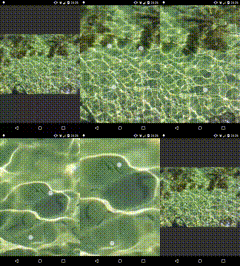
An ImageView that transforms its drawable according to touch input.
Supports rotated images and keeps transformation when you exchange the
image for another one with a different size.
All of that in ~400 lines of code (excluding blanks and comments).
## How to include
### Gradle
Add the JitPack repository in your root build.gradle at the end of
repositories:
allprojects {
repositories {
...
maven { url 'https://jitpack.io' }
}
}
Then add the dependency in your app/build.gradle:
dependencies {
implementation 'com.github.markusfisch:ScalingImageView:x.x.x'
}
### Android Archive
Alternatively you may just download the latest `aar` from
[Releases](https://github.com/markusfisch/ScalingImageView/releases) and put it
into `app/libs` in your app.
Then make sure your `app/build.gradle` contains the following line in the
`dependencies` block:
dependencies {
implementation fileTree(dir: 'libs', include: '*')
...
}
## How to use
Maybe in a layout:
Or from java:
import de.markusfisch.android.scalingimageview.widget.ScalingImageView;
ScalingImageView scalingImageView = new ScalingImageView(context);
Changing the scale type must happen in source since reading attributes
would require a [declare-styleable][styleable] resource and some overhead
I think would outweigh its value for this.
So you need to call `setScaleType()`:
scalingImageView.setScaleType(ImageView.ScaleType.CENTER_CROP);
Only `CENTER`, `CENTER_CROP` and `CENTER_INSIDE` are supported.
`CENTER_INSIDE` is the default.
Please note that using `android:adjustViewBounds="true"` will implicitly
set ScaleType to `FIT_CENTER` what is not supported and will result in an
UnsupportedOperationException.
## Supported Scale Types
### [ImageView.ScaleType.CENTER][scaletype]
> Center the image in the view, but perform no scaling.
+-------+ FRAME
| |
+-|-------|-+
| | IMAGE | |
+-|-------|-+
| |
+-------+
### [ImageView.ScaleType.CENTER_CROP][scaletype]
> Scale the image uniformly (maintain the image's aspect ratio) so that both
> dimensions (width and height) of the image will be equal to or larger than
> the corresponding dimension of the view.
FRAME
+---+-------+---+
| | | |
| | | |
| I |M A G| E |
| | | |
| | | |
+---+-------+---+
### [ImageView.ScaleType.CENTER_INSIDE][scaletype]
> Scale the image uniformly (maintain the image's aspect ratio) so that both
> dimensions (width and height) of the image will be equal to or less than the
> corresponding dimension of the view.
+-------+ FRAME
| |
+-------+
| IMAGE |
+-------+
| |
+-------+
## Image Rotation
You can either set any image rotation (in degrees) at any time with
`setImageRotation()`:
scalingImageView.setImageRotation(90f);
Or allow the user to freely rotate the image with `setFreeRotation()`:
scalingImageView.setFreeRotation(true);
If you want to know the angle and pivot of the rotation, you can use
`getImageRotation()`, `getPivotX()` and `getPivotY()`. Just make sure to
always invoke `getImageRotation()` first as it also updates the pivot point.
## Demo
In app/ you'll find a demo.
Either import it into Android Studio or, if you're not on that thing from
Redmond, just type make to build, install and run.
## License
This widget is so basic, it should be Public Domain. And it is.
[scaletype]: https://developer.android.com/reference/android/widget/ImageView.ScaleType.html
[styleable]: https://developer.android.com/training/custom-views/create-view.html