https://github.com/math0ne/windows-emacs-org
:page_facing_up: My windows based org-mode focused emacs setup
https://github.com/math0ne/windows-emacs-org
emacs spacemacs
Last synced: about 1 year ago
JSON representation
:page_facing_up: My windows based org-mode focused emacs setup
- Host: GitHub
- URL: https://github.com/math0ne/windows-emacs-org
- Owner: math0ne
- Created: 2018-10-01T16:15:42.000Z (over 7 years ago)
- Default Branch: master
- Last Pushed: 2018-10-02T16:15:02.000Z (over 7 years ago)
- Last Synced: 2025-04-21T08:44:58.092Z (about 1 year ago)
- Topics: emacs, spacemacs
- Language: Emacs Lisp
- Homepage:
- Size: 651 KB
- Stars: 14
- Watchers: 1
- Forks: 3
- Open Issues: 0
-
Metadata Files:
- Readme: readme.md
Awesome Lists containing this project
README
# Org-mode Focused Emacs Setup
This is in my opinion the best way to install and configure emacs for org-mode usage on Windows 10. There should be an installer that does most of this stuff for emacs by default but here we are with this complicated install process.
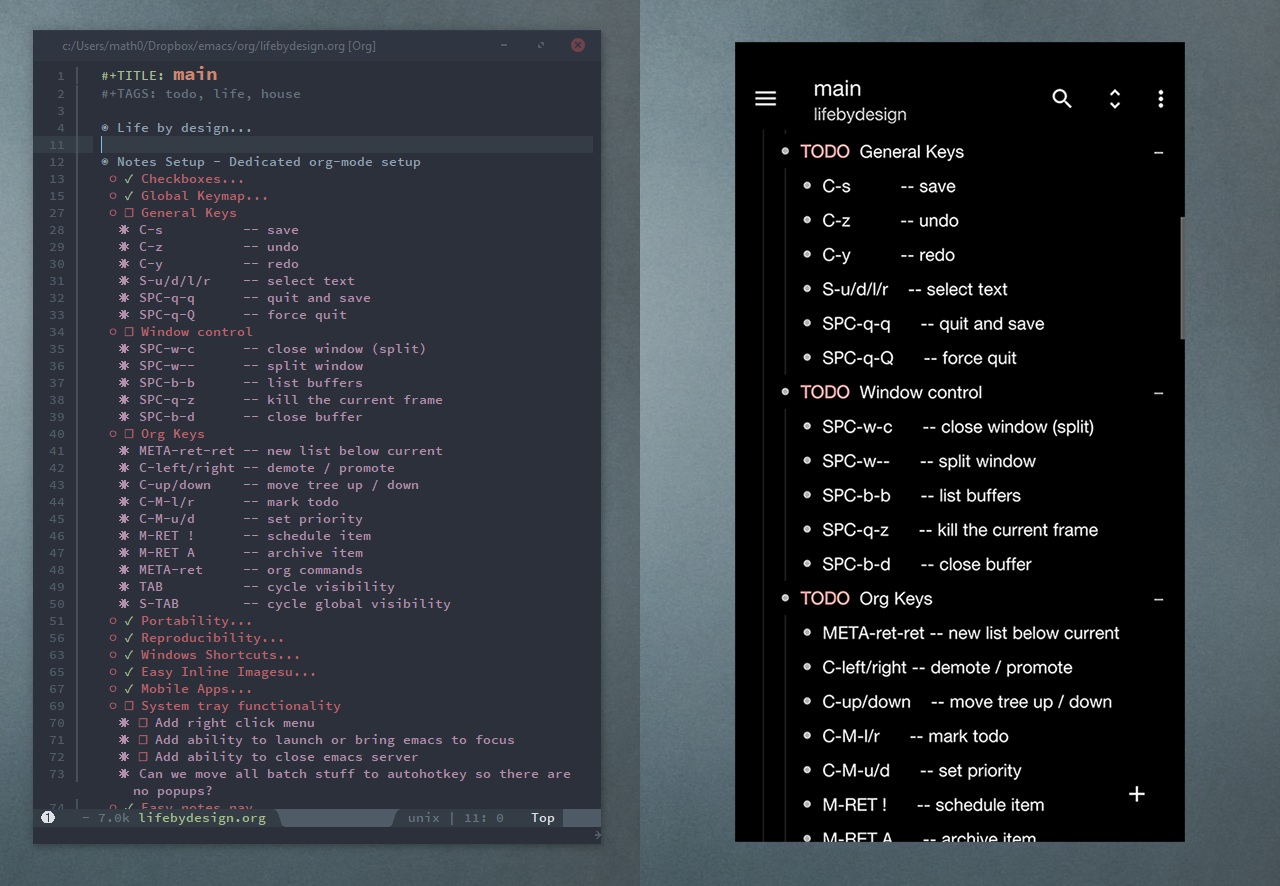
## Features
* Global hotkeys, system tray, and windows shortcuts for quick access to major org-mode functions
* Snipping tool workflow
* Sane-ish keybaord shortcuts
* Syncing with mobile through dropbox
## System Tray Usage
* Single click: Open emacs or bring to focus
* Double click: New orgmode note
* Right click for:
* Close emacs Server
* (META-F1) New Note
* (META-F2) New Note Clipboard
* (META-F3) New Note Snipping Tool
* (META-F4) Display Inbox
* (META-F5) Show org file index
* (META-F6) Show org agenda
## Keys
```
Global Hotkeys
* META-F1 -- New Note
* META-F2 -- New Note Clipboard
* META-F3 -- New Note Snipping Tool
* META-F4 -- Display Inbox
* META-F5 -- Show org file index
* META-F6 -- Show org agenda
General Keys
* C-s -- save
* C-z -- undo
* C-y -- redo
* S-u/d/l/r -- select text
* SPC-q-q -- quit and save
* SPC-q-Q -- force quit
Window control
* SPC-w-c -- close window (split)
* SPC-w-- -- split window
* SPC-b-b -- list buffers
* SPC-q-z -- kill the current frame
* SPC-b-d -- close buffer
Org-mode Keys
* META-ret-ret -- new list below current
* C-left/right -- demote / promote
* C-up/down -- move tree up / down
* C-M-l/r -- mark todo
* C-M-u/d -- set priority
* M-RET ! -- schedule item
* M-RET A -- archive item
* META-ret -- org commands
* TAB -- cycle visibility
* S-TAB -- cycle global visibility
```
## Install Instructions
### Pre-requisits
* https://addons.mozilla.org/en-US/firefox/addon/org-capture/
* https://chrome.google.com/webstore/detail/org-capture/kkkjlfejijcjgjllecmnejhogpbcigdc?hl=en
* http://getgreenshot.org/
* https://www.msys2.org/
* https://www.dropbox.com/
### Set windows %HOME% enviroment variable
* Instructions: https://www.computerhope.com/issues/ch000549.htm
* Add a new user variable HOME = `C:\Users\math0\Dropbox\emacs\home`
### Install Emacs, Spacemacs, git and this config
* From the MSYS2 command line:
```
pacman -S mingw-w64-x86_64-emacs
pacman -S git
git clone https://github.com/syl20bnr/spacemacs ~/.emacs.d
git clone https://github.com/math0ne/windows-emacs-org.git C:\Users\%USERNAME%\Dropbox\emacs
```
### Replace my username with your own
* My username (math0) will have to be replaced with your own across all files in the repo.
### Register context and org protocol
This allows you to use the windows context menu and to send to notes to emacs from other programs.
* Run org-protocol.reg
* Run org-context.reg
### _(Optional)_ Configure Greenshot
This allows you to snip screenshots directly into your emacs org setup.
* external command: org-mode: C:\Users\math0\Dropbox\emacs\new-note-snip-handler.bat "{0}"
* set export dir: C:\Users\math0\Dropbox\emacs\org\shots
* set: destination: org-mode
* set capture region: alt-printscreen
### _(Optional)_ Set programs to start on boot
* org-mode-tray.ahk
* greenshot
### _(Optional)_ Setup Orgzly on Android
* http://www.orgzly.com/
* Set it to sync with C:\Users\%USERNAME%\Dropbox\emacs\org