https://github.com/mayerwin/explorer-file-filter
Adds a Filter button to the VS Code Explorer toolbar — the file filter that should be there by default.
https://github.com/mayerwin/explorer-file-filter
explorer file-explorer filter productivity search visual-studio-code vscode vscode-extension
Last synced: about 15 hours ago
JSON representation
Adds a Filter button to the VS Code Explorer toolbar — the file filter that should be there by default.
- Host: GitHub
- URL: https://github.com/mayerwin/explorer-file-filter
- Owner: mayerwin
- License: mit
- Created: 2026-06-10T11:21:33.000Z (18 days ago)
- Default Branch: main
- Last Pushed: 2026-06-10T12:20:25.000Z (18 days ago)
- Last Synced: 2026-06-10T13:13:24.159Z (18 days ago)
- Topics: explorer, file-explorer, filter, productivity, search, visual-studio-code, vscode, vscode-extension
- Language: JavaScript
- Size: 89.8 KB
- Stars: 1
- Watchers: 0
- Forks: 0
- Open Issues: 0
-
Metadata Files:
- Readme: README.md
- Changelog: CHANGELOG.md
- License: LICENSE
Awesome Lists containing this project
README
# Explorer File Filter
A tiny VS Code extension that adds a **Filter** button to the Explorer toolbar — right next to *Collapse Folders* — so you can filter the file tree with one click instead of hunting for a keyboard shortcut.
It's the button that should have been there by default. Nothing to configure — it just works.
## What it does
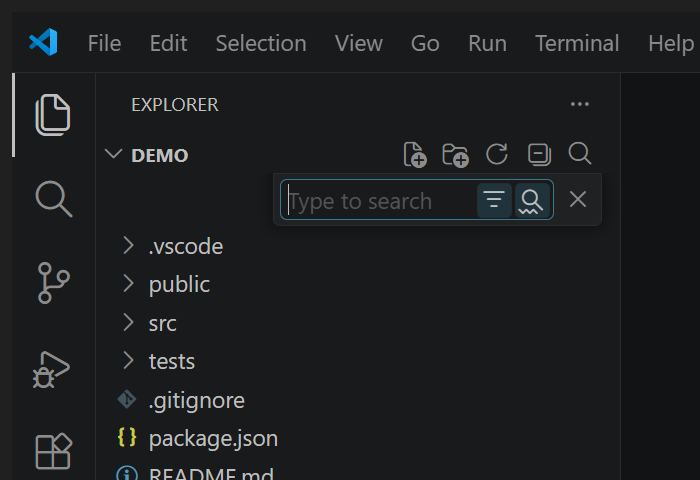
- Adds a 🔍 **Filter** button to the Explorer view title bar (after the *Collapse Folders* icon).
- Clicking it focuses the Explorer and opens its built-in filter, which **prunes the tree to matching files** as you type.
## How it works
**1. A new Filter button appears in the Explorer toolbar** — right after *Collapse Folders*:

**2. Click it and the filter opens instantly:**
**3. Type, and the tree narrows to matching files:**
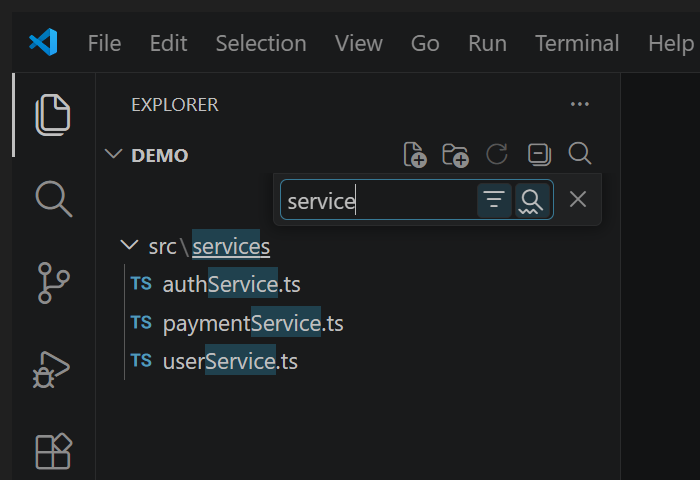
Press `Esc` to clear and close the filter.
## Why
VS Code can already filter the Explorer tree — when the Explorer is focused you can open the filter with `Ctrl+Alt+F` (Windows/Linux), `⌥⌘F` / `Cmd+Alt+F` (macOS), or `F3` — but that shortcut is hidden and many people never discover it. This extension surfaces the same filter as an obvious toolbar button, exactly where you'd expect to find it.
## Filter mode
So the filter **prunes** the tree (rather than only highlighting matches), the extension sets the built-in setting `workbench.list.defaultFindMode` to `filter` the first time it runs. This is a standard VS Code setting that applies to tree filters — you can change it back at any time in Settings.
## Troubleshooting
**The Filter button disappeared from the Explorer toolbar?**
VS Code lets you hide toolbar buttons (through the `…` menu, or by right-clicking them). If the Filter button gets hidden, re-checking it in the `…` menu only returns it to the overflow menu — it won't re-pin to the toolbar. To bring the icon back:
> **Right-click any Explorer toolbar icon (or the Explorer title bar) → "Reset Menu".**
That restores the default toolbar, Filter button included. This is standard VS Code behavior and applies to every toolbar button, not just this one.
## Install
- **Marketplace:** search for *Explorer File Filter* in the Extensions view, or install from the [Visual Studio Marketplace](https://marketplace.visualstudio.com/items?itemName=mayerwin.explorer-file-filter).
- **From a `.vsix`:** download the latest from [Releases](https://github.com/mayerwin/explorer-file-filter/releases) and run *Extensions: Install from VSIX…*.
## License
[MIT](LICENSE) © Erwin Mayer