https://github.com/mbientlab/metawear-usb-javascript
MetaWear Javascript SDK - USB
https://github.com/mbientlab/metawear-usb-javascript
Last synced: about 1 year ago
JSON representation
MetaWear Javascript SDK - USB
- Host: GitHub
- URL: https://github.com/mbientlab/metawear-usb-javascript
- Owner: mbientlab
- License: other
- Created: 2021-07-28T03:01:17.000Z (almost 5 years ago)
- Default Branch: main
- Last Pushed: 2021-12-13T00:18:53.000Z (over 4 years ago)
- Last Synced: 2025-02-15T10:32:52.666Z (over 1 year ago)
- Language: JavaScript
- Homepage:
- Size: 237 KB
- Stars: 0
- Watchers: 1
- Forks: 0
- Open Issues: 0
-
Metadata Files:
- Readme: README.md
- License: LICENSE.md
Awesome Lists containing this project
README
# MetaWear USB Driver for Javascript by MBIENTLAB
[](https://github.com/mbientlab/MetaWear-SDK-JavaScript)
[](https://github.com/mbientlab/MetaWear-SDK-JavaScript/blob/master/LICENSE.md)
[](https://github.com/mbientlab/MetaWear-SDK-JavaScript)
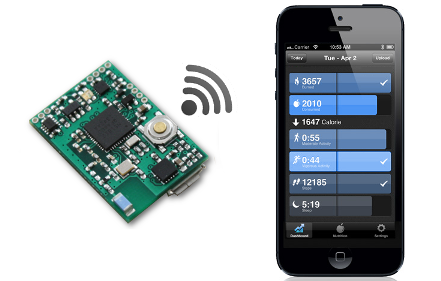
USB Driver to interact with the MetaWear board using Javascrip and a USB cable (NO BLUETOOTH).
### Overview
[MetaWear](https://mbientlab.com) is a complete development and production platform for wearable and connected device applications.
MetaWear features a number of sensors and peripherals all easily controllable over Bluetooth 4.0/5.0 Low Energy using this SDK, no firmware or hardware experience needed!
The MetaWear hardware comes pre-loaded with a wirelessly upgradeable firmware, so it keeps getting more powerful over time.
### Requirements
- [MetaWear board](https://mbientlab.com/store/)
- A linux machine with Bluetooth 4.0/5.0
### License
See the [License](https://github.com/mbientlab/MetaWear-SDK-JavaScript/blob/master/LICENSE.md).
### Support
Reach out to the [community](https://mbientlab.com/community/) if you encounter any problems, or just want to chat :)
## Getting Started
### Pre-Installation
#### Node and NPM
You need to make sure you have node and npm installed on your machine. Here's a quick rundown but you should google-fu proper steps for your specific OS and Node version.
We are currently supporting Node 10.23.0. Here are steps to install Node on Linux (Ubuntu). You have 3 options:
##### 1. You can install Node from the repositories:
```
sudo apt install nodejs
sudo apt install npm
nodejs -v
```
This will install the latest Node. You may need to alias nodejs to node.
##### 2. You can install Node from a PPA:
```
cd ~
curl -sL https://deb.nodesource.com/setup_10.x -o nodesource_setup.sh
sudo bash nodesource_setup.sh
sudo apt install nodejs
nodejs -v
```
This will install node v10.23.0 (latest stable release of node 10). You can replace the 10 with 12 if you want to install node 12. You may need to alias nodejs to node.
##### 3. Using NVM (preferred method):
```
curl -sL https://raw.githubusercontent.com/creationix/nvm/v0.35.3/install.sh -o install_nvm.sh
bash install_nvm.sh
source ~/.profile
nvm install 10.23.0
nvm use 10.23.0
node -v
```
Check the latest version of NVM before you install (it might be higher than v0.35.3). You can go online to learn how to use NVM to switch node versions on the fly.
##### Using sudo - a Warning
It is important to note that because our scripts use OS level Bluetooth libraries, it may be required to use sudo (or you will get a warning and the scripts won't work). You need to decide if you are ok to use sudo or not. If you are not, follow this [guide](https://github.com/sandeepmistry/noble#running-on-linux)
You also need to check that the version of node you are using is as expected for sudo:
```
$ node -v
v0.10.23
$ sudo node -v
v0.11.8-pre
```
As you can see here, the sudo node version is not the same as the current user version. Here's a [workaround](https://stackoverflow.com/questions/21215059/cant-use-nvm-from-root-or-sudo). You can google-fu more about this topic.
```
n=$(which node); \
n=${n%/bin/node}; \
chmod -R 755 $n/bin/*; \
sudo cp -r $n/{bin,lib,share} /usr/local
```
##### Using bluez, BLE Dongles, and Node
At the time of this release, Node 10 is supported. Node 12 is not currently supported as `node-ffi` and some other libraries have not been updated.
We have to use a custom fork of node-ffi until then (see package.json). Hopefully node-ffi will be updated to support Node 10 and Node 12 officially.
Bluez 5.50 works but 5.54 might not work. Here's a good [tutorial](https://learn.adafruit.com/install-bluez-on-the-raspberry-pi/installation)
If you are not using a BLE dongle, you need to make sure your system is working and supports Bluetooth 4.0 or later (Bluetooth low energy).
If you are using a BLE dongle, you need to make sure it's working. You can google-fu how to use tools such as `bluetoothctl`, `hciconfig`, `btmon` and more to confirm this.
This may or may not work on arm64. Works on armhf and raspberryPi 3 and RaspberryPi 4.
### Installation
You have three options for installation:
#### 1. Use NPM
The Mbient JavaScript SDK relies on [Noble](https://github.com/mbientlab/noble) and [Noble-Device](https://github.com/mbientlab/noble-device) for Bluetooth Low Energy communications.
You need to setup the relevant [prerequisites for Noble](https://github.com/mbientlab/noble#prerequisites) and then [install Noble](https://github.com/mbientlab/noble#install). Make sure you use our versions of these libraries as the original packages have been abandoned.
Then you can simply install the MetaWear package lib with NPM using the command line:
```
npm install metawear
```
This step takes a long time as all the packages are installed and the MetaWear CPP library will be compiled on your machine. You may or may not need to update.
```
npm update metawear
```
#### 2. Use our Repository
You can install the metawear package straight from our repository by using:
```
npm install https://github.com/mbientlab/MetaWear-SDK-JavaScript.git
```
This step takes a long time as all the packages are installed and the MetaWear CPP library will be compiled on your machine.
#### 3. Clone our Repository
We packaged everything for you already in this repository with the package.json file ready to be installed with npm.
Make sure that when you clone this repository, that you clone the submodule with it.
```
git clone --recurse-submodules https://github.com/mbientlab/MetaWear-SDK-JavaScript.git
```
Then you can simply install all the dependencies you need by building the npm project with command line:
```javascript
npm install
```
This step takes a long time as all the packages are installed and the MetaWear CPP library will be compiled as well.
#### Errors and Issues
If you have any issues with the npm installation, make sure you are using the correct version of node, npm, nvm (if used), bluez, and that your machine is bluetoothLE compliant. Follow the errors and correct them as indicated by the npm output log.
If you have any issues compiling the `MetaWear-CPP-SDK` (this is a post script that runs at the end of npm install), simply build it from source.
If you cloned the repo:
```
cd MetaWear-SDK-Cpp/
make
```
If you ran an npm command:
```
cd node_modules/
cd MetaWear-SDK-Cpp/
make
```
#### Running your first Script
Once the install is successful, you can run our example scripts in the example folder (see the example folder in our repository):
```javascript
node led.js
```
Please note that depending on your node and npm installation, you may need to run sudo:
```javascript
sudo node led.js
```
Please note that the examples in our examples folder will use the local metawear libraries (as this repository is meant for development):
```javascript
var MetaWear = require('../index')
```
This is using the local metawear code.
Simply change it to this:
```javascript
var MetaWear = require('metawear');
```
This would be using the metawear code in your local npm `node_modules` directory as installed with npn.
#### Notes
You should familiarize yourself with this README and our tutorials since there a few limitiations and other gotchas spelled out, such as the maximum number of simultaneous Bluetooth connections.
### Usage
Require the metawear package
```javascript
var MetaWear = require('metawear');
```
Discover the first MetaWear device seen
```javascript
MetaWear.discover(function (device) { ... }
```
Or a specific MAC address
```javascript
MetaWear.discoverByAddress('cb:7d:c5:b0:20:8f', function(device) { ... }
```
There are other options too, documented in [Noble Device](https://github.com/mbientlab/noble-device#discovery-api)
After that, you must connect to the device
```javascript
device.connectAndSetUp(function (error) { ... }
```
At this point you can call any of the MetaWear API's, for example, you can blink the LED green
```javascript
var pattern = new MetaWear.LedPattern();
MetaWear.mbl_mw_led_load_p_pattern(pattern.ref(), MetaWear.LedPreset.BLINK);
MetaWear.mbl_mw_led_write_pattern(device.board, pattern.ref(), MetaWear.LedColor.GREEN);
MetaWear.mbl_mw_led_play(device.board);
```
### Example
```javascript
var MetaWear = require('metawear');
MetaWear.discover(function (device) {
device.connectAndSetUp(function (error) {
var pattern = new MetaWear.LedPattern();
MetaWear.mbl_mw_led_load_preset_pattern(pattern.ref(), MetaWear.LedPreset.BLINK);
MetaWear.mbl_mw_led_write_pattern(device.board, pattern.ref(), MetaWear.LedColor.GREEN);
MetaWear.mbl_mw_led_play(device.board);
// After 5 seconds we reset the board to clear the LED, when we receive
// a disconnect notice we know the reset is complete, so exit the program
setTimeout(function () {
device.on('disconnect', function () {
process.exit(0);
});
MetaWear.mbl_mw_debug_reset(device.board);
}, 5000);
});
});
```
### Tutorials
Tutorials can be found [here](https://mbientlab.com/tutorials/).