https://github.com/meshtastic/esp8266-oled-ssd1306
Driver for the SSD1306 and SH1106 based 128x64, 128x32, 64x48 pixel OLED display running on ESP8266/ESP32
https://github.com/meshtastic/esp8266-oled-ssd1306
Last synced: 9 months ago
JSON representation
Driver for the SSD1306 and SH1106 based 128x64, 128x32, 64x48 pixel OLED display running on ESP8266/ESP32
- Host: GitHub
- URL: https://github.com/meshtastic/esp8266-oled-ssd1306
- Owner: meshtastic
- License: other
- Fork: true (ThingPulse/esp8266-oled-ssd1306)
- Created: 2020-02-20T02:31:54.000Z (over 6 years ago)
- Default Branch: master
- Last Pushed: 2025-09-13T21:06:28.000Z (10 months ago)
- Last Synced: 2025-10-02T09:36:10.348Z (9 months ago)
- Language: C++
- Homepage: https://thingpulse.com
- Size: 1.5 MB
- Stars: 10
- Watchers: 2
- Forks: 17
- Open Issues: 0
-
Metadata Files:
- Readme: README.md
- Contributing: CONTRIBUTING.md
- License: license
Awesome Lists containing this project
README
# ThingPulse OLED SSD1306 (ESP8266/ESP32/Mbed-OS)
[](https://registry.platformio.org/libraries/thingpulse/ESP8266%20and%20ESP32%20OLED%20driver%20for%20SSD1306%20displays)
[](https://github.com/ThingPulse/esp8266-oled-ssd1306/actions)
This is a driver for SSD1306 128x64, 128x32, 64x48 and 64x32 OLED displays running on the Arduino/ESP8266 & ESP32 and mbed-os platforms.
Can be used with either the I2C or SPI version of the display.
This library drives the OLED display included in the [ThingPulse IoT starter kit](https://thingpulse.com/product/esp8266-iot-electronics-starter-kit-weatherstation-planespotter-worldclock/) aka classic kit aka weather station kit.
[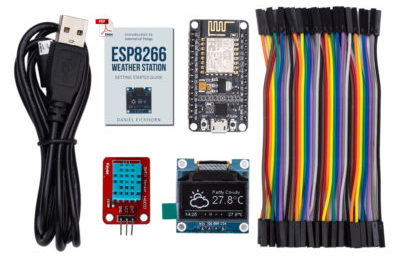](https://thingpulse.com/product/esp8266-iot-electronics-starter-kit-weatherstation-planespotter-worldclock/)
You can either download this library as a zip file and unpack it to your Arduino/libraries folder or find it in the Arduino library manager under "ESP8266 and ESP32 Oled Driver for SSD1306 display". For mbed-os a copy of the files are available as an mbed-os library.
It is also available as a [PlatformIO library](https://platformio.org/lib/show/2978/ESP8266%20and%20ESP32%20OLED%20driver%20for%20SSD1306%20displays/examples). Just execute the following command:
```
platformio lib install 2978
```
## Service level promise

This is a ThingPulse prime project. See our open-source commitment declaration for what this means.
## Credits
This library has initially been written by [Daniel Eichhorn](https://github.com/squix78). Many thanks go to [Fabrice Weinberg](https://github.com/FWeinb) for optimizing and refactoring many aspects of the library. Also many thanks to the many committers who helped to add new features and who fixed many bugs. Mbed-OS support and other improvements were contributed by [Helmut Tschemernjak](https://github.com/helmut64).
The init sequence for the SSD1306 was inspired by Adafruit's library for the same display.
## mbed-os
This library has been adopted to support the ARM mbed-os environment. A copy of this library is available in mbed-os under the name OLED_SSD1306 by Helmut Tschemernjak. An alternate installation option is to copy the following files into your mbed-os project: OLEDDisplay.cpp OLEDDisplay.h OLEDDisplayFonts.h OLEDDisplayUi.cpp OLEDDisplayUi.h SSD1306I2C.h
## Usage
Check out the examples folder for a few comprehensive demonstrations how to use the library. Also check out the [ESP8266 Weather Station](https://github.com/ThingPulse/esp8266-weather-station) library which uses the OLED library to display beautiful weather information.
## Upgrade
The API changed a lot with the 3.0 release. If you were using this library with older versions please have a look at the [Upgrade Guide](UPGRADE-3.0.md).
Going from 3.x version to 4.0 a lot of internals changed and compatibility for more displays was added. Please read the [Upgrade Guide](UPGRADE-4.0.md).
## Features
* Draw pixels at given coordinates
* Draw lines from given coordinates to given coordinates
* Draw or fill a rectangle with given dimensions
* Draw Text at given coordinates:
* Define Alignment: Left, Right and Center
* Set the Fontface you want to use (see section Fonts below)
* Limit the width of the text by an amount of pixels. Before this widths will be reached, the renderer will wrap the text to a new line if possible
* Display content in automatically side scrolling carousel
* Define transition cycles
* Define how long one frame will be displayed
* Draw the different frames in callback methods
* One indicator per frame will be automatically displayed. The active frame will be displayed from inactive once
## Fonts
Fonts are defined in a proprietary but open format. You can create new font files by choosing from a given list
of open sourced Fonts from this web app: http://oleddisplay.squix.ch
Choose the font family, style and size, check the preview image and if you like what you see click the "Create" button. This will create the font array in a text area form where you can copy and paste it into a new or existing header file.

## Hardware Abstraction
The library supports different protocols to access the OLED display. Currently there is support for I2C using the built in Wire.h library, I2C by using the much faster [BRZO I2C library](https://github.com/pasko-zh/brzo_i2c) written in assembler and it also supports displays which come with the SPI interface.
### I2C with Wire.h
```C++
#include
#include "SSD1306Wire.h"
// for 128x64 displays:
SSD1306Wire display(0x3c, SDA, SCL); // ADDRESS, SDA, SCL
// for 128x32 displays:
// SSD1306Wire display(0x3c, SDA, SCL, GEOMETRY_128_32); // ADDRESS, SDA, SCL, GEOMETRY_128_32 (or 128_64)
// for using 2nd Hardware I2C (if available)
// SSD1306Wire(0x3c, SDA, SCL, GEOMETRY_128_64, I2C_TWO); //default value is I2C_ONE if not mentioned
// By default SD1306Wire set I2C frequency to 700000, you can use set either another frequency or skip setting the frequency by providing -1 value
// SSD1306Wire(0x3c, SDA, SCL, GEOMETRY_128_64, I2C_ONE, 400000); //set I2C frequency to 400kHz
// SSD1306Wire(0x3c, SDA, SCL, GEOMETRY_128_64, I2C_ONE, -1); //skip setting the I2C bus frequency
```
for a SH1106:
```C++
#include
#include "SH1106Wire.h"
SH1106Wire display(0x3c, SDA, SCL); // ADDRESS, SDA, SCL
// By default SH1106Wire set I2C frequency to 700000, you can use set either another frequency or skip setting the frequency by providing -1 value
// SH1106Wire(0x3c, SDA, SCL, GEOMETRY_128_64, I2C_ONE, 400000); //set I2C frequency to 400kHz
// SH1106Wire(0x3c, SDA, SCL, GEOMETRY_128_64, I2C_ONE, -1); //skip setting the I2C bus frequency
```
### I2C with brzo_i2c
```C++
#include
#include "SSD1306Brzo.h"
SSD1306Brzo display(0x3c, SDA, SCL); // ADDRESS, SDA, SCL
```
or for the SH1106:
```C++
#include
#include "SH1106Brzo.h"
SH1106Brzo display(0x3c, SDA, SCL); // ADDRESS, SDA, SCL
```
### SPI
```C++
#include
#include "SSD1306Spi.h"
SSD1306Spi display(D0, D2, D8); // RES, DC, CS
```
or for the SH1106:
```C++
#include
#include "SH1106Spi.h"
SH1106Spi display(D0, D2, CS); // RES, DC, CS
```
In case the CS pin is not used (hard wired to ground), pass CS as -1.
## API
### Display Control
```C++
// Initialize the display
void init();
// Free the memory used by the display
void end();
// Cycle through the initialization
void resetDisplay(void);
// Connect again to the display through I2C
void reconnect(void);
// Turn the display on
void displayOn(void);
// Turn the display offs
void displayOff(void);
// Clear the local pixel buffer
void clear(void);
// Write the buffer to the display memory
void display(void);
// Inverted display mode
void invertDisplay(void);
// Normal display mode
void normalDisplay(void);
// Set display contrast
// really low brightness & contrast: contrast = 10, precharge = 5, comdetect = 0
// normal brightness & contrast: contrast = 100
void setContrast(uint8_t contrast, uint8_t precharge = 241, uint8_t comdetect = 64);
// Convenience method to access
void setBrightness(uint8_t);
// Turn the display upside down
void flipScreenVertically();
// Draw the screen mirrored
void mirrorScreen();
```
## Pixel drawing
```C++
/* Drawing functions */
// Sets the color of all pixel operations
// color : BLACK, WHITE, INVERSE
void setColor(OLEDDISPLAY_COLOR color);
// Draw a pixel at given position
void setPixel(int16_t x, int16_t y);
// Draw a line from position 0 to position 1
void drawLine(int16_t x0, int16_t y0, int16_t x1, int16_t y1);
// Draw the border of a rectangle at the given location
void drawRect(int16_t x, int16_t y, int16_t width, int16_t height);
// Fill the rectangle
void fillRect(int16_t x, int16_t y, int16_t width, int16_t height);
// Draw the border of a circle
void drawCircle(int16_t x, int16_t y, int16_t radius);
// Fill circle
void fillCircle(int16_t x, int16_t y, int16_t radius);
// Draw an empty triangle i.e. only the outline
void drawTriangle(int16_t x0, int16_t y0, int16_t x1, int16_t y1, int16_t x2, int16_t y2);
// Draw a solid triangle i.e. filled
void fillTriangle(int16_t x0, int16_t y0, int16_t x1, int16_t y1, int16_t x2, int16_t y2);
// Draw a line horizontally
void drawHorizontalLine(int16_t x, int16_t y, int16_t length);
// Draw a lin vertically
void drawVerticalLine(int16_t x, int16_t y, int16_t length);
// Draws a rounded progress bar with the outer dimensions given by width and height. Progress is
// a unsigned byte value between 0 and 100
void drawProgressBar(uint16_t x, uint16_t y, uint16_t width, uint16_t height, uint8_t progress);
// Draw a bitmap in the internal image format
void drawFastImage(int16_t x, int16_t y, int16_t width, int16_t height, const uint8_t *image);
// Draw a XBM
void drawXbm(int16_t x, int16_t y, int16_t width, int16_t height, const uint8_t *xbm);
```
## Text operations
``` C++
// Draws a string at the given location, returns how many chars have been written
uint16_t drawString(int16_t x, int16_t y, const String &text);
// Draws a String with a maximum width at the given location.
// If the given String is wider than the specified width
// The text will be wrapped to the next line at a space or dash
// returns 0 if everything fits on the screen or the numbers of characters in the
// first line if not
uint16_t drawStringMaxWidth(int16_t x, int16_t y, uint16_t maxLineWidth, const String &text);
// Returns the width of the const char* with the current
// font settings
uint16_t getStringWidth(const char* text, uint16_t length, bool utf8 = false);
// Convencience method for the const char version
uint16_t getStringWidth(const String &text);
// Specifies relative to which anchor point
// the text is rendered. Available constants:
// TEXT_ALIGN_LEFT, TEXT_ALIGN_CENTER, TEXT_ALIGN_RIGHT, TEXT_ALIGN_CENTER_BOTH
void setTextAlignment(OLEDDISPLAY_TEXT_ALIGNMENT textAlignment);
// Sets the current font. Available default fonts
// ArialMT_Plain_10, ArialMT_Plain_16, ArialMT_Plain_24
// Or create one with the font tool at http://oleddisplay.squix.ch
void setFont(const uint8_t* fontData);
```
## Ui Library (OLEDDisplayUi)
The Ui Library is used to provide a basic set of user interface elements called `Frames` and `Overlays`. A `Frame` is used to provide
information to the user. The default behaviour is to display a `Frame` for a defined time and than move to the next `Frame`. The library also
provides an `Indicator` element that will be updated accordingly. An `Overlay` on the other hand is a piece of information (e.g. a clock) that
is always displayed at the same position.
```C++
/**
* Initialise the display
*/
void init();
/**
* Configure the internal used target FPS
*/
void setTargetFPS(uint8_t fps);
/**
* Enable automatic transition to next frame after the some time can be configured with
* `setTimePerFrame` and `setTimePerTransition`.
*/
void enableAutoTransition();
/**
* Disable automatic transition to next frame.
*/
void disableAutoTransition();
/**
* Set the direction if the automatic transitioning
*/
void setAutoTransitionForwards();
void setAutoTransitionBackwards();
/**
* Set the approx. time a frame is displayed
*/
void setTimePerFrame(uint16_t time);
/**
* Set the approx. time a transition will take
*/
void setTimePerTransition(uint16_t time);
/**
* Draw the indicator.
* This is the default state for all frames if
* the indicator was hidden on the previous frame
* it will be slided in.
*/
void enableIndicator();
/**
* Don't draw the indicator.
* This will slide out the indicator
* when transitioning to the next frame.
*/
void disableIndicator();
/**
* Enable drawing of all indicators.
*/
void enableAllIndicators();
/**
* Disable drawing of all indicators.
*/
void disableAllIndicators();
/**
* Set the position of the indicator bar.
*/
void setIndicatorPosition(IndicatorPosition pos);
/**
* Set the direction of the indicator bar. Defining the order of frames ASCENDING / DESCENDING
*/
void setIndicatorDirection(IndicatorDirection dir);
/**
* Set the symbol to indicate an active frame in the indicator bar.
*/
void setActiveSymbol(const uint8_t* symbol);
/**
* Set the symbol to indicate an inactive frame in the indicator bar.
*/
void setInactiveSymbol(const uint8_t* symbol);
/**
* Configure what animation is used to transition from one frame to another
*/
void setFrameAnimation(AnimationDirection dir);
/**
* Add frame drawing functions
*/
void setFrames(FrameCallback* frameFunctions, uint8_t frameCount);
/**
* Add overlays drawing functions that are draw independent of the Frames
*/
void setOverlays(OverlayCallback* overlayFunctions, uint8_t overlayCount);
/**
* Set the function that will draw each step
* in the loading animation
*/
void setLoadingDrawFunction(LoadingDrawFunction loadingDrawFunction);
/**
* Run the loading process
*/
void runLoadingProcess(LoadingStage* stages, uint8_t stagesCount);
// Manual control
void nextFrame();
void previousFrame();
/**
* Switch without transition to frame `frame`.
*/
void switchToFrame(uint8_t frame);
/**
* Transition to frame `frame`. When the `frame` number is bigger than the current
* frame the forward animation will be used, otherwise the backwards animation is used.
*/
void transitionToFrame(uint8_t frame);
// State Info
OLEDDisplayUiState* getUiState();
// This needs to be called in the main loop
// the returned value is the remaining time (in ms)
// you have to draw after drawing to keep the frame budget.
int8_t update();
```
## Creating and using XBM bitmaps
If you want to display your own images with this library, the best way to do this is using a bitmap.
There are two options to convert an image to a compatible bitmap:
1. **Using Gimp.**
In this case exporting the bitmap in an 1-bit XBM format is sufficient.
2. **Using a converter website.**
You could also use online converter services like e.g. [https://javl.github.io/image2cpp/](https://javl.github.io/image2cpp/). The uploaded image should have the same dimension as the screen (e.g. 128x64). The following output settings should be set:
- Draw Mode: Horizontal - 1 bit per pixel
- Swap bits in byte: swap checkbox should be checked.
The resulting bitmap can be put into a header file:
```C++
const unsigned char epd_example [] PROGMEM = {
0x00, 0x00, 0x00, 0x00, 0x00, 0x00, ...
...
};
```
Subsequently, it can be used like this:
```C++
display.clear();
display.drawXbm(0, 0, 128, 64, epd_example); // assuming your bitmap is 128x64
display.display();
```
## Example: SSD1306Demo
### Frame 1

This frame shows three things:
* How to draw an XMB image
* How to draw static text which is not moved by the frame transition
* The active/inactive frame indicators
### Frame 2

Currently there are one fontface with three sizes included in the library: Arial 10, 16 and 24. Once the converter is published you will be able to convert any ttf font into the used format.
### Frame 3

This frame demonstrates the text alignment. The coordinates in the frame show relative to which position the texts have been rendered.
### Frame 4

This shows how to use define a maximum width after which the driver automatically wraps a word to the next line. This comes in very handy if you have longer texts to display.
### SPI version

This shows the code working on the SPI version of the display. See demo code for ESP8266 pins used.
## Selection of projects using this library
* [QRCode ESP8266](https://github.com/anunpanya/ESP8266_QRcode) (by @anunpanya)
* [Scan I2C](https://github.com/hallard/Scan-I2C-WiFi) (by @hallard)
* [ThingPulse Weather Station](https://github.com/ThingPulse/esp8266-weather-station)
* [Meshtastic](https://www.meshtastic.org/) - an open source GPS communicator mesh radio
* Yours?