https://github.com/michaelcade/youtube-watch-later-mess
https://github.com/michaelcade/youtube-watch-later-mess
Last synced: over 1 year ago
JSON representation
- Host: GitHub
- URL: https://github.com/michaelcade/youtube-watch-later-mess
- Owner: MichaelCade
- Created: 2025-01-03T13:56:54.000Z (over 1 year ago)
- Default Branch: main
- Last Pushed: 2025-01-03T15:01:34.000Z (over 1 year ago)
- Last Synced: 2025-04-15T00:55:56.232Z (over 1 year ago)
- Language: Go
- Size: 13.7 KB
- Stars: 4
- Watchers: 1
- Forks: 0
- Open Issues: 0
-
Metadata Files:
- Readme: readme.md
Awesome Lists containing this project
README
# Sorting an overwhelming YouTube Watch Later Playlist
## Purpose
I have an overwhelming number of catch up, watch later videos in my YouTube account that I cannot seem to get to with all the new content being created. I could manually go through these and add to newly created playlists, all from within the website but where is the fun in that.
My thinking is that if I can take my 300+ videos and organise them, then maybe I can choose the relevant playlist to watch when I want vs forgetting content that has been added during the year.
## Challenges
My initial thinking was this should be easy, use the YouTube API to get the list of videos from the Watch Later playlist and go to work on creating new playlists and adding these videos to. But this is not the case with the v3 YouTube Data API... I will let you google search this and prove me wrong. Which added an additional step to my process below, where I have to use the browser to grab this information.
## Steps
This is a two step process, we need to gather our list of youtube watch later videos and then we can use our golang app to sort things.
- Extracting and Managing YouTube "Watch Later" Playlist Videos
- Create the App and OAuth on Your Google Cloud Account for API Access
- Run our Golang application to sort our mess of a playlist
- I have also included a delete.go which is a way to delete playlists, when I created them over different iterations and I wanted to test or had made mistakes. `go run delete.go`
I have created my own catagories based on my topics and videos but yours will likely be different.
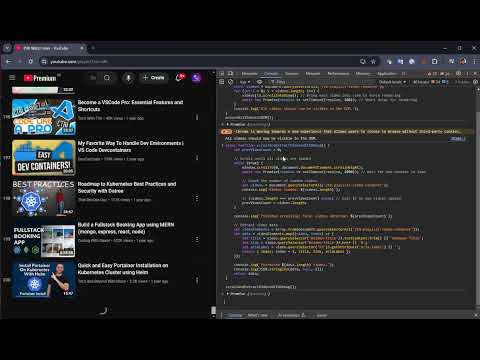
## Extracting and Managing YouTube "Watch Later" Playlist Videos
This guide explains how to extract video metadata from your YouTube "Watch Later" playlist using Chrome DevTools. The data is saved in JSON format and can be used to manage and categorize videos more effectively.
[](https://youtu.be/csLvKRO5z3E)
---
## **Prerequisites**
1. A Google Chrome browser.
2. Basic knowledge of JavaScript and Chrome DevTools.
3. Access to your "Watch Later" playlist on YouTube.
4. A Google Cloud account with access to create OAuth credentials.
---
## **Steps to Extract Video Metadata**
### 1. **Open Your Watch Later Playlist**
- Navigate to the [YouTube Watch Later playlist](https://www.youtube.com/playlist?list=WL) in Chrome.
- Ensure you're logged into the account containing the playlist.
### 2. **Open Chrome DevTools**
- Open DevTools by pressing `Ctrl+Shift+I` (Windows/Linux) or `Cmd+Option+I` (Mac).
- Navigate to the **Console** tab.
### 3. **Scroll Through the Playlist**
- Paste the following script into the console and press Enter:
```javascript
async function scrollAndExtractVideosWithDebug() {
let prevVideoCount = 0;
// Scroll until all videos are loaded
while (true) {
window.scrollTo(0, document.documentElement.scrollHeight);
await new Promise(resolve => setTimeout(resolve, 2000)); // Wait for new content to load
// Count the number of loaded videos
let videos = document.querySelectorAll('ytd-playlist-video-renderer');
console.log(`Videos loaded: ${videos.length}`);
if (videos.length === prevVideoCount) break; // Exit if no new videos loaded
prevVideoCount = videos.length;
}
console.log(`Finished scrolling! Total videos detected: ${prevVideoCount}`);
// Extract video data
let videoElements = Array.from(document.querySelectorAll('ytd-playlist-video-renderer'));
let data = videoElements.map((video, index) => {
let title = video.querySelector('#video-title')?.textContent.trim() || 'Unknown Title';
let link = video.querySelector('#video-title')?.href || '#';
let ariaLabel = video.querySelector('h3')?.getAttribute('aria-label') || '';
return { index: index + 1, title, link, ariaLabel };
});
console.log(`Extracted ${data.length} videos.`);
console.log(JSON.stringify(data, null, 2));
return data;
}
scrollAndExtractVideosWithDebug();
```
### 4. **Save the Extracted Data**
- Once the script completes, it will output the extracted video data as a JSON array in the console.
- Copy the JSON data from the console and save it to a file, e.g., scrape.json.
---
## **Sample JSON Output**
The extracted data will look like this:
```json
[
{
"index": 1,
"title": "MySQL Tutorial",
"link": "https://www.youtube.com/watch?v=yPu6qV5byu4&list=WL&index=1&t=8s",
"ariaLabel": "MySQL Tutorial by Derek Banas 1,743,455 views 10 years ago 41 minutes"
},
{
"index": 2,
"title": "Kubernetes Crash Course",
"link": "https://www.youtube.com/watch?v=s_o8dwzRlu4&list=WL&index=2&t=0s",
"ariaLabel": "Kubernetes Crash Course by TechWorld with Nana 400,000 views 3 years ago 25 minutes"
}
]
```
---
## Create the App and OAuth on Your Google Cloud Account for API Access
### 1. **Create a Project in Google Cloud Console**
- Go to the [Google Cloud Console](https://console.cloud.google.com/).
- Click on the project dropdown and select "New Project".
- Enter a project name and click "Create".
### 2. **Enable YouTube Data API v3**
- In the Google Cloud Console, navigate to "APIs & Services" > "Library".
- Search for "YouTube Data API v3" and click on it.
- Click "Enable".
### 3. **Create OAuth 2.0 Credentials**
- In the Google Cloud Console, navigate to "APIs & Services" > "Credentials".
- Click "Create Credentials" and select "OAuth 2.0 Client IDs".
- Configure the consent screen if prompted.
- Select "Desktop app" as the application type.
- Click "Create" and download the credentials.json file.
### 4. **Set Up OAuth 2.0 Client**
- Place the credentials.json file in your project directory.
### 5. **Run the Go Program**
Ensure you have the following files in your workspace:
- main.go
- credentials.json
- token.json (if you have previously authenticated)
Open a terminal and navigate to your workspace directory.
Run the following command to execute the Go program:
```sh
go run main.go
```
### 6. **Authenticate and Authorize**
- The first time you run the program, it will prompt you to authenticate and authorize access to your YouTube account.
- Follow the instructions to complete the authentication process.
### 7. **Check the Output**
- The program will read the scrape.json file, categorize the videos, and create new playlists on your YouTube account.
- If successful, you will see messages indicating the creation of playlists and the addition of videos.
### 8. **Handle Quota Errors**
- If you encounter a `quotaExceeded` error, you may need to wait for your quota to reset or handle the error gracefully by implementing a retry mechanism.
By following these steps, you can effectively manage and categorize your YouTube "Watch Later" playlist videos.
## Extras
When you run the code in the directory you will have a new `categorized_videos.json` file which will have all of the videos listed... If you have only added the scrape.json and have not done the OAuth steps then at least you could see a level of sorting.