https://github.com/minhaskamal/highlightedtextdetector
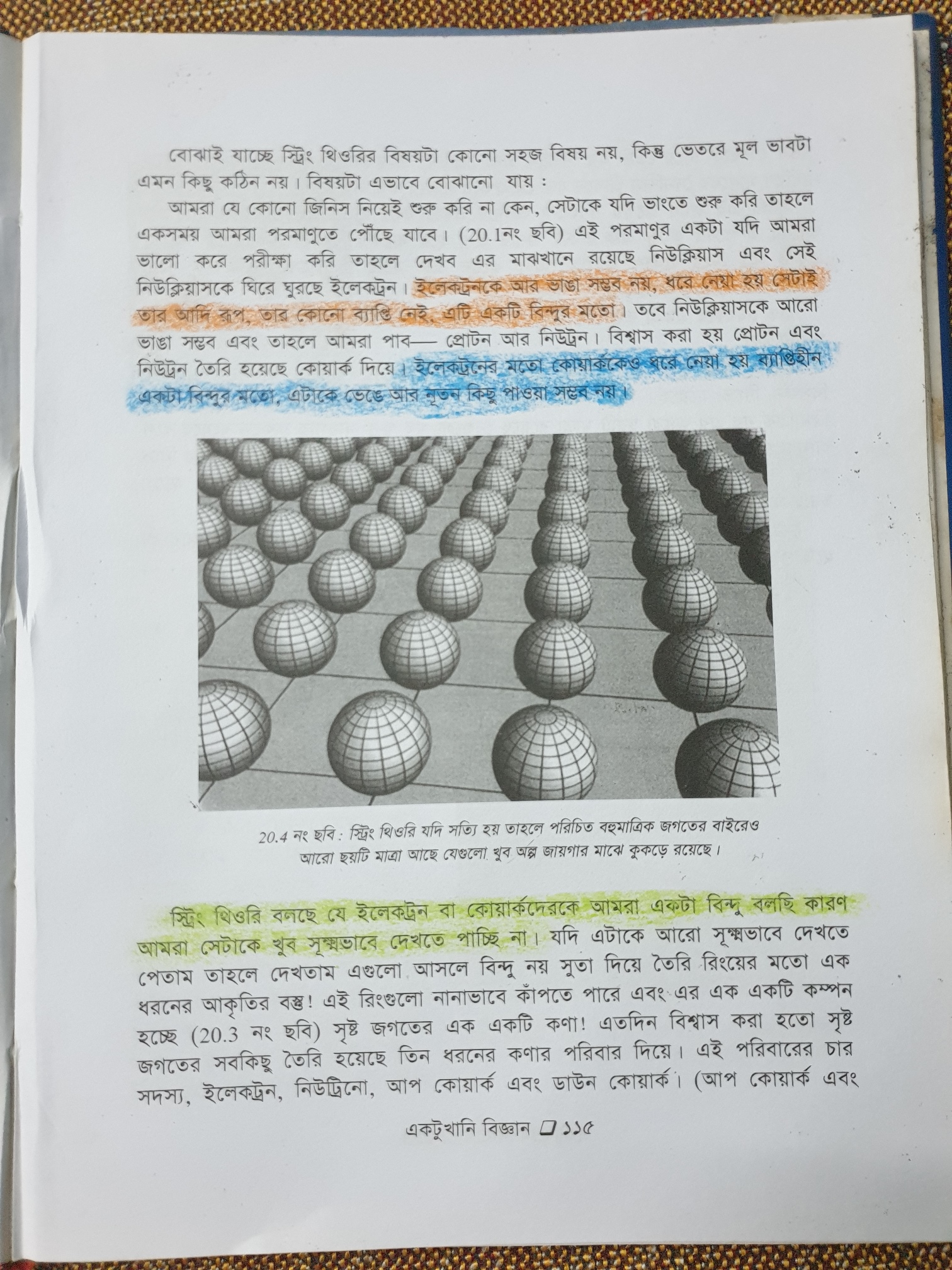
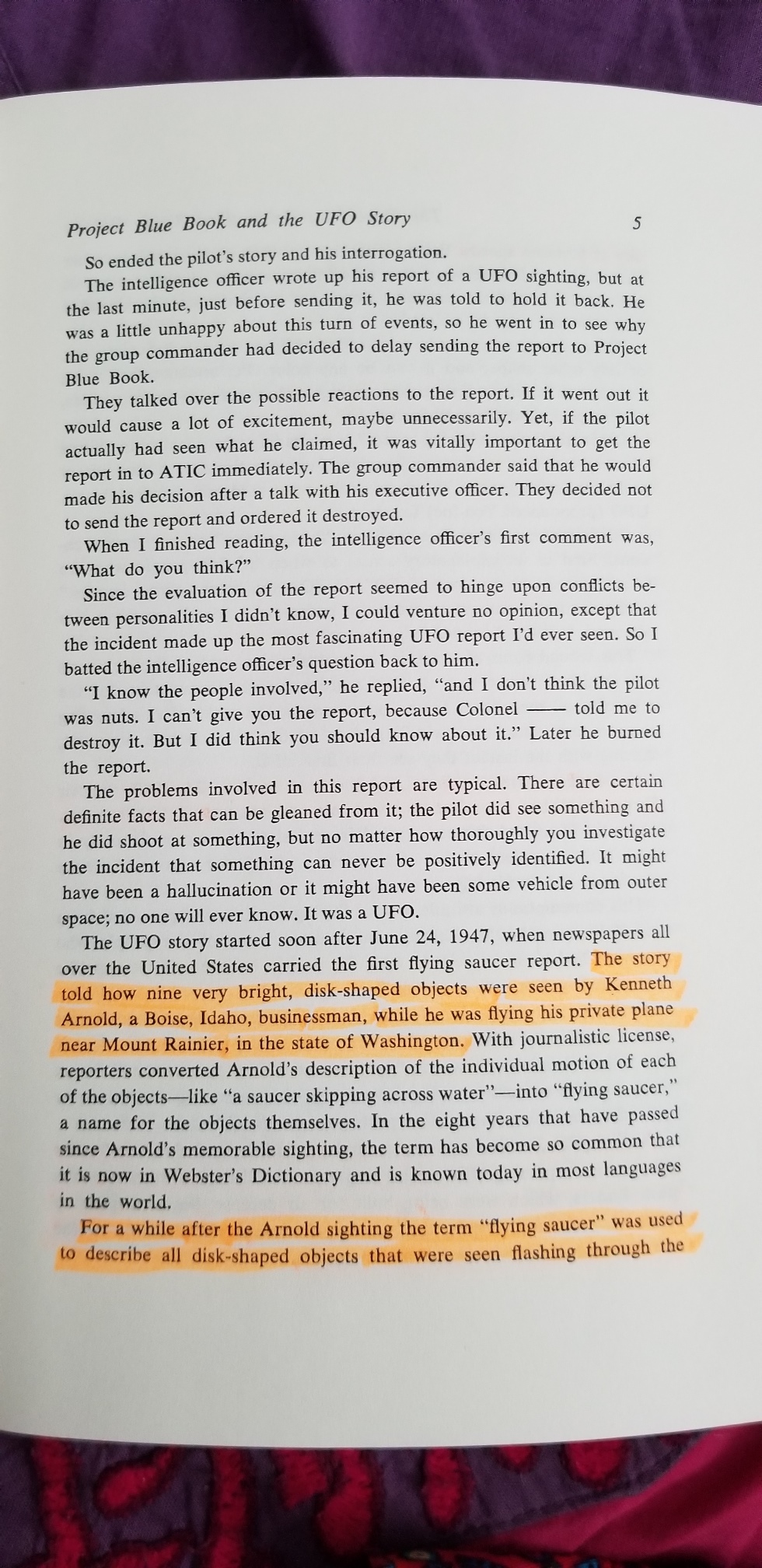
Extracts highlighted text from the image of a page
https://github.com/minhaskamal/highlightedtextdetector
google-vision image-processing ocr opencv python text-detection
Last synced: about 1 year ago
JSON representation
Extracts highlighted text from the image of a page
- Host: GitHub
- URL: https://github.com/minhaskamal/highlightedtextdetector
- Owner: MinhasKamal
- License: mit
- Created: 2021-03-21T18:17:55.000Z (over 5 years ago)
- Default Branch: main
- Last Pushed: 2022-09-04T00:15:43.000Z (almost 4 years ago)
- Last Synced: 2025-03-25T14:38:59.547Z (over 1 year ago)
- Topics: google-vision, image-processing, ocr, opencv, python, text-detection
- Language: Python
- Homepage:
- Size: 5.19 MB
- Stars: 7
- Watchers: 3
- Forks: 1
- Open Issues: 0
-
Metadata Files:
- Readme: README.md
- License: LICENSE
Awesome Lists containing this project
README
# HighlightedTextDetector
### Extracts highlighted text from the image of a page
Process an image of a page taken by a handheld device to detect the highlighted portion of the text, and then running OCR for extracting the highlighted text.
## Running The Project
1. Clone the project from GitHub and import (File > Open) it into PyCharm.
2. Now install (File > Settings > Project > Python Interpreter > [+] button) following modules into the project: opencv-python, google-cloud-vision, numpy, and Pillow. You may also use commands:
```
pip install opencv-python
pip install google-cloud-vision
pip install numpy
pip install Pillow
```
3. Setup Google Vision Server:
a. Create Project: Login into your Google account > Open the [Google-Cloud](https://console.cloud.google.com/projectselector2/home/dashboard) page > Create a project with name- 'HighlightedTextDetector' (you may give any name).
b. Enable Vision API for The Project & Download Credentials: Go to [Vision-Api](https://console.cloud.google.com/flows/enableapi?apiid=vision.googleapis.com) page > Select your project 'HighlightedTextDetector' > Continue > Are you planning to use this API with App Engine: No > What Credentials do I need? > Service account name: HighlightedTextDetector > Role: Owner > Key type: JSON > Continue > Save (Now, place this JSON file somewhere safe; we will need it for authentication)
c. Billing Account (Free): Open [Billing Page](https://console.cloud.google.com/billing) > Add Billing Account > Enter billing account details > Continue > Enter credit-card info > Submit and Enable Billing
For details, visit [the official guide](https://cloud.google.com/vision/docs/quickstart#set_up_a_google_cloud_vision_api_project).
4. Open main.py > update the variable `GOOGLE_VISION_API_KEY_PATH` with your API Key (downloaded JSON) file path > then run processStepByStep.py