https://github.com/miniorangedev/miniorange-java-jwt-authentication-example-app
https://github.com/miniorangedev/miniorange-java-jwt-authentication-example-app
Last synced: 5 months ago
JSON representation
- Host: GitHub
- URL: https://github.com/miniorangedev/miniorange-java-jwt-authentication-example-app
- Owner: miniOrangeDev
- Created: 2024-09-27T06:00:21.000Z (over 1 year ago)
- Default Branch: main
- Last Pushed: 2024-11-16T08:54:55.000Z (over 1 year ago)
- Last Synced: 2025-05-05T20:04:38.115Z (about 1 year ago)
- Language: Java
- Size: 5.1 MB
- Stars: 0
- Watchers: 1
- Forks: 1
- Open Issues: 0
-
Metadata Files:
- Readme: README.md
Awesome Lists containing this project
README
## Java Web Application with miniOrange JWT Authentication
This guide provides step-by-step instructions for setting up and running a Java web application with JWT authentication using miniOrange as the Identity Provider.
# Installation
In the project directory, run the following command to install the necessary dependencies:
### `mvn install`
This will compile your code and install the required dependencies.
## Configure MiniOrange
### 1. Create a JAVA JWT Application in the miniOrange Dashboard.
Visit the [miniOrange Dashboard](https://login.xecurify.com) and create a new Java JWT Application. If you don’t already have an account with miniOrange, you can [sign up for a free trial](https://www.miniorange.com/businessfreetrial).
### 2. Configure Your Java Application
If you're using an existing Java JWT application, make sure the following settings are properly configured:
- **Redirect URL**: `http://localhost:8080/sso?action=callback`
- **Logout URL**: `http://localhost:8080/`
These URLs should match the actual URLs where your Java application is running.
### 3. Set miniOrange as the Primary Identity Provider
- Navigate to the "Primary Identity Provider" section in the miniOrange dashboard.
- Set **miniOrange** as the primary Identity Provider and click **Save**.
### 4. Download the RSA256 Certificate
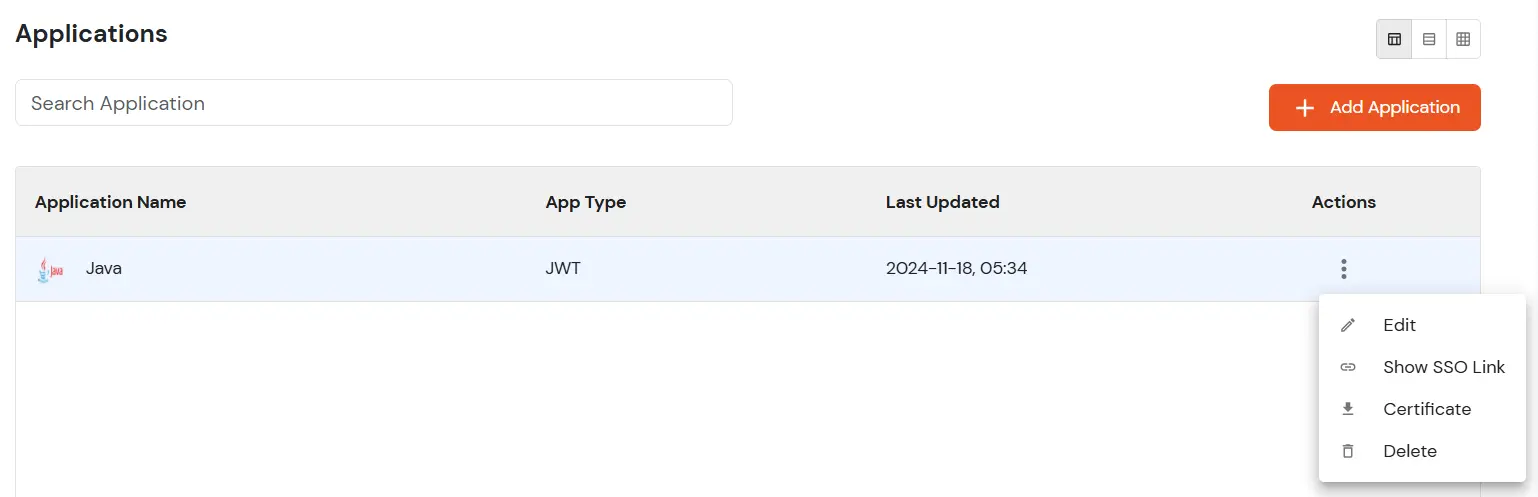
- Go to **Apps**, and from the dropdown next to your configured Java JWT App, click **Select**.
- Click on **Certificate** to download the RSA256 certificate.
- 
- Place the downloaded certificate in the `lib` folder of your miniorange-java-jwt-authentication-example-app.
- Keep the file name as `RSA256Cert.crt`.
### 5. Set Up Endpoints
- Click **Edit** from the dropdown next to your java jwt app in the miniOrange dashboard.
- Scroll down to the **Endpoints** section.
- As miniOrange is the primary Identity Provider, copy the **SSO URL for using miniOrange as Authentication Source** provided in the Endpoints section.
- In your application's `config.properties` file, update the `authorizationUrl` field with the copied SSO URL.
### 7. Configure Single Logout (SLO) URL
- Copy the **Single Logout URL** from the Endpoints section.
- Paste the copied url in `logoutUrl` field in `config.properties`.
### 8. Create a User in miniOrange
If you haven't already done so, create a user in the miniOrange dashboard. This user will be used to authenticate against your Java JWT application.
### 9. Run the Application
- Start your application by running it in your IDE or via the command line using `mvn tomcat7:run`.
- Open your browser and navigate to `http://localhost:8080/demoapplication`. The application should now be running.
### 10. Test the Login
- Open a private/incognito window in your browser.
- Visit the following URL `http://localhost:8080`.
- This will redirect you to home page. Click on **Login with miniOrange** button.
- This will redirect you to miniOrange login page.
- Enter your miniOrange user credentials. Upon successful authentication, you'll be logged into your Java JWT application.
### Troubleshooting
- `Invalid Redirect URL` : Ensure that the redirect URL in your miniOrange dashboard matches the URL configured in your Java application.
- `Login Fails` : Double-check that the user credentials you are using are correct and that the user exists in miniOrange.
- `Certificate Issues` : Ensure that the certificate file is placed in the correct location and that the file name is correct (RSA256Cert.crt).