https://github.com/misiektoja/spotify_profile_monitor
Track Spotify profile, follower and playlist changes in real time
https://github.com/misiektoja/spotify_profile_monitor
osint python spotify spotify-api spotify-profile-monitor
Last synced: 22 days ago
JSON representation
Track Spotify profile, follower and playlist changes in real time
- Host: GitHub
- URL: https://github.com/misiektoja/spotify_profile_monitor
- Owner: misiektoja
- License: gpl-3.0
- Created: 2024-05-10T16:16:47.000Z (almost 2 years ago)
- Default Branch: main
- Last Pushed: 2026-02-02T00:52:03.000Z (about 1 month ago)
- Last Synced: 2026-02-02T05:41:00.719Z (about 1 month ago)
- Topics: osint, python, spotify, spotify-api, spotify-profile-monitor
- Language: Python
- Homepage:
- Size: 6.48 MB
- Stars: 46
- Watchers: 2
- Forks: 12
- Open Issues: 3
-
Metadata Files:
- Readme: README.md
- License: LICENSE
Awesome Lists containing this project
- awesome-osint - spotify_profile_monitor - Tool for real-time tracking of Spotify users' activities and profile changes, including playlists, with support for email alerts, CSV logging, showing media in the terminal, detection of profile picture changes and more ([↑](#-table-of-contents) Music Streaming Services / [↑](#-table-of-contents) GitHub)
README
# spotify_profile_monitor



Powerful Spotify tool for real-time tracking of profile changes, playlist updates, follower growth, collaborators and more - delivered straight to your terminal or inbox.
### 🚀 Quick Install
```sh
pip install spotify_profile_monitor
```
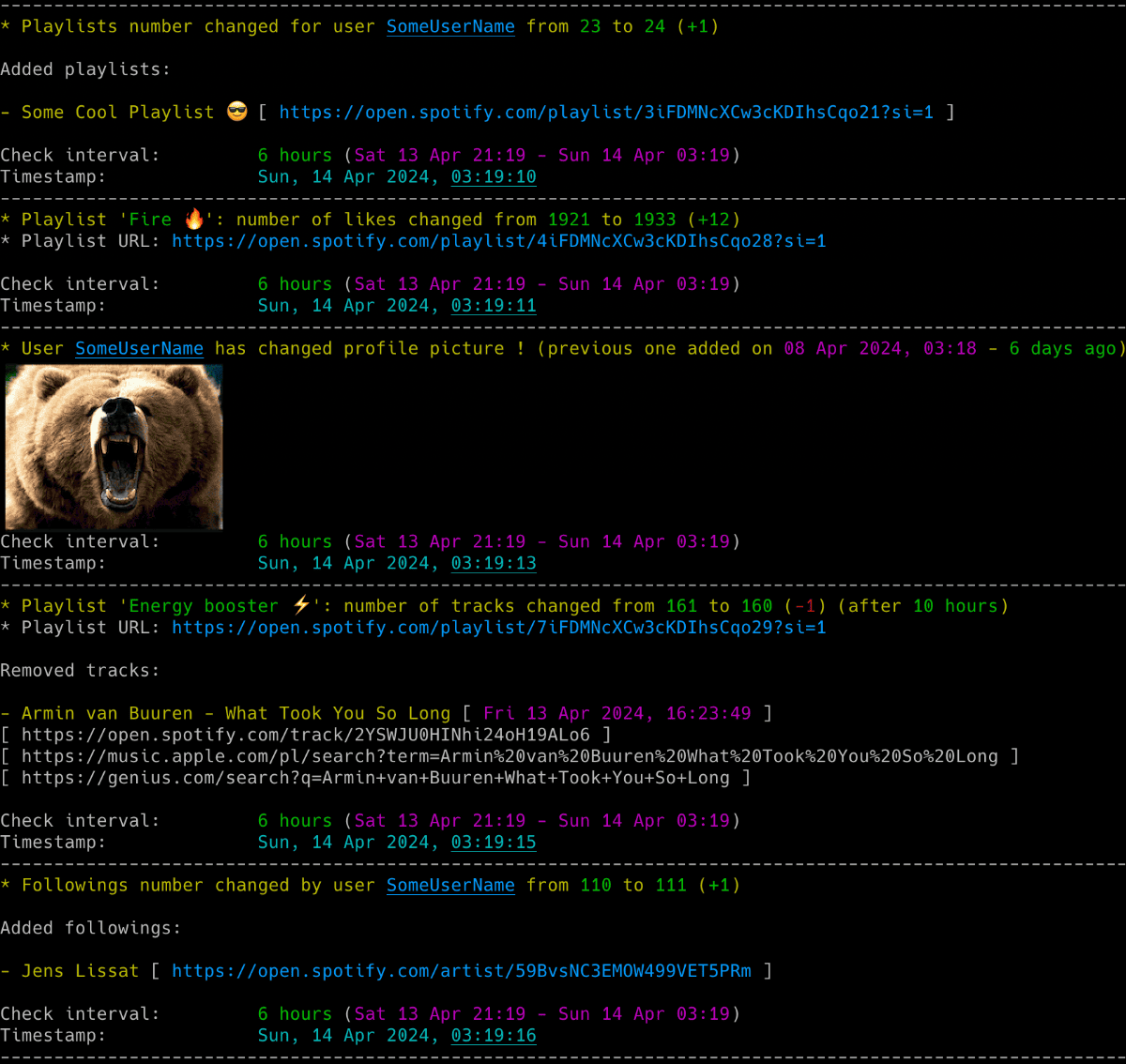
### 👤 Profile Monitoring
- **Real-time tracking**: Monitor Spotify user activities and profile changes.
- **Social Network**: Detect addition/removal of **followings** and **followers**.
- **Identity Changes**: Track **profile picture** and **username** changes.
### 📜 Playlist Tracking
- **Content Updates**: Monitor addition/removal of **tracks in playlists**.
- **Collaborator Info**: Identify who added which track in **collaborative playlists**.
- **Social Proof**: Monitor **likes** and **collaborators** count for playlists.
- **Metadata**: Track **name** and **description** changes.
### 📊 Advanced Tools
- **Deep Insights**: Display detailed info about users, followers and followings.
- **Historical Data**: View **recently played artists** and **search for users** by name.
- **Export Power**: Display and export tracks from any playlist (including **Liked Songs**).
- **Global Search**: Instant links to **Spotify, YouTube Music, Apple Music, Tidal, lyrics** and more.
### 🔔 Smart Interactions
- **Instant Alerts**: Detailed **Email notifications** for all profile and playlist changes.
- **Visual Reports**: Attach changed profile pictures directly to emails.
- **Terminal Graphics**: Display profile pictures right in your terminal (via `imgcat`).
### ⚙️ Power Features
- **Auth Flexibility**: Hybrid support for `sp_dc` cookie, Desktop Client and OAuth.
- **CSV Logging**: Save all changes with full timestamps to a CSV file.
- **Flexible Config**: Support for files, dotenv and environment variables.
- **Signal Control**: Manage the running script via system signals (`SIGHUP`, `USR1`, etc.).
✨ If you want to track Spotify friends' music activity, check out another tool I developed: [spotify_monitor](https://github.com/misiektoja/spotify_monitor).
🛠️ If you're looking for debug tools to get Spotify Web Player access tokens and extract secret keys: [click here](#debugging-tools)
1. [Requirements](#requirements)
2. [Installation](#installation)
* [Install from PyPI](#install-from-pypi)
* [Manual Installation](#manual-installation)
* [Upgrading](#upgrading)
3. [Quick Start](#quick-start)
4. [Configuration](#configuration)
* [Configuration File](#configuration-file)
* [Spotify access token source](#spotify-access-token-source)
* [Spotify sp_dc Cookie](#spotify-sp_dc-cookie)
* [Spotify Desktop Client](#spotify-desktop-client)
* [Spotify OAuth App](#spotify-oauth-app)
* [Spotify OAuth User](#spotify-oauth-user)
* [How to Get a Friend's User URI ID](#how-to-get-a-friends-user-uri-id)
* [Spotify sha256 (optional)](#spotify-sha256-optional)
* [Time Zone](#time-zone)
* [SMTP Settings](#smtp-settings)
* [Storing Secrets](#storing-secrets)
5. [Usage](#usage)
* [Monitoring Mode](#monitoring-mode)
* [Listing Mode](#listing-mode)
* [Email Notifications](#email-notifications)
* [CSV Export](#csv-export)
* [Detection of Changed Profile Pictures](#detection-of-changed-profile-pictures)
* [Displaying Images in Your Terminal](#displaying-images-in-your-terminal)
* [Playlist Blacklisting](#playlist-blacklisting)
* [Restricted Playlists (Spotify API 404)](#restricted-playlists-spotify-api-404)
* [Check Intervals](#check-intervals)
* [Signal Controls (macOS/Linux/Unix)](#signal-controls-macoslinuxunix)
* [Coloring Log Output with GRC](#coloring-log-output-with-grc)
6. [Debugging Tools](#debugging-tools)
* [Access Token Retrieval via sp_dc Cookie and TOTP](#access-token-retrieval-via-sp_dc-cookie-and-totp)
* [Secret Key Extraction from Spotify Web Player Bundles](#secret-key-extraction-from-spotify-web-player-bundles)
7. [Change Log](#change-log)
8. [Maintainers](#maintainers)
9. [License](#license)
* Python 3.6 or higher
* Libraries: `requests`, `python-dateutil`, `urllib3`, `pyotp`, `pytz`, `tzlocal`, `python-dotenv`, [Spotipy](https://github.com/spotipy-dev/spotipy), `wcwidth`
Tested on:
* **macOS**: Ventura, Sonoma, Sequoia, Tahoe
* **Linux**: Raspberry Pi OS (Bullseye, Bookworm, Trixie), Ubuntu 24/25, Rocky Linux 8.x/9.x, Kali Linux 2024/2025
* **Windows**: 10, 11
It should work on other versions of macOS, Linux, Unix and Windows as well.
```sh
pip install spotify_profile_monitor
```
Download the *[spotify_profile_monitor.py](https://raw.githubusercontent.com/misiektoja/spotify_profile_monitor/refs/heads/main/spotify_profile_monitor.py)* file to the desired location.
Install dependencies via pip:
```sh
pip install requests python-dateutil urllib3 pyotp pytz tzlocal python-dotenv spotipy wcwidth
```
Alternatively, from the downloaded *[requirements.txt](https://raw.githubusercontent.com/misiektoja/spotify_profile_monitor/refs/heads/main/requirements.txt)*:
```sh
pip install -r requirements.txt
```
To upgrade to the latest version when installed from PyPI:
```sh
pip install spotify_profile_monitor -U
```
If you installed manually, download the newest *[spotify_profile_monitor.py](https://raw.githubusercontent.com/misiektoja/spotify_profile_monitor/refs/heads/main/spotify_profile_monitor.py)* file to replace your existing installation.
- Grab your [Spotify sp_dc cookie](#spotify-sp_dc-cookie), set up [OAuth app credentials](#spotify-oauth-app) and track the `spotify_user_uri_id` profile changes (including playlists):
```sh
spotify_profile_monitor -u "your_sp_dc_cookie_value" -r "your_spotify_app_client_id:your_spotify_app_client_secret"
```
Or if you installed [manually](#manual-installation):
```sh
python3 spotify_profile_monitor.py -u "your_sp_dc_cookie_value" -r "your_spotify_app_client_id:your_spotify_app_client_secret"
```
To get the list of all supported command-line arguments / flags:
```sh
spotify_profile_monitor --help
```
Most settings can be configured via command-line arguments.
If you want to have it stored persistently, generate a default config template and save it to a file named `spotify_profile_monitor.conf`:
```sh
# On macOS, Linux or Windows Command Prompt (cmd.exe)
spotify_profile_monitor --generate-config > spotify_profile_monitor.conf
# On Windows PowerShell (recommended to avoid encoding issues)
spotify_profile_monitor --generate-config spotify_profile_monitor.conf
```
> **IMPORTANT**: On **Windows PowerShell**, using redirection (`>`) can cause the file to be encoded in UTF-16, which will lead to "null bytes" errors when running the tool. It is highly recommended to provide the filename directly as an argument to `--generate-config` to ensure UTF-8 encoding.
Edit the `spotify_profile_monitor.conf` file and change any desired configuration options (detailed comments are provided for each).
**New in v3.1:** The tool now uses a hybrid authentication approach. OAuth app credentials (`SP_APP_CLIENT_ID`, `SP_APP_CLIENT_SECRET`) are required for playlist and user information retrieval when using either `cookie` or `client` token source methods. See [Spotify OAuth App](#spotify-oauth-app) section for setup instructions.
**New in v2.9:** The configuration file includes options to enable/disable music service URLs (Apple Music, YouTube Music, Amazon Music, Deezer, Tidal) and lyrics service URLs (Genius, AZLyrics, Tekstowo.pl, Musixmatch, Lyrics.com) in console and email outputs.
### Spotify access token source
The tool supports four methods for obtaining a Spotify access token.
When you decide to use the `cookie` or `client` token source method, the tool uses a **hybrid authentication approach** and you also need to configure **OAuth app credentials** (`SP_APP_CLIENT_ID`, `SP_APP_CLIENT_SECRET`) for playlist and user information retrieval as described in [Spotify OAuth App](#spotify-oauth-app).
The token source method can be configured via the `TOKEN_SOURCE` configuration option or the `--token-source` flag.
**Recommended: `cookie`**
Uses the `sp_dc` cookie to retrieve a token from the Spotify web endpoint. This method is easy to set up and supports all features except fetching the list of liked tracks for the account that owns the access token (due to recent Spotify token's scope restrictions).
Since version 3.1, due to Spotify restrictions introduced on December 22, 2025, it no longer shows other users' playlists added to a user's profile unless the user is a collaborator on a playlist owned by another user.
**Alternative: `client`**
Uses captured credentials from the Spotify desktop client and a Protobuf-based login flow. It's more complex to set up, but supports all features. This method is intended for advanced users who want a long-lasting token with the broadest possible access.
Since version 3.1, due to Spotify restrictions introduced on December 22, 2025, it no longer shows other users' playlists added to a user's profile unless the user is a collaborator on a playlist owned by another user.
**Safe fallback: `oauth_app`**
Relies on the official Spotify Web API (Client Credentials OAuth flow). This method is easy to set up and safe to use, but has several limitations. The following features are **not** supported:
- viewing the list of followers/followings
- accessing the followings count (only the followers count is tracked; **post-Feb 2026**: followers count also not available)
- getting the list of recently played artists
- showing other users' playlists added to user profile (unless the user is a collaborator on a playlist owned by other user)
- fetching the list of liked tracks for the account that owns the access token
- searching for Spotify users by name
> ⚠️ **Breaking Change (February 11, 2026)**: Spotify is removing the `GET /users/{id}` endpoint. Using `oauth_app` alone to monitor users will no longer work after this date. Use `cookie` or `client` method instead.
**Personal: `oauth_user`**
Dedicated to tracking the authenticated user's own account via the official Spotify Web API (Authorization Code OAuth flow). I personally use this mode to monitor changes to my own account - such as new or lost followers/followings, likes on my playlists or when a collaborator adds a new song. You can also use this mode to track other users.
This method is easy to set up and safe to use, but has several limitations.
The following features are **not** supported when monitoring **your own account**:
- viewing the list of followers
- viewing the complete list of followings (only followed artists are available; followed users are not included)
- searching for Spotify users by name
- **viewing follower count (post-Feb 2026)**
**Note**: If you use `oauth_user` to monitor your own account, the tool will list all your playlists, including private ones.
The following features are **not** supported when monitoring **another user** in this mode:
- viewing the list of followers/followings
- accessing the followings count (only the followers count is tracked; **post-Feb 2026**: followers count also not available)
- getting the list of recently played artists
- showing other users' playlists added to user profile (unless the user is a collaborator on a playlist owned by other user)
- searching for Spotify users by name
> ⚠️ **Breaking Change (February 11, 2026)**: Spotify is removing the `GET /users/{id}` endpoint. Using `oauth_user` to monitor **other users** will no longer work after this date. **Self-monitoring** remains fully functional. For monitoring others, use the `cookie` or `client` method instead.
> ⚠️ **Premium Required (March 9, 2026)**: Starting March 9, 2026, `oauth_user` mode will require the authorized user to have a Spotify Premium account.
If no method is specified, the tool defaults to the `cookie` method.
**Important**: It is strongly recommended to use a separate Spotify account with this tool if you obtain access tokens via the `cookie` or `client` methods. These methods interact with internal, undocumented endpoints for many features (like retrieving a list of followers/followings, followings count or recently played artists). If you prefer to use your regular Spotify account, consider the `oauth_app` or `oauth_user` methods - while they have some limitations, the tool remains fully functional with them. That said, while I've never encountered any issues on my own accounts, I can't guarantee that Spotify won't impose restrictions in the future - you've been warned.
This is the default method used to obtain a Spotify access token.
- Log in to [https://open.spotify.com/](https://open.spotify.com/) in your web browser.
- Locate and copy the value of the `sp_dc` cookie.
- Use your web browser's dev console or **Cookie-Editor** by cgagnier to extract it easily: [https://cookie-editor.com/](https://cookie-editor.com/)
- Provide the `SP_DC_COOKIE` secret using one of the following methods:
- Pass it at runtime with `-u` / `--spotify-dc-cookie`
- Set it as an [environment variable](#storing-secrets) (e.g. `export SP_DC_COOKIE=...`)
- Add it to [.env file](#storing-secrets) (`SP_DC_COOKIE=...`) for persistent use
- Fallback: hard-code it in the code or config file
If your `sp_dc` cookie expires, the tool will notify you via the console and email. In that case, you'll need to grab the new `sp_dc` cookie value.
If you store the `SP_DC_COOKIE` in a dotenv file you can update its value and send a `SIGHUP` signal to reload the file with the new `sp_dc` cookie without restarting the tool. More info in [Storing Secrets](#storing-secrets) and [Signal Controls (macOS/Linux/Unix)](#signal-controls-macoslinuxunix).
> **NOTE:** secrets used for TOTP generation (`SECRET_CIPHER_DICT`) expire every few days, that's why since v2.7 the tool fetches it from remote URL (see `SECRET_CIPHER_DICT_URL`); you can also run the [spotify_monitor_secret_grabber](https://github.com/misiektoja/spotify_monitor/blob/dev/debug/spotify_monitor_secret_grabber.py) and extract it by yourself (see [Secret Key Extraction from Spotify Web Player Bundles](#secret-key-extraction-from-spotify-web-player-bundles) for more info).
This is the alternative method used to obtain a Spotify access token which simulates a login from the real Spotify desktop app using credentials intercepted from a real session.
- Run an intercepting proxy of your choice (like [Proxyman](https://proxyman.com) - the trial version is sufficient)
- Enable SSL traffic decryption for `spotify.com` domain
- in Proxyman: click **Tools → SSL Proxying List → + button → Add Domain → paste `*.spotify.com` → Add**
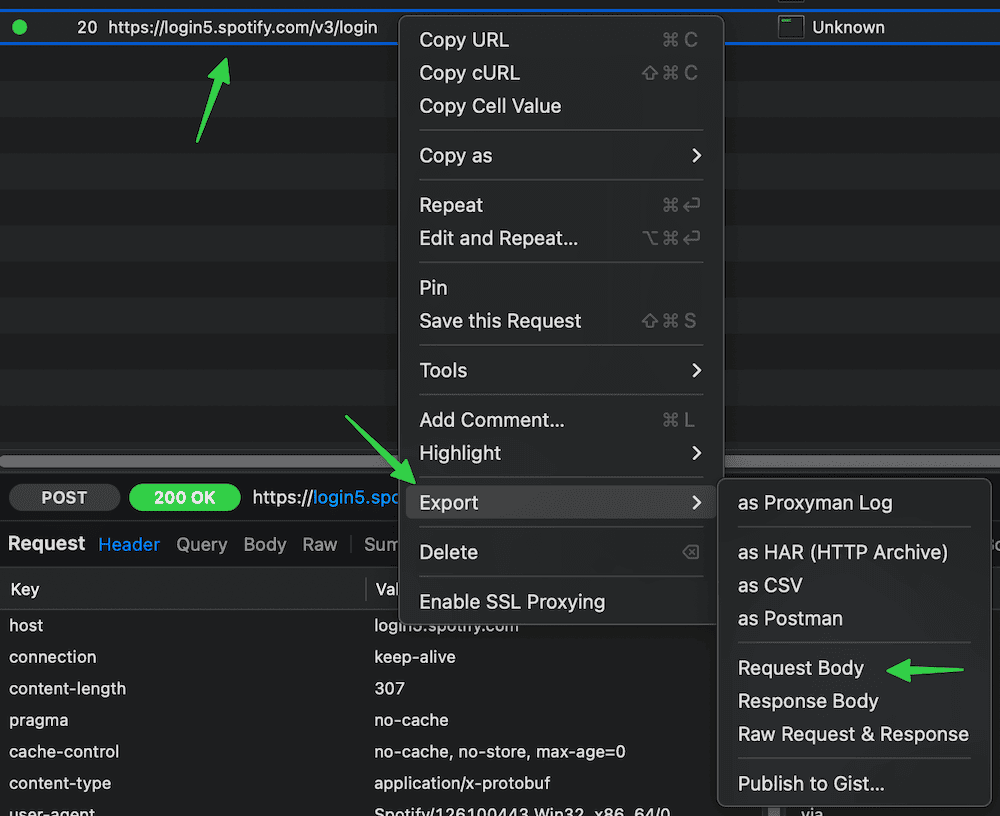
- Launch the Spotify desktop client, then switch to your intercepting proxy (like Proxyman) and look for POST requests to `https://login5.spotify.com/v3/login`
- If you don't see this request, try following steps (stop once it works):
- restart the Spotify desktop client
- log out from the Spotify desktop client and log back in
- point Spotify at the intercepting proxy directly in its settings, i.e. in **Spotify → Settings → Proxy Settings**, set:
- **proxy type**: `HTTP`
- **host**: `127.0.0.1` (IP/FQDN of your proxy, for Proxyman use the IP you see at the top bar)
- **port**: `9090` (port of your proxy, for Proxyman use the port you see at the top bar)
- restart the app; since QUIC (HTTP/3) requires raw UDP and can't tunnel over HTTP CONNECT, Spotify will downgrade to TCP-only HTTP/2 or 1.1, which intercepting proxy can decrypt
- block Spotify's UDP port 443 at the OS level with a firewall of your choice - this prevents QUIC (HTTP/3), forcing TLS over TCP and letting intercepting proxy perform MITM
- try an older version of the Spotify desktop client
- Export the login request body (a binary Protobuf payload) to a file (e.g. ***login-request-body-file***)
- In Proxyman: **right click the request → Export → Request Body → Save File**.
- Run the tool with `--token-source client -w `:
```sh
spotify_profile_monitor --token-source client -w
```
If successful, the tool will automatically extract the necessary fields and begin monitoring.
Instead of using the `-w` flag each time, you can persist the Protobuf login request file path by setting the `LOGIN_REQUEST_BODY_FILE` configuration option.
The same applies to `--token-source client` flag - you can persist it via `TOKEN_SOURCE` configuration option set to `client`.
The tool will automatically refresh both the access token and client token using the intercepted refresh token.
If your refresh token expires, the tool will notify you via the console and email. In that case, you'll need to re-export the login request body.
If you re-export the login request body to the same file name, you can send a `SIGHUP` signal to reload the file with the new refresh token without restarting the tool. More info in [Signal Controls (macOS/Linux/Unix)](#signal-controls-macoslinuxunix).
Advanced options are available for further customization - refer to the configuration file comments. However, the default settings are suitable for most users and modifying other values is generally NOT recommended.
Can be used as a standalone mode, but also as a secondary mode to either a `cookie` or `client` token source method to retrieve playlist and user information (required due to restrictions introduced by Spotify on December 22, 2025).
This method uses an official Spotify Web API (Client Credentials OAuth flow).
To obtain the credentials:
- Log in to [Spotify Developer dashboard](https://developer.spotify.com/dashboard)
- Create a new app
- For **Redirect URL**, use: `http://127.0.0.1:1234`
- The URL must match exactly as shown, including not having a `/` at the end
- When copying the link via right-click, some browsers may add an extra `/` to the URL
- Select **Web API** as the intended API
- Copy the **Client ID** and **Client Secret**
- Provide the `SP_APP_CLIENT_ID` and `SP_APP_CLIENT_SECRET` secrets using one of the following methods:
- Pass it at runtime with `-r` / `--oauth-app-creds` (use `SP_APP_CLIENT_ID:SP_APP_CLIENT_SECRET` format - note the colon separator)
- Set it as an [environment variable](#storing-secrets) (e.g. `export SP_APP_CLIENT_ID=...; export SP_APP_CLIENT_SECRET=...`)
- Add it to [.env file](#storing-secrets) (`SP_APP_CLIENT_ID=...` and `SP_APP_CLIENT_SECRET=...`) for persistent use
- Fallback: hard-code it in the code or config file
Example:
```sh
spotify_profile_monitor --token-source oauth_app -r "your_spotify_app_client_id:your_spotify_app_client_secret"
```
The tool automatically refreshes the OAuth app access token, so it remains valid indefinitely. Tokens are cached in the file specified by `SP_APP_TOKENS_FILE` configuration option (default: `.spotify-profile-monitor-oauth-app.json`).
If you store the `SP_APP_CLIENT_ID` and `SP_APP_CLIENT_SECRET` in a dotenv file you can update their values and send a `SIGHUP` signal to reload the file with the new secret values without restarting the tool. More info in [Storing Secrets](#storing-secrets) and [Signal Controls (macOS/Linux/Unix)](#signal-controls-macoslinuxunix).
You can also use this method as a standalone token source (without `cookie` or `client`) by setting `TOKEN_SOURCE` to `oauth_app`, but this has several limitations as described in the [Spotify access token source](#spotify-access-token-source) section.
This method uses an official Spotify Web API (Authorization Code OAuth flow).
- Log in to Spotify Developer dashboard: https://developer.spotify.com/dashboard
- Create a new app
- For **Redirect URL**, use: http://127.0.0.1:1234
- The URL must match exactly as shown, including not having a / at the end
- When copying the link via right-click, some browsers may add an extra / to the URL
- Select **Web API** as the intended API
- Copy the **Client ID** and **Client Secret** (the secret is not required if you're using `PKCE` mode)
- Provide the `SP_USER_CLIENT_ID` and `SP_USER_CLIENT_SECRET` secrets using one of the following methods:
- Pass it at runtime with `-n` / `--oauth-user-creds`
- Use `SP_USER_CLIENT_ID`:`SP_USER_CLIENT_SECRET` format - note the colon separator
- Set it as an [environment variable](#storing-secrets) (e.g. `export SP_USER_CLIENT_ID=...; export SP_USER_CLIENT_SECRET=...`)
- Add it to [.env file](#storing-secrets) (`SP_USER_CLIENT_ID=...` and `SP_USER_CLIENT_SECRET=...`) for persistent use
- Fallback: hard-code it in the code or config file
To use `PKCE` mode, set SP_USER_CLIENT_SECRET to an empty string ("").
You can use the same client ID and secret values as those used for the [Spotify OAuth App](#spotify-oauth-app).
Example:
```sh
spotify_profile_monitor --token-source oauth_user -n "your_spotify_user_client_id:your_spotify_user_client_secret"
```
The tool takes care of refreshing the access token so it should remain valid indefinitely.
If you store the `SP_USER_CLIENT_ID` and `SP_USER_CLIENT_SECRET` in a dotenv file you can update their values and send a `SIGHUP` signal to reload the file with the new secret values without restarting the tool. More info in [Storing Secrets](#storing-secrets) and [Signal Controls (macOS/Linux/Unix)](#signal-controls-macoslinuxunix).
### How to Get a Friend's User URI ID
The easiest way is via the Spotify desktop or mobile client:
- go to your friend's profile
- click the **three dots** (•••) or press the **Share** button
- copy the link to the profile
You'll get a URL like: [https://open.spotify.com/user/spotify_user_uri_id?si=tracking_id](https://open.spotify.com/user/spotify_user_uri_id?si=tracking_id)
Extract the part between `/user/` and `?si=` - in this case: `spotify_user_uri_id`
Use that as the user URI ID (`spotify_user_uri_id`) in the tool.
Alternatively you can use the built-in functionality to search for usernames (`-s` flag) to get the user URI ID:
```sh
spotify_profile_monitor -s "user name"
```
It will list all users with such names with their user URI ID.
Before using this feature make sure you followed the instructions [here](#spotify-sha256-optional).
This step is optional and only required if you want to use the feature that searches Spotify's catalog for users with a specific name to obtain their Spotify user URI ID (`-s` flag). To do this, you must intercept your Spotify client's network traffic and extract the required `sha256Hash` value.
- Run an intercepting proxy of your choice (like [Proxyman](https://proxyman.com)).
- Launch the Spotify desktop client and search for some user
- Look for requests with the `searchUsers` or `searchDesktop` operation name
- Display the details of one of these requests and copy the **sha256Hash** parameter value (string marked as `XXXXXXXXXX` below)
Example request:
`https://api-partner.spotify.com/pathfinder/v1/query?operationName=searchUsers&variables={"searchTerm":"spotify_user_uri_id","offset":0,"limit":5,"numberOfTopResults":5,"includeAudiobooks":false}&extensions={"persistedQuery":{"version":1,"sha256Hash":"XXXXXXXXXX"}}`
- Provide the `SP_SHA256` secret using one of the following methods:
- Set it as an [environment variable](#storing-secrets) (e.g. `export SP_SHA256=...`)
- Add it to [.env file](#storing-secrets) (`SP_SHA256=...`) for persistent use
- Fallback: hard-code it in the code or config file
By default, time zone is auto-detected using `tzlocal`. You can set it manually in `spotify_profile_monitor.conf`:
```ini
LOCAL_TIMEZONE='Europe/Warsaw'
```
You can get the list of all time zones supported by pytz like this:
```sh
python3 -c "import pytz; print('\n'.join(pytz.all_timezones))"
```
If you want to use email notifications functionality, configure SMTP settings in the `spotify_profile_monitor.conf` file.
Verify your SMTP settings by using `--send-test-email` flag (the tool will try to send a test email notification):
```sh
spotify_profile_monitor --send-test-email
```
It is recommended to store secrets like `SP_DC_COOKIE`, `SP_APP_CLIENT_ID`, `SP_APP_CLIENT_SECRET`, `SP_USER_CLIENT_ID`, `SP_USER_CLIENT_SECRET`, `REFRESH_TOKEN`, `SP_SHA256` or `SMTP_PASSWORD` as either an environment variable or in a dotenv file.
Set the needed environment variables using `export` on **Linux/Unix/macOS/WSL** systems:
```sh
export SP_DC_COOKIE="your_sp_dc_cookie_value"
export SP_APP_CLIENT_ID="your_spotify_app_client_id"
export SP_APP_CLIENT_SECRET="your_spotify_app_client_secret"
export SP_USER_CLIENT_ID="your_spotify_user_client_id"
export SP_USER_CLIENT_SECRET="your_spotify_user_client_secret"
export REFRESH_TOKEN="your_spotify_app_refresh_token"
export SP_SHA256="your_spotify_client_sha256"
export SMTP_PASSWORD="your_smtp_password"
```
On **Windows Command Prompt** use `set` instead of `export` and on **Windows PowerShell** use `$env`.
Alternatively store them persistently in a dotenv file (recommended):
```ini
SP_DC_COOKIE="your_sp_dc_cookie_value"
SP_APP_CLIENT_ID="your_spotify_app_client_id"
SP_APP_CLIENT_SECRET="your_spotify_app_client_secret"
SP_USER_CLIENT_ID="your_spotify_user_client_id"
SP_USER_CLIENT_SECRET="your_spotify_user_client_secret"
REFRESH_TOKEN="your_spotify_app_refresh_token"
SP_SHA256="your_spotify_client_sha256"
SMTP_PASSWORD="your_smtp_password"
```
By default the tool will auto-search for dotenv file named `.env` in current directory and then upward from it.
You can specify a custom file with `DOTENV_FILE` or `--env-file` flag:
```sh
spotify_profile_monitor --env-file /path/.env-spotify_profile_monitor
```
You can also disable `.env` auto-search with `DOTENV_FILE = "none"` or `--env-file none`:
```sh
spotify_profile_monitor --env-file none
```
As a fallback, you can also store secrets in the configuration file or source code.
To monitor specific user for all profile changes (including playlists), just type [Spotify user URI ID](#how-to-get-a-friends-user-uri-id) as a command-line argument (`spotify_user_uri_id` in the example below):
```sh
spotify_profile_monitor
```
If you use the default method to obtain a Spotify access token (`cookie`) and have not set `SP_DC_COOKIE` secret, you can use `-u` flag:
```sh
spotify_profile_monitor -u "your_sp_dc_cookie_value"
```
**Note:** OAuth app credentials are now required for playlist and user information retrieval. If you haven't set `SP_APP_CLIENT_ID` and `SP_APP_CLIENT_SECRET` via environment variables or `.env` file, you can use the `-r` flag:
```sh
spotify_profile_monitor -u "your_sp_dc_cookie_value" -r "your_spotify_app_client_id:your_spotify_app_client_secret"
```
See [Spotify OAuth App](#spotify-oauth-app) for detailed setup instructions.
By default, the tool looks for a configuration file named `spotify_profile_monitor.conf` in:
- current directory
- home directory (`~`)
- script directory
If you generated a configuration file as described in [Configuration](#configuration), but saved it under a different name or in a different directory, you can specify its location using the `--config-file` flag:
```sh
spotify_profile_monitor --config-file /path/spotify_profile_monitor_new.conf
```
By default, only public playlists owned by the user are fetched. To change this behavior:
- set `GET_ALL_PLAYLISTS` to `True`
- or use the `-k` flag
```sh
spotify_profile_monitor -k
```
It is helpful in the case of playlists created by another user added to another user profile.
Some users don't list all their public playlists on their profile, but if you know a playlist's URI, you can still monitor it.
To do so, add entries to the `ADD_PLAYLISTS_TO_MONITOR` configuration option. Example:
```python
ADD_PLAYLISTS_TO_MONITOR = [
{'uri': 'spotify:playlist:{playlist_id1}', 'owner_name': '{user_id}', 'owner_uri': 'spotify:user:{user_id}'},
{'uri': 'spotify:playlist:{playlist_id2}', 'owner_name': '{user_id}', 'owner_uri': 'spotify:user:{user_id}'}
]
```
Replace `{playlist_id1}` and `{playlist_id2}` with the playlists URI IDs you want to monitor and `{user_id}` with the owner's URI ID (`spotify_user_uri_id`).
If you want to completely disable detection of changes in user's public playlists (like added/removed tracks in playlists, playlists name and description changes, number of likes for playlists):
- set `DETECT_CHANGES_IN_PLAYLISTS` to `False`
- or use the `-q` flag
```sh
spotify_profile_monitor -q
```
If you want to skip some user's playlists from processing, you can use `PLAYLISTS_TO_SKIP_FILE` or `-t` flag (more info [here](#playlist-blacklisting))
```sh
spotify_profile_monitor -t ignored_playlists
```
The tool runs until interrupted (`Ctrl+C`). Use `tmux` or `screen` for persistence.
You can monitor multiple Spotify users by running multiple copies of the script.
The tool automatically saves its output to `spotify_profile_monitor_.log` file. The log file name can be changed via `SP_LOGFILE` configuration option and its suffix via `FILE_SUFFIX` / `-y` flag. Logging can be disabled completely via `DISABLE_LOGGING` / `-d` flag.
The tool also saves the list of followings, followers and playlists to these files:
- `spotify_profile__followings.json`
- `spotify_profile__followers.json`
- `spotify_profile__playlists.json`
Thanks to this we can detect changes after the tool is restarted.
The tool also saves the user profile picture to `spotify_profile_{user_uri_id/file_suffix}_pic*.jpeg` files.
There is also another mode of the tool which displays various requested information.
If you want to display details for a specific Spotify playlist URL (i.e. its name, description, number of tracks, likes, overall duration, creation and last update date, list of tracks with information on when they were added), then use the `-l` flag:
```sh
spotify_profile_monitor -l "https://open.spotify.com/playlist/playlist_uri_id"
```

If you want to not only display, but also save the list of tracks for a specific Spotify playlist to a CSV file, use the `-l` flag with `-b` indicating the CSV file:
```sh
spotify_profile_monitor -l "https://open.spotify.com/playlist/playlist_uri_id" -b spotify_playlist_tracks.csv
```
If you want to display similar information for **Liked Songs** playlist for the user owning the Spotify access token, use the `-x` flag (can also be used with `-b`):
```sh
spotify_profile_monitor -x
```
If you want to export tracks from `-l` or `-x` for direct import into [spotify_monitor](https://github.com/misiektoja/spotify_monitor), use the `-o` flag to ensure appropriate formatting (optionally with `-b` to specify the text file where the tracks will be exported):
```sh
spotify_profile_monitor -o -x -b spotify_liked_tracks.txt
spotify_profile_monitor -o -l "https://open.spotify.com/playlist/playlist_uri_id" -b spotify_playlist_tracks.txt
```
If you want to display details for a specific Spotify user profile URL (i.e. user URI ID, list and number of followers and followings, recently played artists, list and number of user's playlists with basic statistics like when created, last updated, description, number of tracks and likes) then use the `-i` flag:
```sh
spotify_profile_monitor -i
```

By default, only public playlists owned by the user are fetched. You can change this behavior with `-k` flag. It is helpful in the case of playlists created by another user added to another user profile:
```sh
spotify_profile_monitor -i -k
```
If you want to additionally export each of the user's playlists into a separate .CSV file (named after the playlist and sanitized), use the `--export-all-playlists` flag (requires `pathvalidate` library):
```sh
spotify_profile_monitor -i --export-all-playlists
```
If you want to completely disable the processing of a user's public playlists while displaying details for a specific Spotify user profile URL (to speed up the process), you can use the `-q` flag:
```sh
spotify_profile_monitor -i -q
```
If you only want to display the list of followings and followers for the user (`-f` flag):
```sh
spotify_profile_monitor -f
```
If you want to display a list of recently played artists (this feature only works if the user has it enabled in their settings), use the `-a` flag:
```sh
spotify_profile_monitor -a
```
If you want to search the Spotify catalog for users with a specific name to obtain their Spotify user URI ID (`-s` flag):
```sh
spotify_profile_monitor -s "user name"
```
To enable email notifications for all user profile changes (including playlists):
- set `PROFILE_NOTIFICATION` to `True`
- or use the `-p` flag
```sh
spotify_profile_monitor -p
```
To disable sending an email about new followers/followings (these are sent by default when the `-p` flag is enabled):
- set `FOLLOWERS_FOLLOWINGS_NOTIFICATION` to `False`
- or use the `-g` flag
```sh
spotify_profile_monitor -p -g
```
To disable sending an email on errors (enabled by default):
- set `ERROR_NOTIFICATION` to `False`
- or use the `-e` flag
```sh
spotify_profile_monitor -e
```
Make sure you defined your SMTP settings earlier (see [SMTP settings](#smtp-settings)).
Example email:

If you want to save all profile changes (including playlists) to a CSV file, set `CSV_FILE` or use `-b` flag:
```sh
spotify_profile_monitor -b spotify_profile_changes_spotify_user.csv
```
The file will be automatically created if it does not exist.
### Detection of Changed Profile Pictures
The tool can detect when a monitored user changes their profile picture. Notifications appear in the console and (if the `-p` flag is enabled) via email.
This feature is enabled by default. To disable it, either:
- set the `DETECT_CHANGED_PROFILE_PIC` to `False`
- or use the `-j` flag
Since Spotify periodically changes the profile picture URL even when the image is the same, the tool performs a binary comparison of JPEG files to detect actual changes.
On the first run, it saves the current profile picture to `spotify_profile__pic.jpeg`
On each subsequent check a new image is fetched and it is compared byte-for-byte with the saved image.
If a change is detected, the old picture is moved to `spotify_profile__pic_old.jpeg` and the new one is saved to:
- `spotify_profile__pic.jpeg` (current)
- `spotify_profile__pic_YYmmdd_HHMM.jpeg` (for history)
### Displaying Images in Your Terminal
If you have `imgcat` installed, you can enable inline display of profile pictures and playlist artwork directly in your terminal.
To do this, set the path to your `imgcat` binary in the `IMGCAT_PATH` configuration option.
If you specify only the binary name, it will be auto-searched in your PATH.
Set it to empty to disable this feature.
By default, all Spotify-owned playlists are skipped from processing, i.e. the tool won't fetch or report changed tracks and the number of likes for them. This is because they are typically dynamically generated with a high volume of changes in terms of likes and sometimes tracks as well. You can change this behavior by setting `IGNORE_SPOTIFY_PLAYLISTS` to `False`.
On top of that, you can also use the `PLAYLISTS_TO_SKIP_FILE` / `-t` flag which allows you to indicate a file with additional playlists to be blacklisted.
The file may include lines referencing playlist URIs and URLs, as well as the playlist owner's name, URI and URL. Below is an example of an `ignored_playlists` file with acceptable entries:
```sh
playlist_uri_id
spotify:playlist:playlist_uri_id
https://open.spotify.com/playlist/playlist_uri_id
https://open.spotify.com/playlist/playlist_uri_id?si=1
Some User Name
user_uri_id
spotify:user:user_uri_id
https://open.spotify.com/user/user_uri_id?si=1
```
You can comment out specific lines with # if needed.
If certain playlists are blacklisted, there will be an appropriate message. For example:
```
- 'Afternoon Acoustic' [ IGNORED ]
[ https://open.spotify.com/playlist/37i9dQZF1DX4E3UdUs7fUx?si=1 ]
[ songs: 100, likes: 2164491, collaborators: 0 ]
[ owner: Spotify ]
[ date: Fri 23 Aug 2024, 17:05:15 - 7 months, 10 hours, 27 minutes ago ]
[ update: Fri 23 Aug 2024, 17:05:15 - 7 months, 10 hours, 27 minutes ago ]
'Unwind and let the afternoon unfold.'
```
### Restricted Playlists (Spotify API 404)
Some playlists (especially Spotify-curated ones) may appear on profile pages, but return `404` on the public `/v1/playlists/{id}` endpoint.
In such cases, the tool marks them as `[ RESTRICTED ]` and falls back to profile-view metadata (`public_playlists`) instead of treating them as a generic processing error.
For restricted playlists, the tool can monitor:
- added/removed from profile
- playlist name changes
- likes/followers count changes (when available in profile-view)
For restricted playlists, the tool cannot monitor:
- track-level changes
- collaborators
- description changes
- creation/last update timestamps derived from track history
If you want to customize polling interval, use `-c` flag (or `SPOTIFY_CHECK_INTERVAL` configuration option):
```sh
spotify_profile_monitor -c 900
```
### Signal Controls (macOS/Linux/Unix)
The tool has several signal handlers implemented which allow to change behavior of the tool without a need to restart it with new configuration options / flags.
List of supported signals:
| Signal | Description |
| ----------- | ----------- |
| USR1 | Toggle email notifications for user's profile changes (-p) |
| TRAP | Increase the profile check timer (by 5 minutes) |
| ABRT | Decrease the profile check timer (by 5 minutes) |
| HUP | Reload secrets from .env file and token source credentials from Protobuf files |
Send signals with `kill` or `pkill`, e.g.:
```sh
pkill -USR1 -f "spotify_profile_monitor "
```
As Windows supports limited number of signals, this functionality is available only on Linux/Unix/macOS.
### Coloring Log Output with GRC
You can use [GRC](https://github.com/garabik/grc) to color logs.
Add to your GRC config (`~/.grc/grc.conf`):
```
# monitoring log file
.*_monitor_.*\.log
conf.monitor_logs
```
Now copy the [conf.monitor_logs](https://raw.githubusercontent.com/misiektoja/spotify_profile_monitor/refs/heads/main/grc/conf.monitor_logs) to your `~/.grc/` and log files should be nicely colored when using `grc` tool.
Example:
```sh
grc tail -F -n 100 spotify_profile_monitor_.log
```
To help with troubleshooting and development, two debug utilities are available in the [debug](https://github.com/misiektoja/spotify_monitor/tree/dev/debug) directory of the related [spotify_monitor](https://github.com/misiektoja/spotify_monitor) project.
### Access Token Retrieval via sp_dc Cookie and TOTP
The [spotify_monitor_totp_test](https://github.com/misiektoja/spotify_monitor/blob/dev/debug/spotify_monitor_totp_test.py) tool retrieves a Spotify access token using a Web Player `sp_dc` cookie and TOTP parameters.
Download from [here](https://github.com/misiektoja/spotify_monitor/blob/dev/debug/spotify_monitor_totp_test.py) or:
```sh
wget https://raw.githubusercontent.com/misiektoja/spotify_monitor/refs/heads/dev/debug/spotify_monitor_totp_test.py
```
Install requirements:
```sh
pip install requests python-dateutil pyotp
```
Run:
```sh
python3 spotify_monitor_totp_test.py --sp-dc "your_sp_dc_cookie_value"
```
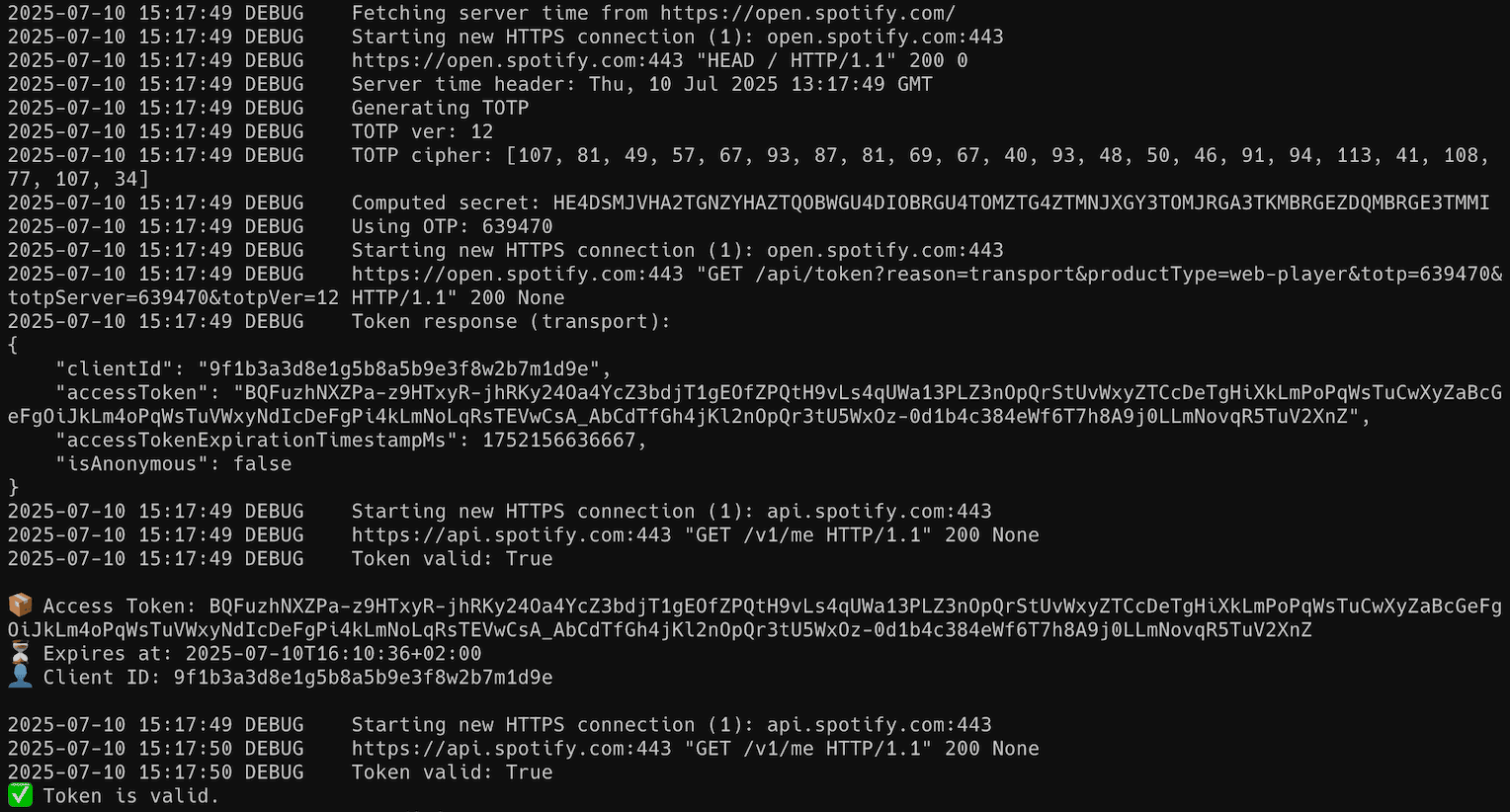
You should get a valid Spotify access token, example output:
> **NOTE:** secrets used for TOTP generation (`SECRET_CIPHER_DICT`) expire every few days; you can either run the [spotify_monitor_secret_grabber](https://github.com/misiektoja/spotify_monitor/blob/dev/debug/spotify_monitor_secret_grabber.py) and extract it by yourself (see [here](#secret-key-extraction-from-spotify-web-player-bundles) for more info) or you can pass `--fetch-secrets` flag in `spotify_monitor_totp_test` (available since v1.6). There is also a [xyloflake/spot-secrets-go/](https://github.com/xyloflake/spot-secrets-go/) repo which offers JSON files that are automatically updated with current secrets (you can pass `--download-secrets` flag in `spotify_monitor_totp_test` to get it automatically from remote URL, available since v1.8).
### Secret Key Extraction from Spotify Web Player Bundles
The [spotify_monitor_secret_grabber](https://github.com/misiektoja/spotify_monitor/blob/dev/debug/spotify_monitor_secret_grabber.py) tool automatically extracts secret keys used for TOTP generation in Spotify Web Player JavaScript bundles.
> 💡 **Quick tip:** The easiest and recommended way to run this tool is via Docker. Jump directly to the [Docker usage section below](#-secret-key-extraction-via-docker-recommended-easiest-way).
Download from [here](https://github.com/misiektoja/spotify_monitor/blob/dev/debug/spotify_monitor_secret_grabber.py) or:
```sh
wget https://raw.githubusercontent.com/misiektoja/spotify_monitor/refs/heads/dev/debug/spotify_monitor_secret_grabber.py
```
Install requirements:
```sh
pip install playwright
playwright install
```
Run interactively (default output mode):
```sh
python3 spotify_monitor_secret_grabber.py
```
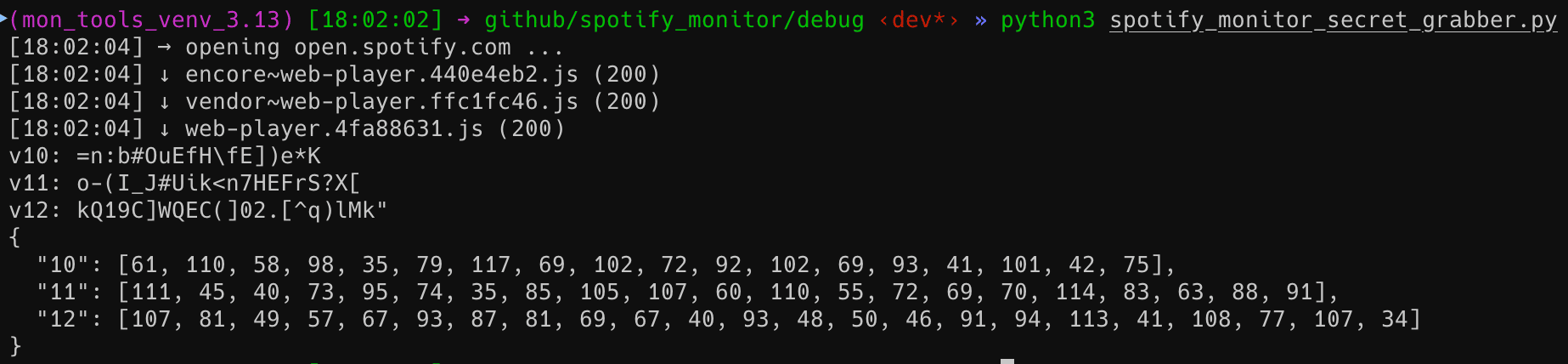
You should get output similar to below:
Show help:
```sh
python3 spotify_monitor_secret_grabber.py -h
```
---
The script supports several output modes for different use cases:
| Flag | Description | Output |
|------|--------------|--------|
| `--secret` | Prints plain JSON array of extracted secrets | `[{"version": X, "secret": "..."}, ...]` |
| `--secretbytes` | Prints JSON array with ASCII byte values | `[{"version": X, "secret": [..]}, ...]` |
| `--secretdict` | Prints JSON object/dict mapping version → byte list | `{"X": [..], "Y": [..]}` |
| `--all` | Extracts secrets and **writes all three outputs** to local files | `secrets.json`, `secretBytes.json`, `secretDict.json` |
Print extracted secrets in specific format, for example Python-friendly secret bytes (JSON object/dict) and save to indicated file:
```sh
python3 spotify_monitor_secret_grabber.py --secretdict > secretDict.json
```
Or, to generate and save all secret formats to files (`secrets.json`, `secretBytes.json`, `secretDict.json`) at once:
```sh
python3 spotify_monitor_secret_grabber.py --all
```
Default file paths and names can be configured directly in the `OUTPUT_FILES` dictionary at the top of the script.
---
### 🐳 Secret Key Extraction via Docker (Recommended Easiest Way)
A prebuilt multi-architecture image is available on Docker Hub: [`misiektoja/spotify-secrets-grabber`](https://hub.docker.com/r/misiektoja/spotify-secrets-grabber)
This image works on:
- macOS (Intel & Apple Silicon)
- Linux (x86_64 and ARM64)
- Windows (Docker Desktop / WSL2)
- Raspberry Pi 4/5 (64-bit OS)
Run interactively (default output mode):
```sh
docker run --rm misiektoja/spotify-secrets-grabber
```
Show help:
```sh
docker run --rm misiektoja/spotify-secrets-grabber -h
```
Print extracted secrets in specific format, for example Python-friendly secret bytes (JSON object/dict) and save to indicated file:
```sh
docker run --rm misiektoja/spotify-secrets-grabber --secretdict > secretDict.json
```
Or, to generate and save all secret formats to files (`secrets.json`, `secretBytes.json`, `secretDict.json`) at once:
```sh
docker run --rm -v .:/work -w /work misiektoja/spotify-secrets-grabber --all
```
*For SELinux hosts (Fedora/RHEL), use `-v .:/work:Z`.*
Or optionally use Docker Compose (a preconfigured [compose.yaml](https://github.com/misiektoja/spotify_monitor/blob/dev/debug/spotify_monitor_secret_grabber_docker/compose.yaml) file is included in the repo):
```sh
docker compose run --rm spotify-secrets-grabber --all
```
This will save all files into your current directory on any system (macOS, Linux or Windows).
---
You can now update the secrets used for TOTP generation (for example `SECRET_CIPHER_DICT` in `spotify_monitor_totp_test`, `spotify_monitor` and `spotify_profile_monitor`) either manually or by referencing an external `secretDict.json` file, which can be hosted in another repo or stored locally. See the description of `SECRET_CIPHER_DICT_URL` in those files for details.
See [RELEASE_NOTES.md](https://github.com/misiektoja/spotify_profile_monitor/blob/main/RELEASE_NOTES.md) for details.
[](https://github.com/misiektoja)
[](https://github.com/tomballgithub)
Licensed under GPLv3. See [LICENSE](https://github.com/misiektoja/spotify_profile_monitor/blob/main/LICENSE).