https://github.com/mitchcapper/fsclient
FSClient is a full Windows softphone based off FreeSWITCH
https://github.com/mitchcapper/fsclient
Last synced: 11 months ago
JSON representation
FSClient is a full Windows softphone based off FreeSWITCH
- Host: GitHub
- URL: https://github.com/mitchcapper/fsclient
- Owner: mitchcapper
- Created: 2015-12-01T23:36:03.000Z (over 10 years ago)
- Default Branch: master
- Last Pushed: 2022-04-27T09:36:18.000Z (about 4 years ago)
- Last Synced: 2025-04-03T21:42:45.564Z (about 1 year ago)
- Language: C#
- Size: 1.62 MB
- Stars: 58
- Watchers: 8
- Forks: 18
- Open Issues: 5
-
Metadata Files:
- Readme: README.md
Awesome Lists containing this project
README
FSClient Windows Softphone based on FreeSWITCH
=================================
OVERVIEW
-----
FSClient is a full Windows sip client that uses Embedded FreeSWITCH and is written in WPF/.NET 4.5. It supports external/internal contact books and full headset features through a plugin system (Plantronics/ Jabra full features for example). FSClient is meant to be a full featured SIP client including standard enterprise class client functionality. It can run installed or run standalone, with the only requirement being .NET 4.5.2 support (vista or higher). You can use the older FSClient 1.2 release if you need Windows XP/.net 4.0.
Table of Contents
=================
* [Description](#description)
* [Screenshot](#screenshot)
* [Features](#features)
* [Themes](#themes)
* [Layout](#layout)
* [Calls](#calls)
* [Current / Dialpad](#current--dialpad)
* [Accounts](#accounts)
* [Contact Search Box](#contact-search-box)
* [Conference Support (N-Way calling)](#conference-support-n-way-calling)
* [Version History](#version-history)
* [Installation](#installation)
* [Requirements](#requirements)
* [Accessibility](#accessibility)
* [Keyboard Shortcuts](#keyboard-shortcuts)
* [Compiling from Source](#compiling-from-source)
* [Troubleshooting](#troubleshooting)
* [Configuration](#configuration)
* [Standard Options](#standard-options)
* [Account Options](#account-options)
* [Sofia Options](#sofia-options)
* [Event Socket Options](#event-socket-options)
* [Plugin Options](#plugin-options)
* [TODO](#todo)
* [Plugins](#plugins)
* [Contact Plugins](#contact-plugins)
* [SimpleXMLContactPLugin](#simplexmlcontactplugin)
* [Headset Plugins](#headset-plugins)
* [JabraHeadsetPlugin](#jabraheadsetplugin)
* [PlantronicsHeadsetPlugin](#plantronicsheadsetplugin)
* [Develoment/Contributing](#develomentcontributing)
* [Plugin Development](#plugin-development)
* [Headset Plugins](#headset-plugins-1)
* [Contact Plugins](#contact-plugins-1)
* [General Class/File Layout](#general-classfile-layout)
Description
------------
FSClient is a full Windows sip client that uses [Embedded FreeSWITCH](https://wiki.freeswitch.org/wiki/Embedding_FreeSWITCH)
and is written in WPF/.NET 4.5. It supports external/internal contact
books and full headset features through a plugin system. FSClient is
meant to be a full featured SIP client including standard enterprise
class client functionality. It can run installed or run standalone, with
the only requirement being .NET 4.5 support.
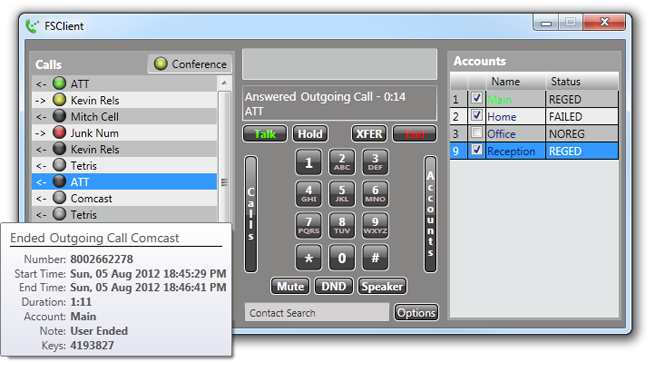
### Screenshot
### Features
- Unlimited simultaneous call support
- Multiple simultaneous sip account support
- N-Way calling with conference support (mute/deaf/kick/split/energy &
volume level control on a per caller basis)
- External / Internal contact book support (see Plugins)
- Incoming Call Notification Tray Alerts
- Speakerphone support and live call switching
- Advanced headset integration (caller ID, buttons, external displays
see Plugins)
- Call stats/history with option DTMF history
- Support for all freeswitch codecs OPUS, CELT, G711(ULAW/ALAW), GSM,
G722.1, SILK, Speex, BroadVoice, iLBC (minus G729 which is not yet
supported in Windows)
- DND (Do Not Disturb) Call Ignoring
- Call Hold / Call Transfer / Muting
- Event Socket for direct interaction with client
- Per call volume and mic gain adjustment
- Conference & Call recording
- TLS / SRTP Support with certificate/subject validation
- Direct SIP: dialing to a remote server
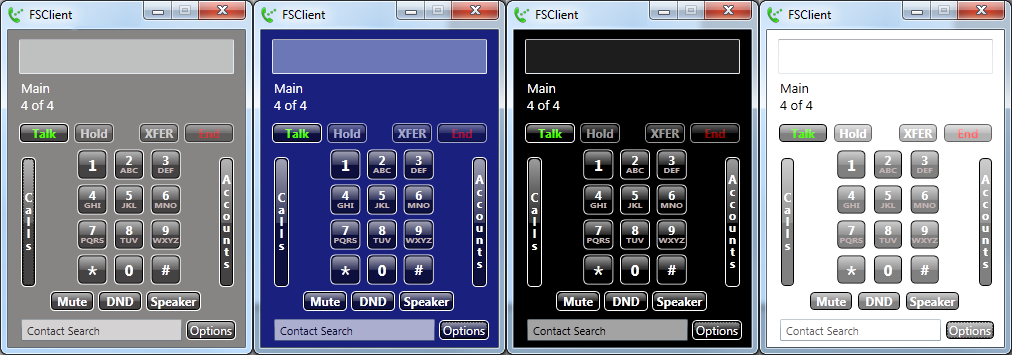
### Themes
### Layout
There are 3 main parts of the application. Calls, Current/Dialpad, and
Accounts. There is also the options button in the lower right for
configuration settings and optionally the Contact Search box under the
dialpad if a contact plugin is loaded. The Calls and Accounts panes of
the application can be hidden or shown by clicking the vertical button
in the center with each of their respective names on it. Multiway
calling is handled through the conference support. The application can
be navigated using tab and arrow keys along with each pane having a
short key to it.
#### Calls
The calls pane shows current active calls and the call history. Active
calls are always shown at the top, with the call that is currently
answered at the very top. You can jump to the first call in the calls
list using the keyboard shortcut control+C. Hovering over a call will
show the call details. Double clicking an active call will switch to
that call. Double clicking an ended call will call that number back (on
the same account it came in on). There is an arrow next to each call, a
left arrow means outgoing call (away from softphone) a right arrow means
incoming call (towards softphone). Calls also have an icon next to them
to show call status. Call status colors are:
- Grey - Ended
- Black - Canceled
- Red - Missed
- Blue - Ringing
- Green - Answered
- Yellow - Hold
Right clicking on a call will show current actions, for live calls this
includes things like Transfer, End Call, Add to Conference, Set your
volume (local microphone boost), Set other party volume (boost their
volume), it will also show any contact plugin actions.
#### Current / Dialpad
The current pane is in the center it shows the current call and any dtmf
presses so far, the dialpad and any current actions that can be taken.
The XFER button is to transfer, DND will reject any incoming calls,
Speaker will switch the audio device from the main devices to the
speakerphone devices (set in options). Yellow on a button means its
enabled. You can dial using the mouse to click numbers or using a
keyboard. To dial out on a specific account prefix the dial string with
a '\#' and the account number (for example \#48001112222 will dial the
number on account 4). You can jump to the number 1 key on the dialpad
using the keyboard shortcut control+D. If the contact plugin supports it
you can also have transfer aliases, right click on the XFER button to
manage them when not in a call and right click on the button to use them
while in a call.
#### Accounts
Accounts pane shows your sip accounts, each account has a local name for
reference and the current status of the account (normally accounts
should show REGED). Click the Add button to add a new account. Once an
account is added click the checkbox to enable it or disable it. Note
that there is also the 'default account' if you only have one this will
be it. The default account is what account is used to dial out by
default. To jump to the first account in the list hit control + A. Right
click on an account to check voicemail, edit it, force it to reconnect,
delete it, or set it as the default account.
#### Contact Search Box
The contact search box will show up in the bottom center IF a contact
plugin is used and it supports it. The default contact plugin is a
simple name to number xml database. To access the contact search box
click it or hit Control + f. Search box implementation is handled by the
plugin itself, but in general type part of the name to search for the
contact, up and down to scroll between results and enter to call (or
right click for more options). Additional functionality are per plugin.
#### Conference Support (N-Way calling)
Any call can be moved into a conference at any time, simply right click
on the call and select conference. This will shunt the call into the
local conference. If there is not already a conference one is created.
To see who is in the conference hover over the Conference button to the
right of the Calls header in the upper left. To control the conference
right click on the conference button. You can record the conference or
control each user individually. Use controls include: setting a user as
deaf makes it so they do not hear anyone, mute so no one else hears
them, and a users energy level controls how loud they must be to be
recognized as talking (higher the level the more background noise
discarded). You can split a user out of the conference through the user
controls too, returning them to a call with just you. If you leave the
conference (ie to answer another call or by putting it on hold) it
continues to run in the background, to rejoin simply double click the
conference button.
Version History
-------
History tracking only goes back to version 1.4.8, not earlier.
### 1.4.11 - 2019-12-25
> More Jabra headset troubleshooting for newer headsets (ie Evolve 75) with hardware state mute options.
> Base plugin has more functions virtual to allow overriding them in children
> Fixed Call Notification Bubble to show up on correct monitor for multi-monitor and at right position with alternate DPI's
> Send to voicemail in transfer right click menu for calls.
### 1.4.10 - 2019-09-06
> Added global hot keys for mute, answer, and end call as well.
### 1.4.9 - 2019-08-02
> Added global hot key option (ie control+shift+p) to bring FSClient window to the foreground from anywhere in windows (set in options).
> Allow setting Always On Top During Call to keep FSClient on top of other windows during an active call
### 1.4.8 - 2019-06-18
> Added transfer menu for calls (in contact plugins that support the transfer menu). Added option for contact plugins to provide a default string (ie @yourdomain.com) to transfer numbers if no "@" is found in the transfer url. These changes to the contact plugin system are breaking, and require some functions to be renamed. You can just rename the old functions to the new names but it is best to return the MenuItems directly now rather than adding them to the context menu itself.
> Number stripping options for plugins to be able to strip numbers off the call log.
> Better handling for Jabra headsets as sometimes they change names and lose their reference.
Installation
------------
### Requirements
- .NET 4.5.2 (installer will install this if not found)
- Windows Vista or Later
- Note: You can use the older FSClient 1.2 release if you need Windows XP/.net 4.0.
To install FSClient use the installer found under releases .
You can copy the installation folder to a USB drive for a portable version, just
make sure .NET 4.5.2 is installed where you want to use it. Note config is
not stored in the installation folder however if you copy your
user.config into the app.config file it will read this locally and use
this by default.
Accessibility
-------------
FSClient should be fairly screen reader and keyboard friendly. It does
rely on UIA(User Interface Automation) support so any accessibility
tools will need to support UIA. All controls should be labeled
correctly. There are shortcut keys to move around between the 3 panes
along with proper tab and arrow key support. Actions that require right
clicking support shift + F10, single clicking is done through spacebar,
and actions that require double clicking respond to the Enter key. If
you find something not properly accessible feel free to let me know.
Toggle buttons that use visual indicators will update their names to
reflect their active state. Items that have a hover tooltip (Calls and
the Conference only right now) you can force the tooltip to show by
hitting control + H when keyboard focused on the item. The tooltip will
go away if the keyboard focus changes, 20 seconds pass, or you hit
Control + H again. Note most screen readers may not read tooltips, you
can hit control + ? to show a popup message box with similar
information. The incoming call bubble can be answered by clicking the
answer button or hitting enter to accept the call.
Keyboard Shortcuts
------------------
- Toggle Mute - Control + M (Control + Shift + M always will ONLY mute not unmute)
- End Call - Control + E or Escape
- Focus On Call List / Last Selected Call - Control + L
- Focus on a specific call - Control + 1->9
- Focus On Keypad Digit 1 - Control + D
- Focus on Accounts - Control + A
- Show Tooltip (Only on focused calls/conference) - Control + H
- Show Messagebox with tooltip information - Control + ?
- Focus on Contact Search Box - Control + F (If already focused
Control + F again will select all)
- Single Click - Space
- Double Click - Enter
- Right Click - Shift + F10
- You can get a global hot key in options to bring FSClient to the front, mute, answer, and end calls as well
Compiling from Source
---------------------
The source code for FSClient can be found at under.
VS2010/VS2012-VS2015 project files and a solution are
provided.
First get FreeSWITCH compiling properly on windows see
[Installation\_for\_Windows](https://wiki.freeswitch.org/wiki/Installation_for_Windows) for details, the directory you compile it
into does not matter and FSClient supports both x86 and x64 versions of
FreeSWITCH. Make sure you use a copy of trunk for 2011-02-05 or later to
have it work properly (at a minimum grab the latest mod\_portaudio.c
from after that date). You then can set the environmental variable
FREESWITCH\_SRC\_LOCATION to the freeswitch build directory (Hint after
compiling FREESWITCH\_SRC\_LOCATION\\Win32 or
FREESWITCH\_SRC\_LOCATION\\x64 should exist). This can be set under
Advanced on the System properties control panel or in VS.
There are 4 optional projects that are loaded by the solution by default
but are not needed they can be unloaded to avoid building and any
loading errors ignored, they are: JabraHeadset, Plantronics Headset,
SimpleXMLContactPlugin, Setup. If FREESWITCH\_SRC\_LOCATION is set then
when building the required files from the freeswitch build will
automatically be copied into the FSClient working directory, there is
also the link.pl script in the External Items that can be used to copy
the files manually.
If you want to build the installer (Setup) you will also need the
Windows Installer XML Toolset (http://wix.sourceforge.net/) or the setup
project will not load properly.
If you are impatient and want to compile FSClient quickly without
compiling Freeswitch first, simply install FSClient from the zip file,
browse to C:\\Program Files\\FSClient folder and copy all the dlls, the
conf folder, mod folder to your bin folder and build FSClient. Note: You
risk not having the latest FS build, which might be a dependency in the
current FSClient source.
Troubleshooting
-------------
- First if compiling from source try the FSClient binary to make sure its not something build or version related
- If FSClient crashes on startup or you get an XML error most likely you do not have an active speaker and microphone, this is required (note having a jack but not being plugged into it will not work, as FreeSWITCH (portaudio) will not see it as an active device)
- If FSClient crashes randomly when in use after extended periods of time, 99% of the time this is due to an audio device malfunctioning. We have seen USB speakers that have stopped working, when a call comes in and FreeSWITCH (portaudio) tries to ring the device it cannot properly open the speaker and then crashes. The USB speaker itself doesn't work unless unplugged and plugged back in. So if this is happening make sure all your audio devices are working correctly at the time.
- FSClient uses freeswitch at the core, and that means you have the full logging and debugging features of FreeSWITCH. In options you can configure the event socket settings, but by default it listens with the default password (ClueCon) and port of 8022. Attach fs_cli to FSClient and set the loglevel to debug. This can often help diagnose connection errors. Tools like fs_logger.pl (https://github.com/mitchcapper/FSMisc) will also work. You can also edit the freeswitch.xml its a very simple FS config.
- If a module or mod_managed itself will not load it could be due to a new DLL introduced as required and not automatically copied over. Use "dumpbin /dependents freeswitch.dll" to inspect what dlls should be copied into place.
Configuration
-------------
### Standard Options
- Headset Device: This will always be set to None unless you have one
of the headsets that there is a headset plugin for (Jabra and
Plantronics by default). If you do have one of these headsets select
it here and this will enable any advanced functionality your
headset supports. NOTE: you do not need to have your headset show up
here to use it, this just enables functionality like button presses,
caller ID, etc. You can still use a headset not listed here like any
other standard audio device.
- Main Input / Main Output: These are the sound devices that are used
by default during a phone call
- Speakerphone Input / Speakerphone Output: These are the sound
devices used when the speakerphone button is pressed
- Ring Device - This is the sound device that an incoming call will
ring on
- Bring to Front on Incoming Calls - This will try and bring the
FSClient window to the front when a call is incoming
- Show Incoming Call Notification Balloons - Shows a systray like
popup for each incoming call (shows caller ID and available actions)
- Clear Key Presses In Call Stats on Disconnect - Will clear the DTMF
history for all calls that are ended (rather than saving it
by default)
- Startup Layout - Choose which panels will be displayed or collapsed
by default
- Theme - Choose from the variety of themes for the dialer
- Recording Path - Where call recordings should be stored (to record a
call you must right click on it and click record)
- Global Hotkeys - allows setting a global hot key (like control+shift+p)
to bring FSClient to the foreground and have keyboard focus along
with options for muting, answering, and ending calls
- Only Allow Numeric Input When Dialing - When enabled you can only
dial numbers, \# and \*'s. This will automatically convert any
letters typed to the proper key press per a normal keypad. If you
want to be able to have dial strings with letters in them disable
this feature.
- Direct DIP: Dialing - Allows you to have FSClient directly connect
to another SIP endpoint without going through a sip server. To do so
use the sip: format for dialing (requires Only Allow Numeric Input
to be off).
- Window Always On Top During Call - Keep the main call window topmost
during a call, can still be minimized
- UPNP Nat Check - This enables FS to do its UPNP check on startup in
most cases its not needed (costs 5-10 seconds extra startup time) is
the equiv of -nonat to freeswitch
- Check for Updates on Startup - Will hit a remote server and let you
know if there is a new version of FSClient out
- Reload Devices - Will do a hardware scan for any sound device
changes (note cannot be used during a call), useful if things are
plugged in or unplugged
- Sofia Settings - Takes you to the sofia options.
- Event Socket Settings - Takes you to the event socket options.
- Plugin Settings - Takes you to the plugin options
### Account Options
When creating or editing an account there are several options. Name /
Account Number are FSClient only settings just for display purposes (or
for the account shortcut number to use during dialing). To specify the
port for an account in the server box put ip:port or host:port like:
123.123.123.123:4550.
### Sofia Options
Configure various sofia settings, codec selection(right click on a codec
to re-order it), nat config, tls options, and local bind ports. Values
are the same as the normal freeswitch sofia config.
### Event Socket Options
Allows you to set the ip, port, password, and optional ACL rule for the
event socket.
### Plugin Options
This will allow you to control which plugins are enabled or disabled and
then configure any plugin options that they may have. Note that when you
enable or disable a plugin you must restart FSClient for the change to
take effect. You can have multiple headset plugins enabled at once, but
only one contact plugin. Any plugins that are enabled but have an error
occur will show a warning sign, hover over the warning sign to see the
error.
TODO
----
- Outlook Contact Plugin
- Better configuration storage (option for in local folder for
portable), maybe separate file for each configuration section
- Freeswitch working dir not app folder (so no writing is required to
local folder for proper vista+ apps)
- Export call history on exit, and reload on startup
- An option for a portable version (an option in the program to store
the configuration in the working directory rather than User data
dir, most likely checking for a local config before looking for the
normal one is the easy way to solve this issue)
- Remote Control plugin support (plugin able to make and accept calls,
close FSClient, DND or Mute FSClient, also gets caller ID) would
allow for external applications to better control FSClient or from a
remote location
- ZRTP support
Plugins
-------
Many plugin errors are caught and silently logged to the plugin.log file
located in the app settings folder (generally
c:\\users\\Username\\AppData\\Local\\Mitch\_Capper\\\*\\plugins.log, see
this file for any issues. You can also see the last error a plugin had
by hovering over the warning icon on the plugin options page.
### Contact Plugins
#### SimpleXMLContactPlugin
This is basically an internal contact book plugin. It is very simple
allows you to associate a name with a number. The database is stored in
the AppData folder for the application in an XML file. Right clicking on
a call or contact will allow you to edit the alias. You can right click
on a contact to call them (from the contact search box), double click to
call them or hit return to call them.
### Headset Plugins
Headset plugins enable advanced headset functionality. This generally
includes opening/closing audio links, caller ID displays, button
handling, touch screen interfacing, etc.
#### JabraHeadsetPlugin
Note the Jabra PC Suite must be installed. The headsets are a bit ANAL
and so try to be kind. Answering exactly as a call rings, muting
instantly on a call, mashing on the buttons rapidly can cause the
headsets to go into a state where events are not properly generated. Use
them with a slight bit of TLC and they will work very well and without
much thinking.
- Button press support
- Open/close audio link (make sure to set “PC Audio Control” to manual
under the Jabra Control Center)
- Caller ID Support
- Touch screen support
- Requires To Function: Download and install the Jabra PC Suite:
(you do not need to
have it run at startup however)
#### PlantronicsHeadsetPlugin
- Button press support
- Open/Close audio link
- Requires To Function: Download the plantronics enterpise SDK from:
you need just give them a name and email. Then run
PlantronicsURE-SDK.msi and install.
Develoment/Contributing
-----------------------
If you want to work on FSClient please do! Pull requests and bugs through GitHub are always welcome.
You can work on the code base itself or plugins, if you would like to work with us please feel free to
contact us on IRC we are generally in the main channel (Try for MitchCapper if he is there).
### Plugin Development
There are two types of plugins, contact plugins and headset plugins. It
is important to note that FSClient tries to catch and hide most errors
plugins generate and send them to a log file. For writing plugins this
can be annoying if you are not catching your own exceptions and so you
may want to disable this code in FSClient. There are a few plugins
included in the FSClient code base take a look at these for examples.
Note since version 1.2 plugin file names MUST match the file naming
convention or FSClient will not try to load them. Headset plugins must
end in HeadsetPlugin.dll and contact plugins must end in
ContactPlugin.dll. An example of a valid contact plugin filename is:
SimpleXMLContactPlugin.dll.
#### Headset Plugins
All headset plugins must inherit from IHeadsetPlugin and each actual
headset must be an instance of IHeadsetDevice. Your headset plugin
should be able to handle if the user does not have the runtime/headset
installed on the machine without throwing any errors, and certainly
without popping up any message boxes. The headset manager will try to
catch and hide any exceptions from the user, but these should not occur
too often. There are some flags each headset device can specify, so the
headset manager knows a bit about handling them. ANAL had the goal to
only send plugins actual changes and avoid any duplicate events going to
the headset (for example telling it to enable the audio link if already
enabled), it is currently has no effect however and the headset manager
tries to be anal with all. Aside from consuming events it is expected
that headsets generate events for things like button pushes, etc if they
support this.
#### Contact Plugins
Contact plugins can inherit either from IContactPlugin or the helper
class SimpleContactPluginBase (ignore the Sync functions). SimpleContactPluginBase is the easiest to
implement, and if you like the functionality of the built in
SimpleXMLContactPlugin but just want a different datastore (either local
or remote) it can be the way to go. SimpleContactPlugin has very low
requirements, implement UpdateDatabase, SaveDatabase, LoadDatabase, and
ProviderName and you are done. You want to store the database in
number\_to\_alias\_db which is a dictionary of string to string's of the
phone number to the alias it goes with. There are additional functions
you can implement to add additional functionality. IContactPlugin is a
bit more complex to implement but gives more flexibility, The contact
search box does next to nothing for you out of the box, so you must
implement whatever functionality you want (if you want to support the
contact find box). See SimpleContactBase for how it behaves and if you
can emulate its functions to give a consistent user experience. There is
also a newer SimpleContactPluginBaseAsync. It has Task based functions
for those that may be async.
### General Class/File Layout
Note plugins should only interact with utility classes (including
generic editor/input box if desired) and broker. Plugins should
generally avoid talking to other classes if possible.
- Account - Handles account settings, generating the account config,
and handle account changes.
- Broker - This is the central manager class, for the most part other
classes are generally meant to not talk to either other directly,
but instead interact through the broker. This gives a consistant
interface for activity. Broker is in charge of spinning up almost
all other classes, initializing the freeswitch core, disperses
events, and generates events for most common changes that occur.
- Call - Handles call information, interpreting call events and
call actions.
- Conference - Tracks the conference for multi-party calling and
people in the conference
- Converters - GUI xaml converters for converting data to nice display
formats
- DelayedFunction - Allows for other classes to schedule tasks to
occur in the future. Has one primary function, DelayedCall that
takes a key, a function, and how many ms from now to cause it
to happen. It checks for due functions every 200ms. If a key is past
in then it will remove any other functions of the same key from the
queue prior to adding the new one. This is useful for status changes
to avoid firing stale changes.
- EventSocket - Handles event socket preferences
- Field - This class handles configuration data. It is how any dynamic
configuration data should be stored. It makes it very easy to add or
remove, settings, serialize them to XML and works with GenericEditor
to give a GUI for them also. If you want to save more than a few
settings (for example a bunch of settings for config generation) you
want to use these.
- FSEvent - Wrapper around the freeswitch core events providing some
helper functions and general parameters.
- GenericEditor - A multi-tab/categorized gui editor that works with
the Field's classes to give an instant gui configuration for any
Field settings with 0 gui coding.
- IContactPlugin - Has the base class for any contact plugins(other
than SimpleContactPluginBase) along with the Contact Plugin Manager
that handles contact plugins.
- IHeadsetPlugin - Has the base class for any headset plugins along
with the Headset Plugin Manager that handles headset plugins.
- IncomingCallNotification - Systray / balloon popup window for
incoming calls
- InputBox - Generic popup input box class for collecting input from a
user
- IPlugin - Base class for all plugins with abstract structure
- MainWindow - The main window
- Options - The main options GUI
- PluginOptionsWindow - GUI for the plugin options
- PluginManagerBase - This is a base class for any plugin manager.
Handles some common tasks like loading plugins, saving/loading
enabled plugins preferences.
- PortAudio - The wrapper around all portaudio related items.
- SimpleContactPluginBase - A base class that implements
IContactPlugin partially to allow for simpler Contact Plugins
- Sofia - Handles sofia settings, generating sofia config, and sofia
changes
- Utils - Basic FSClient utilities, debug logging, general paths,
along with the BGAPI class. BGAPI executes freeswitch core API calls
in the background in the order received. This is useful if you want
to execute something but do not care about the result and do not
want to tie the GUI up. Simply calling api\_exec with the cmd and
args is all it takes and it will return instantly.
- Windows - Windows specific code, originally separated out when cross
platform was a goal. Currently only manages the systray icon.
- XmlUtils - XML helper functions