https://github.com/mplodowski/backupmanager-plugin-public
https://octobercms.com/plugin/renatio-backupmanager
https://github.com/mplodowski/backupmanager-plugin-public
octobercms-plugin
Last synced: 4 months ago
JSON representation
https://octobercms.com/plugin/renatio-backupmanager
- Host: GitHub
- URL: https://github.com/mplodowski/backupmanager-plugin-public
- Owner: mplodowski
- Created: 2017-10-09T22:35:25.000Z (over 8 years ago)
- Default Branch: master
- Last Pushed: 2022-06-16T14:04:10.000Z (about 4 years ago)
- Last Synced: 2025-07-18T04:33:53.213Z (12 months ago)
- Topics: octobercms-plugin
- Homepage: https://octobercms.com/plugin/renatio-backupmanager
- Size: 1.14 MB
- Stars: 0
- Watchers: 2
- Forks: 1
- Open Issues: 1
-
Metadata Files:
- Readme: README.md
Awesome Lists containing this project
README
# Backup Manager Plugin
**Demo URL:** https://october-demo.renatio.com/backend/backend/auth/signin
**Login:** backup
**Password:** backup
Backup your application with ease.
The backup is a zip file that contains all files in the directories you specify along with a dump of your database. The
backup can be stored on any of the filesystems you have configured in October. You can backup your application to
multiple filesystems at once. In addition to making the backup, the package can also clean up old backups, monitor the
health of the backups, and show an overview of all backups. The plugin can also notify you via mail when something goes
wrong with your backups.
## Features
* A backup database and application files with mouse click
* S3, FTP, SFTP, Dropbox storage support
* MySQL, PostgreSQL and Mongo databases support
* A configurable scheduler for automatic backups
* Automatic cleanup old backups
* Extensive settings options
* Encryption and password protection
* Monitoring the health of all backups
* Mail notifications
## Requirements
This plugin requires PHP 8.0, with the [ZIP module](http://php.net/manual/en/book.zip.php) and Laravel 9.0 or higher.
It's not compatible with Windows servers.
If you are using an older version of Laravel and October, take a look at one of the previous versions of this plugin.
The package needs free disk space where it can create backups. Ensure that you have **at least** as much free space as
the total size of the files you want to backup.
Make sure `mysqldump` is installed on your system if you want to backup MySQL databases.
Make sure `pg_dump` is installed on your system if you want to backup PostgreSQL databases.
Make sure `mongodump` is installed on your system if you want to backup Mongo databases.
## Why is this a paid plugin?
Something that is free has little or no perceived value. Users do not commit to free products and only use them until
something else looks nice and is free comes along. When I invest my time in the development of a new plugin I commit to
supporting and maintaining it. I ask my customers to do the same. I do not make money from this plugin by
advertisements, upgrades or additional services like hosting or setup.
Did you know that 30% of your purchase or donation goes to help fund the October Project?
My plugins take many hours to develop (40-120+) and even more hours to document and maintain. My paid plugins have to
pay for both this time, and the time I am spending on free plugins and less successful paid plugins. This means that it
will take even a successful plugin years to become profitable. Please consider buying an extended license if you want me
to continue to maintain these plugins for the very small fee I ask in return or hire me for adding functionality that
you feel is missing but valuable.
## Like this plugin?
If you like this plugin, give this plugin a Like or Make donation with [PayPal](https://www.paypal.me/mplodowski).
## My other plugins
Please check my other [plugins](https://octobercms.com/author/Renatio).
## Support
Please use [GitHub Issues Page](https://github.com/mplodowski/backupmanager-plugin-public/issues) to report any issues
with plugin.
> Reviews should not be used for getting support or reporting bugs, if you need support please use the Plugin support
> link.
Icon made by [Darius Dan](https://www.flaticon.com/authors/darius-dan)
from [www.flaticon.com](https://www.flaticon.com/).
# Documentation
## Usage
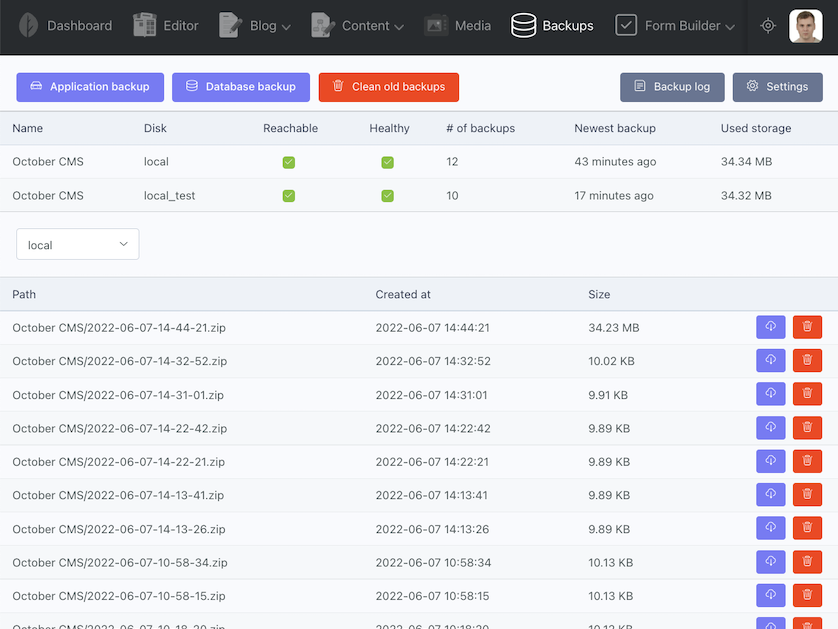
After installation plugin will register backend **Backups** menu position.
**Application backup** button will create backup with all project files and database dump file. To change which files
will be included see plugin **Settings**. Default settings will take project **base path** and exclude **vendor** and **node_modules** directories from it.
**Database backup** button will create only database backup.
**Clean old backups** button will clean up old backups based on the plugin **Settings**.
**Backup log** button will show the latest backup log in popup window.
> **Important note:** Log is not created when you manually run console command.
**Settings** button will redirect you to the plugin settings.
## Maximum execution time error
When you experience **Maximum execution time of ... seconds exceeded** error than most likely application backup is too
large and PHP cannot do this process in a single request.
> What can I do?
1. Change **max_execution_time** property value in your PHP configuration.
2. Use [Scheduler](#scheduler) to perform automatic backups (recommended).
3. Use [Console commands](#console-commands) to perform backups.
## Settings
This plugin ships with settings page. Go to **Settings**, and you will see a menu item **Backup Manager** listed
under **Backup** section.
### Source
| Property | Description |
|-----------------------------------|--------------------------------------------------------------------------------------------------------------------------------------|
| **Databases** | The names of the connections to the databases that should be backed up. MySQL, PostgreSQL, SQLite and Mongo databases are supported. |
| **Exclude tables** | Those tables will not be included in backup. |
| **Compress database dump** | The database dump can be compressed to decrease disk space usage. |
| **Follow links** | Determines if symlinks should be followed. |
| **Ignore unreadable directories** | Determines if it should avoid unreadable folders. |
| **Include** | The list of directories and files that will be included in the backup. Leave empty to backup whole October project. |
| **Exclude** | These directories and files will be excluded from the backup. Directories used by the backup process will automatically be excluded. |
### Destination
| Property | Description |
|---------------------|-----------------------------------------------------|
| **Filename prefix** | The filename prefix used for the backup zip file. |
| **Name** | The name of this application. |
| **Disks** | The disk names on which the backups will be stored. |
### Scheduler
Configure how often plugin will run automatic tasks for database backup, application backup, clean old backups and
monitor the health of all backups actions.
> **Important note:** For scheduled tasks to operate correctly you must set up the
> scheduler: https://octobercms.com/docs/setup/installation#crontab-setup
### Security
Here you can specify password protection for backups. You will be asked to enter this password in order to unzip the
backup file.
#### Password
Remember to use long strings and to keep your password safe – **without it, you will never be able to open your backup**
.
Leave it blank if you want to keep your backup without a password.
#### Encryption
It's common to encrypt backups before storing them somewhere to prevent unauthorized access.
It's important to try this workflow and also to decrypt a backup archive, so you know that it works and you have a
working backup restore solution.
**Warning:** the default MacOS app to (un)archive ZIPs seems unable to open/extract encrypted ZIP files.
You should use an app like [The Unarchiver](https://theunarchiver.com/) or [BetterZip](https://macitbetter.com/).
### Cleanup
| Property | Description |
|----------------------------------------------------------|---------------------------------------------------------------------------------------------------------|
| **Keep all backups for days** | The number of days for which backups must be kept. |
| **Keep daily backups for days** | The number of days for which daily backups must be kept. |
| **Keep weekly backups for weeks** | The number of weeks for which one weekly backup must be kept. |
| **Keep monthly backups for months** | The number of months for which one monthly backup must be kept. |
| **Keep yearly backups for years** | The number of years for which one yearly backup must be kept. |
| **Delete oldest backups when using more megabytes than** | After cleaning up the backups remove the oldest backup until this amount of megabytes has been reached. |
### Monitoring
A backup is considered unhealthy if the date of the latest backup is too far in the past to be useful or if the amount
of storage space required for all backups is not available.
| Property | Description |
|---------------------------------------------------|--------------------------------------------------------------------------------------------------------------------------------------------------------------------------------------------------------------|
| **Newest backups should not be older than days** | Send mail notification when newest backup will be older than given days. Default to 1 day. |
| **Storage used may not be higher than megabytes** | Send mail notification when storage used for backups will be higher than given megabytes. Default to 5000 megabytes. Setting to 0 means the monitor will consider that the backup can use unlimited storage. |
### Dumping the database
The `mysqldump`/`pg_dump` are used to dump the database. If they are not installed in a default location, you can add a
key named `dump.dump_binary_path` in October `database.php` config file. Only fill in the path to the binary. Do not
include the name of the binary itself.
If your database dump takes a long time, you might exceed the default timeout of 60 seconds. You can set a higher (or
lower) limit by providing a `dump.timeout` config key which specifies, in seconds, how long the command may run.
Here's an example for MySQL:
```
// config/database.php
'connections' => [
'mysql' => [
'driver' => 'mysql'
...,
'dump' => [
'dump_binary_path' => '/path/to/the/binary', // only the path, so without `mysqldump` or `pg_dump`
'use_single_transaction',
'timeout' => 60 * 5, // 5 minute timeout
'exclude_tables' => ['table1', 'table2'],
'add_extra_option' => '--optionname=optionvalue',
]
],
```
There is also a setting in backend area to exclude database tables from backup. By default, it will exclude logs tables.
## Configuring the backup disk
By default, the backup will be saved into the storage/app/October CMS/ directory of your October application. This
folder most probably is configured to be public. We recommend that you create a disk named backups (you can use any name
you prefer) in filesystems.php and select this disk in plugin Settings.
## Filesystems
Plugin supports following storage drivers:
* Local Storage
* S3 Cloud Storage
* FTP Storage
* SFTP Storage
* Dropbox Cloud Storage
More drivers can be added on feature requests. Just create an issue with **[Feature Request]** in title, and I will see
what can be done.
The filesystem configuration file is located at **config/filesystems.php**. Within this file you may configure all of
your "disks". Example configurations for each supported driver is included in the configuration file. So, simply modify
the configuration to reflect your storage preferences and credentials!
### S3 Driver Configuration
Before using the S3 driver, you will need to install the Flysystem S3 package via the Composer package manager:
```
composer require league/flysystem-aws-s3-v3 "^3.0"
```
The S3 driver configuration information is located in your `config/filesystems.php` configuration file.
After filesystem configuration go to plugin **Settings** and check `s3` disk in **Destination** tab.
### FTP Driver Configuration
Before using the FTP driver, you will need to install the Flysystem FTP package via the Composer package manager:
```
composer require league/flysystem-ftp "^3.0"
```
Laravel's Flysystem integrations work great with FTP; however, a sample configuration is not included with the framework's default `filesystems.php` configuration file. If you need to configure an FTP filesystem, you may use the configuration example below:
```
'ftp' => [
'driver' => 'ftp',
'host' => env('FTP_HOST'),
'username' => env('FTP_USERNAME'),
'password' => env('FTP_PASSWORD'),
// Optional FTP Settings...
// 'port' => env('FTP_PORT', 21),
// 'root' => env('FTP_ROOT'),
// 'passive' => true,
// 'ssl' => true,
// 'timeout' => 30,
],
```
After filesystem configuration go to plugin **Settings** and check `ftp` disk in **Destination** tab.
### SFTP Driver Configuration
Before using the SFTP driver, you will need to install the Flysystem SFTP package via the Composer package manager:
```
composer require league/flysystem-sftp-v3 "^3.0"
```
Laravel's Flysystem integrations work great with SFTP; however, a sample configuration is not included with the framework's default `filesystems.php` configuration file. If you need to configure an SFTP filesystem, you may use the configuration example below:
```
'sftp' => [
'driver' => 'sftp',
'host' => env('SFTP_HOST'),
// Settings for basic authentication...
'username' => env('SFTP_USERNAME'),
'password' => env('SFTP_PASSWORD'),
// Settings for SSH key based authentication with encryption password...
'privateKey' => env('SFTP_PRIVATE_KEY'),
'password' => env('SFTP_PASSWORD'),
// Optional SFTP Settings...
// 'hostFingerprint' => env('SFTP_HOST_FINGERPRINT'),
// 'maxTries' => 4,
// 'passphrase' => env('SFTP_PASSPHRASE'),
// 'port' => env('SFTP_PORT', 22),
// 'root' => env('SFTP_ROOT', ''),
// 'timeout' => 30,
// 'useAgent' => true,
],
```
After filesystem configuration go to plugin **Settings** and check `sftp` disk in **Destination** tab.
### Dropbox configuration
Install [Dropbox Adapter](https://octobercms.com/plugin/renatio-dropboxadapter) plugin.
Read this external plugin documentation and configure Dropbox filesystem.
After filesystem configuration go to plugin **Settings** and check `dropbox` disk in **Destination** tab.
## Console commands
Plugin will create three new artisan commands for working with a console.
**backup:run** command will run new backup process. Add **--only-db** option for backup only database.
**backup:clean** command will run clean old backups process.
**backup:list** command will display status of all monitored destination filesystems.
**backup:monitor** command will check status of all monitored destination filesystems.
## Mail notifications
Plugin can send notifications when:
- backup was successful,
- backup has failed,
- cleanup was successful,
- cleanup has failed,
- healthy backup was found,
- unhealthy backup was found.
To configure this feature go to plugin **Settings** and **Notifications** tab.