https://github.com/mr-destructive/capes
Content Aggregator + Email Sender System
https://github.com/mr-destructive/capes
django python
Last synced: about 1 month ago
JSON representation
Content Aggregator + Email Sender System
- Host: GitHub
- URL: https://github.com/mr-destructive/capes
- Owner: Mr-Destructive
- Created: 2022-03-18T05:26:39.000Z (about 4 years ago)
- Default Branch: main
- Last Pushed: 2022-05-02T16:58:30.000Z (about 4 years ago)
- Last Synced: 2025-01-29T20:37:28.738Z (over 1 year ago)
- Topics: django, python
- Language: Python
- Homepage:
- Size: 219 KB
- Stars: 0
- Watchers: 1
- Forks: 0
- Open Issues: 1
-
Metadata Files:
- Readme: README.md
Awesome Lists containing this project
README
# Content Aggregation + Email System (CAPES)
Content Aggregator and Email Sender System is a web application for sending and scheduling mails.
## Developer Guide
Below is a step-by-step guide to setup the project in your local development environment.
### Installation
```
pip install virtualenv
virtualenv venv
Windows:
venv\Scripts\activate
Linux/macOS:
source venv/bin/activate.sh
pip install -r requirements.txt
python manage.py migrate
python manage.py runserver
```
### Using Docker Compose
```
docker-compose up
```
## Creating a Environment keys file
Create a file called `.env`on the root of the project structure i.e. the same folder where `manage.py` file is located.
### Database details
Add the following database details as per your configuration of PostgreSQL database.
```
POSTGRES_USER=postgres
POSTGRES_PASSWORD=password
POSTGRES_DB=name_of_database
```
### Generating Secret key
To generate a `SECRET_KEY`, you need to open a Python REPL and enter a few commands.
```
python
import secrets
secrets.token_hex(24)
```
Copy the token without the quotes. Add the following in the `.env` file with the copied token.
```
SECRET_KEY=paste_the_token_here
```
## User Instructions
Below are the user-level instructions for accessing and utilizing the application for sending emails.
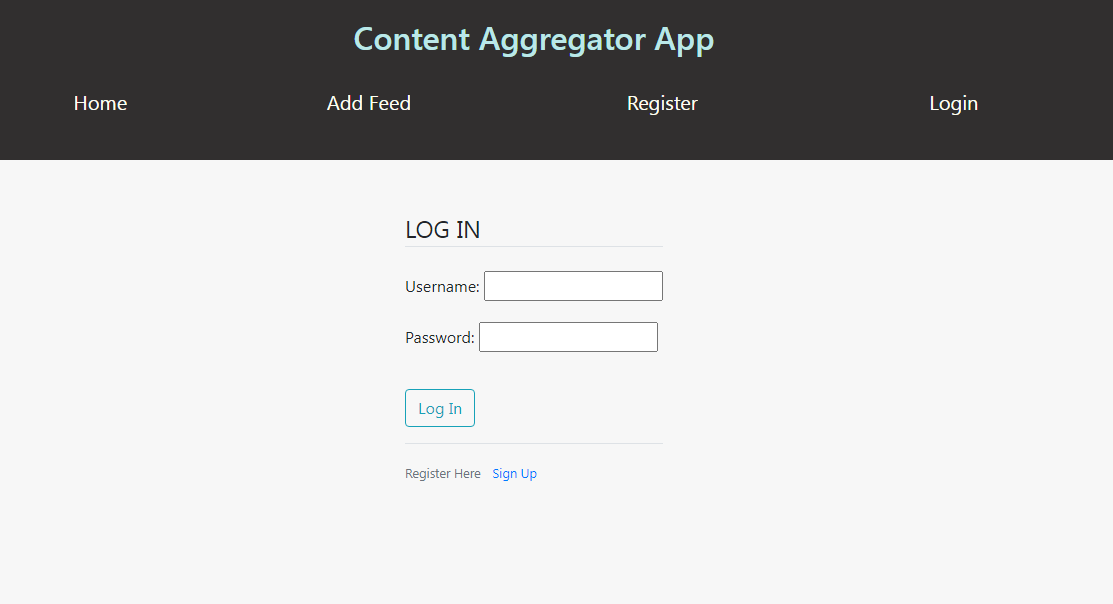
### Simple User Account
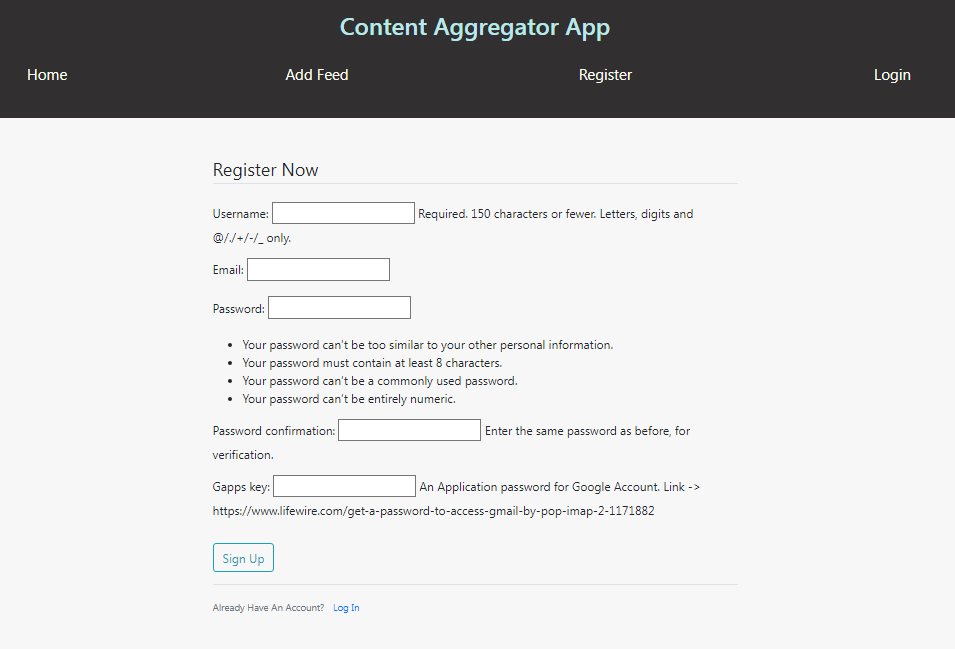
We simple take in a few inputs for better accountability and proper delivery of emails. We take in the following inputs from the user:
1. Username
2. Email (Gmail Account)
3. Password
4. Google Apps Password
### Generate GAPPS key for sending emails
To be able to send emails, we need a Google Application Key, it is a simple 15 digit key that is used instead of your master password to authenticate you for sending mails.
The Google Apps Key/Password is on only when you have 2FA (Two Factor Authentication) enabled for your GMail Account. After enabling the 2FA, you can head over to the Security Tab and inside the `Signing into Google` Section, you should see the `App Password` option.
You can create a `Mail` app for your desired Operating System and generate the password. Copy the password and store it in a secure place, we would need that for registering for a account on the project.
## User Interface
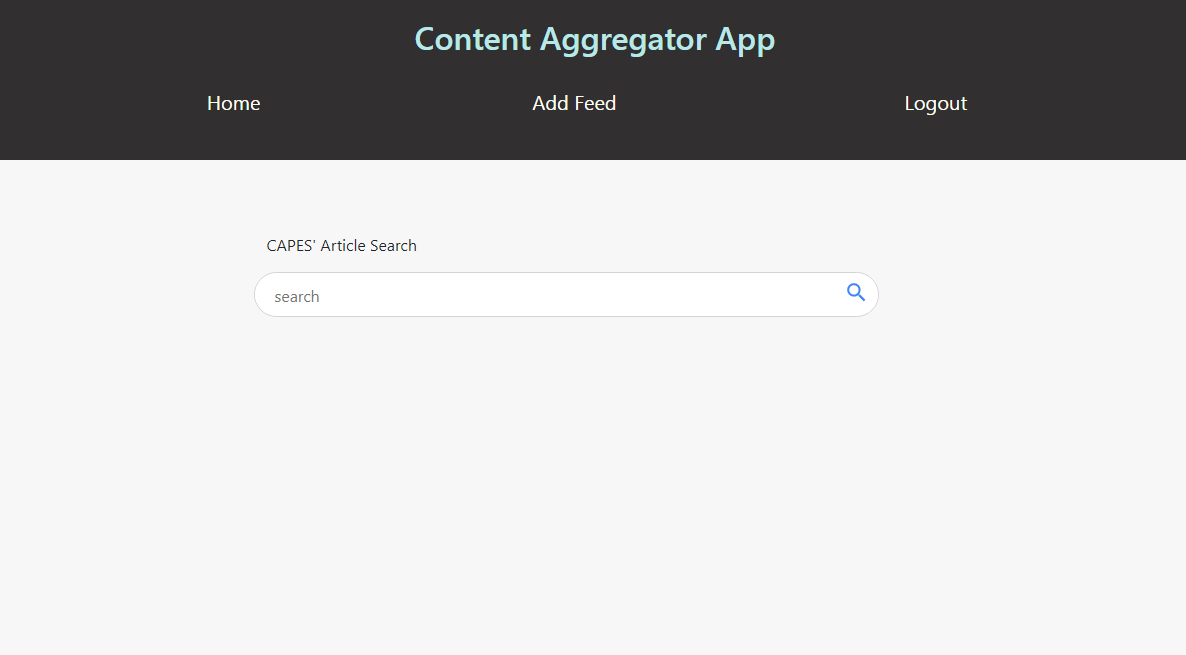
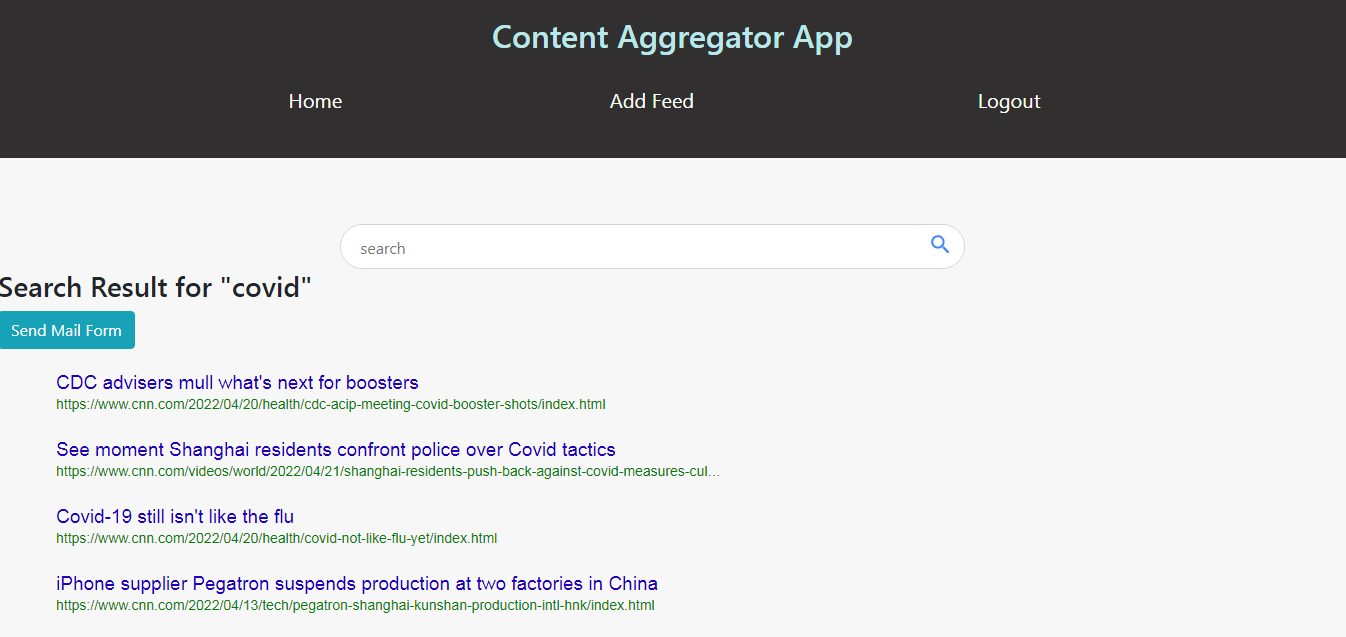
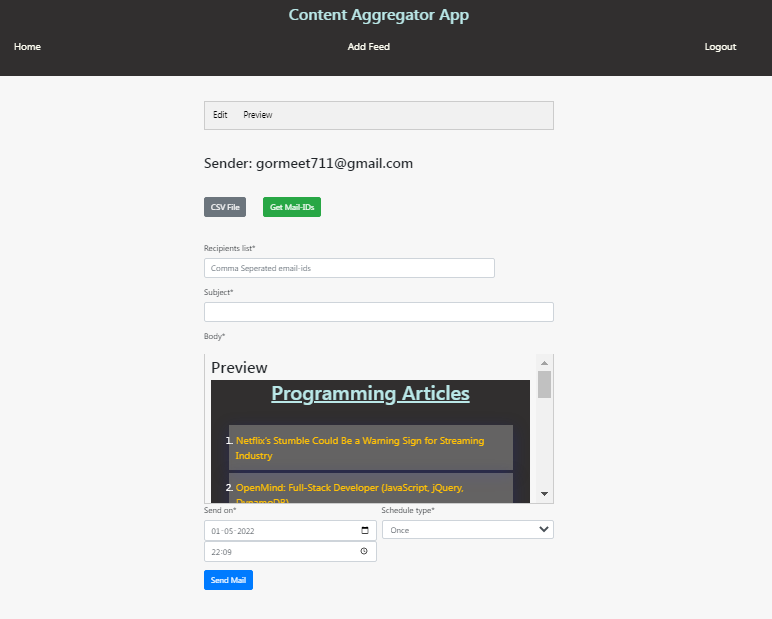
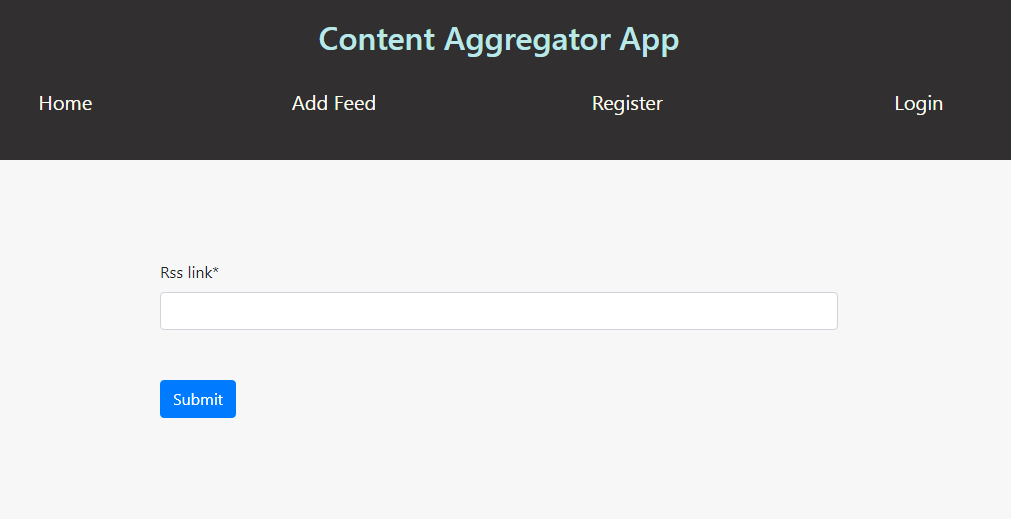
- Search for a keyword
- View the Latest Articles from the searched term.
- Head towards the Send Mail Section.
- Add the required details
- Mail Recipients (enter manually or extract from CSV file)
- Subject
- Edit/Preview the Mail body
- Schedule type (once/weekly/monthly)
- Send the mail