https://github.com/mrnugget/fzz
fzz makes your command line interactive!
https://github.com/mrnugget/fzz
Last synced: 7 months ago
JSON representation
fzz makes your command line interactive!
- Host: GitHub
- URL: https://github.com/mrnugget/fzz
- Owner: mrnugget
- License: mit
- Created: 2014-03-16T10:23:14.000Z (over 12 years ago)
- Default Branch: master
- Last Pushed: 2016-08-17T05:14:52.000Z (almost 10 years ago)
- Last Synced: 2024-06-18T23:15:31.812Z (about 2 years ago)
- Language: Go
- Homepage:
- Size: 138 KB
- Stars: 199
- Watchers: 8
- Forks: 8
- Open Issues: 4
-
Metadata Files:
- Readme: README.md
- License: LICENSE
Awesome Lists containing this project
- command-line-tools - fzz - Allows you to change the input of a single command interactively. (Other)
README
# fzz [](https://travis-ci.org/mrnugget/fzz)
**Do one thing, do it well — multiple times!**
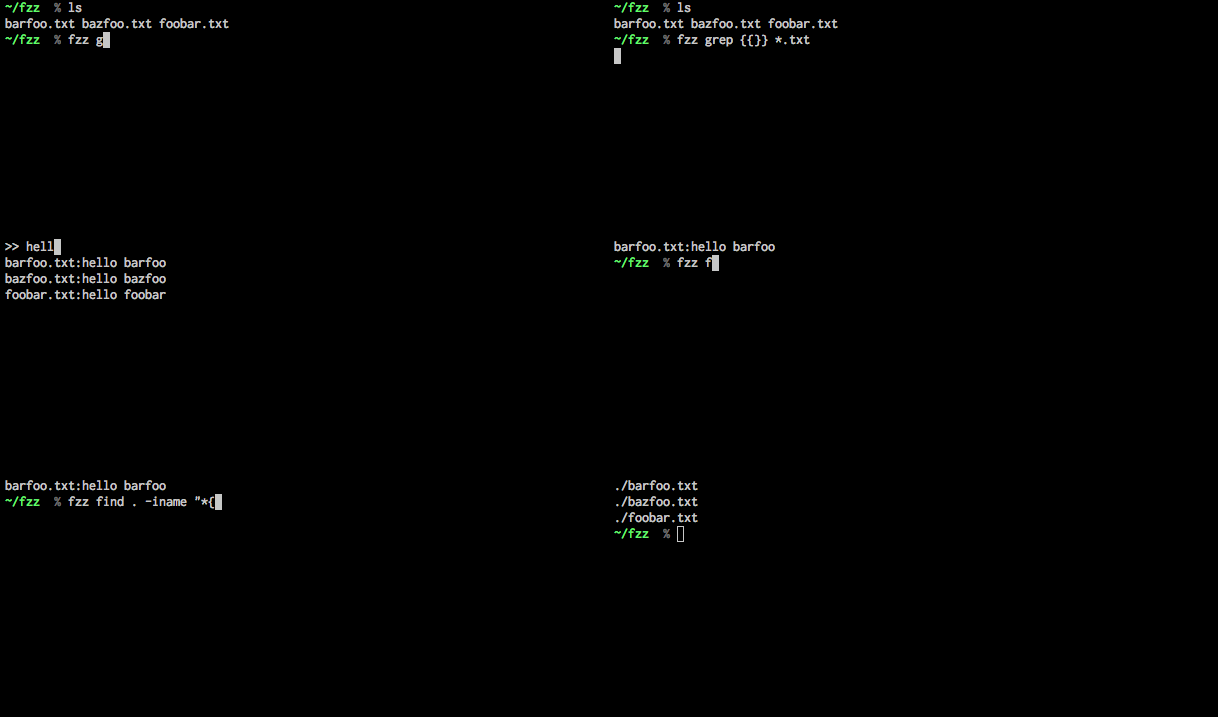
**fzz** allows you to change the input of a single command interactively. Have a
look and pay close attention to the bee's knees here:
## Installation
Current version: 1.1.0
### Download the binaries
Download the [current release](https://github.com/mrnugget/fzz/releases) for
your platform and copy the **fzz** binary to your `$PATH`.
### Compile from source
Make sure you have Go installed. Then install **fzz** from source:
```
go get github.com/mrnugget/fzz
```
## Usage
The general usage pattern is this:
```bash
fzz [command with {{}} placeholder]
```
Example: using **fzz** and `grep` to search through all `*.go` files in the current
directory.
```
fzz grep {{}} *.go
```
Running this presents you with a prompt that allows you to change what `grep`
will use as its search pattern by replacing `{{}}`.
After every input change **fzz** will rerun `grep` with the new input and
show you what `grep` wrote to its STDOUT or, hopefully not, to its STDERR.
Once you're happy with the presented results simply press **return** to quit
**fzz** and have the results printed to STDOUT.
Since the results will be printed to STDOUT you can use **fzz** with pipes:
```
fzz grep {{}} *.go | head -n 1 | awk -F":" '{print $1}'
```
**fzz** buffers its STDIN and passes it on to the specified command. That means
you can put pipes all around it:
```
grep 'func' *.go | fzz grep {{}} | head -n 1
```
If you want to change the placeholder, you can do that by specifying it with the
environment variable `FZZ_PLACEHOLDER`:
```
FZZ_PLACEHOLDER=%% fzz grep %% *.go
```
## Usage Examples
### Searching with ag
Use **fzz** to search through your current directory with
[the_silver_searcher](https://github.com/ggreer/the_silver_searcher)
interactively:
```
fzz ag {{}}
```
### fzz and find for interactive file search
We can combine `find` and `fzz` to interactively search for files that match our
input pattern:
```
fzz find ./Documents -iname "*{{}}*"
```
### Use it in Vim to grep through your project
Use it as interactive search in Vim by setting it to `grepprg`:
```
:set grepprg=fzz\ ag\ --nogroup\ --nocolor\ \{\{\$*}\}
```
Then use `:grep ` in Vim to start it. **fzz** will then fill the
quickfix list with its results.
Use [fzz.vim](https://github.com/mrnugget/vim-fzz) for more flexibility and
features.
### Interactively search files and open the results in your editor
Put this in your shell config and configure it to use your favorite editor:
```bash
vimfzz() {
vim $(fzz ag {{}} | awk -F":" '{print $1}' | uniq)
}
```
## TODO
* Maybe change how fzz is printing its output to the TTY: instead of clearing the
screen, jump to the first line, right after the input and rewrite the visible
lines (padded so that all the columns are used and the previous output is not
visible anymore)
* Maybe selection of a line with Ctrl-J and Ctrl-K and the only print the
selected line.
## Contributing
Go ahead and open a issue or send a pull request. Fork it, branch it, send it.
## Contributors
Thanks to [ebfe](http://github.com/ebfe) for fixing a ton of bugs, adding
features and offering suggestions!
## License
MIT, see [LICENSE](LICENSE)