https://github.com/mtconnect/google_glass
simple Google Glass client for MTConnect
https://github.com/mtconnect/google_glass
Last synced: 9 months ago
JSON representation
simple Google Glass client for MTConnect
- Host: GitHub
- URL: https://github.com/mtconnect/google_glass
- Owner: mtconnect
- License: other
- Created: 2013-09-25T17:15:48.000Z (over 12 years ago)
- Default Branch: master
- Last Pushed: 2013-09-27T14:05:28.000Z (over 12 years ago)
- Last Synced: 2025-03-31T04:54:40.066Z (about 1 year ago)
- Language: Python
- Size: 785 KB
- Stars: 2
- Watchers: 8
- Forks: 1
- Open Issues: 0
-
Metadata Files:
- Readme: README.md
- Contributing: CONTRIBUTING.md
- License: LICENSE
Awesome Lists containing this project
README
google_glass
============
simple Google Glass client for MTConnect
This is a simple app that has been modified from the original Python SDK for Glass and allows Glass to communicate to MTConnect Agents.
It also has Kooaba image recognition platform SDK in the code(kooaba.com). This can be used for Glass to recognize various machinetools or objects
and then send a notification back with the current MTConnect stream to the user of the Glass. This is not implemented in the current code, you will
have to create your own account with Kooaba to activate this function, but I've included the SDK in the code so it can be implemented
with ease. Please follow the instructions below to get started with App Engine and Mirror API.
You can find a working demo of MTConnect + Google Glass at ITAMCO.com
Prerequisites
The App Engine SDK for Python - The Python quick start project is implemented using App Engine. You need the Python App Engine SDK to develop and deploy your project. Run the installer if appropriate for your platform, or extract the zip file in a convenient place.
Creating a Google App Engine instance
You'll need to host the quick start project on an instance of Google App Engine:
Go to http://appspot.com.
Click Create Application and create a public Google App Engine instance hosted on appspot.com.
Give the application an Application Identifier and leave the authentication Open to all Google Accounts users. You'll need the application identifier later to configure the quick start project.
Creating a Google APIs Console project
Next, enable access to the Google Mirror API:
Go to the Google APIs console and create a new API project.
Click Services and enable the Google Mirror API for your new project.
During this stage of the Mirror API Developer Preview, the API is only available to developers who have Glass as part of the Explorer Program.
If you are not an Explorer with Glass, the toggle is not displayed and you cannot enable the Mirror API.
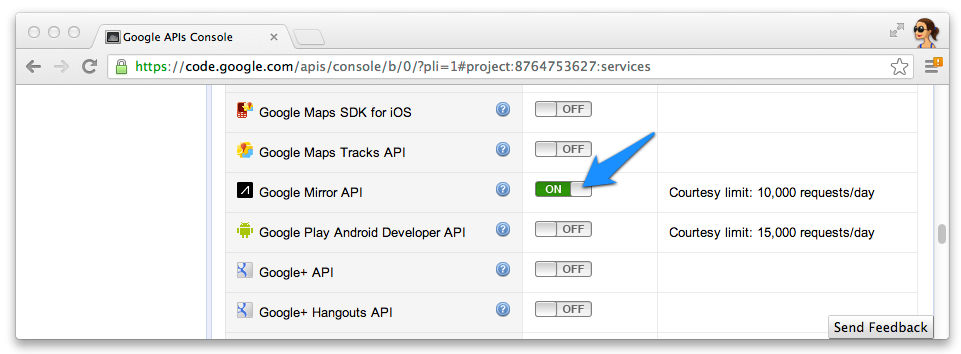
the Google Mirror API on the Google API Console
Click API Access and create an OAuth 2.0 client ID for a web application.
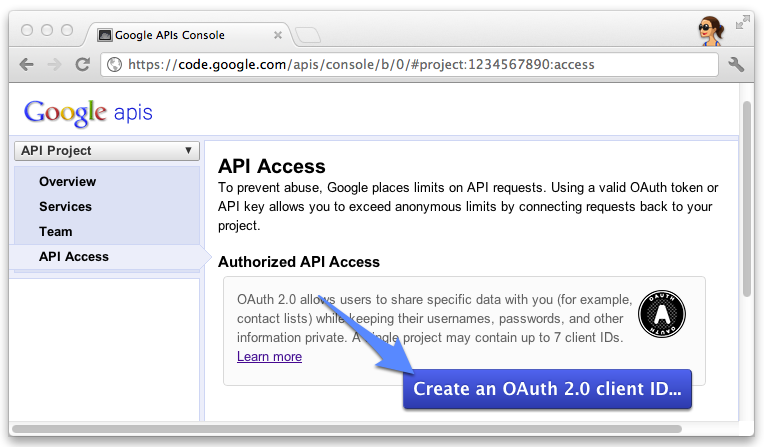
the API Access section of the Google API console
Specify the product name and icon for your Glassware. These fields appear on the OAuth grant screen presented to your users.
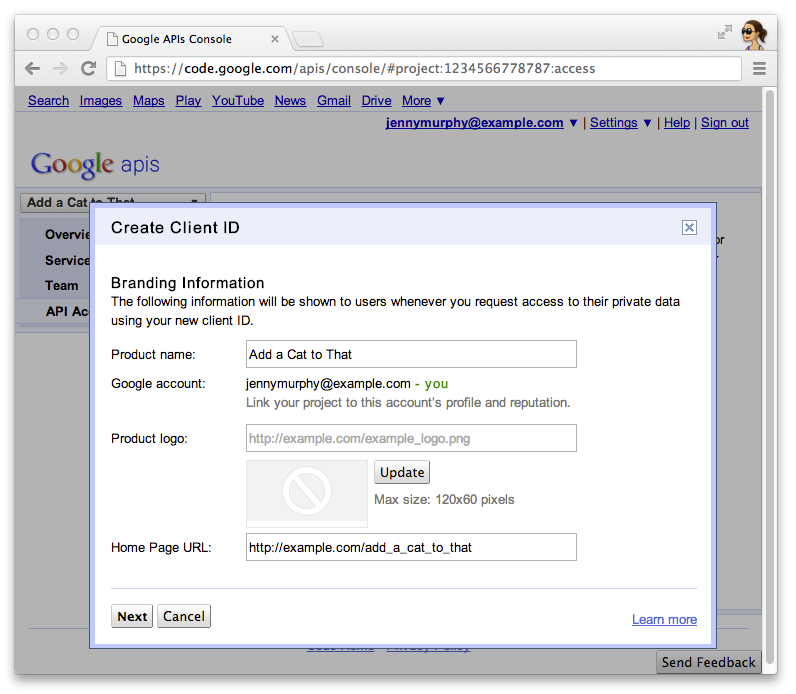
specifying brand information
Select Web application and specify any value for the hostname, such as localhost
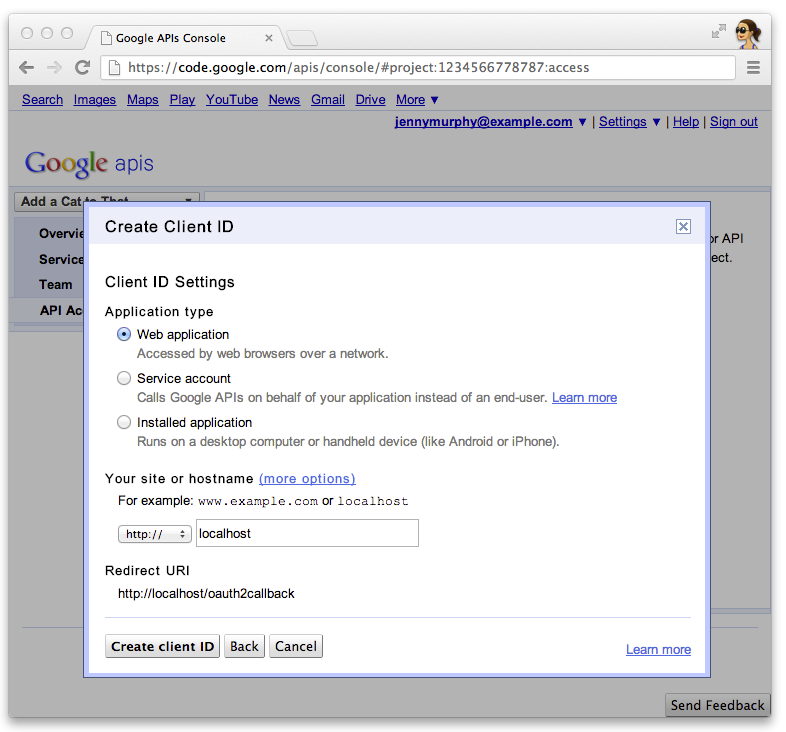
selecting application type
Click Edit settings... for the client ID to specify redirect URIs. Specify http://localhost:8080/oauth2callback and the callback URL for your App Engine instance, for example, https://myappengineinstance.appspot.com/oauth2callback.
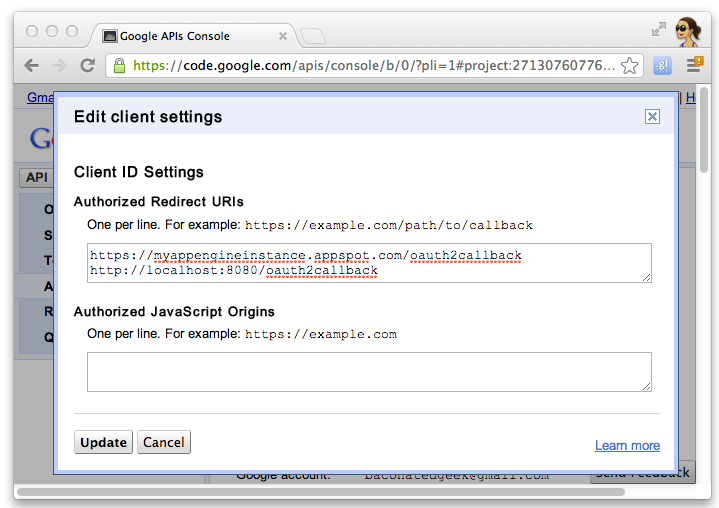
the Google API console configuration panel for redirect URIs
Make note of the client ID and secret from the Google APIs Console. You'll need it to configure the quick start project.
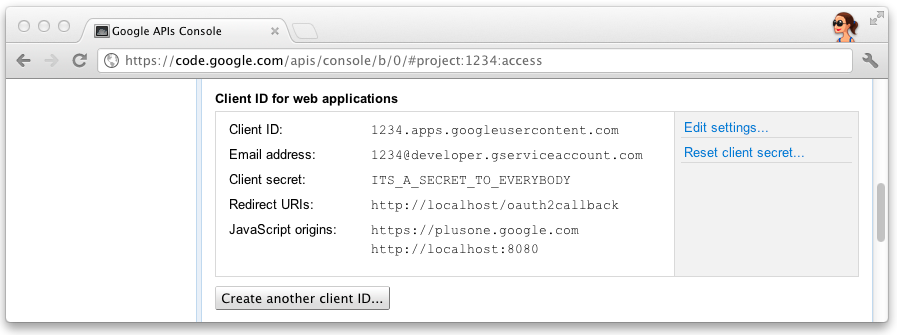
the client id and secret on the Google API console
Configuring the project
Configure the Quick Start project to use your API client information:
Enter your client ID and secret in client_secrets.json:
{
"web": {
"client_id": "1234.apps.googleusercontent.com",
"client_secret": "ITS_A_SECRET_TO_EVERYBODY",
"redirect_uris": [
],
"auth_uri": "https://accounts.google.com/o/oauth2/auth",
"token_uri": "https://accounts.google.com/o/oauth2/token"
}
}
Generate a session.secret file to store session cookies:
$ python -c "import os; print os.urandom(64)" > session.secret
Edit app.yaml to enter your App Engine application ID:
application: your_app_engine_application_id
version: 1
runtime: python27
api_version: 1
threadsafe: true
...
Deploying the project
Press the blue Deploy button in the App Engine Launch GUI interface or run this shell command to deploy your code:
$ appcfg.py --oauth2 update .