https://github.com/muddev/rasp-kiosk
Rotating crypto prices on Raspberry Pi display
https://github.com/muddev/rasp-kiosk
cryptocurrency iot-application raspberry-pi
Last synced: 11 months ago
JSON representation
Rotating crypto prices on Raspberry Pi display
- Host: GitHub
- URL: https://github.com/muddev/rasp-kiosk
- Owner: MudDev
- Created: 2022-03-06T01:33:15.000Z (over 4 years ago)
- Default Branch: main
- Last Pushed: 2025-08-13T22:51:06.000Z (11 months ago)
- Last Synced: 2025-08-17T16:56:34.302Z (11 months ago)
- Topics: cryptocurrency, iot-application, raspberry-pi
- Language: HTML
- Homepage:
- Size: 14.6 KB
- Stars: 0
- Watchers: 1
- Forks: 0
- Open Issues: 0
-
Metadata Files:
- Readme: README.md
Awesome Lists containing this project
README
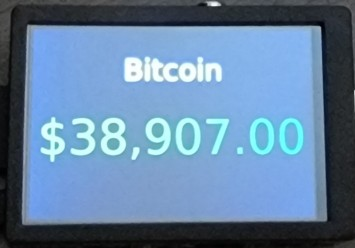
Rotating crypto prices on Raspberry Pi display
## 🔎 What's inside?
There is a simple index.html page that can be hosted by github pages that the raspberry pi will pull from.
## 🔨 What was used:
- An old Raspberry Pi (Model B Rev 2.0) I had laying around.
- I picked up this display at amazon (https://www.amazon.com/dp/B083C12N57) then had to make a few modifications to fit the old raspi in the case, but looks nice mounted on the wall.
### Install the LCD Drivers for the screen:
- Follow the instructions for the 3.5 screen (sudo ./LCD35-show) https://github.com/goodtft/LCD-show I forked it just incase the other repo goes down: (https://github.com/MudDev/LCD-show)
## ⌨ Setting up the raspi to automatically boot to page.
1. **Installing X11 and Chromium Step 1 of 2**
- Install the X Window System (X11)
Install xserver-xorg with the command
```shell
sudo apt-get install --no-install-recommends xserver-xorg
```
Install xinit with the command
```shell
sudo apt-get install --no-install-recommends xinit
```
Install x11-xserver-utils with the command
```shell
sudo apt-get install --no-install-recommends x11-xserver-utils
```
- Install Chromium and kiosk dependencies
Install chromium-browser with the command
```shell
sudo apt-get install chromium-browser
```
Install the kiosk dependencies with the command
```shell
sudo apt-get install matchbox-window-manager xautomation unclutter
```
1. **Configure boot and display options**
- Create the kiosk startup script
Create a new file called **kiosk** in the pi user's home folder with the command `nano ~/kiosk` and paste in the following template, updating the URL on the last line to your repo page:
```sh
#!/bin/sh
xset -dpms # disable DPMS (Energy Star) features.
xset s off # disable screen saver
xset s noblank # don't blank the video device
matchbox-window-manager -use_titlebar no &
unclutter & # hide X mouse cursor unless mouse activated
chromium-browser --disable-gpu --display=:0 --kiosk --incognito --window-position=0,0 https://muddev.github.io/rasp-kiosk/index.html
```
Make the kiosk script file executable with the command `chmod 755 ~/kiosk`
- Add the kiosk script to .bashrc
Initiation of the X Windows System and the kiosk script will be added to the pi user's .bashrc file which runs each time the Pi boots.
Edit the **~/.bashrc** file with the command `nano ~/.bashrc` to include the following as the last line:
```sh
xinit /home/pi/kiosk -- vt$(fgconsole)
```
- Install lightdm
```shell
sudo apt-get install lightdm
```
- Configure boot and display with the raspi-config tool
From the command prompt on the Pi, enter the command `sudo raspi-config` which will open a text-based menu. Update the configuration:
```
- Display ->
Underscan - Off
- Boot Options ->
Desktop Autologin Desktop GUI
Console Autologin
```
Upon completing the above, select **** and select **** when prompted to reboot. If a display is connected, following the boot sequence, the Chromium browser should open in kiosk mode and display the specified webpage.