https://github.com/natlee/django-simple-3rd-party-jwt
Combine 3rd party login and JWT in one Django application.
https://github.com/natlee/django-simple-3rd-party-jwt
3rd-party-login django django-application google-login google-login-signin jwt jwt-authentication login-system microsoft-login
Last synced: 6 months ago
JSON representation
Combine 3rd party login and JWT in one Django application.
- Host: GitHub
- URL: https://github.com/natlee/django-simple-3rd-party-jwt
- Owner: NatLee
- License: mit
- Created: 2022-11-07T06:19:22.000Z (over 3 years ago)
- Default Branch: main
- Last Pushed: 2024-01-15T06:36:33.000Z (over 2 years ago)
- Last Synced: 2024-03-15T07:23:00.652Z (over 2 years ago)
- Topics: 3rd-party-login, django, django-application, google-login, google-login-signin, jwt, jwt-authentication, login-system, microsoft-login
- Language: Python
- Homepage: https://pypi.org/project/django-simple-third-party-jwt/
- Size: 96.7 KB
- Stars: 1
- Watchers: 2
- Forks: 0
- Open Issues: 0
-
Metadata Files:
- Readme: README.md
- License: LICENSE
Awesome Lists containing this project
README
# Django Simple 3rd Party JWT
[](https://github.com/NatLee/Django-Simple-3rd-Party-JWT/actions/workflows/test.yml)
[](https://github.com/NatLee/Django-Simple-3rd-Party-JWT/actions/workflows/release.yml)

This is a simple tool for 3rd party login with JWT.
> See Simple Version in another repo -> [JWT 3rd Party Dashboard](https://github.com/NatLee/Django-Simple-3rd-Party-JWT-Dev-Dashboard).
## Installation
```bash
pip install django-simple-third-party-jwt
```
Check it in [Pypi](https://pypi.org/project/django-simple-third-party-jwt/).
## Quick Start
### Backend
1. Add `django_simple_third_party_jwt` to your `INSTALLED_APPS` in `settings.py` like this:
```py
INSTALLED_APPS = [
...
'django_simple_third_party_jwt',
]
```
2. Add APP settings to your `settings.py` like this:
```py
from datetime import timedelta
# -------------- START - CORS Setting --------------
CORS_ALLOW_ALL_ORIGINS = True
CORS_ALLOW_CREDENTIALS = True
CSRF_TRUSTED_ORIGINS = [
"http://*.127.0.0.1",
"http://localhost",
]
# -------------- END - CORS Setting -----------------
# -------------- Start - SimpleJWT Setting --------------
SIMPLE_JWT = {
"ACCESS_TOKEN_LIFETIME": timedelta(minutes=3600),
"REFRESH_TOKEN_LIFETIME": timedelta(days=1),
"ROTATE_REFRESH_TOKENS": False,
"BLACKLIST_AFTER_ROTATION": False,
"UPDATE_LAST_LOGIN": False,
"ALGORITHM": "HS256",
"SIGNING_KEY": SECRET_KEY,
"VERIFYING_KEY": None,
"AUDIENCE": None,
"ISSUER": None,
"JWK_URL": None,
"LEEWAY": 0,
"AUTH_HEADER_TYPES": ("Bearer",),
"AUTH_HEADER_NAME": "HTTP_AUTHORIZATION",
"USER_ID_FIELD": "id",
"USER_ID_CLAIM": "user_id",
"USER_AUTHENTICATION_RULE": "rest_framework_simplejwt.authentication.default_user_authentication_rule",
"AUTH_TOKEN_CLASSES": ("rest_framework_simplejwt.tokens.AccessToken",),
"TOKEN_TYPE_CLAIM": "token_type",
"TOKEN_USER_CLASS": "rest_framework_simplejwt.models.TokenUser",
"JTI_CLAIM": "jti",
"SLIDING_TOKEN_REFRESH_EXP_CLAIM": "refresh_exp",
"SLIDING_TOKEN_LIFETIME": timedelta(minutes=5),
"SLIDING_TOKEN_REFRESH_LIFETIME": timedelta(days=1),
}
# -------------- END - SimpleJWT Setting --------------
# -------------- START - Auth Setting --------------
SECURE_REFERRER_POLICY = "no-referrer-when-downgrade"
# SECURE_CROSS_ORIGIN_OPENER_POLICY = "same-origin-allow-popups"
SECURE_CROSS_ORIGIN_OPENER_POLICY = None
LOGIN_REDIRECT_URL = "/"
VALID_REGISTER_DOMAINS = ["gmail.com", "hotmail.com"] # Only these domains can login.
# API URL Prefix
JWT_3RD_PREFIX = 'api'
# ================== Google Auth ==================
# Add this block if you want to login with Google.
SOCIAL_GOOGLE_CLIENT_ID = "376808175534-d6mefo6b1kqih3grjjose2euree2g3cs.apps.googleusercontent.com"
# ================== END - Google Auth ==================
# ================== Microsoft Auth ==================
# Add this block if you want to login with Microsoft.
# ID
SOCIAL_MICROSOFT_CLIENT_ID = '32346173-22bc-43b2-b6ed-f88f6a76e38c'
# Secret
SOCIAL_MICROSOFT_CLIENT_SECRET = 'K5z8Q~dIXDiFN5qjMjRjIx34cZOJ3Glkrg.dxcG9'
# ================== END - Microsoft Auth ==================
# --------------- END - Auth Setting -----------------
```
> You can regist `SOCIAL_GOOGLE_CLIENT_ID` on Google Cloud Platform.
[Google Colud | API和服務 | 憑證](https://console.cloud.google.com/apis/credentials)
1. Create a new project and create a new OAuth 2.0 Client ID.

2. Add `http://localhost:8000` to `Authorized JavaScript origins` and `Authorized redirect URIs`.

> You can regist `SOCIAL_MICROSOFT_CLIENT_ID` on Microsoft Azure.
[Microsoft Entra 識別碼 | 應用程式註冊](https://portal.azure.com/#view/Microsoft_AAD_IAM/ActiveDirectoryMenuBlade/~/RegisteredApps)
1. Create a new application.

2. Add `http://localhost:8000/api/auth/microsoft/callback` to `Redirect URIs`

3. Get `Client ID` from `Overview` page.

4. Get `Client Secret` from `Certificates & secrets` page.

3. Include the `django_simple_third_party_jwt` URL settings in your project `urls.py` like this:
```py
from django.conf import settings
from django.urls import include
urlpatterns += [
path("api/", include("django_simple_third_party_jwt.urls")),
]
```
You also need to include JWT settings in your `urls.py`.
```py
# --------------- JWT
from rest_framework_simplejwt.views import (
TokenVerifyView, TokenObtainPairView, TokenRefreshView
)
urlpatterns += [
path("api/auth/token", TokenObtainPairView.as_view(), name="token_get"),
path("api/auth/token/refresh", TokenRefreshView.as_view(), name="token_refresh"),
path("api/auth/token/verify", TokenVerifyView.as_view(), name="token_verify"),
]
# ---------------------------------
```
4. Migrate and test on your server.
- Migrate
```bash
python manage.py migrate django_simple_third_party_jwt
```
- Test
```bash
python manage.py runserver
```
### Frontend (Optional)
Here just a demo frontend settings.
#### Google Login
You need to check `{{ social_google_client_id }}` is the same with `Metadata` and your `Html` page.
- Meta
```html
```
- Html
```html
```
- Javascript
You can try this script to get credential token from Google and verify it with calling our custom 3rd party API.
```html
function get_jwt_using_google_credential(data) {
const google_token_url = "/api/auth/google/token";
// const google_token_url = "/api/auth/google/token/session"; <------ if you also need login as session, choose this one.
const credential = data.credential;
$.ajax({
method: "POST",
url: google_token_url,
data: { credential: credential },
}).done(function (data) {
const access_token = data.access;
const refresh_token = data.refresh_token;
localStorage.setItem("access", access_token);
localStorage.setItem("refresh", refresh_token);
console.log("Google Login");
$.ajax({
type: "POST",
url: "/api/auth/token/verify",
data: { token: access_token },
headers: {
Authorization: "Bearer" + " " + access_token,
},
success: function (data) {
var json_string = JSON.stringify(data, null, 2);
if (json_string) {
console.log("Token verified successfully!");
}
},
error: function (data) {
var result = "please login " + data.responseText;
console.log(result);
},
});
});
}
```
#### Microsoft Login
Set `LOGIN_REDIRECT_URL` in `settings.py` and add the following code in your `Html` page.
- Html
```html

Login with Microsoft
```
## Example
Check [Example of dashboard](https://github.com/NatLee/Django-Simple-3rd-Party-JWT-Dev-Dashboard).
Or you can use the following steps.
### Run example backend
You can see the example in `./example/`
```bash
git clone https://github.com/NatLee/Django-Simple-3rd-Party-JWT
cd Django-Simple-3rd-Party-JWT/example/django_simple_third_party_jwt_example/
pip install -r requirements.txt
python manage.py makemigrations && python manage.py migrate
python manage.py runserver 0.0.0.0:8000
```
If you need superuser, run:
```bash
python manage.py createsuperuser
```
### Visit example frontend
Open browser and visit `localhost:8000`.
There are several url routes available in this example.
```
api/auth/google/ <---- Google Login
api/auth/google/session <------ Google Login with Django Session
api/ auth/microsoft/signin <----- Microsoft Login with Django Session
api/ auth/microsoft/signout <----- Microsoft Logout
api/ auth/microsoft/callback <----- Microsoft Login Callback
api/__hidden_admin/
api/__hidden_dev_dashboard/
api/auth/token [name='token_get']
api/auth/token/refresh [name='token_refresh']
api/auth/token/verify [name='token_verify']
^api/__hidden_swagger(?P\.json|\.yaml)$ [name='schema-json']
^api/__hidden_swagger/$ [name='schema-swagger-ui']
^api/__hidden_redoc/$ [name='schema-redoc']
```
- Dev Dashboard
In the first, visit testing dashboard`http://localhost:8000/api/__hidden_dev_dashboard/`.

And, you can find Google Login in the top right corner like below.
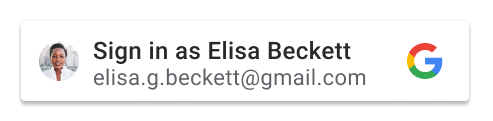
Click it.
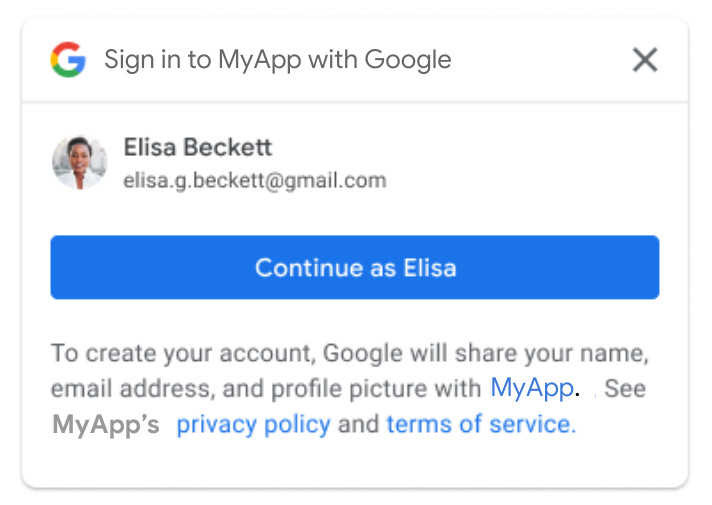
When you login, you will see the following hint.

If you want to filter domains with Google Login, feel free to check `VALID_REGISTER_DOMAINS` in `settings.py`.
Once you login with Google, your account ID will be recorded in the database.
> See more login information in `social_account` table in database.
| id | provider | unique_id | user_id |
| :-: | :------: | :----------------: | :-----: |
| 1 | google | 100056159912345678 | 1 |
- Swagger
Also can see all information of APIs in `http://localhost:8000/api/__hidden_swagger/`.

## More
Check https://developers.google.com/identity/gsi/web/guides/overview with more information of Google Login API.
## Misc tools
### Install & re-install package
* Linux
```bash
bash dev-reinstall.sh
```
* Windows
```powershell
./dev-reinstall.ps1
```