https://github.com/netlify-templates/nextjs-contentful-starter
Netlify Next.js and Contentful minimal starter with visual editing.
https://github.com/netlify-templates/nextjs-contentful-starter
contentful next nextjs tailwindcss tailwindcss-v4 visual-editor
Last synced: 9 months ago
JSON representation
Netlify Next.js and Contentful minimal starter with visual editing.
- Host: GitHub
- URL: https://github.com/netlify-templates/nextjs-contentful-starter
- Owner: netlify-templates
- Created: 2023-02-28T09:31:35.000Z (over 3 years ago)
- Default Branch: main
- Last Pushed: 2025-10-06T06:01:41.000Z (9 months ago)
- Last Synced: 2025-10-06T08:15:50.072Z (9 months ago)
- Topics: contentful, next, nextjs, tailwindcss, tailwindcss-v4, visual-editor
- Language: JavaScript
- Homepage: https://nextjs-contentful-starter.netlify.app/
- Size: 4.14 MB
- Stars: 28
- Watchers: 5
- Forks: 116
- Open Issues: 2
-
Metadata Files:
- Readme: README.md
Awesome Lists containing this project
README
# Netlify Next.js + Contentful Minimal Starter
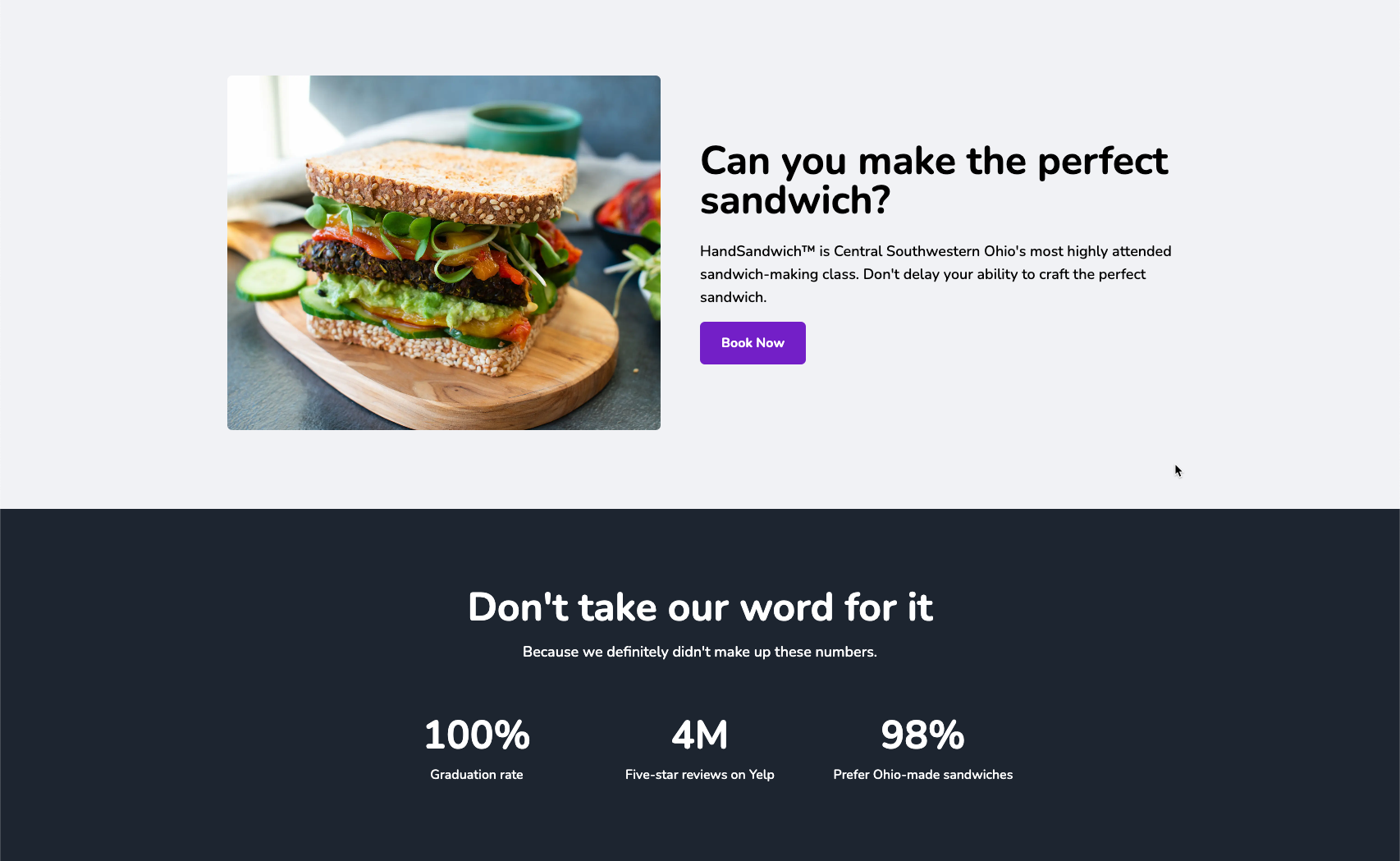
**⚡ View demo:** [nextjs-contentful-starter.netlify.app](https://nextjs-contentful-starter.netlify.app/)
## Prerequisites
Before you begin, please make sure you have the following:
- [Netlify account](https://www.netlify.com/)
- [Contentful account](https://www.contentful.com/)
- GitHub, GitLab or Bitbucket account
- Node v18+ or later
- (optional) [nvm](https://github.com/nvm-sh/nvm) for Node version management.
## Getting Started
### Clone this repository
Fork and clone your repository, then run `npm install` in its root directory.
### Create Contentful Space
After signing into Contentful, create a new space.
### Generate Management Token
If you don't already have a management token (or _personal access token_), generate one. To do so, go into your new empty space, then:
1. Click _Settings_
1. Choose _API Keys_
1. Select the _Content management tokens_ tab
1. Click the button to generate a new token

### Generate Preview & Delivery API Keys
From the same place you generated the management token, you can now generate API access keys.
1. Select the *content delivery / preview tokens* tab
1. Choose *Add API key*
### Set Environment Variables
In your project, duplicate `.env.example` to `.env`.
Fill in the values in the file based on the keys you've created.
Note: the Contentful space ID can be viewed and copied via *Settings->General Settings* in Contentful.
### Import Content
Import the provided content models & content into Contentful by running the `import.js` script:
npm run import
If the import fails to run, make sure that you've run `npm install` and that all keys in your `.env` file are set correctly.
### Run the Website
Run the Next.js development server:
npm run dev
Visit [localhost:3000](http://localhost:3000) and you should see the example content you imported into your new Contentful space.
### Run Netlify Visual Editor in Local Development Mode
Keep the Next.js development server running, and open a new command-line window in the same directory.
Install Stackbit's CLI tools (once):
npm i -g @stackbit/cli@latest
Run the CLI:
stackbit dev
Click the displayed link to [localhost:8090/_stackbit](http://localhost:8090/_stackbit) and the visual editor will open.
### Create a Cloud-Based Netlify Project
To deploy a cloud-based Netlify project your need to connected your repository to Netlify:
1. If you haven't created your GitHub project repository, create it and push your code to GitHub
2. Open the [app.netlify.com](https://app.netlify.com/), and choose "Import from Git" in the "Import an existing project" section
3. In the "Configure site and deploy" step you will see the "Visual editor" section. To make it work, you will need to install "Netlify Visual Editor GitHub App" in your GitHub account.
4. Deploy your project
## Next Steps
Here are a few suggestions on what to do next if you're new to Netlify visual editor:
- Learn [how Netlify visual editor works](https://docs.netlify.com/visual-editor/overview/)
- Check [Netlify visual editor reference documentation](https://visual-editor-reference.netlify.com/)
## Support
If you get stuck along the way, get help in our [support forums](https://answers.netlify.com/).