https://github.com/novemus/stack-scopes
Analyzing C/C++ Stack Snapshots.
https://github.com/novemus/stack-scopes
c-plus-plus cpp debug vscode vscode-extension
Last synced: 12 months ago
JSON representation
Analyzing C/C++ Stack Snapshots.
- Host: GitHub
- URL: https://github.com/novemus/stack-scopes
- Owner: novemus
- License: mit
- Created: 2021-10-06T10:10:01.000Z (almost 5 years ago)
- Default Branch: master
- Last Pushed: 2025-04-12T15:06:56.000Z (about 1 year ago)
- Last Synced: 2025-05-11T14:48:43.849Z (about 1 year ago)
- Topics: c-plus-plus, cpp, debug, vscode, vscode-extension
- Language: TypeScript
- Homepage:
- Size: 11.7 MB
- Stars: 5
- Watchers: 1
- Forks: 0
- Open Issues: 0
-
Metadata Files:
- Readme: README.md
- Changelog: CHANGELOG.md
- License: LICENSE.txt
Awesome Lists containing this project
README
# README
The `stack-scopes` is extension for [Visual Studio Code](https://code.visualstudio.com). It provides additional `Scopes` view on the Debug side bar for `cppdbg`, `cppvsdbg` and `lldb` debug profiles and offers `Stack Graph` window for convenient analysis of application stacks.
## Сapabilities
* [Build](#scopes-view) scopes tree view.
* [Highlight](#stack-graph) shared scopes on the stack graph.
* [Inspect](#unfold-frame-context) any number of frame contexts.
* [Reveal](#reveal-reference-code) reference source code.
* [Evaluate](#evaluate-dynamic-arrays-elements) elements of dynamically allocated arrays.
* [Search](#search-for-references-to-variables) for references to variables.
* [Work](#graph-drawing-mode) only with the selected stacks on the graph.
* [Highlight](#compare-two-dumps) matches of two dumps.
## Scopes view ##
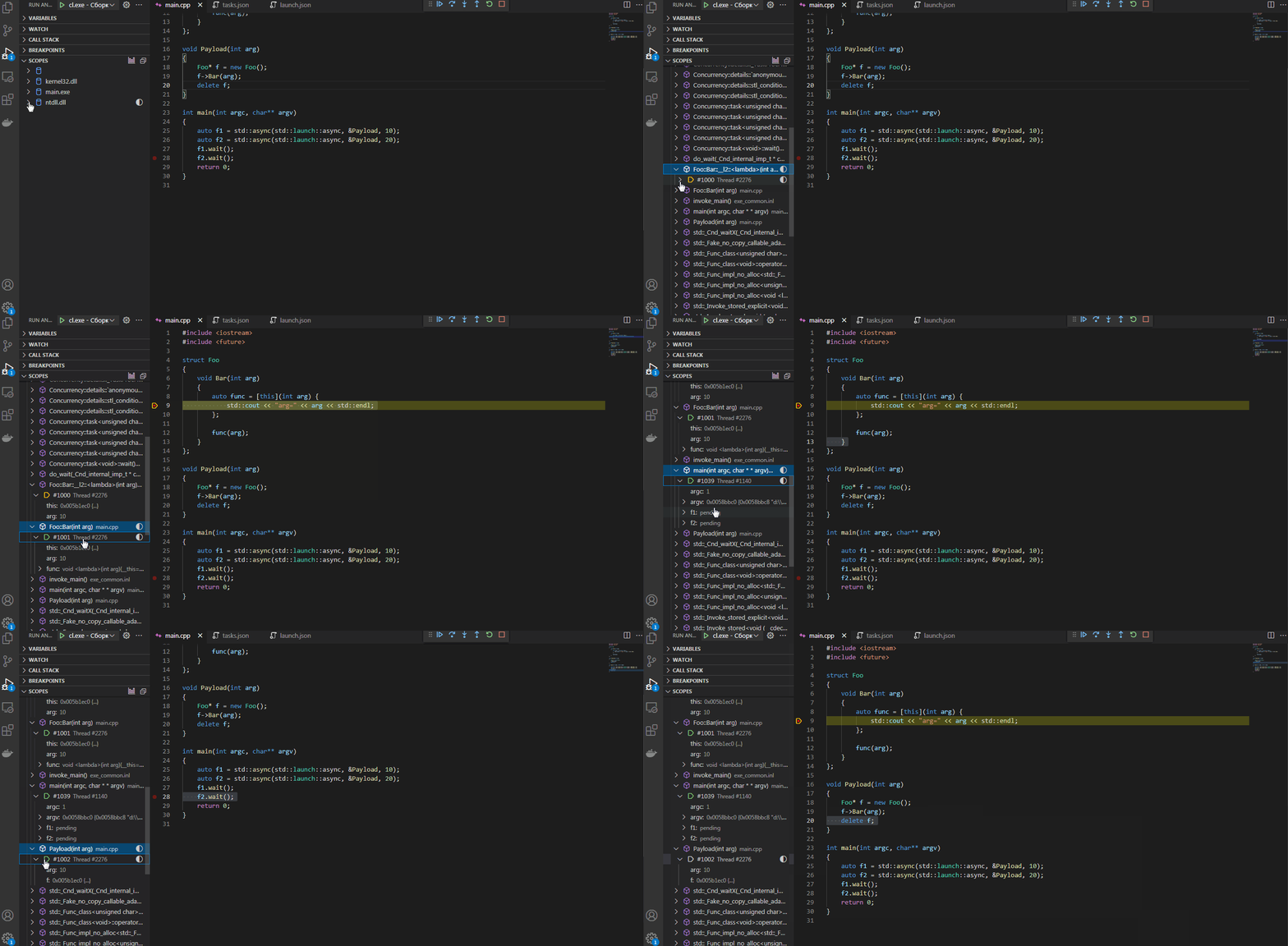
The `Scopes` view represents stack frames grouped by locations of their scopes. This allows you to quickly find stack frames of interesting code, especially for snapshots with a large number of threads, check for mutual access to a specific context, find recursive calls, watch several frame scopes at the same time.
## Stack Graph ##
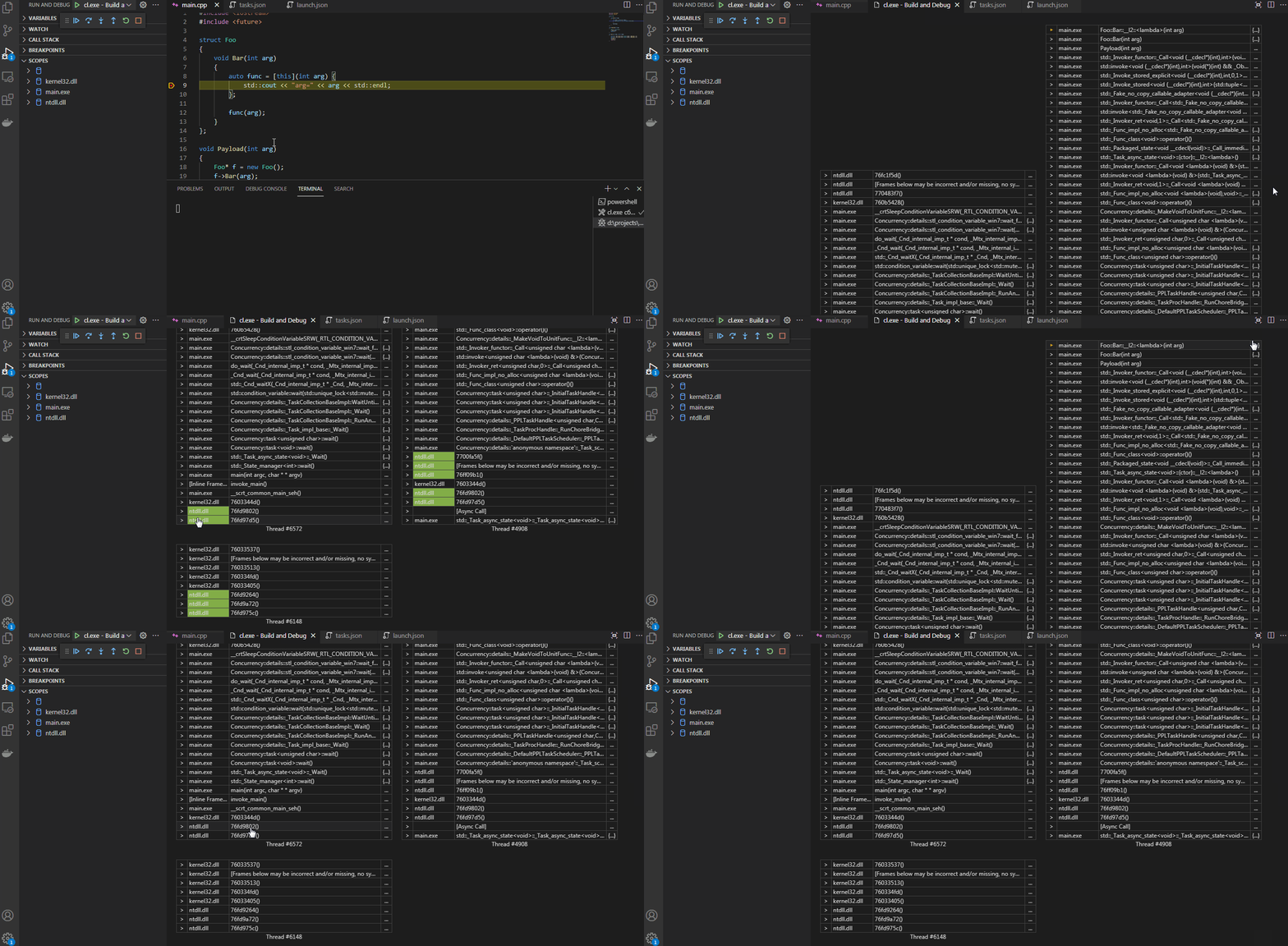
The main purpose of the `Stack Graph` window is to provide a possibility to analyze stacks for mutual use of modules, functions and even objects. For this you can apply color highlighting to elements you are interested in. Just press the `ctrl` key or the right mouse button and click the desired item on the stack graph. Also you can click appropriate icon on an item of the `Scopes` or `References` tree view. Click again to cancel the highlighting of the element.
## Unfold frame context ##
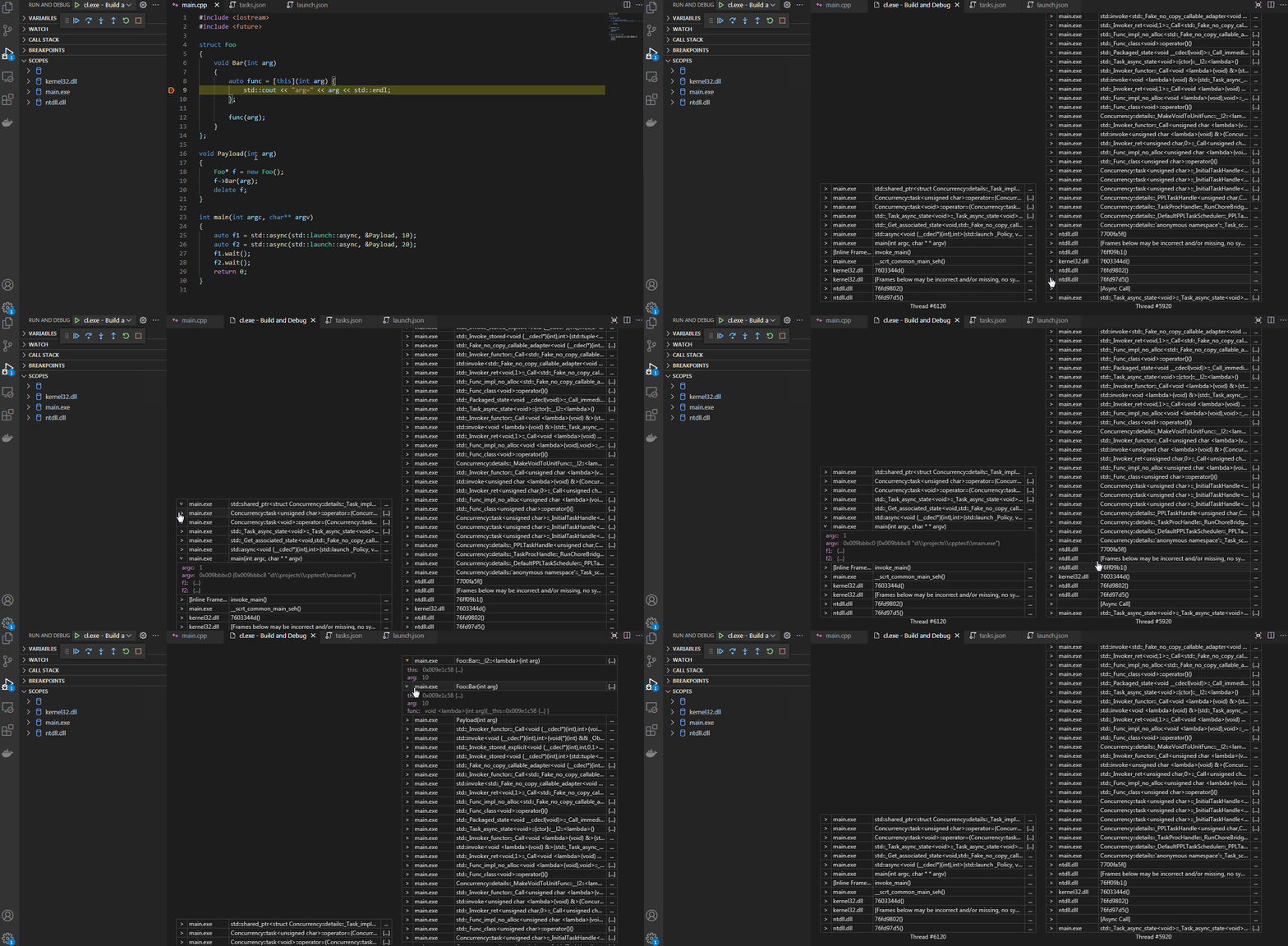
You can unfold the context of any frame on the scope tree or right on the graph. Click on the frame badge to expand or collapse the context widget.
## Reveal reference code ##
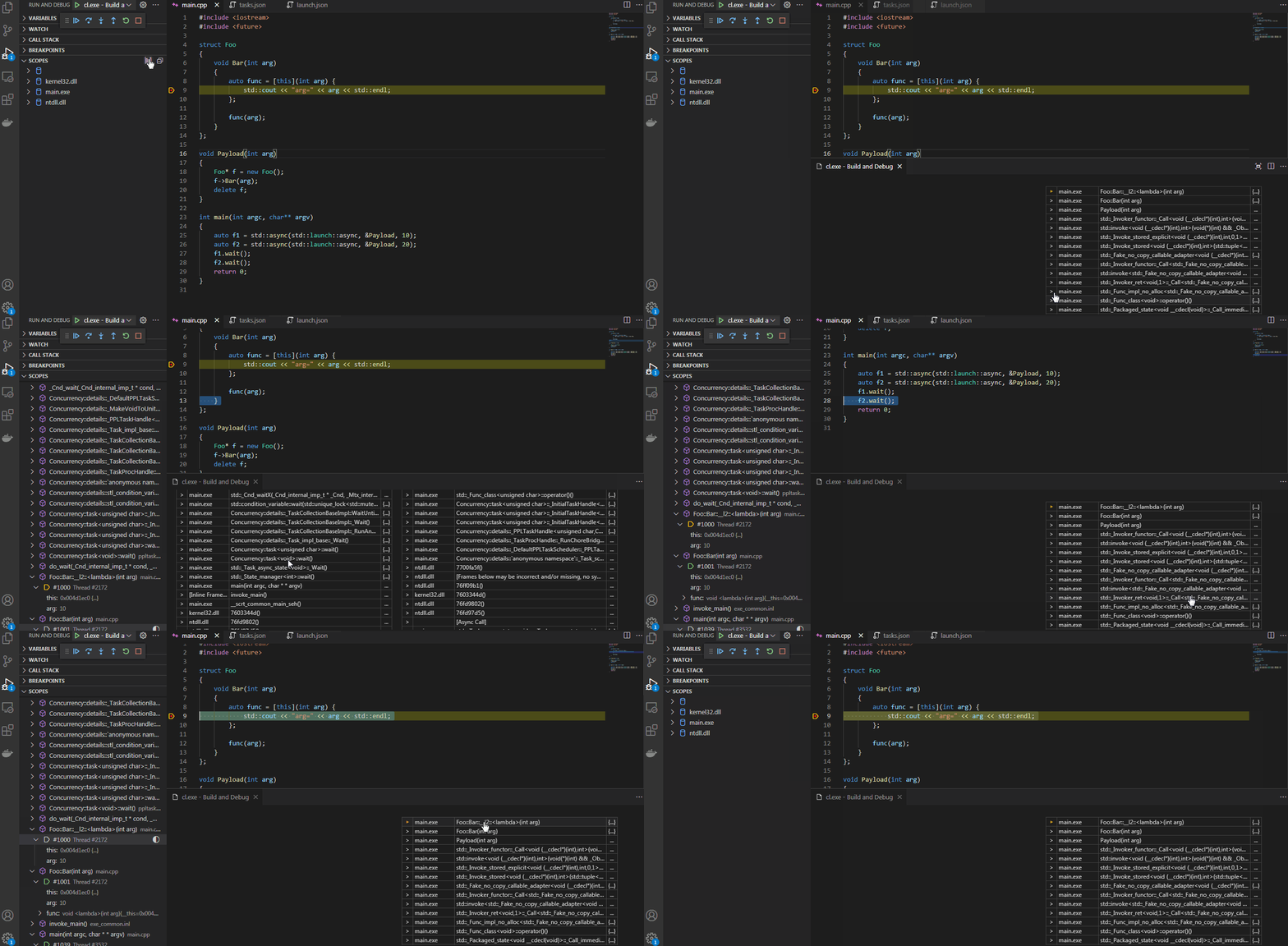
Both the `Scopes` view and the `Stack Graph` window support revealing reference code in the source files when clicking on frame items. To achieve this on the `Stack Graph`, you need to split the editor space and move the graph window to a secondary cell.
## Evaluate dynamic arrays elements ##
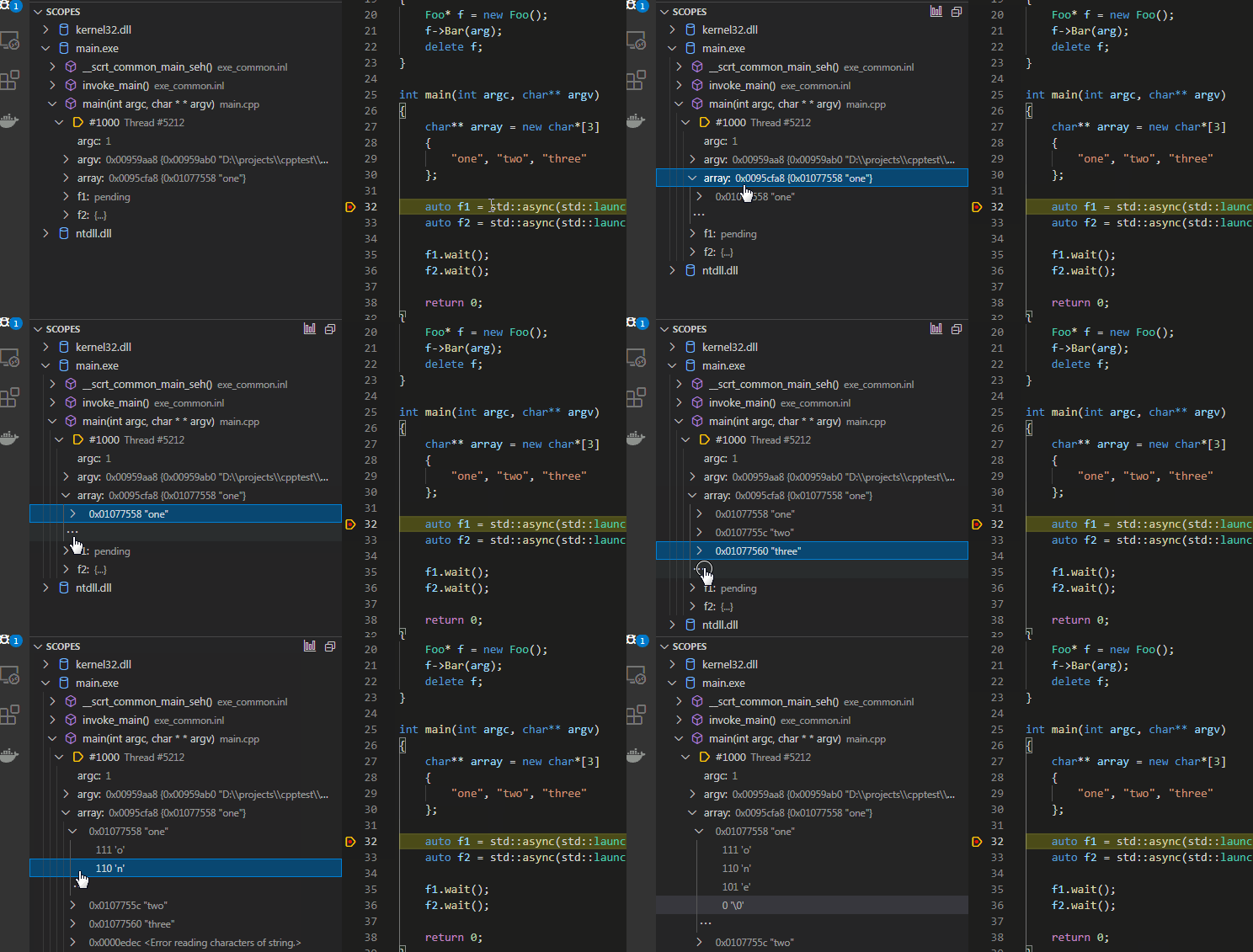
By default, you see only first element of the dynamically allocated arrays in the scope tree, because the debugger does not know the size of the array. You can evaluate following possible elements of the array variable under its tree item.
## Search for references to variables ##
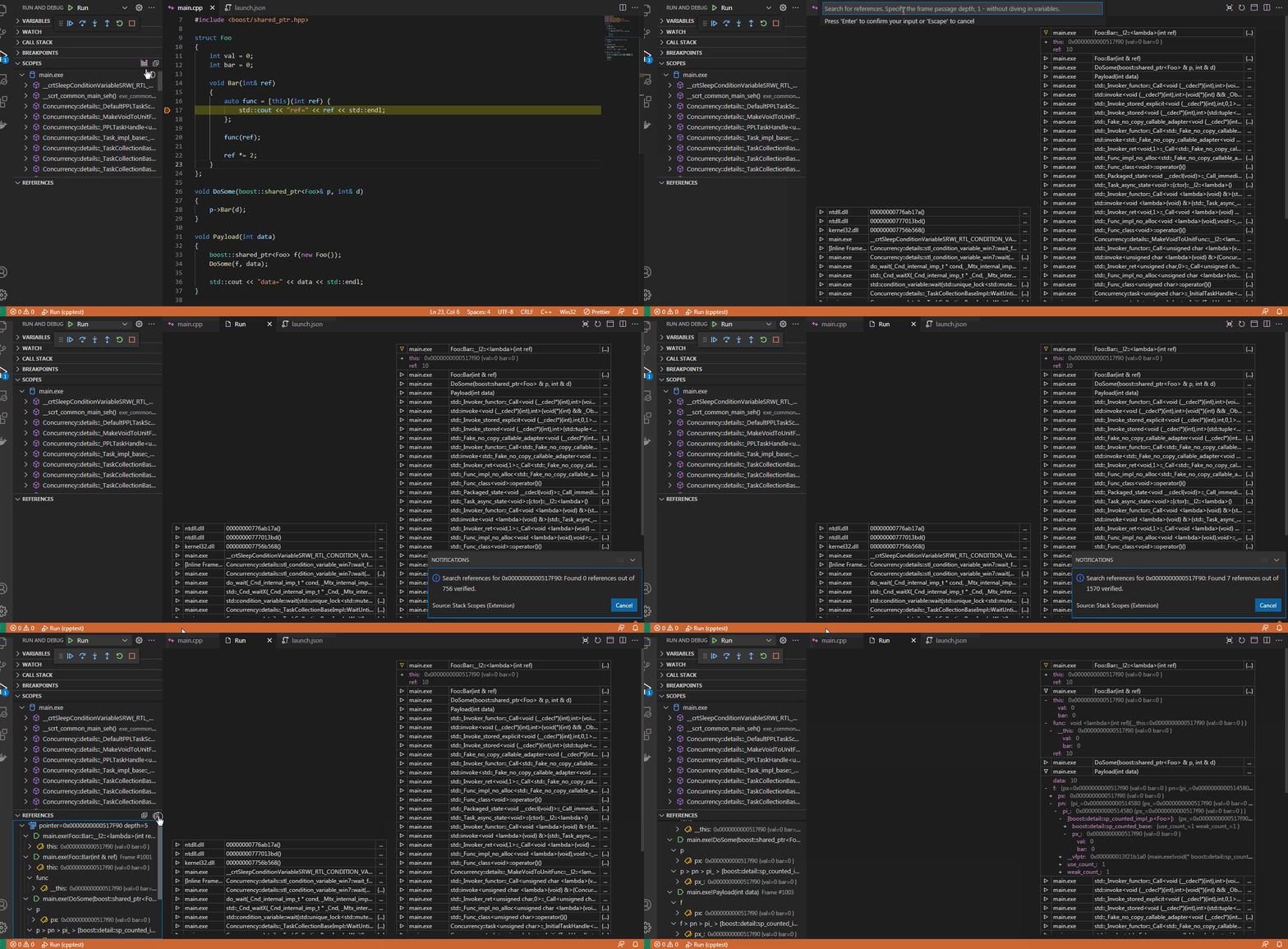
You can search for references to any variable in the frame scopes, as well as inside other variables accessible from stack frames. The search results depend on the quality of the debugging information and also on how the variables are [represented](https://code.visualstudio.com/docs/cpp/natvis) by the debugging adapter. Also, the search is not performed in manually [evaluated](#evaluate-dynamic-arrays-elements) variables.
## Graph drawing mode ##
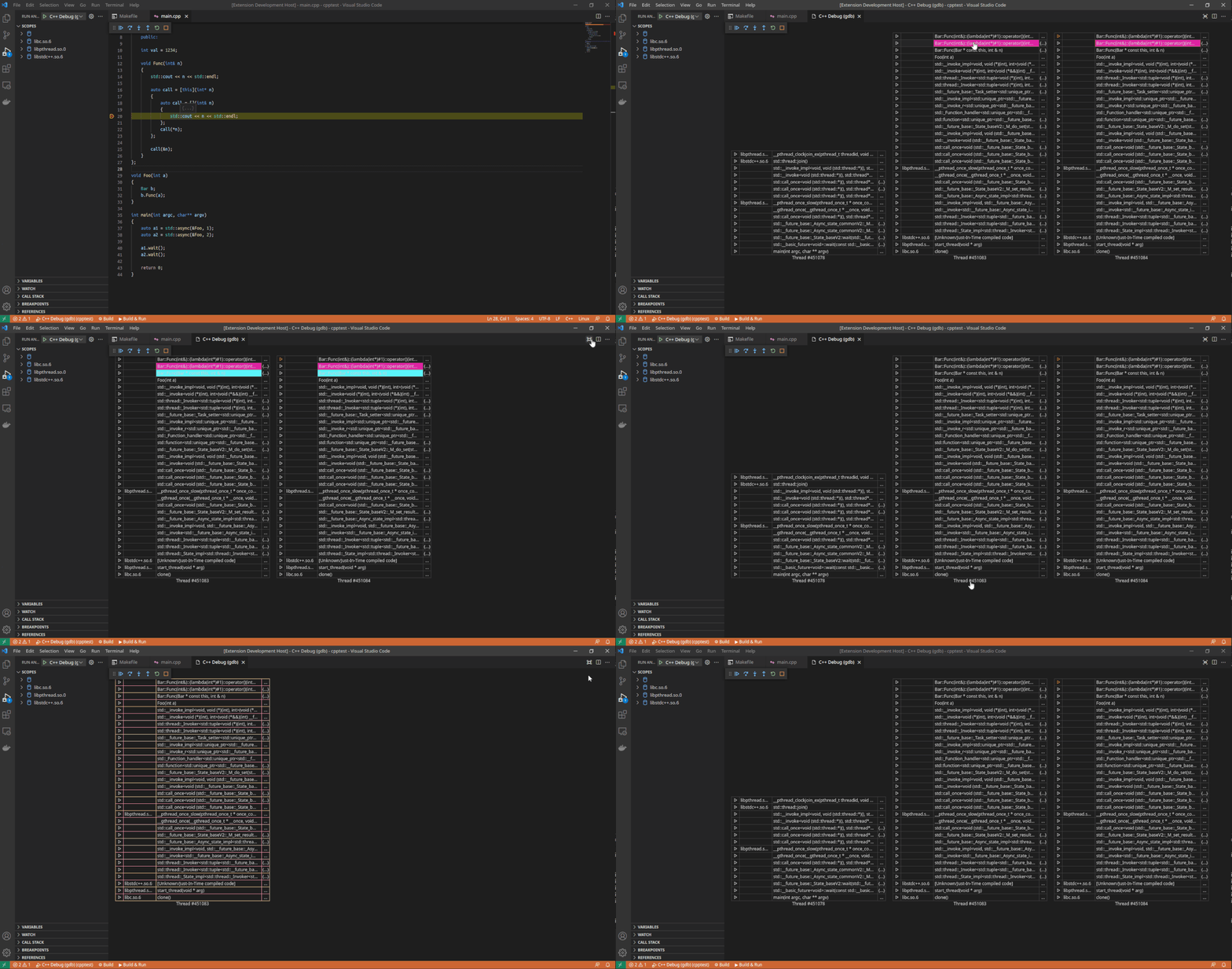
It is possible to reduce the number of stacks on the graph. Just highlight some stacks and change the drawing mode by switching the toggle in the top right corner of the graph window.
## Compare two dumps ##
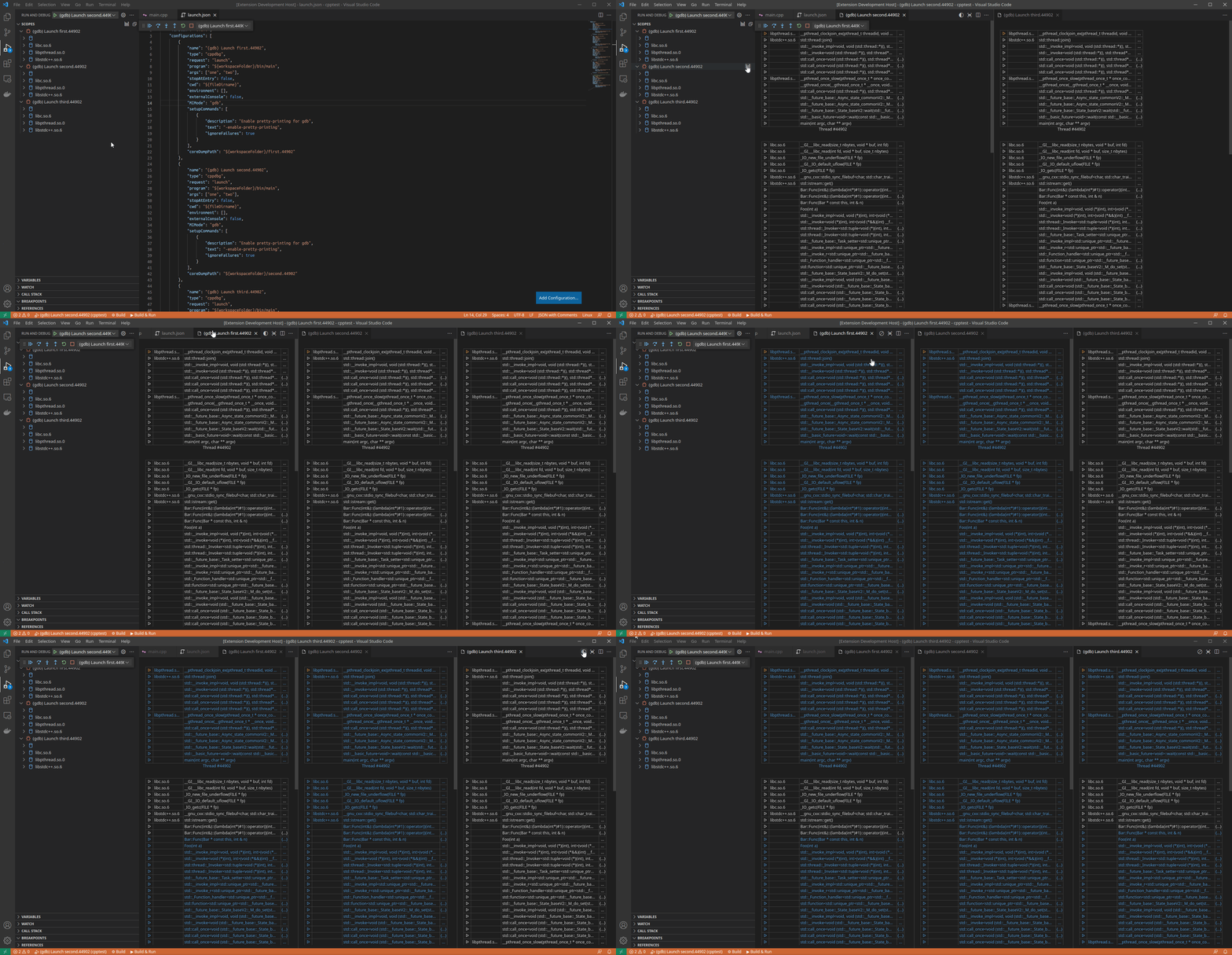
Now you can compare the stacks of two core dumps got from some process and highlight the matches on the `Stack Graph`. To do this, run debugging sessions for your core dumps, open graph window of some session, then select the session to compare using `Colorize Matches` button in the top right corner of the graph window.
## Requirements
Depends on `ms-vscode.cpptools` extension.
## Installation
To install latest version of the extension from source, in addition to [Visual Studio Code](https://code.visualstudio.com), [Git](https://git-scm.com) and [Node](https://nodejs.org) must be installed on your system.
1. Clone `stack-scopes` repository.
```console
git clone https://github.com/novemus/stack-scopes.git && cd stack-scopes
```
2. Install `vsce` package.
```console
npm install -g vsce
```
3. Build `vsix` package.
```console
npm install && vsce package -o stack-scopes.vsix
```
4. Install `stack-scopes` vsix package.
```console
code --install-extension stack-scopes.vsix
```
## Bugs and improvements
Feel free to [report](https://github.com/novemus/stack-scopes/issues) bugs and [suggest](https://github.com/novemus/stack-scopes/issues) new features and improvements.
## License
MIT © Novemus Band