https://github.com/nvnkennedy/adbnik
Desktop workspace for ADB, SSH, serial, device files, and USB screen control — install with pip (adbnik).
https://github.com/nvnkennedy/adbnik
adb adb-automation adbnik android android-app exe explorer pyqt pyqt5-desktop-application python scp scrcpy ssh terminal tool
Last synced: about 2 months ago
JSON representation
Desktop workspace for ADB, SSH, serial, device files, and USB screen control — install with pip (adbnik).
- Host: GitHub
- URL: https://github.com/nvnkennedy/adbnik
- Owner: nvnkennedy
- License: mit
- Created: 2026-04-11T19:43:28.000Z (3 months ago)
- Default Branch: main
- Last Pushed: 2026-04-29T21:01:59.000Z (about 2 months ago)
- Last Synced: 2026-04-29T21:10:23.265Z (about 2 months ago)
- Topics: adb, adb-automation, adbnik, android, android-app, exe, explorer, pyqt, pyqt5-desktop-application, python, scp, scrcpy, ssh, terminal, tool
- Language: Python
- Homepage: https://nvnkennedy.github.io/adbnik/
- Size: 66.2 MB
- Stars: 0
- Watchers: 0
- Forks: 0
- Open Issues: 0
-
Metadata Files:
- Readme: README.md
- Changelog: CHANGELOG.md
- License: LICENSE
Awesome Lists containing this project
README
# Adbnik
One desktop workspace for Android debugging, remote shells, and file operations.
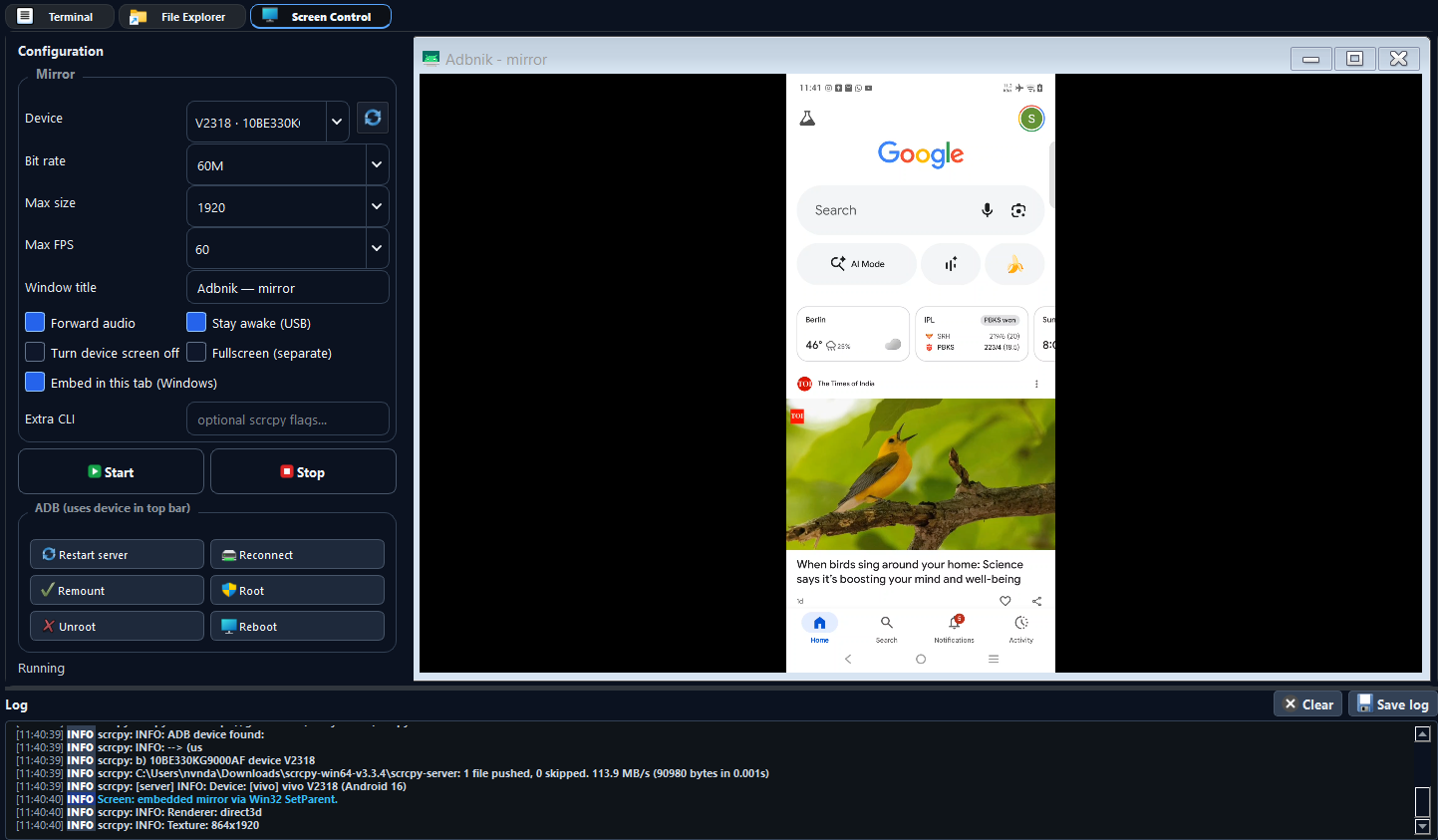
**Adbnik** is a PyQt5 application that brings **ADB** workflows, **SSH** and **serial** terminals, **local ↔ remote file management** (Android device, SFTP, FTP), and **screen mirroring** launchers (e.g. scrcpy) into a single tabbed window. External tools—**adb**, **ssh**, **scrcpy**—are used from your system: install them separately and, if needed, set paths under **File → Preferences**.
### About the name
**Adbnik** combines **ADB** (Android Debug Bridge) with **-nik**, a productive-form suffix familiar from words like ***technik*** (technician; someone who works with tools). It signals a utility focused on hands-on device work—not a generic “suite,” but a workstation built around real debugging and transfer tasks.
---
## Capabilities
| Area | Details |
|------|---------|
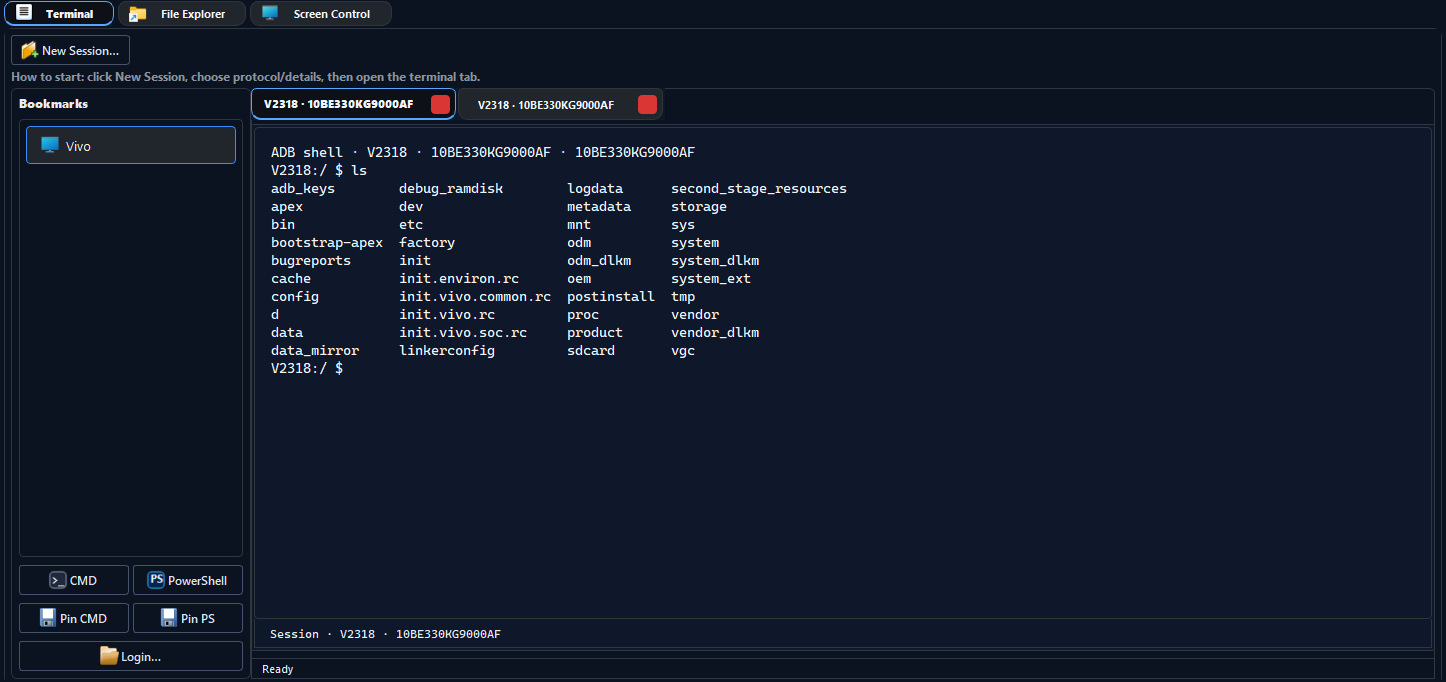
| **ADB** | Device selection, shell sessions, APK install flow, bookmarks, quick actions |
| **SSH** | Full-screen terminal via your system OpenSSH client |
| **Serial** | COM port and baud configuration in the UI |
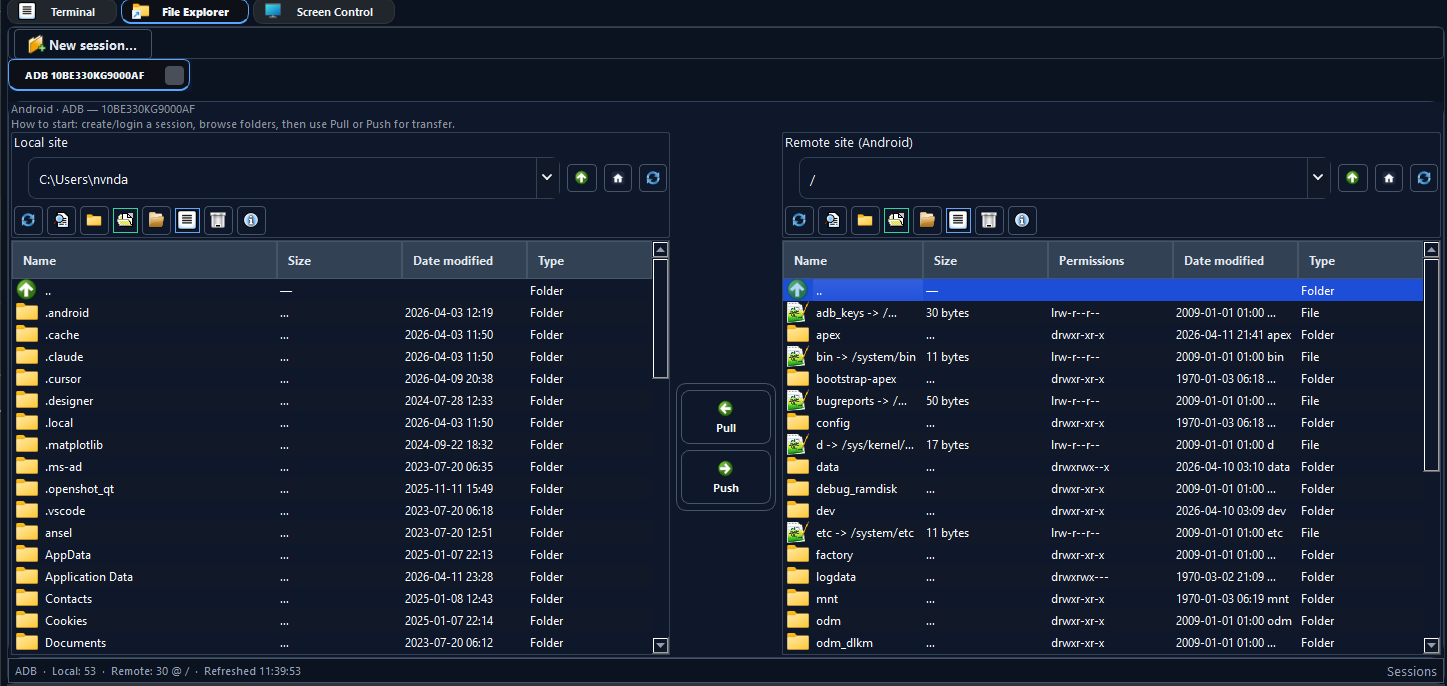
| **Files** | Dual-pane explorer: local disk ↔ Android / SFTP / FTP |
| **Screen** | Start and manage mirroring using your chosen executable |
---
## User guide
Step-by-step documentation for the **Terminal**, **File Explorer**, and **Screen Control** tabs (menus, shortcuts, mirroring options), plus where to put **adb** / **scrcpy** on disk:
**https://nvnkennedy.github.io/adbnik/guide/index.html** (styled pages—Terminal, Explorer, Screen—same site as the project home).
In the app: **Help → User guide** (F1) opens that URL; **Help** also lists the website, GitHub, and PyPI.
---
## Requirements
- **Python 3.9+** (64-bit recommended on Windows)
- **Android:** USB debugging enabled; **platform-tools** (`adb`) available to the same environment that runs Adbnik
- **SSH:** `ssh` on `PATH` (or wherever your shell resolves it)
- **Mirroring:** `scrcpy` or another tool—`PATH` or **Preferences**
- **Serial:** Port visible to the OS with the correct driver
---
## Installation
### pip (recommended)
Use the **same** Python interpreter for `pip` and for launching (avoids broken entry points on Windows):
```bat
py -m pip install --upgrade pip
py -m pip install adbnik
py -m adbnik
```
Pinned interpreter example:
```bat
"C:\Path\To\Python\python.exe" -m pip install adbnik
"C:\Path\To\Python\python.exe" -m adbnik
```
**Package index:** [pypi.org/project/adbnik](https://pypi.org/project/adbnik/) · **Files:** [pypi.org/project/adbnik/#files](https://pypi.org/project/adbnik/#files)
The **[PyPI project](https://pypi.org/project/adbnik/)** ships **wheels and an sdist** for `pip install` under the **Apache License 2.0** ([`LICENSE`](LICENSE), SPDX **`Apache-2.0`**). **Current stable** is **`6.0.0`** (see [`CHANGELOG.md`](CHANGELOG.md)); earlier **1.0.x** and dev-era lines are documented there and in [`CHANGELOG-legacy.md`](CHANGELOG-legacy.md).
On the PyPI project page, **Project links** (from `[project.urls]` in [`pyproject.toml`](pyproject.toml)) include **Windows installer (unsigned)** → GitHub Releases. PyPI’s file list is for **Python packages** only; the **Setup `.exe`** is large and Windows-specific, so it is **built in CI**, attached to **[GitHub Releases](https://github.com/nvnkennedy/adbnik/releases)**, and linked from PyPI—not bundled inside the universal wheel.
### Windows installer from GitHub Releases (optional, unsigned)
When we attach a **`Adbnik-*-Setup-unsigned.exe`** build to [GitHub Releases](https://github.com/nvnkennedy/adbnik/releases), it is a convenience installer produced with **PyInstaller** + **Inno Setup**. It is **not** digitally signed with an Authenticode certificate yet.
**Where files land when you build locally:** the repo-root **`installers/`** folder (`Adbnik--Setup-unsigned.exe` and portable `.zip`). That folder is **empty in git** until you run the build — see [`installers/README.md`](installers/README.md).
**Why Windows warns (“SmartScreen”, “Unknown publisher”, “Windows protected your PC”):** Microsoft flags **unknown / unsigned** executables by policy. That does **not** mean the installer was flagged as malware—it means there is **no publisher certificate** on the file.
**Run anyway:** On the SmartScreen dialog, choose **More info** (or **More details**), then **Run anyway**. If the browser blocked the download: open **Downloads**, right‑click the file → **Properties** → check **Unblock** if shown → **OK**, then run again.
If you prefer not to use an unsigned `.exe`, install with **`pip`** above (packages on PyPI are standard Python artifacts).
### Shortcut (Windows)
`pip` cannot place shortcuts or ask for a folder. After installing, run **once** on Windows:
```bat
adbnik-setup
```
A folder dialog opens (starting on your Desktop); choose where to put **`Adbnik.lnk`**. No extra console window is shown—only the dialogs. The shortcut uses **this Python** (`python -m adbnik`) and the same **app icon** as the window. Icon files are cached under `%LOCALAPPDATA%\Adbnik\`.
Non-interactive example (e.g. script or batch file, **with** console output):
```bat
adbnik-setup --folder "%USERPROFILE%\Desktop"
```
---
## First run
1. Start the app: `python -m adbnik` from the environment where the package is installed.
2. Under **File → Preferences**, set paths for **ADB** and **scrcpy** if they are not on `PATH`.
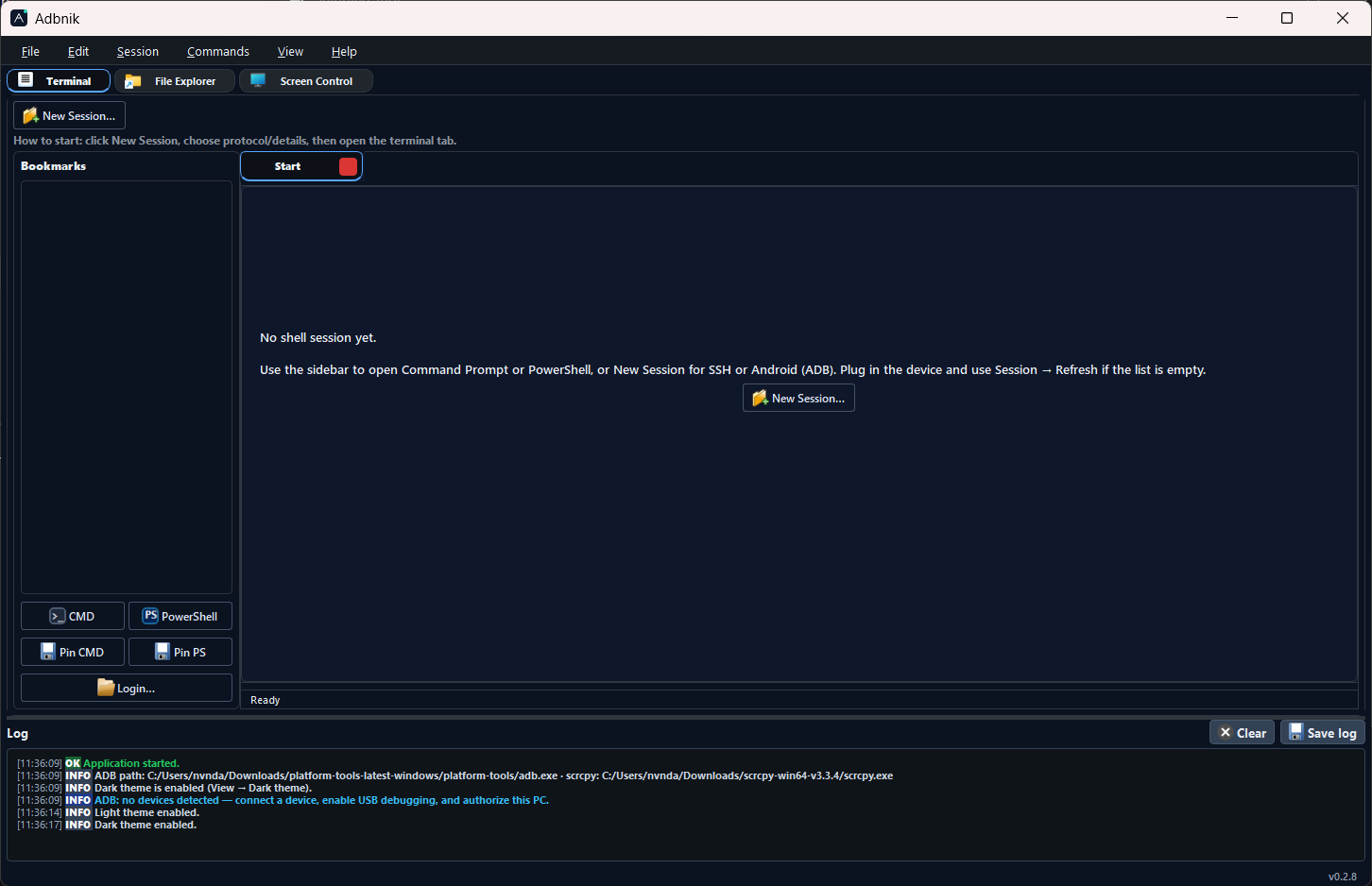
3. Use the main tabs for **Terminal**, **Files**, and **Screen** as needed.
Preferences are stored in **`.adbnik.json`** under your user profile. Legacy **`.devicedeck.json`** settings are migrated when you save preferences.
---
## Screenshots
---
## Troubleshooting
**`ModuleNotFoundError: No module named 'adbnik'`** — Install and run with the same `python.exe`:
```bat
"C:\Path\To\Python\python.exe" -m pip install --force-reinstall adbnik
"C:\Path\To\Python\python.exe" -m adbnik
```
On Windows, list interpreters with `py -0p`.
---
## Resources
| | |
|--|--|
| **Product site** | [nvnkennedy.github.io/adbnik](https://nvnkennedy.github.io/adbnik/) — overview and links |
| **User guide** | [nvnkennedy.github.io/adbnik/guide/](https://nvnkennedy.github.io/adbnik/guide/index.html) — Terminal, File Explorer, Screen Control |
| **Changelog** | [CHANGELOG.md](CHANGELOG.md) — **v6.0.0** and earlier public releases; [CHANGELOG-legacy.md](CHANGELOG-legacy.md) — dev-era **2.x–5.x** |
| **Source code** | [github.com/nvnkennedy/adbnik](https://github.com/nvnkennedy/adbnik) |
| **Releases (installer `.exe`, portable zip)** | [GitHub Releases](https://github.com/nvnkennedy/adbnik/releases) |
| **Yanking old PyPI versions** | [docs/pypi-yank-legacy-versions.md](docs/pypi-yank-legacy-versions.md) |
---
## Building from source
```bat
git clone https://github.com/nvnkennedy/adbnik.git
cd adbnik
py -m venv .venv
.venv\Scripts\activate
py -m pip install -e ".[dev]"
py -m pytest tests -q
py -m adbnik
```
---
## License
**Apache License 2.0** — see [`LICENSE`](LICENSE) and [`NOTICE`](NOTICE). Large enterprises often prefer Apache 2.0 for its clarity, patent provisions, and predictable redistribution rules (SPDX: `Apache-2.0`).