https://github.com/obitech/flugdb
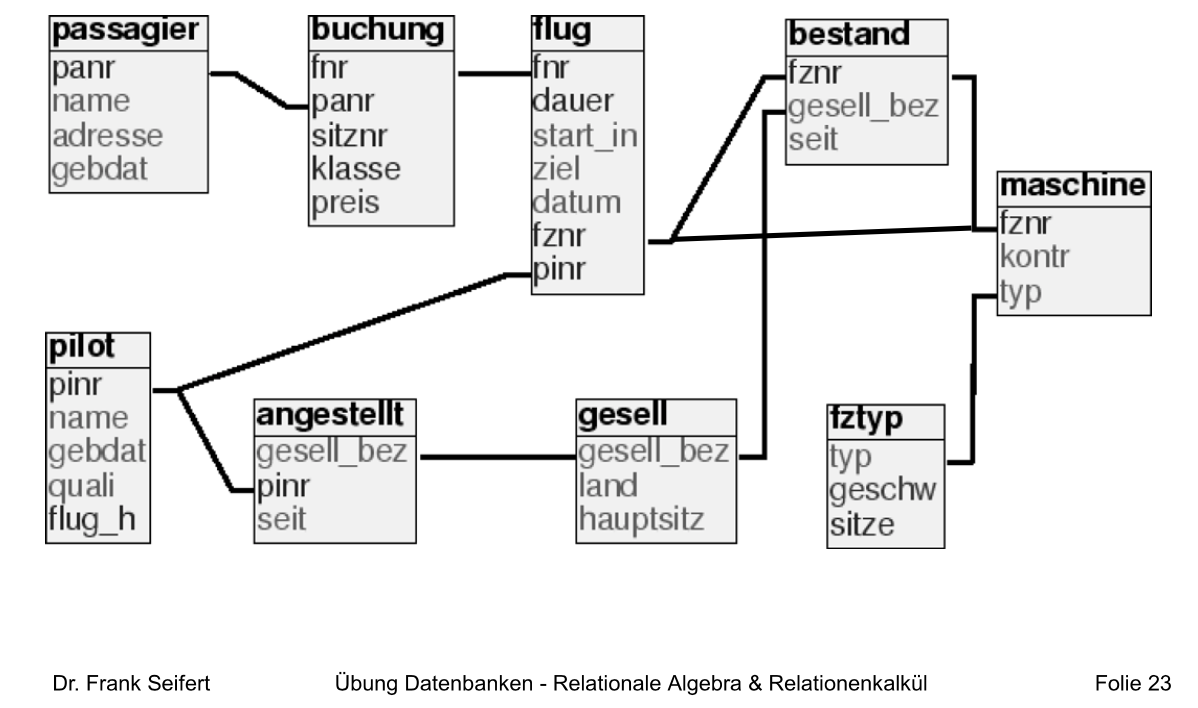
Docker MariaDB container for TUC Grundlagen Datenbanken practice database
https://github.com/obitech/flugdb
database docker mariadb tu-chemnitz
Last synced: 2 months ago
JSON representation
Docker MariaDB container for TUC Grundlagen Datenbanken practice database
- Host: GitHub
- URL: https://github.com/obitech/flugdb
- Owner: obitech
- Created: 2017-11-11T15:25:34.000Z (over 8 years ago)
- Default Branch: master
- Last Pushed: 2017-11-12T15:30:54.000Z (over 8 years ago)
- Last Synced: 2025-05-22T18:34:38.593Z (about 1 year ago)
- Topics: database, docker, mariadb, tu-chemnitz
- Size: 296 KB
- Stars: 2
- Watchers: 2
- Forks: 0
- Open Issues: 0
-
Metadata Files:
- Readme: README.md
Awesome Lists containing this project
README
# TUC 'Grundlagen Datenbanken' Practice Database
This is a Docker [MariaDB container](https://hub.docker.com/_/mariadb/) with the provided database model applied. Docker lets you run the database server in an isolated environment without having to install MySQL Server or PostGres (+ dependencies) on your system. Once the container is up it can be reached under ``localhost`` (or ``127.0.0.1``) and port ``3306``.
Your database will be located in ``flugdb/data`` on your system and mapped inside the container, so changes to the flug database will persist. The container itself is stateless, meaning any changes affecting the database **server** (configuration parameters, new users, etc) will be gone after you stop or restart the container.
## Environment
Setting | Value | Usage | Environment variable
---|---|---|---
Hostname | localhost (127.0.0.1) | The address your db server will be reachable under | -
Port | 3306 | The port your db server will be reachable under | -
Database | flug | Name of our database | MYSQL_DATABASE=flug
User | tuc | Custom MySQL user | MYSQL_USER=tuc
Password | tuc | Password for our custom user | MYSQL_PASSWORD=tuc
Root password | root | Password for MySQL root user | MYSQL_ROOT_PASSWORD=root
## Setup
### Install Docker
Install Docker for [Ubuntu](https://docs.docker.com/engine/installation/), [Deabian](https://docs.docker.com/engine/installation/linux/docker-ce/debian/) or [macOS](https://docs.docker.com/docker-for-mac/install/). If you're running Linux you also have to install [Docker Compose](https://docs.docker.com/compose/install/#prerequisites).
### Clone repo
Open a terminal, navigate to the folder where you want this repo set up and then type:
```
$ git clone https://github.com/obitech/flugdb.git
$ cd flugdb/
```
### Start container
In your terminal, make sure you're in the ``flugdb/`` folder, then start the container with ``docker-compose up -d`` to let it run in the background.
```
$ docker-compose up -d
Creating network "flugdb_default" with the default driver
Creating flugdb ...
Creating flugdb ... done
```
You can see logs with ``docker-compose logs`` and ``docker-compose logs -f`` (-f for follow, leave view with CTRL+C).
```
$ docker-compose up -d && docker-compose logs -f
```
Check with ``docker ps`` if your container is running.
```
$ docker ps
CONTAINER ID IMAGE COMMAND CREATED STATUS PORTS NAMES
22a9803261ce mariadb:latest "docker-entrypoint..." 14 seconds ago Up 15 seconds 3306/tcp flugdb
```
### Stop container
Use ``docker-compose down`` to shutdown your container after you're done working with it (if you're connected to your container type ``exit`` first).
```
$ docker-compose down
Stopping flugdb ... done
Removing flugdb ... done
Removing network flugdb_default
$ docker ps
CONTAINER ID IMAGE COMMAND CREATED STATUS PORTS NAMES
```
## Sending SQL statements
### Using ``mysql`` CLI
First connect to your container:
```
$ docker exec -it flugdb bash
root@22a9803261ce:/#
```
Then, inside your container, connect to the MariaDB server and flug database with ``mysql --user tuc --password flug``. When prompted for a password, enter **tuc**.
```
root@22a9803261ce:/# mysql --user tuc --password flug
Enter password:
Reading table information for completion of table and column names
You can turn off this feature to get a quicker startup with -A
Welcome to the MariaDB monitor. Commands end with ; or \g.
Your MariaDB connection id is 8
Server version: 10.2.10-MariaDB-10.2.10+maria~jessie mariadb.org binary distribution
Copyright (c) 2000, 2017, Oracle, MariaDB Corporation Ab and others.
Type 'help;' or '\h' for help. Type '\c' to clear the current input statement.
MariaDB [flug]>
```
Finally, send your statement:
```
MariaDB [flug]> SELECT * FROM pilot;
+------+-----------------+------------+------------+--------+
| pinr | name | gebdat | quali | flug_h |
+------+-----------------+------------+------------+--------+
| 1 | Jan Kretschmer | 1959-12-05 | Pilot | 2188 |
| 2 | Nico Oppermann | 1969-01-10 | Pilot | 2151 |
| 3 | Jan Hummel | 1976-01-28 | Captain | 350 |
| 4 | Jan Berger | 1974-09-19 | Chiefpilot | 826 |
| 5 | Helmut Pampel | 1971-09-29 | Pilot | 555 |
| 6 | Ronny Schmidt | 1968-03-07 | Captain | 1754 |
| 7 | Marsell Reier | 1955-07-26 | Chiefpilot | 278 |
| 8 | Kurt Bliemel | 1959-08-13 | Chiefpilot | 1655 |
| 9 | Ronny Drescher | 1964-02-26 | Chiefpilot | 1156 |
| 10 | Edmund Langer | 1971-03-08 | Captain | 1738 |
| 27 | Fritz Linke | 1956-06-04 | Pilot | 982 |
| 84 | Fritz Strauch | 1956-03-16 | Pilot | 1760 |
| 142 | Andre Pflug | 1970-11-23 | Captain | 1824 |
| 143 | Fritz Gelfert | 1968-01-25 | Captain | 1055 |
| 150 | Helmut Krone | 1974-02-10 | Chiefpilot | 356 |
| 158 | Fritz Melzer | 1958-09-16 | Pilot | 1111 |
| 166 | Fritz Ackermann | 1962-08-02 | Chiefpilot | 487 |
| 194 | Fritz Wandel | 1977-01-03 | Pilot | 1117 |
+------+-----------------+------------+------------+--------+
18 rows in set (0.00 sec)
```
You can leave the ``mysql`` CLI with CTRL+C and exit the container with ``exit``
```
MariaDB [flug]> Ctrl-C -- exit!
Aborted
root@96e87116c32a:/# exit
exit
```
### Using a DB Management System
You can use a Database Management System such as [DBeaver](https://dbeaver.jkiss.org/download/) or [MySQL Workbench](https://dev.mysql.com/downloads/workbench/) to work with your DB. For this we will use DBeaver.
1. Start DBeaver and click on Database > New Connection
2. Choose MariaDB as driver
3. Enter credentials
* Host: localhost
* Port: 3306
* Database: flug
* User name: tuc
* Password: tuc
4. Click Test Connection and download MariaDB driver, if necessary
5. Complete Setup wizard
## DB Scheme