https://github.com/ohle/swingspector
A plugin for Intellij IDEA that helps making and debugging Swing UIs
https://github.com/ohle/swingspector
intellij java swing swing-gui
Last synced: 3 months ago
JSON representation
A plugin for Intellij IDEA that helps making and debugging Swing UIs
- Host: GitHub
- URL: https://github.com/ohle/swingspector
- Owner: ohle
- License: apache-2.0
- Created: 2021-12-10T13:01:30.000Z (over 4 years ago)
- Default Branch: main
- Last Pushed: 2026-04-13T08:58:08.000Z (3 months ago)
- Last Synced: 2026-04-13T10:26:08.035Z (3 months ago)
- Topics: intellij, java, swing, swing-gui
- Language: Java
- Homepage: https://ohle.github.io/Swingspector/
- Size: 29.1 MB
- Stars: 17
- Watchers: 1
- Forks: 3
- Open Issues: 2
-
Metadata Files:
- Readme: README.md
- Changelog: CHANGELOG.md
- License: LICENSE
Awesome Lists containing this project
README


[](https://plugins.jetbrains.com/plugin/18345)
[](https://plugins.jetbrains.com/plugin/18345)
## Summary
`Swingspector` is a plugin for Intellij IDEA that allows to analyze Java Swing components in a
running
application.
It is heavily inspired by the
standalone [Swing Explorer](https://github.com/swingexplorer/swingexplorer). (Swing Explorer does
come with an Intellij plugin, but it does not offer many features). In fact, the name of the
[instrumentation agent](https://github.com/ohle/swag) (SWAG, for SWing AGent), is blatantly copied
from that project.
## Features
- Display information about swing components in a running application
- Display component hierarchy
- Navigate to point code where components were added
## Usage
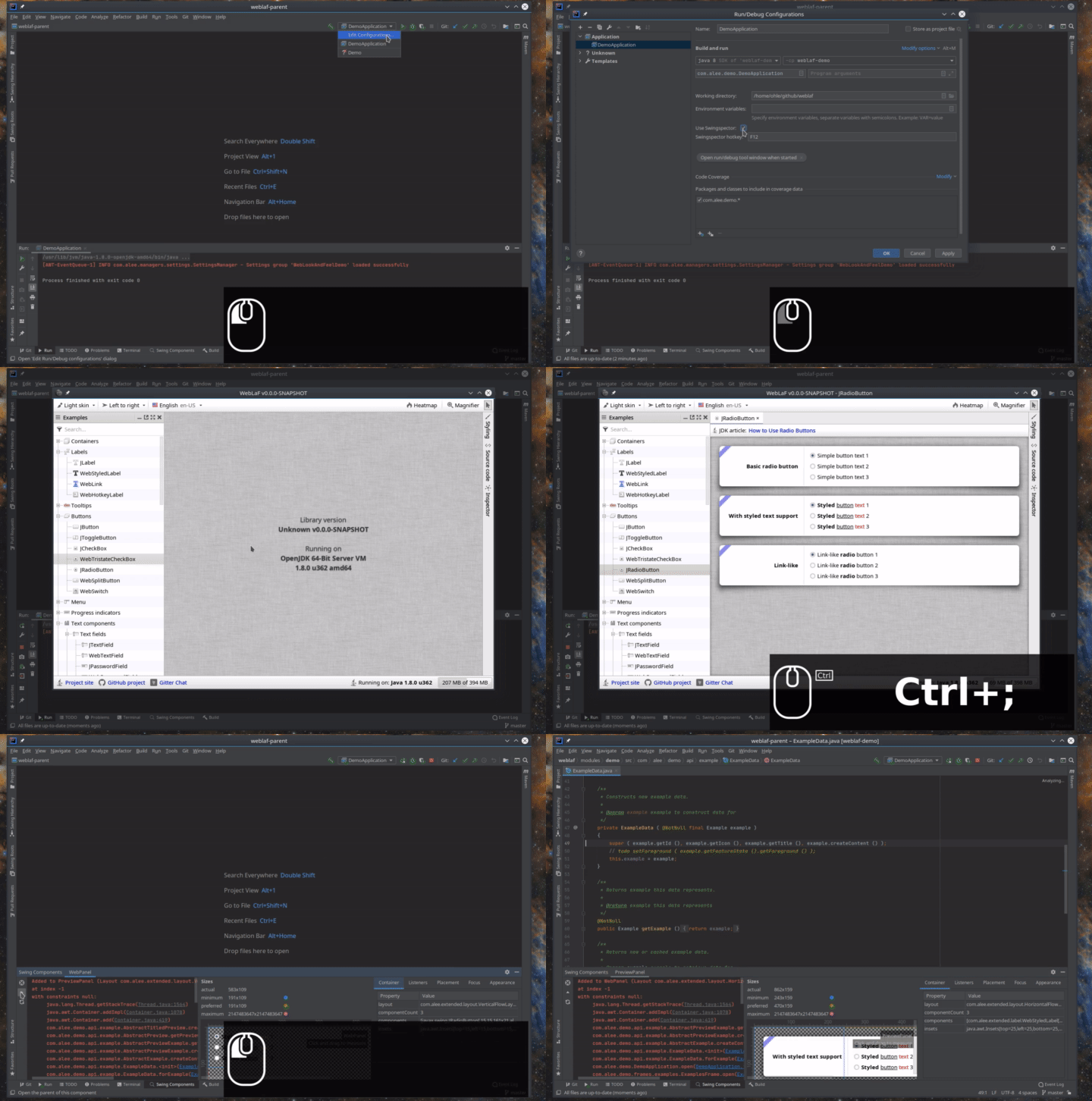
`Swingspector` adds a new option to run configurations. This option will
instrument the application for use with the plugin.
Select "Swingspector" from the "Modify Options" menu of any run configuration
that starts a Swing application, activate the checkbox and choose a shortcut.
Now, when running your Swing application through this configuration, it will
react to the configured shortcut by opening a tool window in IDEA with
information about the Swing component under the mouse cursor.
### Navigation
There are two ways to open a tool window for a component:
#### Using the hotkey
The run configuration setup dialog includes a keyboard shortcut (default
Ctrl+;).
This shortcut is installed in the application being run (so be sure to choose one that doesn't
shadow an
important shortcut of the application itself).
Position your mouse cursor over a component of interest and press the shortcut keys (with the
keyboard focus in your application) to open a window for that component.
#### Using the hierarchy of the root windows
The "Swing Roots" toolwindow is populated when running an application with Swingspector active, and
contains
the root windows (JFrames, Dialogs, …) that the application opened. Double-clicking one of those
will open the Swing Hierarchy tool window, showing the tree of components within that window.
Individual components can be opened from there.
If the list of windows is empty, press the refresh button once the application is actually showing a
window.
### The component tool window
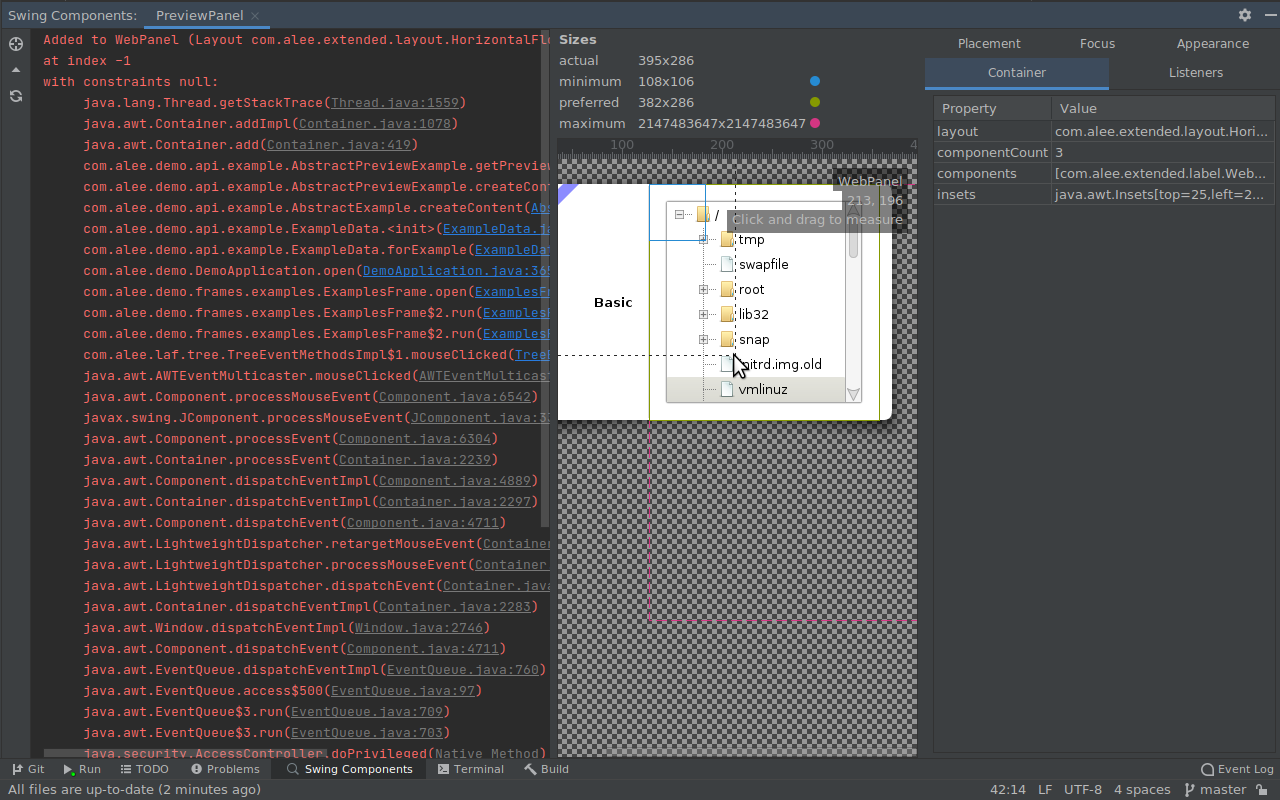
The window contains three sections:
- The placement panel, with information about the way the component was added to the hierarchy,
including a stacktrace with clickable source links
- The appearance panel, showing a table of sizes at the top (with a pin if a size was set
explicitly)
and an interactive view of the component
- The properties panel, with various properties of the component grouped into thematic tabs. The
listeners registered on the component (in the listeners tab) can be opened by clicking on them[^1]
[^1]: This currently only works for regular classes (including inner classes and anonymous classes),
but not method references or lambda expressions.
The toolbar has buttons to open the component in the hierarchy tree, and to open the component's
parent.
Immediate child components can be opened by double-clicking. When hovering over a child component,
its preferred, minimum, and maximum size are plotted, and its name is displayed in the overlay.
### The Swing Hierarchy tree view
The "Swing Hierarchy" tool window shows the component tree of a root window; it can be opened either
from the roots tool window or a component tool window.
Each node of the tree will display its name (if set) and Component subclass. For containers
(i.e. non-leaf nodes), the layout class name will be shown in brackets.
The width and height toggle buttons in the toolbar will add information about the sizes:
- Minimum size in blue
- Actual size
- Preferred size in green
- Maximum size in red
If a size is set to a fixed value (via `set{Minimum,Maximum,Preferred}Size()`), it will be
underlined.
## Installation
- Using IDE built-in plugin system:
Settings/Preferences > Plugins > Marketplace > Search for "
Swingspector" >
Install Plugin
- Manually:
Download the [latest release](https://github.com/ohle/idea-swag/releases/latest) and install it
manually using
Settings/Preferences > Plugins > ⚙️ > Install plugin from
disk...
---
Plugin based on the [IntelliJ Platform Plugin Template][template].
[template]: https://github.com/JetBrains/intellij-platform-plugin-template