https://github.com/olaviinha/pwst-it
Webapp for a virtual board of rich content sticky notes.
https://github.com/olaviinha/pwst-it
notes webapp
Last synced: about 2 months ago
JSON representation
Webapp for a virtual board of rich content sticky notes.
- Host: GitHub
- URL: https://github.com/olaviinha/pwst-it
- Owner: olaviinha
- License: other
- Created: 2020-12-21T20:16:16.000Z (over 5 years ago)
- Default Branch: main
- Last Pushed: 2025-03-21T18:50:12.000Z (over 1 year ago)
- Last Synced: 2025-03-21T19:44:53.990Z (over 1 year ago)
- Topics: notes, webapp
- Language: JavaScript
- Homepage:
- Size: 3.1 MB
- Stars: 1
- Watchers: 1
- Forks: 0
- Open Issues: 0
-
Metadata Files:
- Readme: README.md
- Changelog: CHANGELOG.md
- License: LICENSE
Awesome Lists containing this project
README
# Pwst-it® Personal Notes Board
Do you just hate how some pencil necks decide how to categorize, organize and sort out your NOTES neatly making sure you never find any of them? Are you dying for a notes app that supports your own, organized chaos? Look no further, for Pwst-it® Personal Notes Board is you answer.
Pwst-it® is a browser based webapp for desktops, not suitable for mobile platforms.
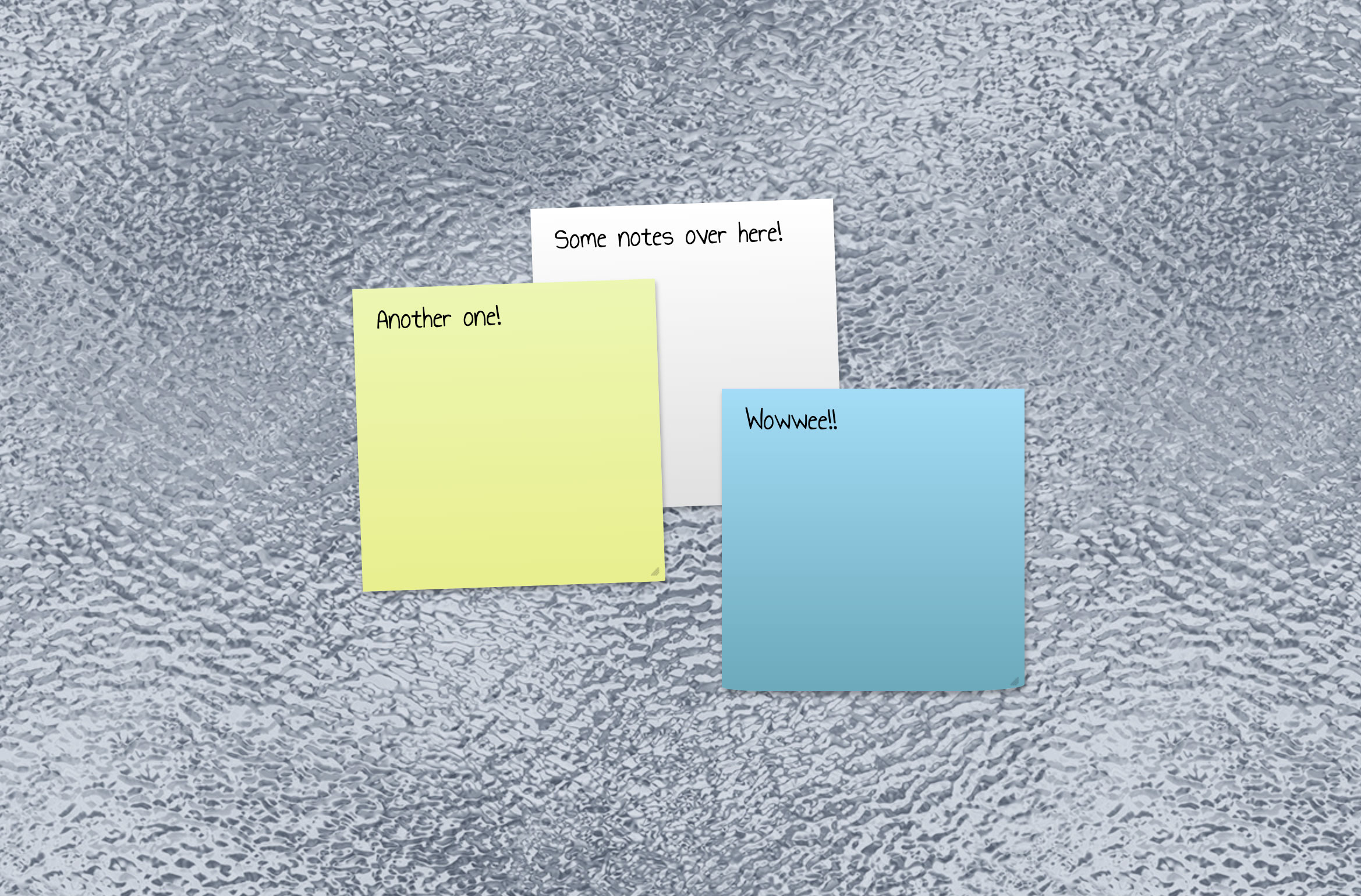
Some basic notes on Pwst-it®
## Some features
- Large draggable board. May be many times larger than your viewport. Board position is instantly saved (on device) upon
dragging.
- All notes are freely draggable and resizable. Positions and sizes are instantly saved (on server) upon dragging or
resizing.
- Quickly zoom out to view the entire board and back in wherever you click.
- Quick x-ray vision to see if you've e.g. accidentally hidden small notes behind some bigger ones.
- Background, font (few built-in) and some other settings are changeable on the fly as you go.
- Keyboard shortcuts!
- Custom buttons to open any URLs in an iframe on a sidebar. In case you want quick access to things like [when your bus leaves](https://github.com/olaviinha/HSL-Stop-Departures) or [how your stocks are doing](https://github.com/olaviinha/FinnStonks).
- Password-protected. Cookie keeps you logged in forever. You should note, however, that the security of this
webapp is not exactly state of the art. If your board is located on a public server, public URL, and you make notes about
national security or corporate secrets, it is recommended that you review and up the security game of this app.
- Log out (close active sessions on other devices) remotely.
- Saves everything in flat files (and some settings in cookies); no database required, easy to copy and backup notes with zero tech-savviness.
- Supports some basic text formattings in markdown language.
- Auto-embed youtube, soundcloud, video and audio URLs (like Facebook in the good old days).
- Auto-hyperlink website URLs to human-readable form using the page .
- Paste rich text and images.
- Want plain text notes instead? No problem, just set all the rich content settings to `false`.
- All deleted notes go to Recycle Bin, where they can still be read and restored from, until restored or perma-deleted.
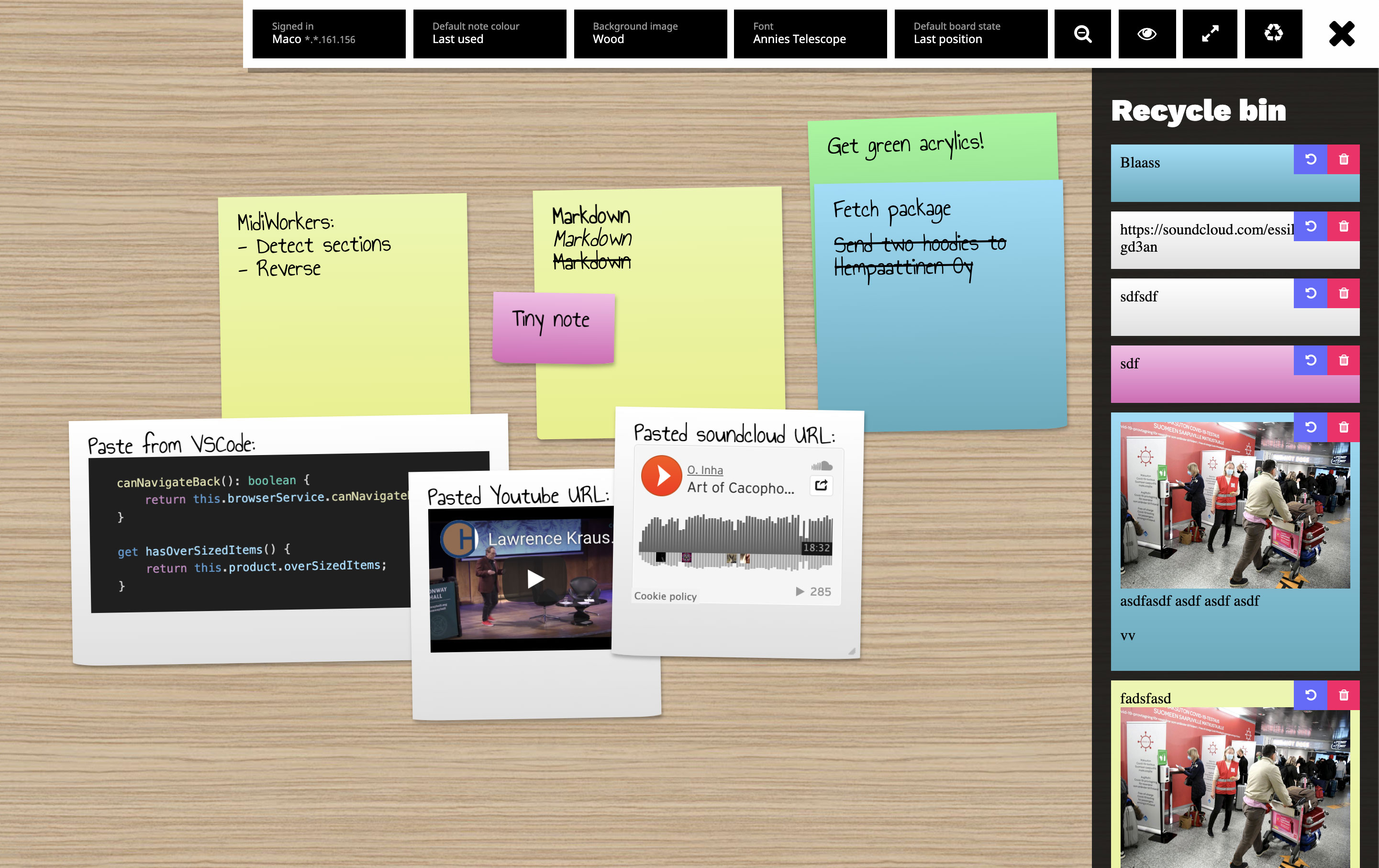
Some notes rich in content. Settings bar and Recycle Bin opened.
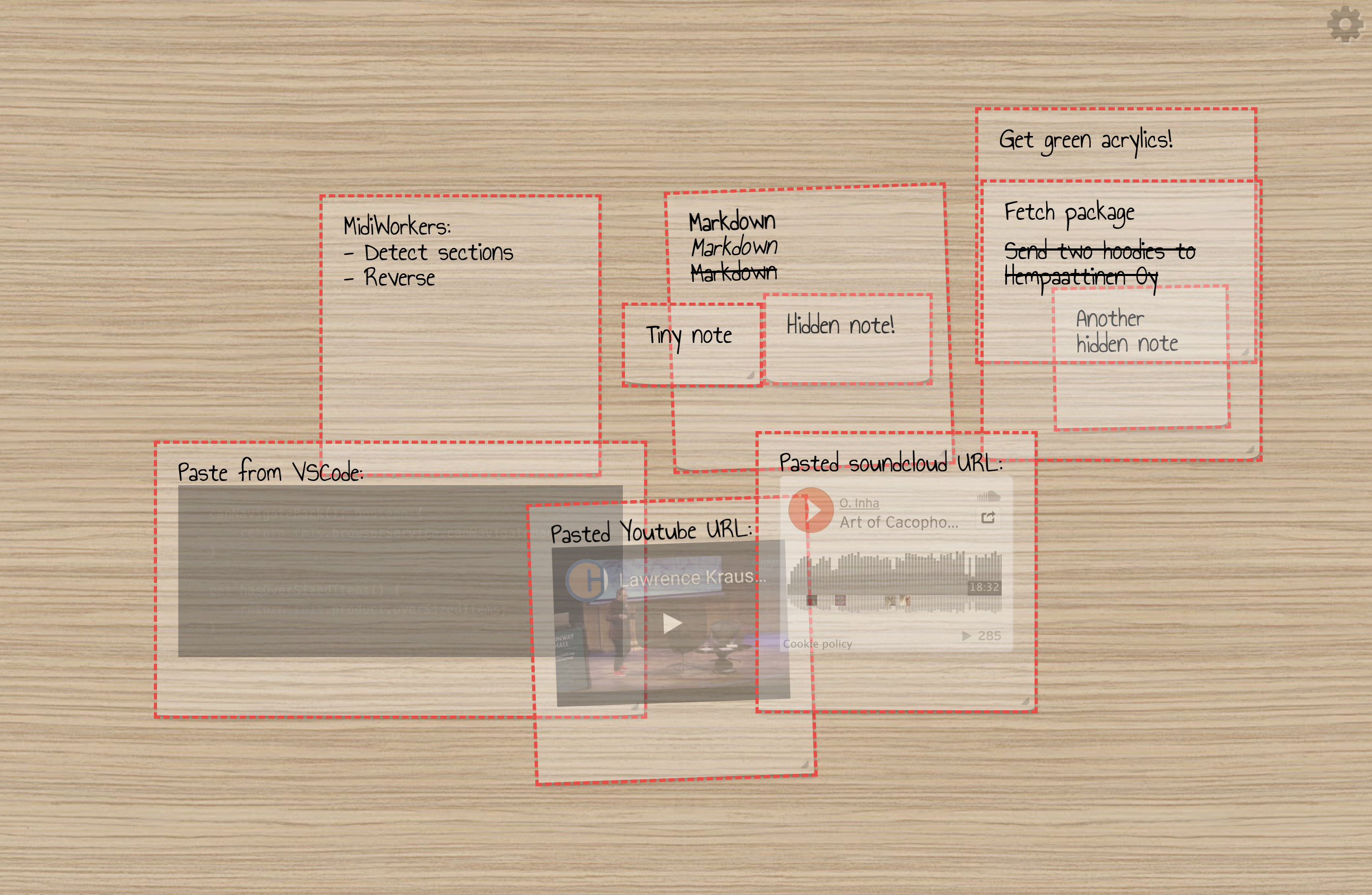
Holding down the X-ray key to see through notes.
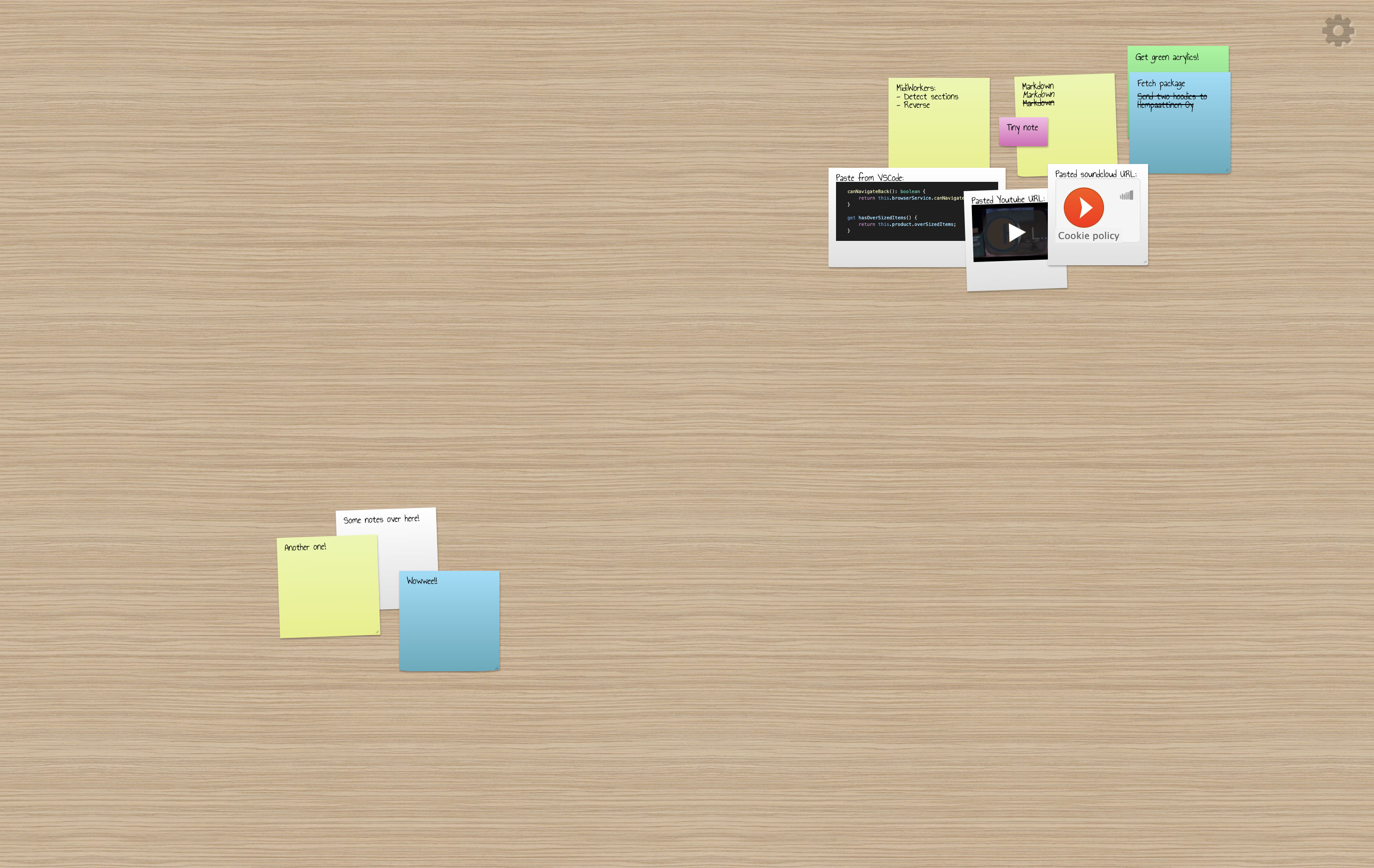
Zoomed out to overview the entire board.
## Prerequisites
- PHP
#### ...included in the solution from CDNs:
- Font Awesome
- jQuery
- jQuery UI
- Less.js
- [jquery.cookie](https://github.com/carhartl/jquery-cookie), courtesy of Klaus Hartl.
#### ...included in in the repository:
- [simplebar](https://github.com/Grsmto/simplebar), courtesy of Jonathan Nicol.
- [jQuery Awesome Cursor](https://github.com/jwarby/jquery-awesome-cursor), courtesy of James Warwood.
## Setup
1. Download or clone this repository.
2. Edit `index.php` in a text editor and change the default password: `$pw = "AveSatanas666";`.
3. Edit `pwst-it.js` in a text editor, read through and change any of the settings.
4. Upload all files to a web server.
5. Grant PHP write permissions to subdirectories `notes`, `settings` `sessions` and `recyclebin`. On Debian based apache2 setups
this will probably do: `cd /wherever-it-is/located/pwst-it/ && sudo chown -R www-data:www-data notes settings sessions recyclebin`. Alternatively you may set some more general write permissions to these directories and their files e.g. using your FTP client.
6. Make sure your HTTP Daemon does not provide `Index of /pwst-it/notes` type of directory listings of these directories, if you care about such a thing. Alternatively you may also configure these directories (set in `index.php`) to be located outside where Pwst-it's `index.php` is located, so that the directories are not publicly accessible. PHP will have access to them in spite of their location on the server.
7. Done.
## How to use
There are no tips or other descriptive texts in the UI. You should just read this through instead. _Note_ that there are also keyboard shortcuts to some of these functions, described in the next section.
- There is a bunch of settings in the beginning of `pwst-it.js`, some of which may actually interest you, such as:
```
allowRichPaste: true, // Allow pasting rich text.
allowImagePaste: true, // Allow pasting images but not rich text.
allowEmbed: true, // Allow turning pasted links to embeds and human-readable hyperlinks.
```
```
cancel: 'Escape', // Close activated things (new note, editing, settings).
drag: 'Shift', // Hold to enable grabbing from anything while dragging board.
xray: 'x', // Hold to see through notes.
zoomIn: 'w', // Zoom in to the same view where you zoomed out from.
zoomOut: 's', // Zoom out to overview.
settings: 'a', // Open settings bar.
createNew: 'd', // Create new note wherever your cursor is.
fullScreen: 'z' // Toggle full screen.
```
- Double-click anywhere on board to create a new note on that point.
- Double-click on a note to edit it or delete it from the board.
- There is a faint gear icon in top right corner. Click to open Settings bar.
- All settings changed in the Settings bar are saved on **device** (browser cookies).
- To drag the board in your viewport, grab anywhere on the site background -or- hold down shift key while dragging (see keyboard bindings).
- To drag a note around the board, grab the note from anywhere but the very bottom/right edges or bottom-right corner.
- To resize a note on the board, grab the note from its bottom/right edges or bottom-right corner.
- To bring a note to front, simply click it. There is no other functionality regarding the z-order of notes. If you want multiple notes to overlap in certain order, you need to click each one in back-to-front order.
- To cancel creating a new note or editing a note, click anywhere on the page outside the new note creation box. If you wrote something in the text area before cancelling, the text will remain as a draft for a new note until you reload the page or clear the text area manually.
- All deleted notes are actually moved to Recycle Bin, which is accessible from the Settings bar (recycle icon).
- In the Recycle Bin list, you can read, perma-delete and restore notes.
- To restore a note, click the Undo icon over that note in the Recycle Bin. Note will be restored to where it last was on the board. If you have newer notes on where that note used to be, the restored note will be behind them.
- To perma-delete a note (gone forever) click the trash can icon over that note on Recycle Bin.
- To empty Recycle Bin, you need to empty the `pwst-it/recyclebin` folder on your server.
- Background images available in the Settings bar are automatically fetched from directory `/settings/backgrounds`. Simply remove/add images to that directory, and the menu will update accordingly.
## Keyboard shortcut bindings
This lists what keyboard shortcuts are available, and what are the default keys. Default keys are mapped around the WASD keys, but you can change them to whatever you like.
- Hold to drag (default: Shift). Hold down while dragging the board to enable grabbing from anything, including notes (which otherwise are draggable by themselves). This is mostly for situations where your board is so full of notes you have too little background visible to grab on to.
- X-ray vision (default: X). Hold down to see through all notes. This is mostly for situations where you may have lost
a note by e.g. leaving it behind some larger notes.
- Zoom out (default: S). Zoom out to view the entire board and all notes in it.
- Zoom in (default: W). Zooms back in to the view where you zoomed out from. _Note_ that clicking anywhere on the screen is probably more convenient, as it will zoom in to the point where you clicked.
- Create note (default: D). Create new note wherever your cursor is located. Double-clicking on the background does the exact same thing. However, this shortcut key enables you to create new notes directly on top of old notes too, as double-clicking an old note will normally edit the double-clicked note.
- Settings (default: A). Open/close the settings bar.
- Full screen (default: Z). Open/exit full screen mode.
- Cancel (default: Esc). Closes/cancels different things on screen, depending on what's happening.
## General acknowledgements
- This was developed solely for my personal purposes. It functions under that scope, and I don't intend to extend it outside of that scope.
- It has been developed and tested only in Google Chrome.
- Very likely has a number of bugs (at least in the rich-content-pasting functionality) which I aim to fix as they come along.