https://github.com/opral/sherlock
Localization (i18n) extension for VSCode build on the open inlang file format.
https://github.com/opral/sherlock
i18n inlang l10n localization vscode vscode-extension
Last synced: 11 days ago
JSON representation
Localization (i18n) extension for VSCode build on the open inlang file format.
- Host: GitHub
- URL: https://github.com/opral/sherlock
- Owner: opral
- License: mit
- Created: 2024-03-12T14:28:28.000Z (over 2 years ago)
- Default Branch: main
- Last Pushed: 2026-01-13T22:01:40.000Z (5 months ago)
- Last Synced: 2026-05-27T08:38:00.989Z (27 days ago)
- Topics: i18n, inlang, l10n, localization, vscode, vscode-extension
- Language: TypeScript
- Homepage: https://inlang.com/m/r7kp499g/app-inlang-ideExtension
- Size: 20.1 MB
- Stars: 13
- Watchers: 0
- Forks: 1
- Open Issues: 29
-
Metadata Files:
- Readme: README.md
- Changelog: CHANGELOG.md
- Contributing: CONTRIBUTING.md
- License: LICENSE.md
- Support: docs/supported-i18n-libraries.md
Awesome Lists containing this project
README
---
imports:
- https://cdn.jsdelivr.net/npm/@opral/markdown-wc-doc-elements/dist/doc-hero.js
- https://cdn.jsdelivr.net/npm/@opral/markdown-wc-doc-elements/dist/doc-features.js
- https://cdn.jsdelivr.net/npm/@opral/markdown-wc-doc-elements/dist/doc-comments.js
- https://cdn.jsdelivr.net/npm/@opral/markdown-wc-doc-elements/dist/doc-feature.js
- https://cdn.jsdelivr.net/npm/@opral/markdown-wc-doc-elements/dist/doc-comment.js
---
# Sherlock – i18n extension for Visual Studio Code


Visualize, edit, and lint translated strings effortlessly using Inline Decorations & Hover Support. Extract new strings with a simple click, making localization tasks more intuitive and efficient.
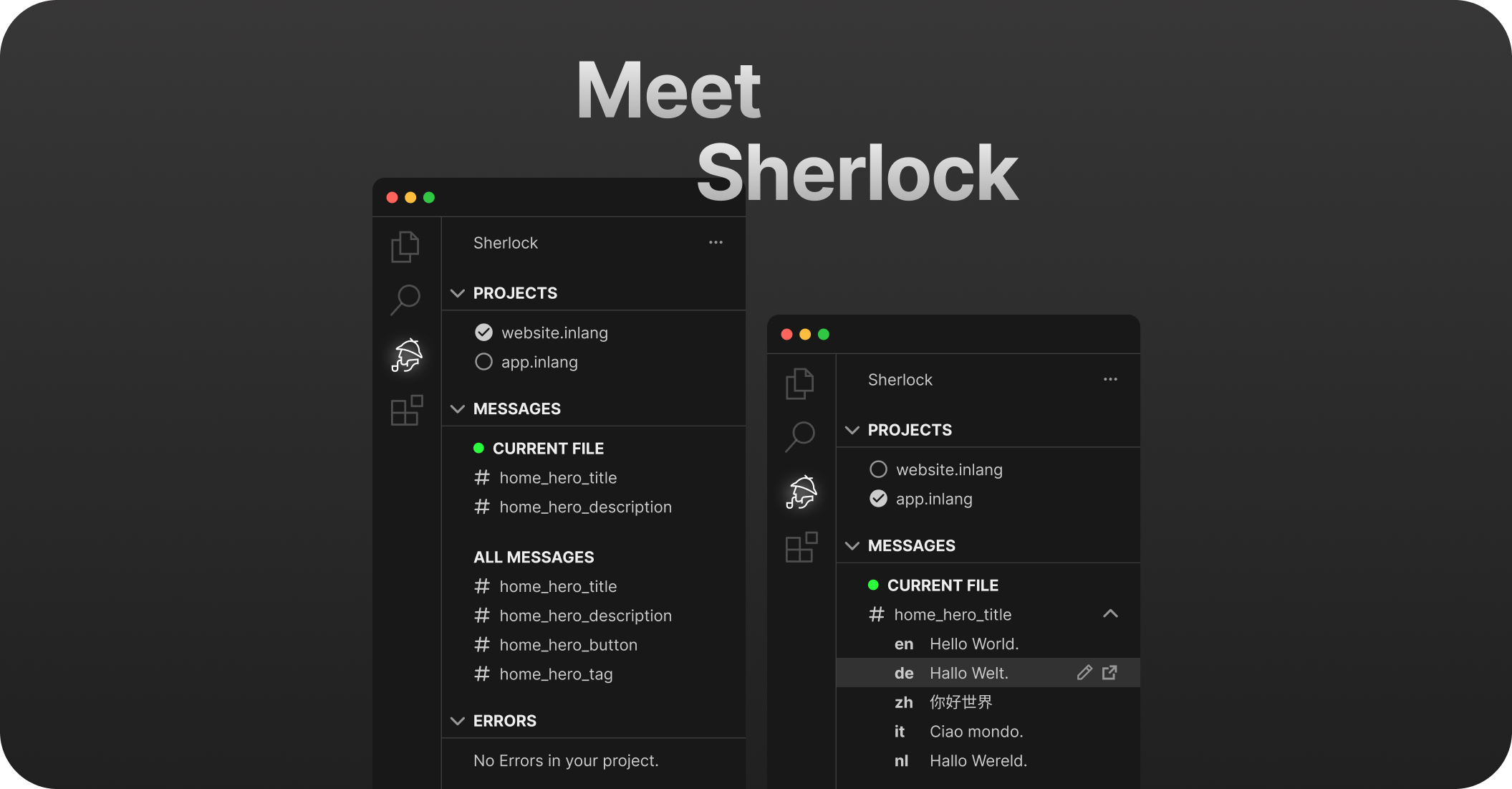
✅ Streamline the i18n translation process.
✅ Visualize, edit, and lint translations.
✅ Extract new translations with a simple click.
# Quick start
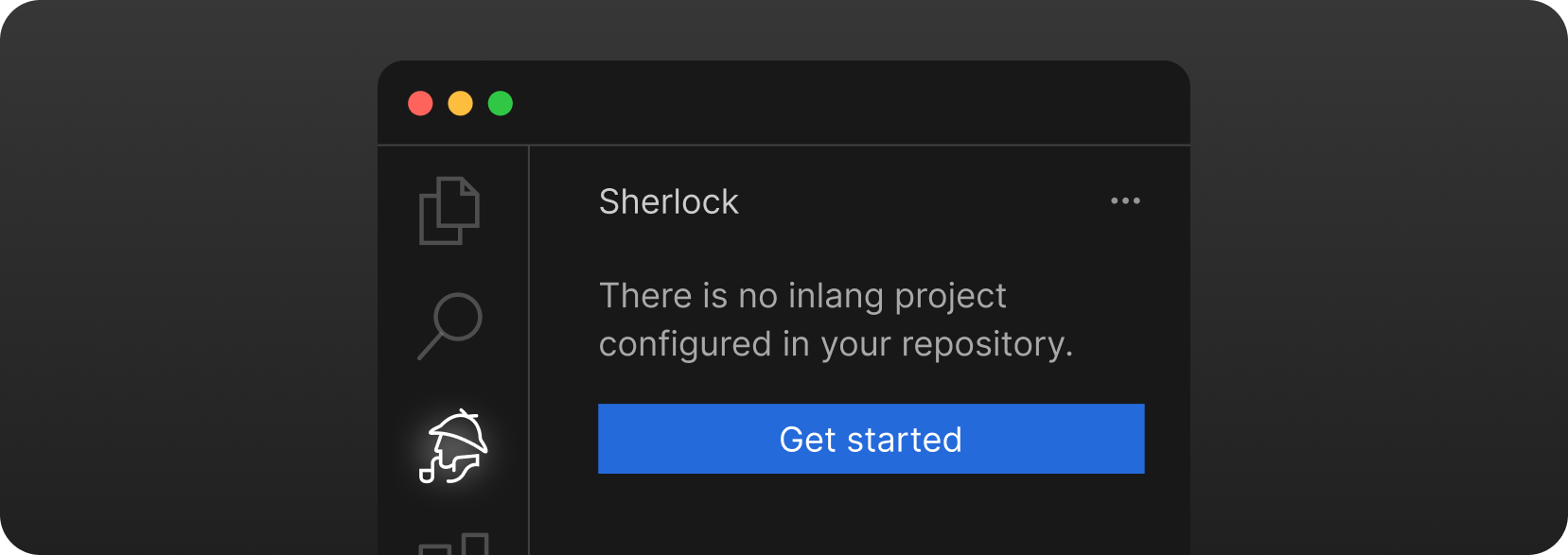
Install the extension and click `Getting Started` in the `Sherlock Tab`.
> You need a git repository to use the Sherlock extension, as it leverages git functionality (the inlang ecosystem is built on git).
### Manual setup
#### 1. Create a `project.inlang/settings.json` in the **root** of your project
You can use the following template when using JSON files as translation files. If not, please look for other [supported resource file types](https://inlang.com/):
```json
{
// official schema ensures that your project file is valid
"$schema": "https://inlang.com/schema/project-settings",
// the "source" language tag that is used in your project
"baseLocale": "en",
// all the language tags you want to support in your project
"locales": ["en", "de"],
"modules": ["https://cdn.jsdelivr.net/npm/@inlang/plugin-json@4/dist/index.js"], // or use another storage module: https://inlang.com/c/plugins (i18next, json, inlang message format)
"settings": {}
}
```
> You might need another module if you are using a different resource file type. You can find all available modules [here](https://inlang.com/c/plugins).
#### 2. Decide on a **syntax matcher**
You should continue with **installing a syntax matcher**. There are multiple syntax matcher available:
- m function matcher: https://inlang.com/m/632iow21/plugin-inlang-mFunctionMatcher
- t function matcher: https://inlang.com/m/698iow33/plugin-inlang-tFunctionMatcher
- _if you are using the i18next module, everything is already built-in_
- _if you are using next-intl, you need https://inlang.com/m/193hsyds/plugin-inlang-nextIntl_
#### 3. ✨ Recommended
If you want to add lint rules to your experience, you can add them from https://inlang.com/c/lint-rules
#### Requirements:
- VS Code version 1.84.0 or higher.
- Node.js version v18 or higher.
---
# Features
## Manage Translations directly from your Code
See translations and edit them directly in your code. No more back-and-forth looking into the translation files themselves.
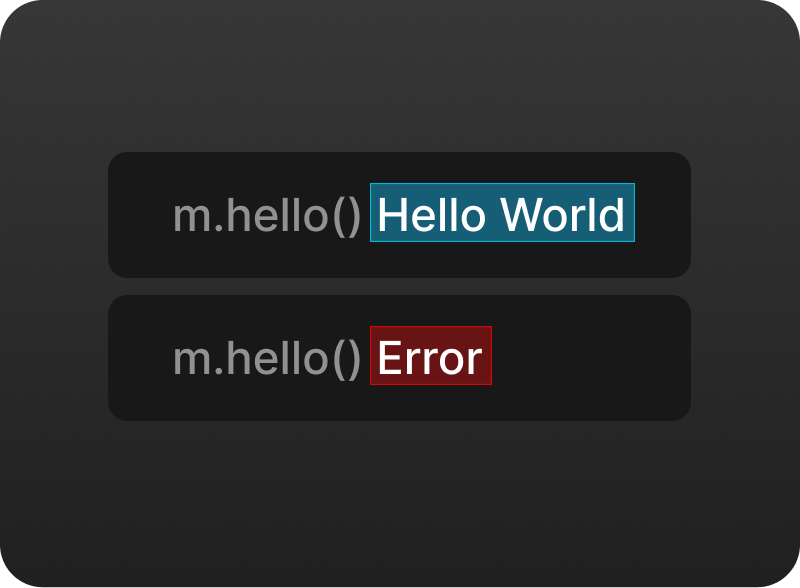
🔎 Inline Annotations
See translations directly in your code. No more back-and-forth looking into the translation files themselves.
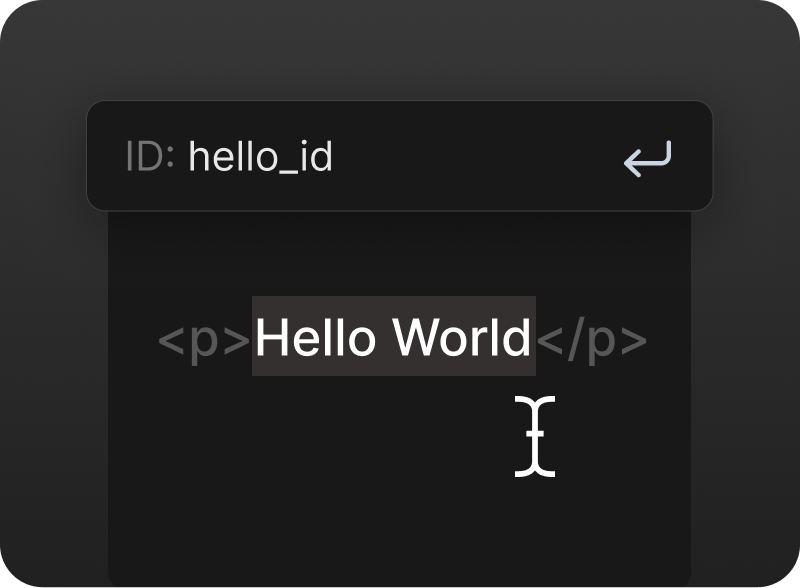
✂️ Extract Messages (translations)
Extract new strings with a simple click, making localization tasks more intuitive and efficient. Visualize, edit, and lint translated strings effortlessly using Inline Decorations & Hover Support.
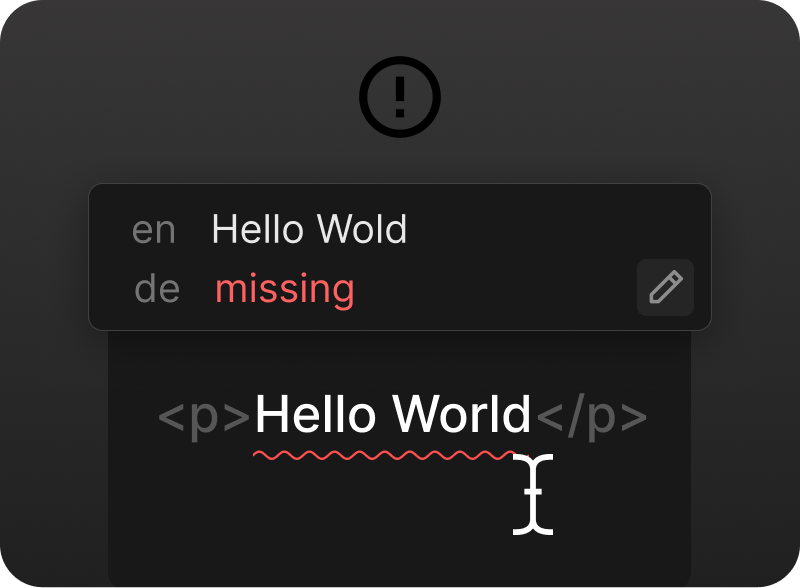
❌ Message Linting
Get notified about missing translations and other issues directly in your IDE.
## Sherlock tab - Transparent & Fast
You can have multiple projects in your repository. By using the Sherlock tab, it's easy to switch between projects. Whenever you change the source text, translations from the resource files will be automatically updated. Additionally, the tab menu provides a quick overview of any project errors in the setup.
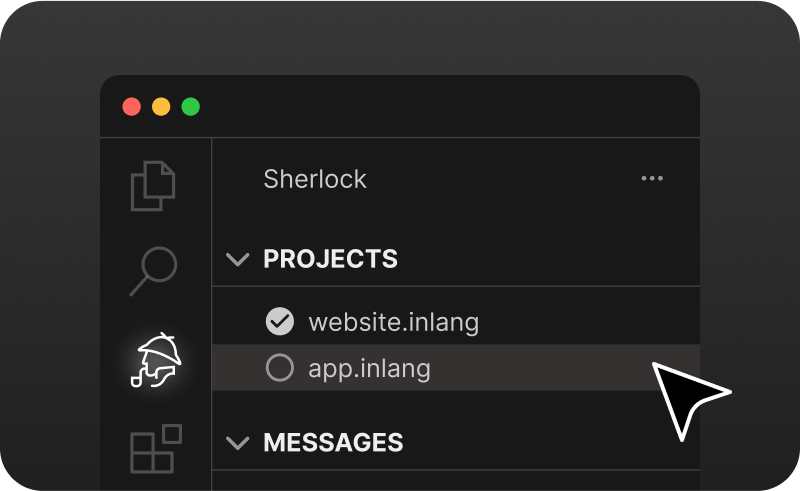
📦 Monorepo support
You can have multiple projects in your repository. The Sherlock tab makes it easy to switch from one to another.
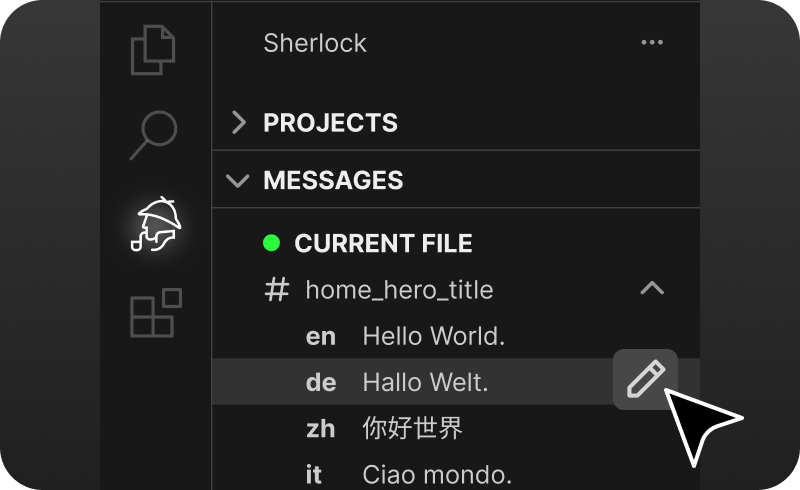
🔁 Update Translations
Translations from the resource files are automatically updated when you change the source text.
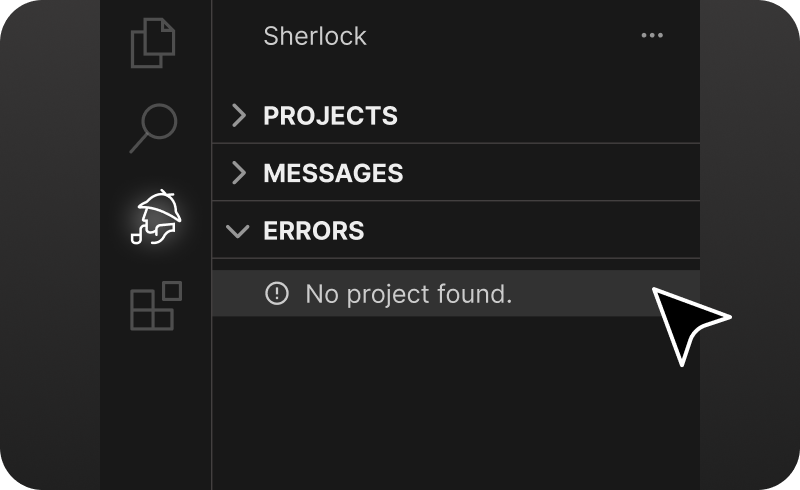
⚠ Transparent Errors
In the tab menu, you can see project errors if the setup is broken.
## Customization
### Custom preview language
You can customize the preview language in the settings. This is useful if you want to see how your translations look in a specific language. This setting is also available in the bottom status bar.
```json
"sherlock.previewLanguageTag": "de"
```
### Custom extension colors
You can customize the colors for inline annotations directly through the VS Code settings JSON file. This feature allows you to set different colors for `info` and `error` states, enhancing the readability and usability of inline annotations.
Add the following properties to your VS Code `settings.json` file to customize annotation colors:
```json
"sherlock.editorColors": {
"info": {
"foreground": "#color",
"background": "rgba(number, number, number, 0.2)", // needs transparency
"border": "#color"
},
"error": {
"foreground": "#color",
"background": "rgba(number, number, number, 0.2)", // needs transparency
"border": "#color"
}
}
// or (for all extensions)
"workbench.colorCustomizations": {
"editorError.foreground": "#color",
"editorError.background": "#color",
"editorError.border": "#color",
"editorInfo.foreground": "#color",
"editorInfo.background": "#color",
"editorInfo.border": "#color"
}
```
### Disable Inline Annotations
You can disable inline annotations by setting the following property to `false` in your VS Code `settings.json` file or by using the command `Sherlock: Toggle Inline Annotations`. The default value is `true`.
```json
"sherlock.inlineAnnotations.enabled": false
```
### Disable Auto Human ID Generation
You can disable the automatic generation of human IDs by setting the following property to `false` in your VS Code `settings.json` file. The default value is `true`.
```json
"sherlock.extract.autoHumanId.enabled": false
```
> [!NOTE]
> Tip: It's best practice to use random names for your messages. Read this [post](https://inlang.com/blog/human-readable-message-ids) for more information.
#### Troubleshooting
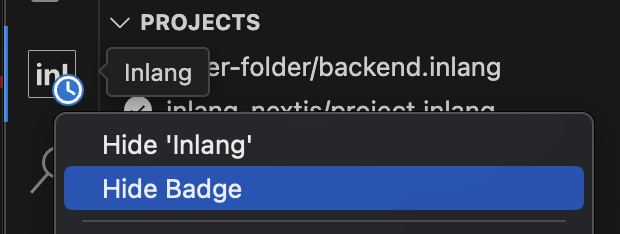
If you are having trouble with the **loading icon** not disappearing, this is a known issue & we are working with Visual Studio Code to fix it. In the meantime, you can right-click the Inlang icon to hide it:
## Support: Join our Discord / Open an issue on GitHub!
If something isn't working as expected or you have a feature suggestion, please join our [Discord](https://discord.gg/gdMPPWy57R) or [create an issue](https://github.com/opral/sherlock/issues/new/choose). We are happy to help!
# Development
This repository contains the standalone Sherlock VS Code extension. It vendors inlang as a submodule in `submodule/inlang`.
## Setup
1. Clone with submodules: `git clone --recurse-submodules git@github.com:opral/sherlock.git`
2. Install dependencies: `pnpm install`
3. Build inlang deps: `pnpm run build:inlang`
4. Build Sherlock: `pnpm run build`
## Useful scripts
- `pnpm test`
- `pnpm test:watch`
- `pnpm run editor:dev`
- `pnpm run package`
.flex-container {
display: flex;
flex-wrap: wrap;
align-items: center;
}
.flex-item {
width: 100%;
}
@media (min-width: 600px) {
.flex-item {
width: calc(50% - 16px); /* Two columns with a small gap between them */
margin-bottom: 0;
padding: 0 8px;
}
}
.flex-item .bold {
font-weight: bold;
font-size: 20px;
}