https://github.com/pawarrachana06/github-notes
Git commands
https://github.com/pawarrachana06/github-notes
git
Last synced: about 1 month ago
JSON representation
Git commands
- Host: GitHub
- URL: https://github.com/pawarrachana06/github-notes
- Owner: pawarrachana06
- Created: 2025-02-13T15:04:18.000Z (over 1 year ago)
- Default Branch: main
- Last Pushed: 2025-08-22T11:45:10.000Z (11 months ago)
- Last Synced: 2025-08-22T12:36:30.580Z (11 months ago)
- Topics: git
- Homepage:
- Size: 21.5 KB
- Stars: 0
- Watchers: 1
- Forks: 0
- Open Issues: 0
-
Metadata Files:
- Readme: README.md
Awesome Lists containing this project
README
## GIT COMMAND AND DESCRIPTIONS NOTES
Git is free and open source distributed version control system designed to handle everything from small to very large projects with speed and efficiency.
## Advantages
- Tracking Changes
- Managing project code
- Working with multiple members
## Setup
- Download Git from [Git](https://git-scm.com/downloads)
- Create a Github account
## Configurations
- Set the email and username with below commands. Needed for tracking, which commit is by whom. (--global: When you want a default Git configuration across all projects, --local:When you want different Git settings for different projects )
`git config --global/local user.email="example@email.com`
` git config --global/local user.name="user name"`
- To check the configurations
` git config list`
## Lifecycle
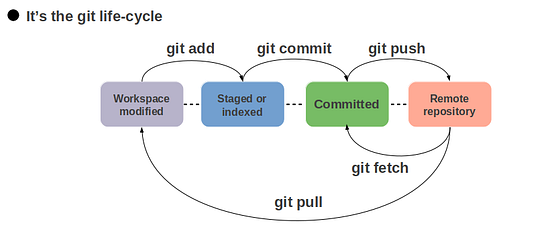
[Image source](https://miro.medium.com/max/552/1*J1qnVEUXzoDgROobmjjR_Q.png)
## Commands
- To initialize a new Git repository in a directory.
A .git directory is created inside your project folder. This directory contains all the metadata required for version control.
` git init `
- Moves changes from the working directory to the staging area.
Is used to stage changes in Git, preparing them for a commit. It tells Git to include specific files or changes in the next commit.
` git add filename`
` git add . `
- Save Staged Changes to Git History
Records staged changes into the repository's history.
` git commit -m "commit message , one liner for changes done" `
` git commit --amend # modify the last commit message`
- Rename the Current Branch to main
This command renames the current Git branch to main,-M (move) forces the rename, even if a branch named main already exists.
` git branch -M main`
- Link Local Repository to Remote
This command connects your local Git repository to a remote repository.
` git remote add origin link `
` git remote -v # list the remote links`
` git remote rm origin `
- Push Local Changes to Remote Repository
This command uploads your local branch (main) to the remote repository (origin) and sets it as the default upstream branch.
-u or --set-upstream → Links the local main branch to the remote main branch.
After this, you can simply use git push next time (without specifying origin main).
` git push -u origin branchname`
` git push `
- Check the Current State of Your Repository
The git status command shows the current status of your working directory and staging area. It helps you track:
- Untracked files (new files not yet added to Git)
- Changes staged for commit
- Changes not staged for commit
- The current branch and its relationship with the remote repository
` git status `
- View Commit History
The git log command displays a list of commits in your repository, showing useful details such as:
- Commit hash (unique ID)
- Author
- Date
- Commit message
- The git log command shows the history of commits in your repository.
` git log `
` git log --oneline # one line history log`
- Take changes from the branch
Used to fetch the latest changes from a remote repository and merge them into your current branch.
` git pull origin main `
- Unstages a file without deleting changes
Unstages filename from the staging area (index), but keeps the changes in your working directory.
If you added a file to staging (git add), but don’t want it in the next commit
` git restore --staged filename`
- Untracks a file but keeps it locally
If you added a file to Git but now want to stop tracking it while keeping it on disk.
` git rm --cached filename `
- Shows changes in files before staging or committing
To see what has changed in your working directory before staging
` git diff `
- Temporarily saves uncommitted changes
If you need to switch branches or pull updates but don’t want to commit yet
` git stash `
` git stash pop # To Get the changes back into working directory`
` git stash list # List all the stash created `
` git stash clear # Delete all the changes saved temporarily `
` git stash save 'tag' # Svae the changes with a specific name`
` git stash apply tag # Remove and apply it to current changes`
## Branches
- Creates a new branch
To create a new branch without switching to it
` git branch branchname `
- To Move to the branch created
` git checkout branchname `
` git switch branchname `
- Merges branchname into the current branch
To combine changes from another branch into your current branch
` git merge branchname # If conflict notifies to resolve`
- Deletes a branch (only if merged)
Removes branchname locally but keeps history intact
` git branch -d branchname `
` git push origin --delete branchname # Removes branchname from the remote repository.`
- To create and move to branch together
` git checkout -b branchname `
` git switch -c new-branch `
- To List the branches created locally and remotely
` git branch -v # -v local branches -r remote branches `
` git branch list # Lists all local branches `
` git branch --merged # Lists branches that are already merged`
` git branch -D branchname # Force deletes a branch (even if unmerged)`
## Rebase
- Rebasing the Current Branch onto feature
Moves your current branch on top of the feature branch, making it look like all your changes were made after the latest feature branch updates.
🔹 What Happens During git rebase feature?
- Git takes all commits from your current branch that are not in feature.
- It re-applies them on top of the feature branch, one by one.
- This creates a cleaner history without unnecessary merge commits.
` git rebase branchname `
Before Rebasing (develop is checked out)
` mathematica
A --- B --- C (feature)
\
D --- E --- F (develop, current branch) `
After Running git rebase feature
` mathematica
A --- B --- C (feature)
\
D' --- E' --- F' (develop, rebased) `
- Commits D, E, F are rebased onto feature.
- Each commit gets a new hash, as they are reapplied.
- When Do You Use git rebase --continue?
✅ You started a git rebase, but there was a merge conflict.
✅ You fixed the conflict and staged the changes (git add .).
✅ Now, you need to resume the rebase process.
` git rebase --continue `
## Squash
- Interactive Rebase to Modify Last Commits
The interactive rebase (-i) lets you edit, squash, reorder, or delete commits in a safe and controlled way.
` git rebase -i HEAD ~ no.of commits `
🔹 How to Use Interactive Rebase
1️⃣ Run the command:
`sh
git rebase -i HEAD~4 `
This opens an interactive editor with a list of the last 4 commits.
2️⃣ Modify the commits (Example Editor Output)
` sql
pick 123abc First commit
pick 456def Second commit
pick 789ghi Third commit
pick 012jkl Fourth commit `
Each commit starts with the word pick.
You can change pick to edit, squash, reword, or drop:
- Command Effect
- pick Keep the commit as is
- reword Edit commit message
- edit Modify the commit
- squash (or s) Merge commit into the one before it
- drop Delete commit
## Revert
- Revert a Commit Without Changing History
The git revert command creates a new commit that undoes the changes from a previous commit, without modifying commit history.
` git revert HEAD ~2 `
## Reset
- Reset Commits Without Losing Changes
This command moves the HEAD (the latest commit pointer) back by index commits, keeping all changes staged.
` git reset --soft HEAD ~ index # starts with 0 `
` git reset --mixed HEAD~1 # Undo commit, keep changes unstaged`
` git reset --hard HEAD ~ index #Undo commit & remove changes permanently`
## Difference Between git revert and git reset:
- git reset moves the branch pointer back, altering history (not recommended for shared repos).
- git revert creates a new commit, safely reversing changes without rewriting history.
## Note Recover Lost Commits & Track History
- Whenever you commit, reset, checkout, merge, rebase, or cherry-pick, Git logs these actions.
Even if a commit is lost due to git reset --hard, you can recover it using git reflog.
Lists recent HEAD movements with their commit hashes.
` git reflog `
## Tags & Release
- Create a Tag in Git
A Git tag is a way to mark specific points in your commit history, often used for version releases (e.g., v1.0.0).
` git tag tagname `
` git tag # List the tags `
` git tag -d v1.0.0 # Delete a local tag `
` git push origin --delete v1.0.0 # Delete a remote tag`
- Push a Specific Tag to Remote
This command pushes a specific Git tag from your local repository to a remote repository.
` git push origin tagname `
## Cherry pick
- Apply a specific commit from another branch
Brings in the changes from a specific commit without merging the entire branch
``` git cherry-pick commitHash ```
## Fork
A fork is a personal copy of someone else's Git repository. It allows you to:
- Experiment with changes without affecting the original repo.
- Contribute to open-source projects by making changes in your fork and submitting a pull request.
- Maintain a separate version of a project with your modifications.
## How to Fork a Repository
1️⃣ Go to the Repository
Visit the GitHub repository you want to fork.
2️⃣ Click the "Fork" Button
This creates a copy of the repository under your GitHub account.
3️⃣ Clone the Forked Repository to Your Local Machine
`sh
git clone https://github.com/your-username/forked-repo.git
cd forked-repo`
4️⃣ Add the Original Repository as a Remote (upstream)
`sh
git remote add upstream https://github.com/original-owner/original-repo.git`
- origin refers to your fork.
- upstream refers to the original repo.
Keeping Your Fork Updated
1️⃣ Fetch Changes from the Original Repo
`sh
git fetch upstream`
2️⃣ Merge Changes into Your Fork
`sh
git checkout main
git merge upstream/main`
3️⃣ Push the Updates to Your GitHub Fork
`
sh
git push origin main`
## How to avoid some file from being tracked by VC
A .gitignore file tells Git which files and directories to ignore (i.e., not track or commit). This is useful for:
- Temporary files (logs, caches)
- Environment-specific files (config, secrets)
- Dependency folders (e.g., node_modules/)
- Compiled files (e.g., .class, .o, .exe)
Create a file named .gitignore in the current directory.
.gitignore file .[Refer these repo for writing .gitignore files for different Framework/Programming Language](https://github.com/github/gitignore)