https://github.com/pdawg-bytes/hwnd-xamlpresenter-notepad
This is a Shell32.dll modification that allows you to create a XamlPresenter window that launches by clicking "About" in Notepad's top menu.
https://github.com/pdawg-bytes/hwnd-xamlpresenter-notepad
Last synced: 11 months ago
JSON representation
This is a Shell32.dll modification that allows you to create a XamlPresenter window that launches by clicking "About" in Notepad's top menu.
- Host: GitHub
- URL: https://github.com/pdawg-bytes/hwnd-xamlpresenter-notepad
- Owner: Pdawg-bytes
- License: mit
- Created: 2022-12-04T19:30:46.000Z (over 3 years ago)
- Default Branch: main
- Last Pushed: 2024-03-29T04:05:21.000Z (over 2 years ago)
- Last Synced: 2025-04-11T20:04:18.778Z (over 1 year ago)
- Language: C++
- Homepage:
- Size: 140 KB
- Stars: 5
- Watchers: 1
- Forks: 0
- Open Issues: 0
-
Metadata Files:
- Readme: README.md
- License: LICENSE
Awesome Lists containing this project
README
# hwnd-xamlpresenter-notepad
This is a Shell32.dll modification that allows you to create a XamlPresenter window that launches by clicking "About" in Notepad's top menu.
# What can you do?
With this, you can create any XAML element inside of a presenter window that launches from notepad. It can be for hiding easter eggs, like this:
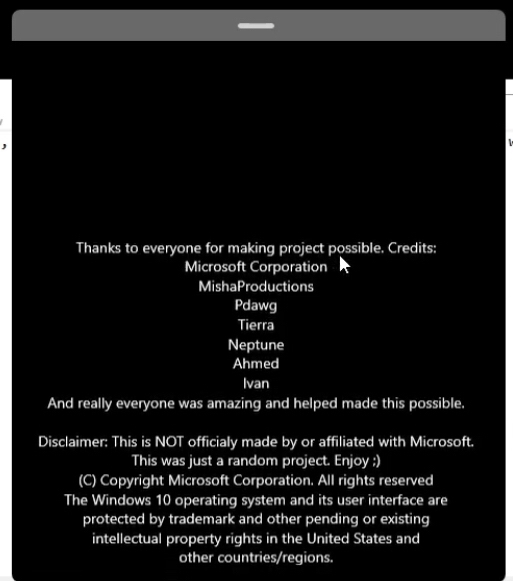
This screenshot was taken in WinPE UWP, a project by me and a few other friends!
# Buiilding
To build the modified DLL, you must have C++ installed and UWP C++ (for C++/CX support). Make sure to use Visual Studio 2022 for best results!
**Important:**
Before you build though, you will need the internal WinMD file. This is provided in `/WinMD/Windows.UI.Xaml.Hosting.winmd`. This WinMD allows you to create the XAML presenter window. To add it into your `dllmain.cpp` file, do this:
```cpp
#using "D:\Source\Git\hwnd-xamlpresenter-notepad\WinMD\Windows.UI.Xaml.Hosting.winmd" // Make sure to set the path to where ever your winmd file is! (This path is an example on my computer)
```
Just modifiy line 18 of `dllmain.cpp` and add the path to where your WinMD is saved.
# Using the DLL
To use the DLL, you will need a custom notepad.exe. This is provided in `Binaries/notepad.exe`. Once ready, just copy your built Shell16.dll file into the same folder as the notepad binary, and it should open just fine!
# Structure
To better understand this modification (and how you can edit it), I reccommend you read this section:
**XAML Components:**
```cpp
i = XamlPresenter::CreateFromHwnd((int)window);
i->InitializePresenter();
auto y = ref new Grid();
auto z = ref new Button();
z->Content = "Hello";
y->Children->Append(z);
auto h = ref new ProgressRing();
h->IsActive = true;
y->Children->Append(h);
i->Content = y;
EnableMouseInPointer(true);
```
To create a new XAML component or edit the existing ones, this code here is how to do it. That is the example code provided in the modified DLL. To add a control, you must create an `auto` followed by the control, like this:
```cpp
auto h = ref new ProgressRing();
```
Doing this initializes the control as an object. Now you have to set any properties for the control like this:
```cpp
h->IsActive = true;
h->Width = 60; // This line is not included in the source, it is just an example.
```
Finally, after setting all the properties for that control, end it off with
```cpp
y->Children->Append(h);
```
That's it! That's how you modify the properties of a control or create a new one.
**Window Customization:**
Here is the HWND that creates the example window:
```cpp
window = CreateWindowEx(
0, // Optional window styles.
CLASS_NAME, // Window class
L"XamlPresenter", // Window text
WS_OVERLAPPEDWINDOW, // Window style
// Size and position
CW_USEDEFAULT, CW_USEDEFAULT, CW_USEDEFAULT, CW_USEDEFAULT,
NULL, // Parent window
NULL, // Menu
GetModuleHandle(NULL), // Instance handle
NULL // Additional application data
);
```
To change any properties relating to the window, (for example, title), modify the `L` property in the HWND. The title can be changed like this:
```cpp
L"Whatever you want it to be",
```
You can also change the titlebar of the window handle, but that requires redrawing your own or using internal APIs. The titlebar in the screenshot above is a custom-drawn one. The titlebar you will see in your presenter will NOT be like that, it will have the default Win32 titlebar.
Any window customization can be done here, just look at the provided comments.
**Exporting Functions:**
Any function that you modifty must be defined in the `exports.def` file. In this modification, all modified shell32 functions are renamed to `Modified`+ the normal name of the function. This is needed to that shell32 will not take over the functions that are being modified.
```
EXPORTS
ShellAboutW=ModdedShellAboutW
DragAcceptFiles=ModdedDragAcceptFiles
ShellExecuteW=ModdedShellExecuteW
DragQueryFileW=ModdedDragQueryFileW
DragFinish=ModdedDragFinish
SHAddToRecentDocs=ModdedSHAddToRecentDocs
```
Here are the exports that are in this DLL. Any other function will need to be added here in this format: `ExistingFunctionName = ModifiedExistingFunctionName`, and each name is defined by you in the code.
**That's all you need to know to modify the basic components of the window and its contents!**