https://github.com/personalizedrefrigerator/js-draw
Draw pictures using a pen, touchscreen, or mouse! JS-draw is a freehand drawing library for JavaScript and TypeScript.
https://github.com/personalizedrefrigerator/js-draw
drawing drawing-app freehand-drawing infinite-zoom javascript svg touchscreen typescript
Last synced: over 1 year ago
JSON representation
Draw pictures using a pen, touchscreen, or mouse! JS-draw is a freehand drawing library for JavaScript and TypeScript.
- Host: GitHub
- URL: https://github.com/personalizedrefrigerator/js-draw
- Owner: personalizedrefrigerator
- License: mit
- Created: 2022-08-22T05:51:54.000Z (almost 4 years ago)
- Default Branch: main
- Last Pushed: 2025-03-26T21:06:53.000Z (over 1 year ago)
- Last Synced: 2025-03-29T07:02:02.062Z (over 1 year ago)
- Topics: drawing, drawing-app, freehand-drawing, infinite-zoom, javascript, svg, touchscreen, typescript
- Language: TypeScript
- Homepage: https://personalizedrefrigerator.github.io/js-draw/typedoc/
- Size: 9.52 MB
- Stars: 139
- Watchers: 4
- Forks: 15
- Open Issues: 19
-
Metadata Files:
- Readme: README.md
- Changelog: CHANGELOG.md
- Contributing: CONTRIBUTING.md
- License: LICENSE
Awesome Lists containing this project
README

js-draw
[NPM package](https://www.npmjs.com/package/js-draw) | [GitHub](https://github.com/personalizedrefrigerator/js-draw) | [Documentation](https://personalizedrefrigerator.github.io/js-draw/typedoc/modules/js-draw.html) | [Try it!](https://personalizedrefrigerator.github.io/js-draw/example/example.html)

For example usage, see [one of the examples](https://github.com/personalizedrefrigerator/js-draw/blob/main/docs/examples.md) or read [the documentation](https://personalizedrefrigerator.github.io/js-draw/typedoc/).
# Features
## Very large zoom range
A core feature of `js-draw` is its [large zoom range](https://personalizedrefrigerator.github.io/js-draw/typedoc/interfaces/js-draw.EditorSettings.html#maxZoom) (from roughly 10⁻¹⁰x to 10¹⁰x).
Demo
Applications using `js-draw` can adjust this zoom range with custom [EditorSettings](https://personalizedrefrigerator.github.io/js-draw/typedoc/interfaces/js-draw.EditorSettings.html).
## Touchscreen and stylus support
`js-draw` supports touchscreen pinch zoom and rotate gestures. To simplify editing, screen rotation snaps to multiples of 90 degrees.
Demo
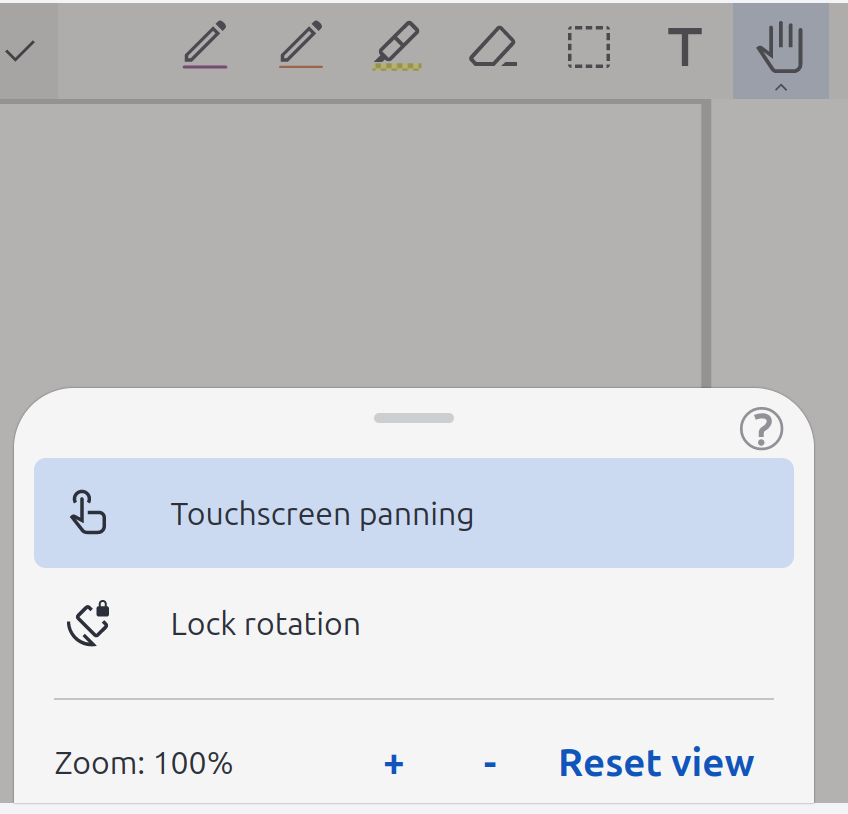
It's also possible to disable touch drawing. This can be useful when drawing with a stylus and can be done with either [PanZoomTool.setMode](https://personalizedrefrigerator.github.io/js-draw/typedoc/classes/js-draw.PanZoomTool.html#setMode) or, by a user, with the "hand" tool menu:
## User-configurable tools
With the default toolbar, users can change the pen style, color, and more:

It's possible for applications using `js-draw` to [add custom pen types](https://personalizedrefrigerator.github.io/js-draw/typedoc/modules/Additional_Documentation.CustomizingTools__.html) that can also be customized in this way. It's also possible to [save the toolbar state](https://github.com/personalizedrefrigerator/js-draw/blob/main/docs/examples/example-save-restore-toolbar-state/example.ts) and restore it after reloading the app.
## More features
`js-draw` also supports:
- Partial stroke erasing
- [Collaborative editing](https://github.com/personalizedrefrigerator/js-draw/tree/main/docs/examples/example-collaborative)
- Saving to and loading from a subset of SVG
# API
## Creating an `Editor`
### With a bundler that supports importing `.css` files
To create a new `Editor` and add it as a child of `document.body`, use the [Editor](https://personalizedrefrigerator.github.io/js-draw/typedoc/classes/js-draw.Editor.html#constructor) constructor:
```ts
import Editor from 'js-draw';
import 'js-draw/styles';
const editor = new Editor(document.body);
```
The `import js-draw/styles` step requires a bundler that can import `.css` files. For example, [`webpack` with `css-loader`.](https://webpack.js.org/loaders/css-loader/)
### With a bundler that doesn't support importing `.css` files
Import the pre-bundled version of the editor to apply CSS after loading the page.
```ts
import Editor from 'js-draw';
import 'js-draw/bundledStyles';
const editor = new Editor(document.body);
```
`js-draw/bundledStyles` is a version of the editor's stylesheets pre-processed by `es-build`. As such, `import`ing or including it with a `` tag applies editor-specific CSS to the document.
### Without a bundler
If you're not using a bundler, consider using the pre-bundled editor:
```html
const editor = new jsdraw.Editor(document.body);
editor.addToolbar();
editor.getRootElement().style.height = '600px';
```
**Note**: To ensure the CDN-hosted version of `js-draw` hasn't been tampered with, consider [including an `integrity="..."` attribute](https://developer.mozilla.org/en-US/docs/Web/Security/Subresource_Integrity). [Read more about using SRI with JSDelivr](https://www.jsdelivr.com/using-sri-with-dynamic-files).
## Adding a toolbar
To create a toolbar with buttons for the default tools:
```ts
const toolbar = editor.addToolbar();
```
Save and exit buttons can be added with the [`.addSaveButton`](https://personalizedrefrigerator.github.io/js-draw/typedoc/classes/js-draw.AbstractToolbar.html#addSaveButton) and [`.addExitButton`](https://personalizedrefrigerator.github.io/js-draw/typedoc/classes/js-draw.AbstractToolbar.html#addExitButton) methods:
```ts
toolbar.addSaveButton(() => {
const svgElem = editor.toSVG();
console.log('The saved SVG:', svgElem.outerHTML);
});
toolbar.addExitButton(() => {
// Save here?
// Removes the editor from the document.
editor.remove();
});
```
Custom actions can also be added to the toolbar. For example,
```ts
toolbar.addActionButton('Custom', () => {
// When the action button is pressed
});
```
or alternatively, with an icon,
```ts
toolbar.addActionButton(
{
label: 'Custom',
icon: editor.icons.makeSaveIcon(),
},
() => {
// Do something here
},
);
```
## Loading from SVG
```ts
editor.loadFromSVG(`
`);
```
**Note**: While `js-draw` supports only a small subset of the SVG markup language, it tries to preserve unrecognised SVG elements.
For example, although `js-draw` doesn't support `` elements,
```xml
```
renders as

but exports to
```xml
```
which **does** contain the `` element.
## Customizing the background
The background color and style can be customized with [editor.setBackgroundStyle](https://personalizedrefrigerator.github.io/js-draw/typedoc/classes/js-draw.Editor.html#setBackgroundStyle). For example,
```ts
import { Editor, Color4, BackgroundComponentBackgroundType } from 'js-draw';
const editor = new Editor(document.body);
editor.dispatch(
editor.setBackgroundStyle({
color: Color4.orange,
type: BackgroundComponentBackgroundType.Grid,
}),
);
```
Above, we use `editor.dispatch` because `setBackgroundStyle` returns a [`Command`](https://personalizedrefrigerator.github.io/js-draw/typedoc/classes/js-draw.Command.html), rather than changing the background style directly. `js-draw` uses `Command`s to track actions that can be undone and redone.
By default, `.dispatch` adds `Command`s to the undo stack. To avoid this, pass `false` for the second parameter to [`.dispatch`](https://personalizedrefrigerator.github.io/js-draw/typedoc/classes/js-draw.Editor.html#dispatch):
```ts
const addToHistory = false;
editor.dispatch(
editor.setBackgroundStyle({
color: Color4.orange,
type: BackgroundComponentBackgroundType.Grid,
}),
addToHistory,
);
```
### Making the background fill the screen
By default, the background has a fixed size and marks the region that will be saved by [`.toSVG`](https://personalizedrefrigerator.github.io/js-draw/typedoc/classes/js-draw.Editor.html#toSVG) or [`.toDataURL`](https://personalizedrefrigerator.github.io/js-draw/typedoc/classes/js-draw.Editor.html#toDataURL). It's possible to make the background auto-resize to the content of the image with [`editor.image.setAutoresizeEnabled(true)`](https://personalizedrefrigerator.github.io/js-draw/typedoc/classes/js-draw.EditorImage.html#setAutoresizeEnabled):
```ts
const editor = new Editor(document.body);
const addToHistory = false;
editor.dispatch(editor.image.setAutoresizeEnabled(true), addToHistory);
// Alternatively, using .setBackgroundStyle:
editor.dispatch(editor.setBackgroundStyle({ autoresize: true }), addToHistory);
```
## Saving
To save as an SVG, use [`editor.toSVG()`](https://personalizedrefrigerator.github.io/js-draw/typedoc/classes/js-draw.Editor.html#toSVG), which returns an `HTMLSVGElement`. Alternatively, if working with very large images that need to be saved in the background, consider using [`editor.toSVGAsync()`](https://personalizedrefrigerator.github.io/js-draw/typedoc/classes/js-draw.Editor.html#toSVG).
It's also possible to render the editor to a PNG or JPEG data URL. This can be done with [`editor.toDataURL()`](https://personalizedrefrigerator.github.io/js-draw/typedoc/classes/js-draw.Editor.html#toDataURL).
The region of the image that will be saved can be changed by calling [`editor.image.setImportExportRect`](https://personalizedrefrigerator.github.io/js-draw/typedoc/classes/js-draw.Editor.html#setImportExportRect) or
## Settings/configuration
### Disabling touchpad panning
Touchpad/mousewheel pan gestures can conflict with gestures used to scroll the document. To turn off touchpad pan gestures (and scrolling the editor with the mousewheel),
```ts
const editor = new Editor(document.body, {
wheelEventsEnabled: false,
});
```
Alternatively, to only enable touchpad panning when the editor has focus,
```ts
const editor = new Editor(document.body, {
wheelEventsEnabled: 'only-if-focused',
});
```
### Localization
If a user's language is available in [src/localizations/](packages/js-draw/src/localizations) (as determined by `navigator.languages`), that localization will be used.
To override the default language, use `getLocalizationTable([ 'custom locale here' ])`. For example,
```ts
const editor = new Editor(document.body, {
// Force the Spanish (Español) localizaiton
localization: getLocalizationTable(['es']),
});
```
Creating a custom localization
See [src/localization.ts](packages/js-draw/src/localization.ts) for a list of strings that can be translated.
Many of the default strings in the editor might be overridden like this:
```ts
const editor = new Editor(document.body, {
// Example partial Spanish localization
localization: {
// Not all translated strings need to be specified. If a string isn't given,
// the English (default) localization will be used
// Strings for the main editor interface
// (see packages/js-draw/src/localization.ts)
loading: (percentage: number) => `Cargando: ${percentage}%...`,
imageEditor: 'Editor de dibujos',
undoAnnouncement: (commandDescription: string) => `${commandDescription} fue deshecho`,
redoAnnouncement: (commandDescription: string) => `${commandDescription} fue rehecho`,
// Strings for the toolbar
// (see src/toolbar/localization.ts)
pen: 'Lapiz',
eraser: 'Borrador',
select: 'Selecciona',
thicknessLabel: 'Tamaño: ',
colorLabel: 'Color',
...
},
});
```
### Setting the minimum and maximum zoom
By default, the editor's minimum and maximum zoom are very large (2·10-10x and 1012x, respectively). These are configurable by the `minZoom` and `maxZoom` settings. For example,
```ts
const editor = new Editor(document.body, {
minZoom: 0.5,
maxZoom: 2,
});
```
## Changing the editor's color theme
The editor's color theme is specified using CSS. Its default theme looks like this:
```css
.imageEditorContainer {
/* Deafult colors for the editor -- light mode */
/* Used for unselected buttons and dialog text. */
--background-color-1: white;
--foreground-color-1: black;
/* Used for some menu/toolbar backgrounds. */
--background-color-2: #f5f5f5;
--foreground-color-2: #2c303a;
/* Used for other menu/toolbar backgrounds. */
--background-color-3: #e5e5e5;
--foreground-color-3: #1c202a;
/* Used for selected buttons. */
--selection-background-color: #cbdaf1;
--selection-foreground-color: #2c303a;
/* Used for dialog backgrounds */
--background-color-transparent: rgba(105, 100, 100, 0.5);
/* Used for shadows */
--shadow-color: rgba(0, 0, 0, 0.5);
/* Color used for some button/input foregrounds */
--primary-action-foreground-color: #15b;
}
@media (prefers-color-scheme: dark) {
.imageEditorContainer {
/* Default colors for the editor -- dark mode */
--background-color-1: #151515;
--foreground-color-1: white;
--background-color-2: #222;
--foreground-color-2: #efefef;
--background-color-3: #272627;
--foreground-color-3: #eee;
--selection-background-color: #607;
--selection-foreground-color: white;
--shadow-color: rgba(250, 250, 250, 0.5);
--background-color-transparent: rgba(50, 50, 50, 0.5);
--primary-action-foreground-color: #7ae;
}
}
```
To override it, use a more specific CSS selector to set the theme variables. For example,
```css
/* Notice the "body" below -- the selector needs to be more specific than what's in js-draw */
body .imageEditorContainer {
--background-color-1: green;
--foreground-color-1: black;
/* For this theme, use the same secondary and tertiary colors
(it's okay for them to be the same). */
--background-color-2: lime;
--foreground-color-2: black;
--background-color-3: lime;
--foreground-color-3: black;
--background-color-transparent: rgba(255, 240, 200, 0.5);
--shadow-color: rgba(0, 0, 0, 0.5);
--selection-background-color: yellow;
--selection-foreground-color: black;
}
```
disables the dark theme and creates a theme that primarily uses yellow/green colors.
See also [adjustEditorThemeForContrast](https://personalizedrefrigerator.github.io/js-draw/typedoc/functions/js-draw.adjustEditorThemeForContrast.html).
# Examples and resources
- [Examples](https://github.com/personalizedrefrigerator/js-draw/blob/main/docs/examples.md)
- [How to add a custom pen type](https://personalizedrefrigerator.github.io/js-draw/typedoc/modules/Additional_Documentation.CustomizingTools__.html#md:adding-a-new-pen-type)
- [A material icon theme for js-draw](https://personalizedrefrigerator.github.io/js-draw/typedoc/modules/_js-draw_material-icons.html#md:js-drawmaterial-icons)
- [More documentation](https://personalizedrefrigerator.github.io/js-draw/typedoc/modules/Guides.html)