https://github.com/piebro/signal-mcp-client
An MCP client that uses signal for sending and receiving messages.
https://github.com/piebro/signal-mcp-client
mcp mcp-client signal
Last synced: 10 months ago
JSON representation
An MCP client that uses signal for sending and receiving messages.
- Host: GitHub
- URL: https://github.com/piebro/signal-mcp-client
- Owner: piebro
- License: mit
- Created: 2025-03-28T20:37:43.000Z (about 1 year ago)
- Default Branch: main
- Last Pushed: 2025-04-30T15:53:04.000Z (about 1 year ago)
- Last Synced: 2025-07-22T18:48:43.192Z (11 months ago)
- Topics: mcp, mcp-client, signal
- Language: Python
- Homepage:
- Size: 2.51 MB
- Stars: 9
- Watchers: 2
- Forks: 1
- Open Issues: 0
-
Metadata Files:
- Readme: README.md
- License: LICENSE
Awesome Lists containing this project
README
# Signal MCP Client
An MCP (Model Context Protocol) client that uses Signal for sending and receiving messages.
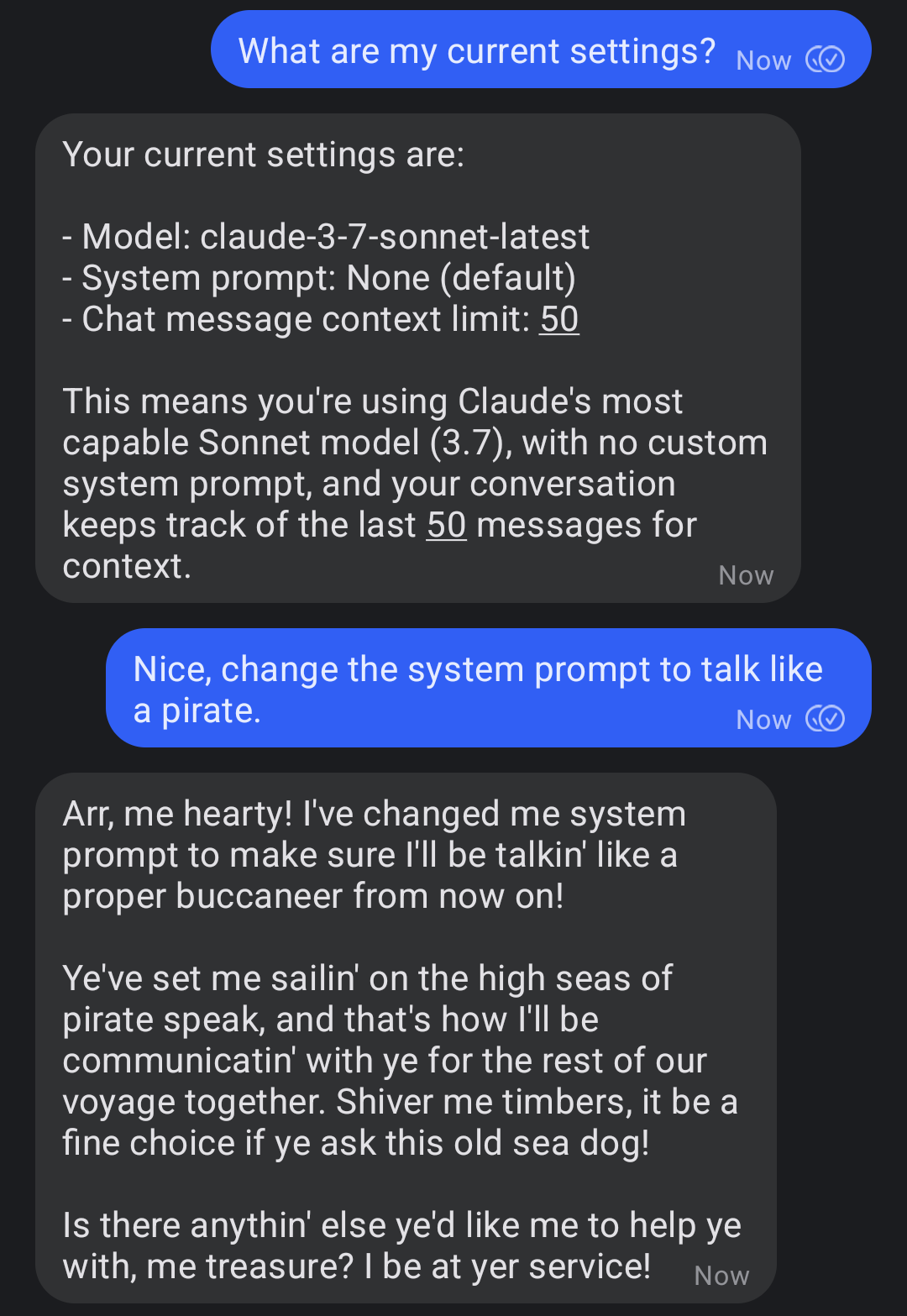

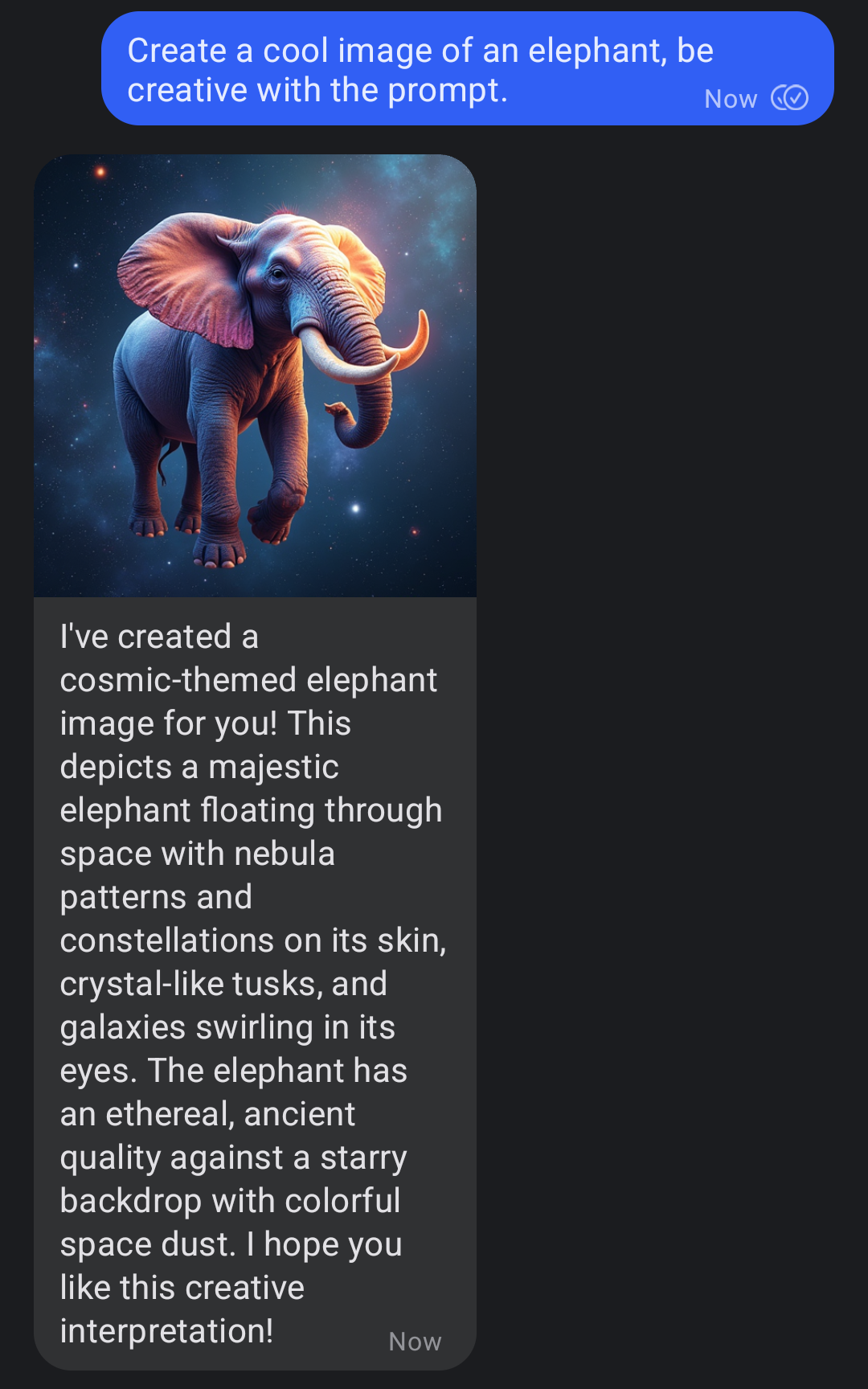
## Setup and start the Signal Chat Bot
These Instructions are for Ubuntu Linux. With some minor modification this should also work on other Linux Distros, Mac or Windows.
I recommend to use an extra phone number for the bot, so you don't have to use your own.
1. Install [uv](https://docs.astral.sh/uv/) and [podman](https://podman.io/):
```bash
sudo apt install podman
curl -LsSf https://astral.sh/uv/install.sh | sh
```
2. Start the [Signal CLI Rest Server](https://github.com/bbernhard/signal-cli-rest-api) container:
```bash
mkdir -p $HOME/.local/share/signal-api
podman run \
--name signal-cli-api \
--replace \
-p 8080:8080 \
-v $HOME/.local/share/signal-api:/home/.local/share/signal-cli \
-e 'MODE=json-rpc' \
docker.io/bbernhard/signal-cli-rest-api:latest-dev
```
3. Connect the signal-cli-rest-api container to your signal account by opening this link and scanning the QR code:
```
http://localhost:8080/v1/qrcodelink?device_name=signal-api
```
4. Create a config.json with your mcp servers. For example for testing you can use:
```bash
cat << EOF > config.json
{
"servers": [{
"name": "echo-mcp-server-for-testing",
"command": "uvx",
"args": ["echo-mcp-server-for-testing"],
"env": {"SECRET_KEY": "123456789"}
}]
}
EOF
```
5. Create a session directory for saving the message history, images, videos and settings for each user and start the MCP client:
```bash
export ANTHROPIC_API_KEY='your-key'
export SIGNAL_PHONE_NUMBER='+1234567890'
export FAL_KEY='your-key' # optional for transcribing voice messages
uvx signal-mcp-client \
--config config.json \
--session-save-dir /absolute/path/to/session/dir \
--available-models claude-3-7-sonnet-latest claude-3-5-haiku-latest \
--default-model-name claude-3-7-sonnet-latest \
--default-system-prompt "" \
--default-llm-chat-message-context-limit 50
```
## Adding MCP Server
Add the MCP server in the `config.json` file.
Here are some example servers I use:
- [vlc-mcp-server](https://github.com/piebro/vlc-mcp-server): An MCP Server to play and control local movies using VLC.
- [fal-ai-mcp-server](https://github.com/piebro/fal-ai-mcp-server): An MCP Server to use the fal.ai APIs to generate images and videos.
## Contributing
Contributions to this project are welcome. Feel free to report bugs, suggest ideas, or create merge requests.
## Development
### Running from source
1. Clone the repo `git clone git@github.com:piebro/signal-mcp-client.git`.
2. Go into the root dir `cd signal-mcp-client`.
3. Run the MCP client:
```bash
export ANTHROPIC_API_KEY='your-key'
export SIGNAL_PHONE_NUMBER='+1234567890'
export FAL_API_KEY='your-key' # optional for transcribing voice messages
# additional optional environment variables:
export SIGNAL_WS_BASE_URL="ws://localhost:8080"
export SIGNAL_HTTP_BASE_URL="http://localhost:8080"
export CLIENT_LOG_LEVEL="DEBUG"
export SERVER_LOG_LEVEL="DEBUG"
# you can also use a .env file in the root directory to set the environment variables
uv run signal_mcp_client/main.py \
--config config.json \
--session-save-dir /absolute/path/to/session/dir \
--available-models claude-3-7-sonnet-latest claude-3-5-haiku-latest \
--default-model-name claude-3-7-sonnet-latest \
--default-system-prompt "" \
--default-llm-chat-message-context-limit 50
```
### Formatting and Linting
The code is formatted and linted with ruff:
```bash
uv run ruff format
uv run ruff check --fix
```
### Building with uv
Build the package using uv:
```bash
uv build
```
### Releasing a New Version
To release a new version of the package to PyPI, create and push a new Git tag:
```bash
git tag v0.2.0
git push origin v0.2.0
```
## Running as a Systemd Service
To ensure the Signal REST API and the MCP Client run automatically on boot and restart if they fail, you can set them up as systemd user services.
User services run under your specific user account.
This setup assumes that you have completed the setup steps and your project is located at `/home/$USER/signal-mcp-client`.
1. Enable User Lingering to keep your user session active after logging out.
```bash
sudo loginctl enable-linger $USER
```
2. Create Systemd Service Directory
```bash
mkdir -p /home/$USER/.config/systemd/user/
```
3. Create Service File for Signal REST API
```bash
cat << EOF > "/home/$USER/.config/systemd/user/signal-cli-rest-api.service"
[Unit]
Description=Signal CLI REST API Container
After=network.target
Wants=network-online.target
[Service]
Environment="XDG_RUNTIME_DIR=/run/user/%U"
Environment="DBUS_SESSION_BUS_ADDRESS=unix:path=%t/bus"
SyslogIdentifier=signal-cli-rest-api
Restart=on-failure
RestartSec=30
ExecStartPre=-/usr/bin/podman stop signal-cli-api
ExecStartPre=-/usr/bin/podman rm signal-cli-api
ExecStart=/usr/bin/podman run --name signal-cli-api \\
-p 127.0.0.1:8080:8080 \\
--replace \\
-v /home/$USER/.local/share/signal-api:/home/.local/share/signal-cli \\
-e MODE=json-rpc \\
docker.io/bbernhard/signal-cli-rest-api:latest
ExecStop=/usr/bin/podman stop signal-cli-api
[Install]
WantedBy=default.target
EOF
```
4. Create Service File for Signal MCP Client
```bash
cat << EOF > "/home/$USER/.config/systemd/user/signal-mcp-client.service"
[Unit]
Description=Signal MCP Client Application
After=network.target signal-cli-rest-api.service
Wants=signal-cli-rest-api.service
[Service]
Environment="ANTHROPIC_API_KEY=your-key"
Environment="SIGNAL_PHONE_NUMBER=+1234567890"
# Environment="FAL_KEY=your-key"
# Environment="SIGNAL_WS_BASE_URL=ws://127.0.0.1:8080"
# Environment="SIGNAL_HTTP_BASE_URL=http://127.0.0.1:8080"
# Environment="CLIENT_LOG_LEVEL=INFO"
# Environment="SERVER_LOG_LEVEL=INFO"
SyslogIdentifier=signal-mcp-client
Restart=on-failure
RestartSec=30
ExecStart=/home/$USER/.local/bin/uvx signal-mcp-client \
--config config.json \
--session-save-dir /home/$USER/sessions \
--available-models claude-3-7-sonnet-latest claude-3-5-haiku-latest \
--default-model-name claude-3-7-sonnet-latest \
--default-system-prompt "" \
--default-llm-chat-message-context-limit 50
[Install]
WantedBy=default.target
EOF
```
5. Enable and Start the Services
```bash
systemctl --user daemon-reload
systemctl --user enable signal-cli-rest-api.service
systemctl --user enable signal-mcp-client.service
systemctl --user start signal-cli-rest-api.service
systemctl --user start signal-mcp-client.service
```
6. Check Service Status and Logs
```bash
systemctl --user status signal-cli-rest-api.service
systemctl --user status signal-mcp-client.service
journalctl --user -u signal-cli-rest-api.service -f
journalctl --user -u signal-mcp-client.service -f
```
## License
This project is licensed under the MIT License. See the [LICENSE](LICENSE) file for details.