https://github.com/pioupia/auto-input-a2f
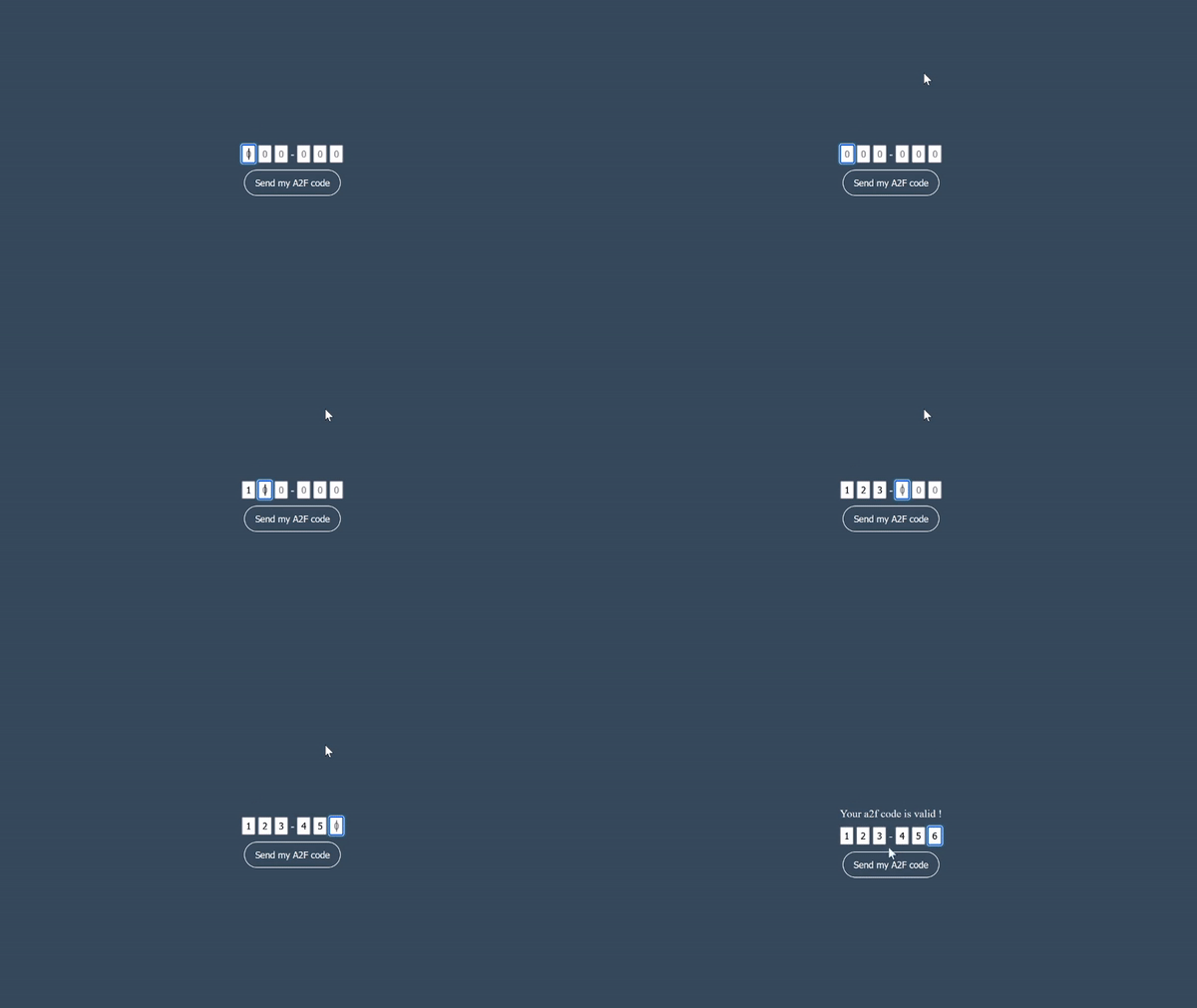
Allows you to automatically change input once it is filled in. Then validate the form when all inputs are filled in correctly.
https://github.com/pioupia/auto-input-a2f
a2f autoinput javascript javascript-library
Last synced: 6 months ago
JSON representation
Allows you to automatically change input once it is filled in. Then validate the form when all inputs are filled in correctly.
- Host: GitHub
- URL: https://github.com/pioupia/auto-input-a2f
- Owner: pioupia
- License: mit
- Created: 2021-08-09T08:18:52.000Z (almost 5 years ago)
- Default Branch: main
- Last Pushed: 2024-08-05T12:26:23.000Z (almost 2 years ago)
- Last Synced: 2025-10-06T11:25:49.918Z (10 months ago)
- Topics: a2f, autoinput, javascript, javascript-library
- Language: JavaScript
- Homepage: https://pioupia.github.io/auto-input-a2f/
- Size: 117 KB
- Stars: 0
- Watchers: 1
- Forks: 0
- Open Issues: 0
-
Metadata Files:
- Readme: README.md
- License: LICENSE
Awesome Lists containing this project
README
[](https://www.npmjs.com/package/auto-input-a2f)
[](https://www.npmjs.com/package/auto-input-a2f)
# Auto Input for 2FA fields
Allows you to automatically change input once it is filled in. Then validate the form when all inputs are filled in correctly.
## Table of content:
- [Installation](#installation)
- [npm](#npm)
- [sources](#from-sources)
- [Usage](#usage)
- [import](#import)
- [Init the class](#initiate-the-class)
- [Methods](#methods)
- [Example](#example)
- [Automatic fields creation](#automatic-fields-creation)
- [Improved customization](#manual-fields-creation)
## Installation
### npm:
With npm:
```sh
npm i auto-input-a2f
```
With pnpm:
```sh
npm i auto-input-a2f
```
With yarn:
```sh
yarn add auto-input-a2f
```
If you are using a web server such as [`expressjs`](http://expressjs.com/), you need to set the file as static files to serve them. For example, for `expressjs` you'll need:
```js
app.use(express.static('/node_modules/auto-input-a2f/dist/'));
```
In your html file :
```html
```
For all other files, you can [get the shashum below](#minified-javascript)
### From sources:
#### Minified JavaScript:
```html
```
#### Unminified JavaScript:
```html
```
## Usage
### Import
For `module` type, you'll need to import correctly the `AutoInput` class:
```js
import AutoInput from "./autoinput.esm.js";
```
### Initiate the class:
First of all, you need to instantiate the `AutoInput` class:
```js
const autoinput = new AutoInput(options);
```
The class could take some `options` as an `object`. All options are optional.
name | type | default value | description
---- | ---- | ------------- | -----------
`autoEnd` | `boolean` | `true` | Fired an event when the text is completed.
`selectAuto` | `boolean` | `true` | Will automatically focus the first input field (just after initializing fields).
`canPast` | `boolean` | `true` | Enable / disable pasting in fields.
`createAuto` | `boolean` | `false` | Will automatically create input field for you.
`buttonCallback` | `boolean` | `false` | Add the `onClick` listener on the `validate` button. If the user click on that one, this will trigger automatically the [`callback` function](#onvalidate).
`beforeFire` | `number` | `400` | Will waits `beforeFire` milliseconds before firing the automatic event.
`onCreate` | `Function` | `null` | The callback when creates the input fields. This allows you to add some property on the `HTMLElement` or change it completly.
`parent` | `HTMLElement` | `#a2fParent` or `[data-parent-a2f]` | The parent element into which the input fields will be injected.
`validate` | `HTMLElement` | `[data-button-validate]` | The submit button to validate the 2fa code.
If you don't want the `createAuto` option, you can create input yourself. But keep in mind that they need to have the `data-a2f` attributes.
#### `autoEnd`:
This option will fired the `callback` function, and click on the `validate` button when the 2FA code is completely filled.
The [`callback` function](#onvalidate) can be registered by calling the public `onValidate` method.
#### `createAuto`:
This option will automatically create the input fields for you. The elements will be `appendChild` to the `parent` HTMLElement. During the creation of the input fields, if the `onCreate` callback is defined, it'll be fired for each input field.
The number of created field is 6.
#### `buttonCallback`:
If enabled, when the `autoEnd` option is enabled, it will emit the `onClick` event on the `validate` HTMLButton.
#### `beforeFire`:
The time in miliseconds waited by the class before calling the [`callback` function](#onvalidate), and fired the `onClick` event.
#### `onCreate`:
This function will be called when the input fields are created. The function will take the create `HTMLElement` as argument, and should also returned an `HTMLElement` which will be added to the DOM. If nothing is returned from the function, the element will not be added.
This can be usefull if you want to add custom classes or attributes to the input fields. Or if you want to change the type of the input fields, by adding a more complex structure to it.
However, you can also completely remove the field if you do not want it.
### Methods:
#### `onValidate`:
This method will register the `callback` function. The `callback` function will be called when the 2FA code is completely filled with the [`autoEnd` option](#autoend) enabled, or if the user click on the `validate` button and the [`buttonCallback` option](#buttoncallback) is enabled.
Callback function prototype:
```ts
function onValidate(code: string): void;
```
#### `getCode`:
This function allows you to get the 2FA code. It will return a `string` with the 2FA code.
If all fields are not complete, the function will still return a string with the fields filled in.
For example, if your field 0, 1, 3 and 5 are field with:
`5 2 . 4 . 1`, the function will return `5241`.
Function prototype:
```ts
function getCode(): string;
```
#### `removeEntries`:
Allows you to clear each input fields values. Just a simple for reset.
Function prototype:
```ts
function removeEntries(): void;
```
#### `stopAutoEnd`:
This function will disable the `autoEnd` option. This can be usefull if you want to disable the automatic validation when the 2FA code is completely filled.
Function prototype:
```ts
function stopAutoEnd(): void;
```
#### `startAutoEnd`:
This function will enable the `autoEnd` option. This can be usefull if you want to enable the automatic validation when the 2FA code is completely filled and you got an error for example.
Function prototype:
```ts
function startAutoEnd(): void;
```
#### `toggleAutoEnd`:
This function will toggle the `autoEnd` option.
Function prototype:
```ts
function toggleAutoEnd(): void;
```
## Example:
### Automatic fields creation
For example, you want to create automatically 6 input fields, and validate the form when all fields are filled in correctly after 800 miliseconds.
Because we have the `buttonCallback` enabled, if the user click on the validation button, the `onValidate` function will be automatically called.
But we can have a problem if the user is going to click on the `validate` button before the 800 miliseconds. To avoid this, we can disable the `buttonCallback` option by calling the `stopAutoEnd` method during the server verification.
> ⚠️ This will not disabled the `onValidate` function call when the user click on it.
For each created input fields, we want to add some classes to it. We can do this by using the `onCreate` callback.
If the input field is a `SPAN`, we don't want a `span` element (the dash `-` between the input fields) to be added to the DOM. So we can return `null` in this case.
Otherwise, we'll add some classes to our element. But if the inserted element is the fourth one, we'll add a margin to the left. Then, we'll return the element.
```js
const input = new AutoInput({
createAuto: true,
parent: document.getElementById("2fa_container"),
validate: document.getElementById("validate_2fa_code"),
buttonCallback: true,
beforeFire: 800,
onCreate: (element, i) => {
if (element.tagName === "SPAN")
return (null);
element.classList.add("form-control");
element.classList.add("otp_input");
element.classList.add(i === 3 ? "ms-3" : "ms-1");
element.classList.add("me-1");
element.classList.add("text-center");
return (element);
}
});
function onValidate(code) {
// do something with the code...
input.stopAutoEnd();
fetch("/api/code", {
method: "POST",
body: JSON.stringify({ code }),
headers: {
"Content-Type": "application/json"
}
}).then(res => {
if (res.ok) {
// do something...
} else {
// do something...
// enable the autoEnd
input.startAutoEnd();
// clear the input fields
input.removeEntries();
}
});
}
input.onValidate(onValidate);
```
### Manual fields creation
For example, you want a static complex structure, or have a different of input fields, that'll not be generated by JavaScript or by the script because it's too complex.
You can create your complex structure. Just think of the only thing needed by `auto-input-a2f` is that your `input` field exists and has at least a `data-a2f` attribute.
```html
Valdidate
```
Same thing than for the previous example:
```js
const input = new AutoInput({
parent: document.getElementById("2fa_container"),
validate: document.getElementById("validate_2fa_code"),
buttonCallback: true,
beforeFire: 800
});
function onValidate(code) {
// do something with the code...
input.stopAutoEnd();
fetch("/api/code", {
method: "POST",
body: JSON.stringify({ code }),
headers: {
"Content-Type": "application/json"
}
}).then(res => {
if (res.ok) {
// do something...
} else {
// do something...
// enable the autoEnd
input.startAutoEnd();
// clear the input fields
input.removeEntries();
}
});
}
input.onValidate(onValidate);
```
And you'll have the same behavior. Just, the only difference is that you'll only have 4 fields.