https://github.com/piyalidas10/git-tutorials
Git commands
https://github.com/piyalidas10/git-tutorials
git interview interview-questions
Last synced: 10 months ago
JSON representation
Git commands
- Host: GitHub
- URL: https://github.com/piyalidas10/git-tutorials
- Owner: piyalidas10
- Created: 2024-06-29T08:07:00.000Z (about 2 years ago)
- Default Branch: main
- Last Pushed: 2025-02-05T12:54:18.000Z (over 1 year ago)
- Last Synced: 2025-03-15T02:32:30.550Z (over 1 year ago)
- Topics: git, interview, interview-questions
- Homepage:
- Size: 6.92 MB
- Stars: 0
- Watchers: 1
- Forks: 1
- Open Issues: 0
-
Metadata Files:
- Readme: README.md
Awesome Lists containing this project
README
# Git Essential Commands
Git is a version control system. Git helps you keep track of code changes.
A — Files added to stage
M — Modified files
D — Deleted files
### 1. Update local current feature branch with Develop/Master branch
Answer
####
```
$ git stash ---------- save you local changes / untracked files
$ git pull origin develop -------- if want to pull from develop branch
$ git stash apply -------- apply you local changes on develop branch's changes
resolve merge conflict if you have
```
---
### 2. Push local repository content to a remote repository
Answer
####
```
$ git status
$ git add . ---------------------------------------- move your local working directory changes to staging are
$ git commit -m "commit msg" ---------------------- commit your all changes
commit few particular files
============================================================
git commit file1 file2 file5 -m "commit message"
Note: git reset -------- opposit of "git add .". revet your staging changes to local working directory
if remote repository already exists in git
===========================================================
$ git push
if remote repository not exists in git
===========================================================
$ git push --set-upstream origin
OR
$ git push -u origin
```
Let me explain you using VS code. In VS code, we have changes & stage changes section in left panel. Will be easy to relate with VS Code.
```
git add . ------------ Move all local changed files to stage changes
git add scm-provider-category.png --------- only move particular file to stage changes
```
)
if you want to un-stage the file (scm-provide-category.png)
```
git reset ------------- unstage all stage changes file & move back to changes section
git reset scm-provider-category.png -------- unstage only a particular file
```
---
### 3. Checkout command uses
Answer
####
Let’s say, you already pushed a file contact.html with your codes. now someone mistakenly change/delete your contact.html file. Then using git status you can see your modified files details like the following way.
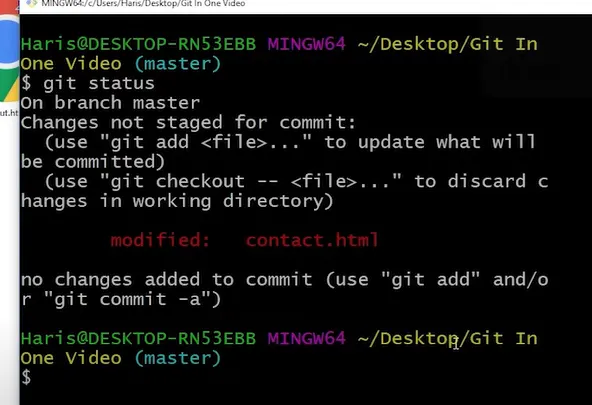
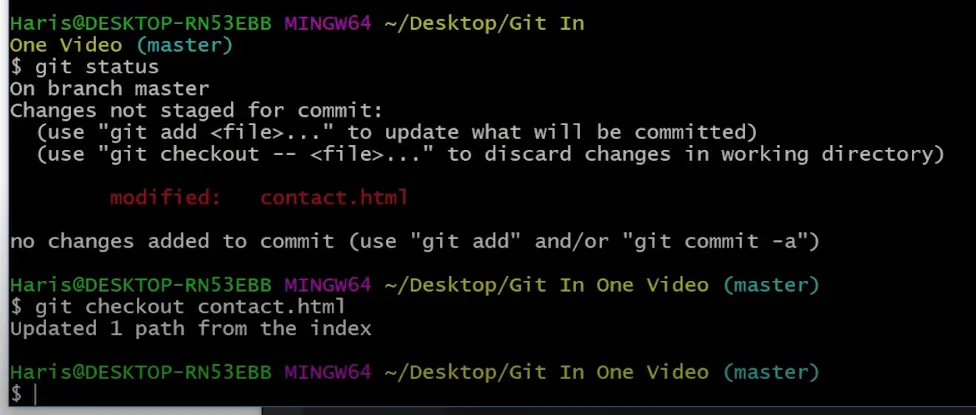
Now how you will get your already pushed contact.html file? Here checkout command comes to help. The checkout command retrieve the already pushed contact.html file with changes.
```
git checkout commands match your working directory with the last commit
match contact.html file of working directory with your last commited contact.html file
======================================================================
$ git checkout contact.html
match all files of working directory with your last commit
======================================================================
$git checkout -f
```
---
### 4. Git Diff
Answer
####
git diff compares working tree with staging area.
git diff command allows us to track the changes that are staged but not committed
Let’s say, i have changed a file file.txt of my working directory. I want to compare my latest changed file.txt with my staging file.txt file. staging file not committed file.
```
Compare all current working directory changes with Staging area or previous commited changes one by one
=====================================================================
$ git diff
Compare one particular file of current working directory with Staging area or previous commited change
========================================================================
$ git diff contact.html
```
red color highlights replaced text, green color newly added text
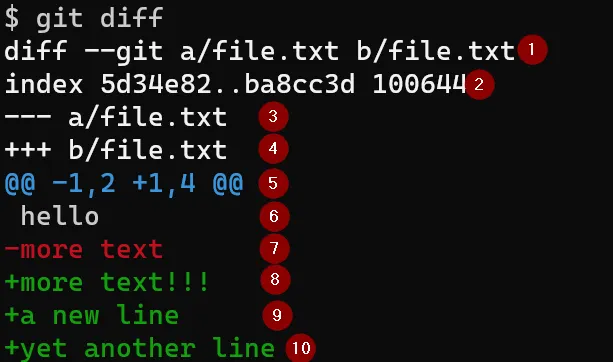
if you run command “git add file.txt”, now again run command “git diff”. It will not show anything. Because “git add file.txt” already pushed my changed file to stage.
If i want to compare staging area with last commit : `git diff — staged`
---
### 5. Git configure for first time in your local
Answer
####
```
$ git config --global user.name "Firstname Lastname"
$ git config --global user.email "myemail@example.com"
```
---
### 6. Want to display global name & email already stored in you local Git
Answer
####
```
$ git config --global user.name "Firstname Lastname"
$ git config --global user.email "myemail@example.com"
```
---
### 7. Git Initialize
Answer
####
```
$ git init --------- initialize empty git repo
$ ls -lart --------- show all hidden folders of the current folder. you can see .git folder
```
---
### 8. Clone a repository
Answer
####
create a folder -> go inside the folder -> run git bash
```
git clone
```
---
### 9. Merge local branch to master
Answer
####
```
$ git checkout master
$ git merge
$ git push -u origin master
```
---
### 10. Delete Local Branch
Answer
####
```
git branch -D
```
---
### 11. Delete Remote Branch
Answer
####
```
$ git checkout master
$ git push origin --delete
```
---
### 12. Display all local branches. For current branch, display with * In front of the branch name & green color for black git background
Answer
####
```
git branch
```
---
### 13. Create Branch
Answer
####
```
git branch
```
---
### 14. Create & switching a New branch
Answer
####
```
git checkout -b
```
---
### 15. Change Branch
Answer
####
```
git checkout
```
---
### 16. Pull changes from existing current branch
Answer
####
let’s say that you are in a branch (feature-user). if you want to pull changes of that
```
git pull
```
---
### 17. Pull changes from other branch in current branch
Answer
####
let’s say that you are in a branch (feature-user). if you want to pull changes of that
```
git pull origin
if getting screen like the following, then to EXIT from the screen press :q from the keyboard
```
[https://i.sstatic.net/aJC2R.png]
---
### 18. Pull all remote branches
Answer
####
```
git pull — all
```
---
### 19. Display untacked files in you local
Answer
####
```
git status
```
---
### 20. Remove File
Answer
####
git rm command deletes files both from the Git repository as well as the filesystem.
```git rm ```
git rm — cached removes the file only from the Git repository, but not from the filesystem.
```git rm — cached ```
---
### 21. Fetching Remote repository data
Answer
####
git pull copies changes from a remote repository directly into your working directory, while git fetch does not. The git fetch command only copies changes into your local Git repo.
```
git fetch
```
---
### 22. Ignoring by GIT
Answer
####
Git will not track files and folders specified in .gitignore. When sharing your code with others, there are often files or parts of your project, you do not want to share.
Examples
log files
temporary files
hidden files
personal files
etc.
---
### 23. Git logger details (how many commits with files info like author’s email, date)
Answer
####
```
git log --------- all previous commits details
git log -p -5 --------- will display only last 5 commits
press Q to quit to excapse from displaying git log details
```
---
### 24. Display list of all Git configurations
Answer
####
```
$ git config - global - list
user.name=Firstname Lastname
user.pasword=Admin@12 -------------------- demo test password
user.email=myemail@example.com
git config --global --get user.name -------------------- shows your username.
git config --global --get user.email -------------------- displays your email.
git config --global credential.helper -------------------- verify credentials.
git config --global
```
---